Galaxy EX ProFlow Module.pdf - 第11页
PR O FLO W MO DU LE ADJUSTMENT S AND SETTINGS Ch apte r Issue 4, Jun 18 Tech nical Ref erenc e Ma nual 11. 11 28. R eche c k the ga p be twe en the s tencil su pp ort an d the c ar rier to p fac e, ensure the gap is less…
PROFLOW MODULE
ADJUSTMENTS AND SETTINGS
11.10 Technical Reference Manual Chapter Issue 4, Jun 18
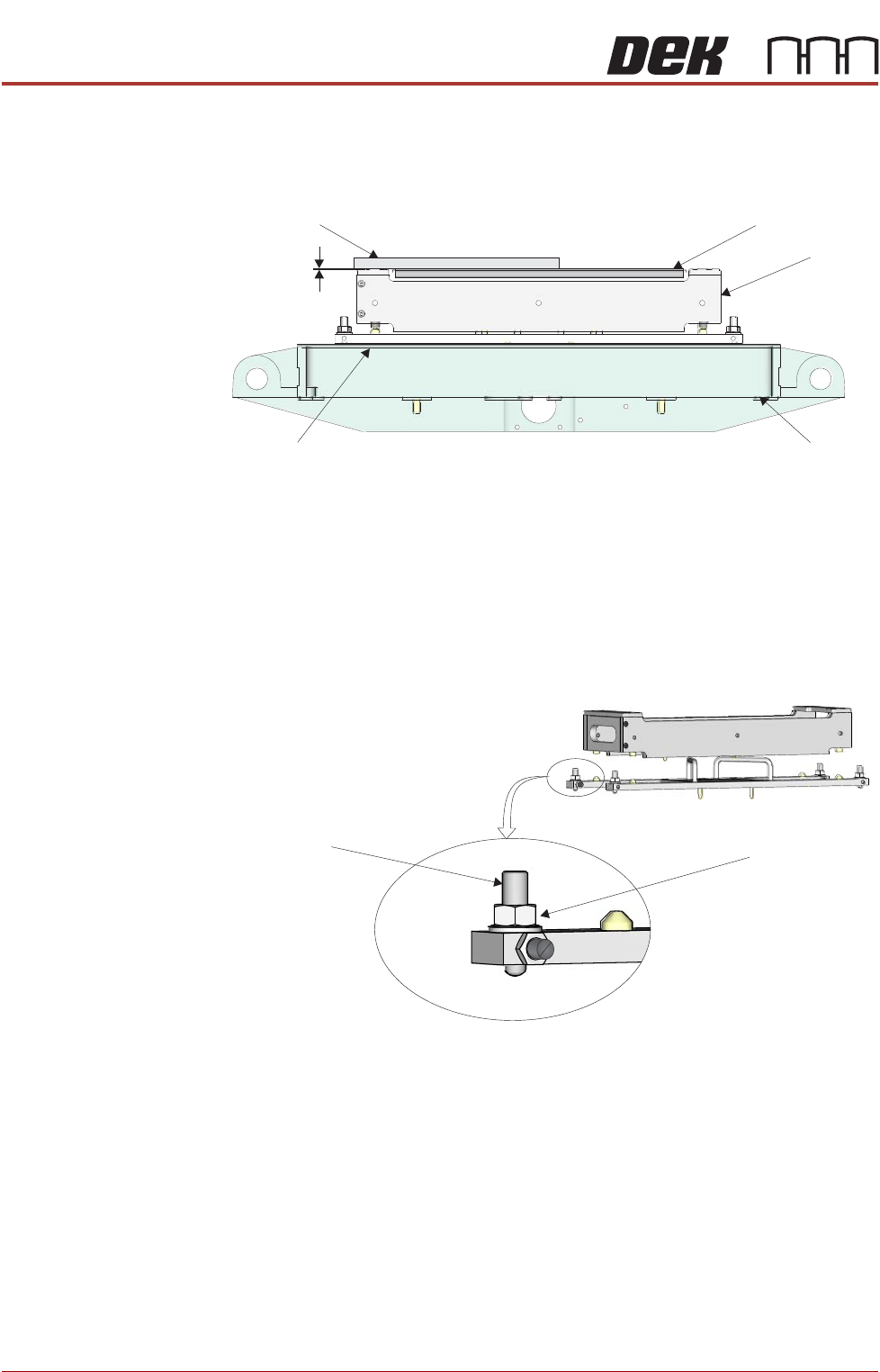
22. Using a suitable straight edge, place it across one corner of the carrier and
the stencil support and check levelness between the support and the car-
rier.
23. Ensure the gap between the stencil support and the carrier top face is less
than 0.05mm.
a. If adjustment is required, go to Step 24.
b. Or, if adjustment is not required, go to Step 31.
24. Loosen the tooling base foot locknut using a 13mm spanner.
25. Adjust the height of the foot as required using a 4mm Allen key.
26. Recheck the gap between the stencil support and the carrier top face,
ensure the gap is less than 0.05mm.
a. If further adjustment is required repeat Step 25.
b. Or, if no further adjustment is required, go to Step 27.
27. Carefully tighten the tooling base locknut using a 13mm spanner.
Front View on Rising Table
Straight Edge
Carrier
HVM Tooling
Manual Tooling Plate
Rising Table
Gap < 0.05mm
View on Adjustable Foot (in 4 positions)
Adjustable Foot Locknut
Adjustable Foot

PROFLOW MODULE
ADJUSTMENTS AND SETTINGS
Chapter Issue 4, Jun 18 Technical Reference Manual 11.11
28. Recheck the gap between the stencil support and the carrier top face,
ensure the gap is less than 0.05mm.
a. If further adjustment is required repeat Steps 24 to 27.
b. Or, if no further adjustment is required, go to Step 29.
29. Repeat Steps 22 to 28 for the other three corners of the carrier.
30. Close the front printhead cover.
31. Press the System button.
32. Select Back.
33. Select Transport Height.
34. Select Unload Board.
35. Remove the carrier from the output conveyor.
36. Select Back.
37. Select Back to return to the Ready page.
The ProFlow HVM tooling is now setup to the machine. Ensure the tooling
base is annotated with the machine ID.
PROFLOW MODULE
REPLACEMENT PROCEDURES
11.12 Technical Reference Manual Chapter Issue 4, Jun 18
REPLACEMENT PROCEDURES
Squeegees to
ProFlow
Instances may occur when the machine is required to print using the ProFlow
module configuration. The following procedure details how to revert the
machine from squeegee use to the ProFlow configuration:
Removing
Squeegees
1. Select Open Cover Commands.
2. Select Carriage To Front.
3. Select Back.
4. Select Shut Down.
5. Select Continue.
6. Switch the mains isolator to OFF.
7. Remove the squeegees, if fitted.
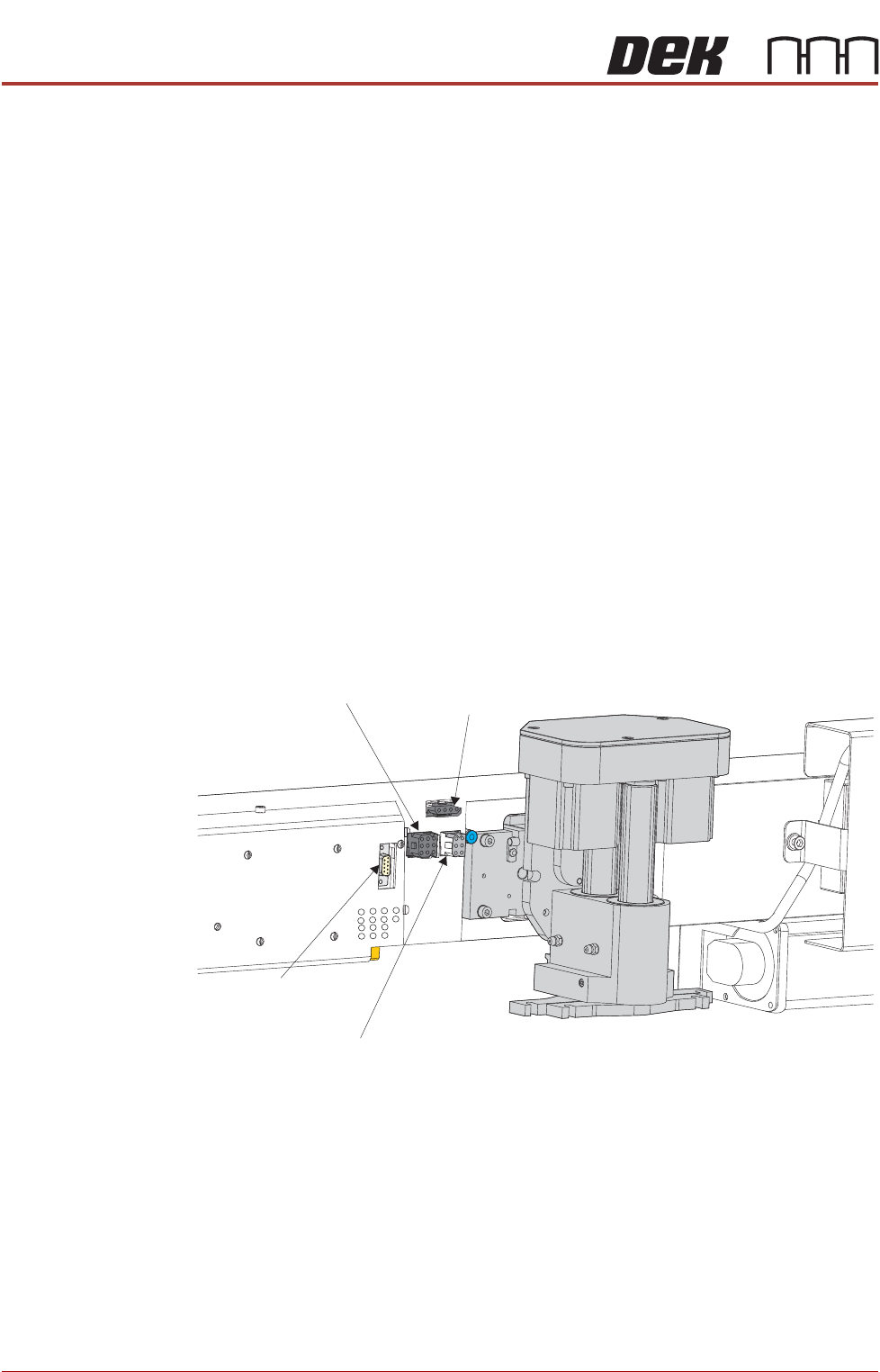
8. Disconnect the four squeegee mechanism connectors from the print car-
riage, left hand side:
• Rear Squeegee Motor
• Front Squeegee Motor
• Home Sensors
• Squeegee Pressure Amplifier
! "#