00198051-02_IM_SetupCenter_8.1_EN.pdf - 第31页
Setup Center Application Installation 5.2.3 Setup Type – SIPLACE Setup Center Server Individual Setup Types and Next Steps Installation Manual SIPLACE Setup Center 8.1 31 ► Click Finish . 5.2.3 5 . 2 . 3 S e t u p T y p …
Setup Center Application Installation
Individual Setup Types and Next Steps 5.2.2 Setup Type – SIPLACE Setup Center GUI
30 Installation Manual SIPLACE Setup Center 8.1
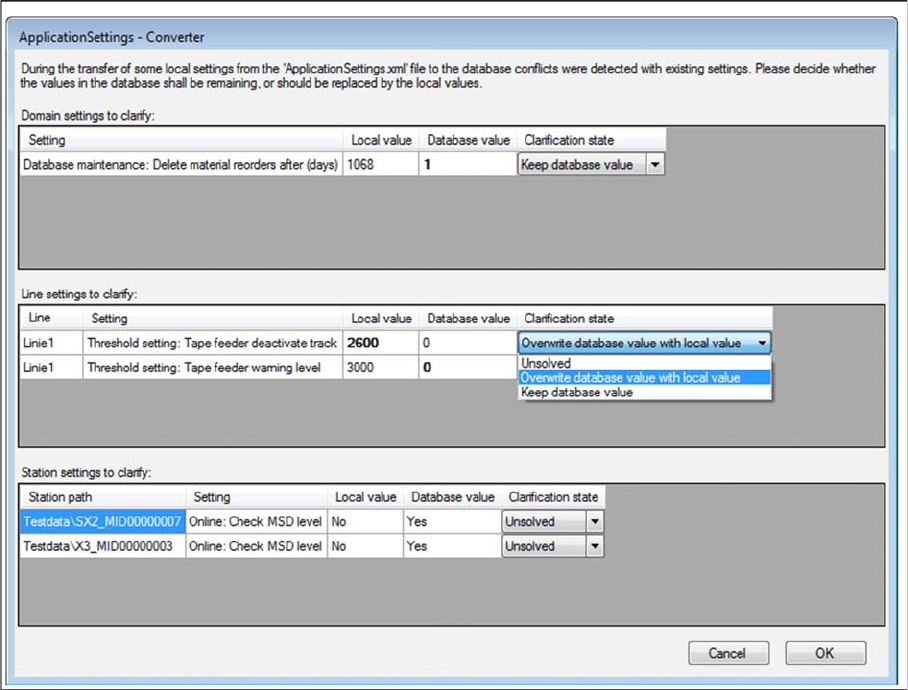
► Decide whether the values in the database shall remaining (Keep database value), or should be re
-
placed by the local values (Overwrite database value with local value).
► All settings must be solved to get the next step.
Step 4
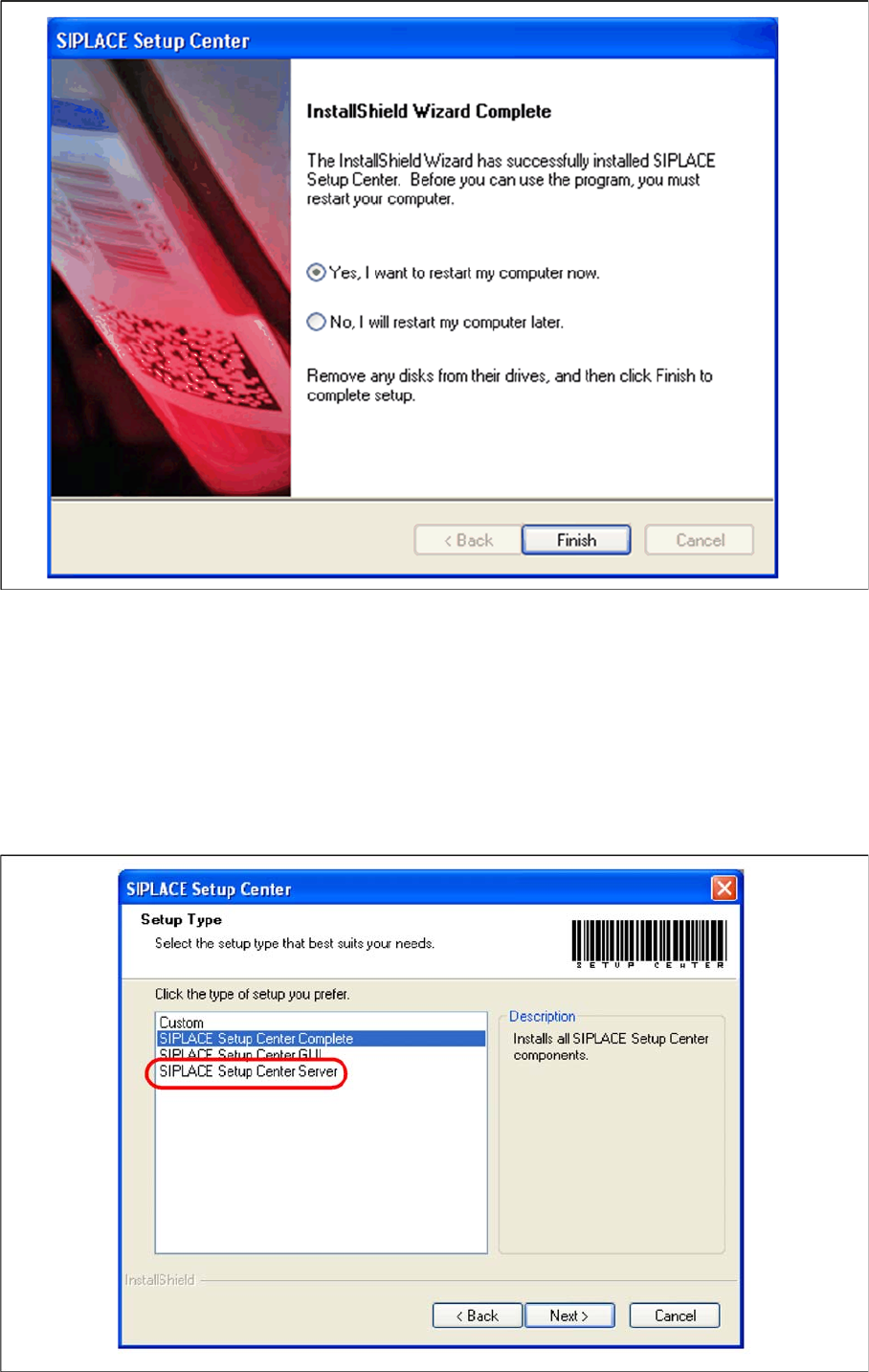
► The "Installation Complete" window appears if the installation has been completed successfully.
Setup Center Application Installation
5.2.3 Setup Type – SIPLACE Setup Center Server Individual Setup Types and Next Steps
Installation Manual SIPLACE Setup Center 8.1 31
► Click Finish.
5.2.3
5.2.3 Setup Type – SIPLACE Setup Center Server
Setup Type – SIPLACE Setup Center Server
This setup type contains the database components of the SIPLACE Setup Center. Setup detects if SQL
Server has already been installed. Select this type to install the SIPLACE Setup Center database to a
SQL Server.
Step 1
► Run through the steps in chapter "General Settings".
Setup Center Application Installation
Individual Setup Types and Next Steps 5.2.3 Setup Type – SIPLACE Setup Center Server
32 Installation Manual SIPLACE Setup Center 8.1
► Select the SIPLACE Setup Center Database setup type.
► Click Next.
Step 2
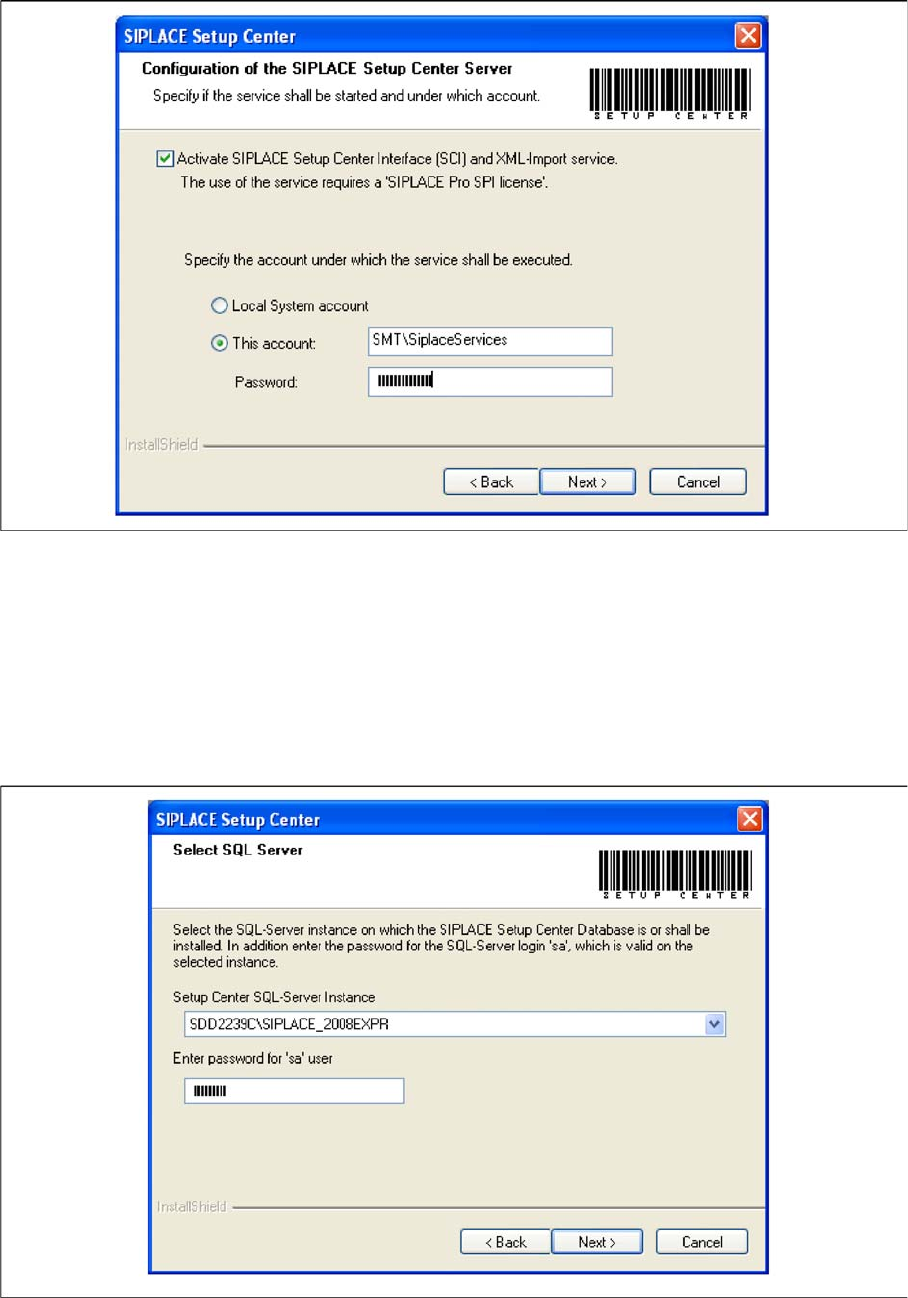
► Tick the checkbox if the SIPLACE Setup Center Service is to be started.
► Select the account from which the Service is to be started (local system or a customer-specific ac
-
count).
► Click Next.
Step 3
► Enter the information required to be connected with the SQL Server and database in the Select SQL-
Server dialog box.