00198051-02_IM_SetupCenter_8.1_EN.pdf - 第52页
Barcode-Scanner Installation Datalogic Scanner 6.2.3 Datalogic Scanner’s Cradle BC-8030-BT (B luetooth ) 52 Installation Manual SIPLACE Setup Center 8.1 Unlink the barcode scanner If the barcode scanner was previously li…
Barcode-Scanner Installation
6.2.2 Datalogic Scanner`s Cradle BC-9030 (Narrowband) Datalogic Scanner
Installation Manual SIPLACE Setup Center 8.1 51
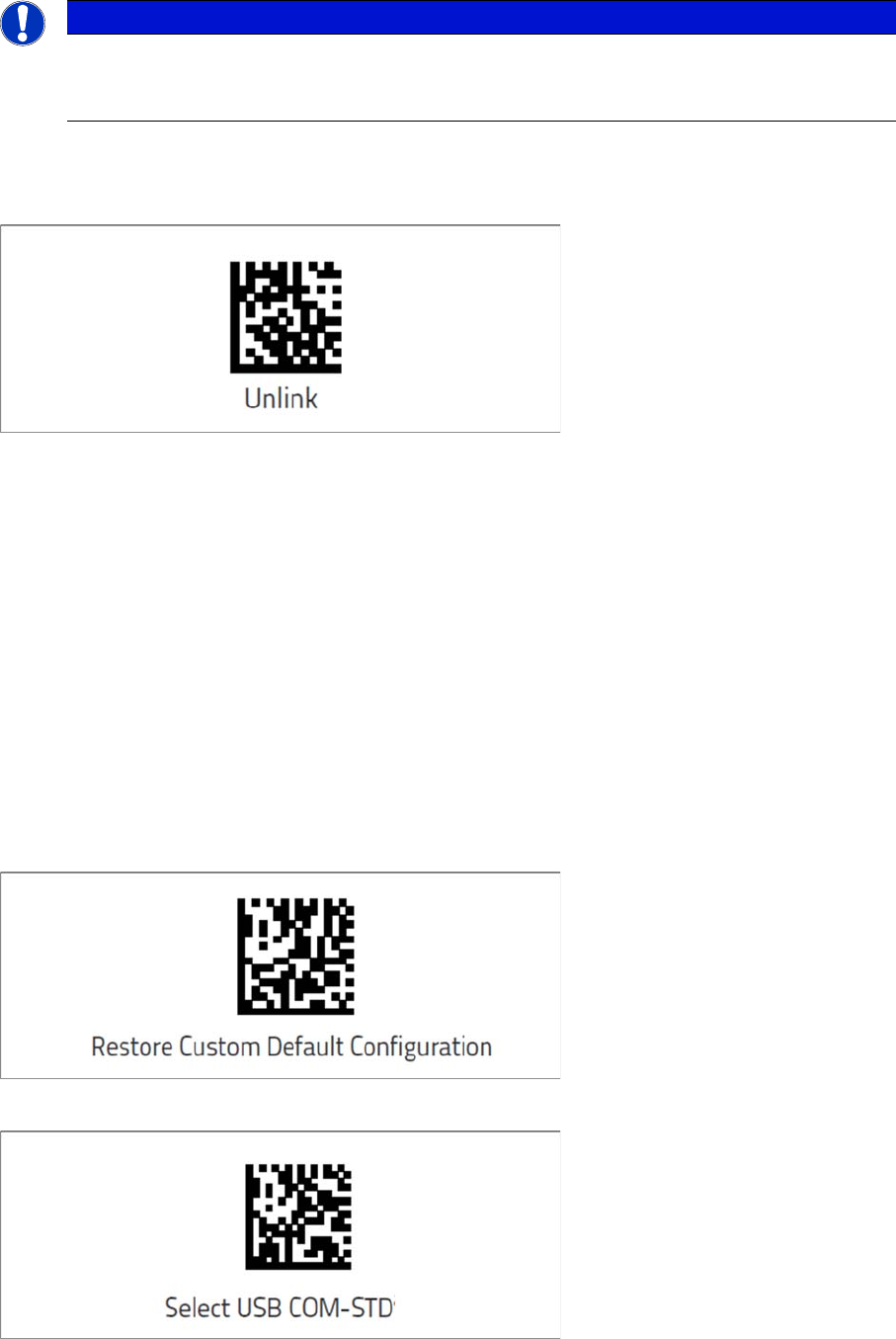
Unlink the barcode scanner
If the barcode scanner was previously linked to another cradle, you must first press and hold the button
on the cradle (> 5 sec.).
► Scan the Unlink barcode before re-linking to the new cradle.
6.2.2.2
6.2.2.2 Connect cradle via USB
Connect cradle via USB
Installation of the USB-COM driver
For connection via USB, you must install the USB-COM driver first.
The installation packages for 32 bit and 64 bit operating systems are located in the “\3rdparty install
-
er\Datalogic\USB-COM Driver” directory of the Setup Center installation CD. For installation please refer
to "6.2.6 Installation of the USB-COM driver" [ ➙ 58].
Steps to configure the cradle to the USB-COM interface
Connecting
Before configuring the interface it is necessary to link the barcode scanner to the cradle.
To link the barcode scanner to the cradle, press the trigger to wake up the barcode scanner and mount
it into the cradle. To confirm that the scanner has been successfully connected to the cradle, it will beep
several times and the LED will flash.
► Scan the Restore Custom Default Configuration barcode.
► Scan the Select USB-COM-STD barcode.
⇨ The cradle is now ready for use with Setup Center.
NOTICE
Unlink the barcode scanner
To confirm that the scanner has been successfully connected to the cradle, it will beep several
times and the LED will flash. If this is not the case, you will need to perform an Unlink.
Barcode-Scanner Installation
Datalogic Scanner 6.2.3 Datalogic Scanner’s Cradle BC-8030-BT (Bluetooth)
52 Installation Manual SIPLACE Setup Center 8.1
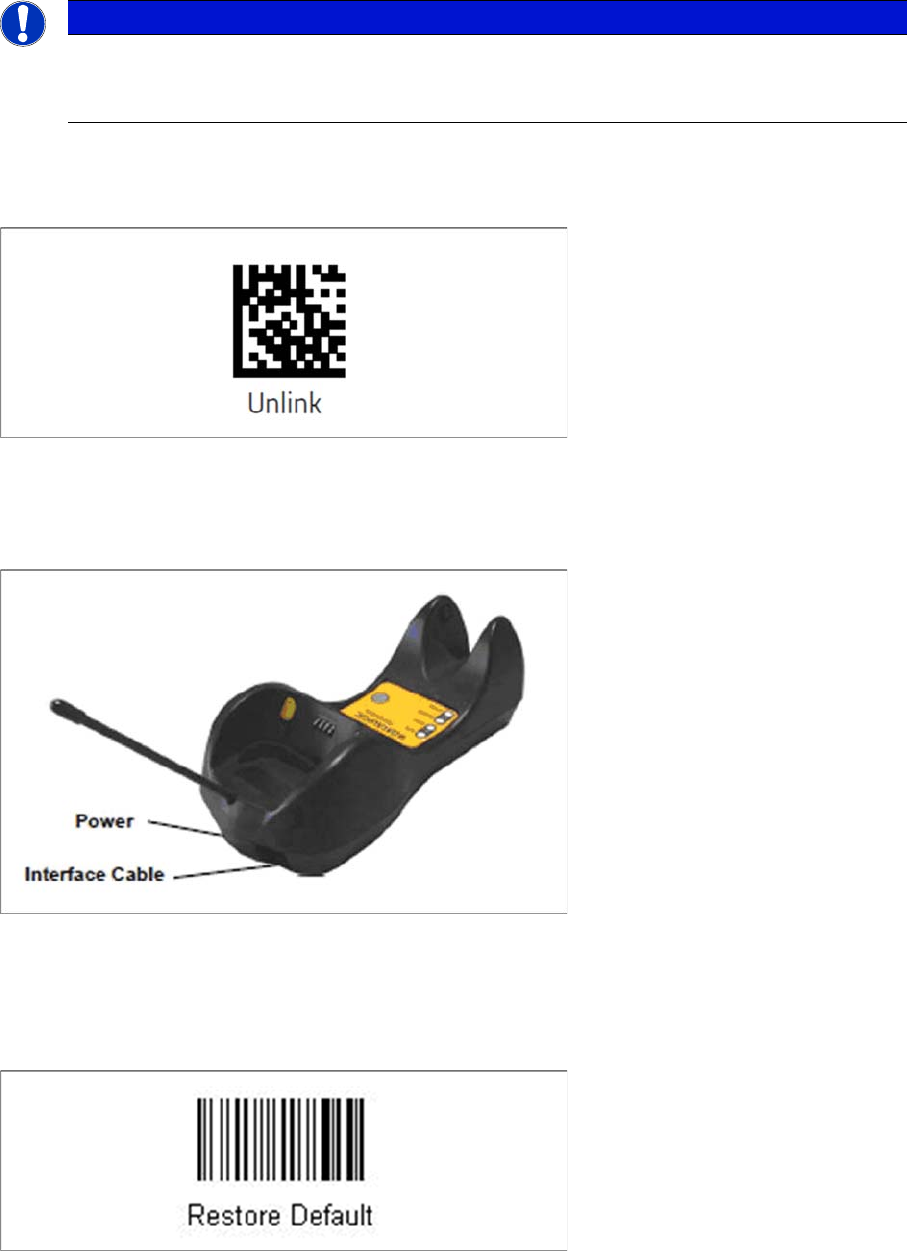
Unlink the barcode scanner
If the barcode scanner was previously linked to another cradle, you must first press and hold the button
on the cradle (> 5 sec.).
► Scan the Unlink barcode before re-linking to the new cradle.
6.2.3
6.2.3 Datalogic Scanner’s Cradle BC-8030-BT (Bluetooth)
Datalogic Scanner’s Cradle BC-8030-BT (Bluetooth)
The Datalogic scanner’s cradle BC-8030-BT needs to be connected to the Setup Center PC. The cradle
incorporates a multi-standard interface, which can be connected via USB or RS-232 to a PC.
6.2.3.1
6.2.3.1 Connect cradle via RS-232
Connect cradle via RS-232
The device may be configured to a different interface ex factory, the following steps switch to RS-232
port.
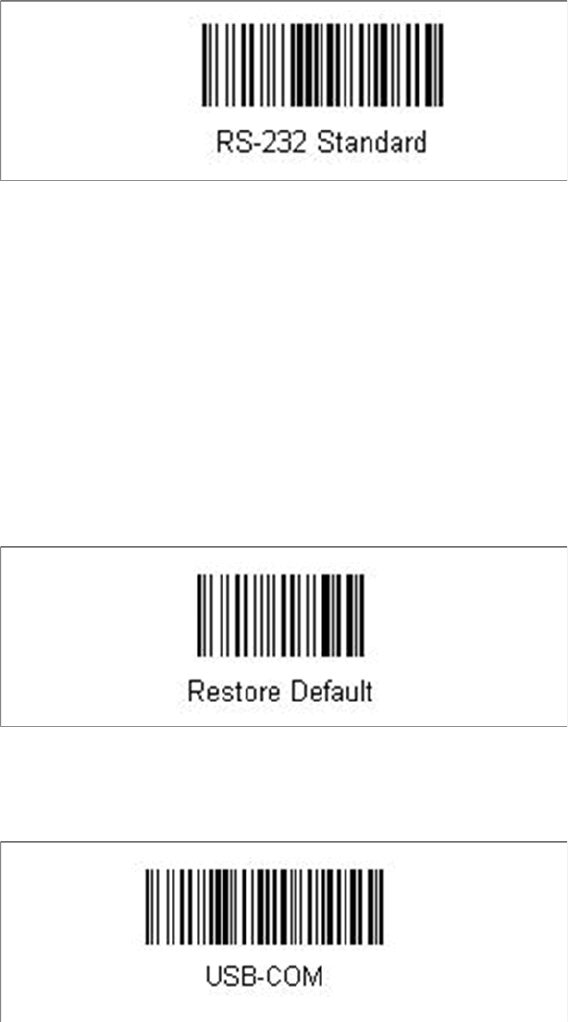
► Please scan the following barcodes in the order they are printed:
► Scan the “Link by Contact” – Barcode from the cradle and put the scanner into the cradle.
⇨ The scanner is now registered on the cradle.
► Scan the barcode "RS-232 Standard" to set the interface to RS-232.
NOTICE
Unlink the barcode scanner
To confirm that the scanner has been successfully connected to the cradle, it will beep several
times and the LED will flash. If this is not the case, you will need to perform an Unlink.
Barcode-Scanner Installation
6.2.4 Datalogic Scanner Configuration Datalogic Scanner
Installation Manual SIPLACE Setup Center 8.1 53
The cradle is now ready for use with Setup Center.
6.2.3.2
6.2.3.2 Connect cradle via USB
Connect cradle via USB
Installation of the USB-COM driver
For connection via USB, you must install the USB-COM driver first.
The installation packages for 32 bit and 64 bit operating systems are located in the “\3rdparty install
-
er\Datalogic\USB-COM Driver” directory of the Setup Center installation CD. For installation please refer
to "6.2.6 Installation of the USB-COM driver" [ ➙ 58].
Steps to configure the cradle to the USB-COM interface
The device may be configured to a different interface ex factory, the following steps switch to USB-COM
port.
► Please scan the following barcodes in the order they are printed:
► Scan the “Link by Contact” – Barcode from the cradle and put the scanner into the cradle.
⇨ The scanner is now registered on the cradle.
► Scan the barcode "USB-COM" to set the interface to USB.
The cradle is now ready for use with Setup Center.
6.2.4
6.2.4 Datalogic Scanner Configuration
Datalogic Scanner Configuration
6.2.4.1
6.2.4.1 Verify the Firmware Status for the Datalogic Scanner
Verify the Firmware Status for the Datalogic Scanner
In case of problems with the Datalogic scanner, please check the Firmware version. If necessary, install
the current version with the "Datalogic Aladdin" tool.