00198051-02_IM_SetupCenter_8.1_EN.pdf - 第57页
Barcode-Scanner Installation 6.2.4 Datalogic Scanner Configuration Datalogic Scanner Installation Manual SIPLACE Setup Center 8.1 57 ► Select " fi rmware upgrad e " from the menu " Tools ". ► Select &…
Barcode-Scanner Installation
Datalogic Scanner 6.2.4 Datalogic Scanner Configuration
56 Installation Manual SIPLACE Setup Center 8.1
► Click on Finish.
► If the option "Run Datalogic Aladdin" was activated, the application starts now automatically.
Firmware upgrade
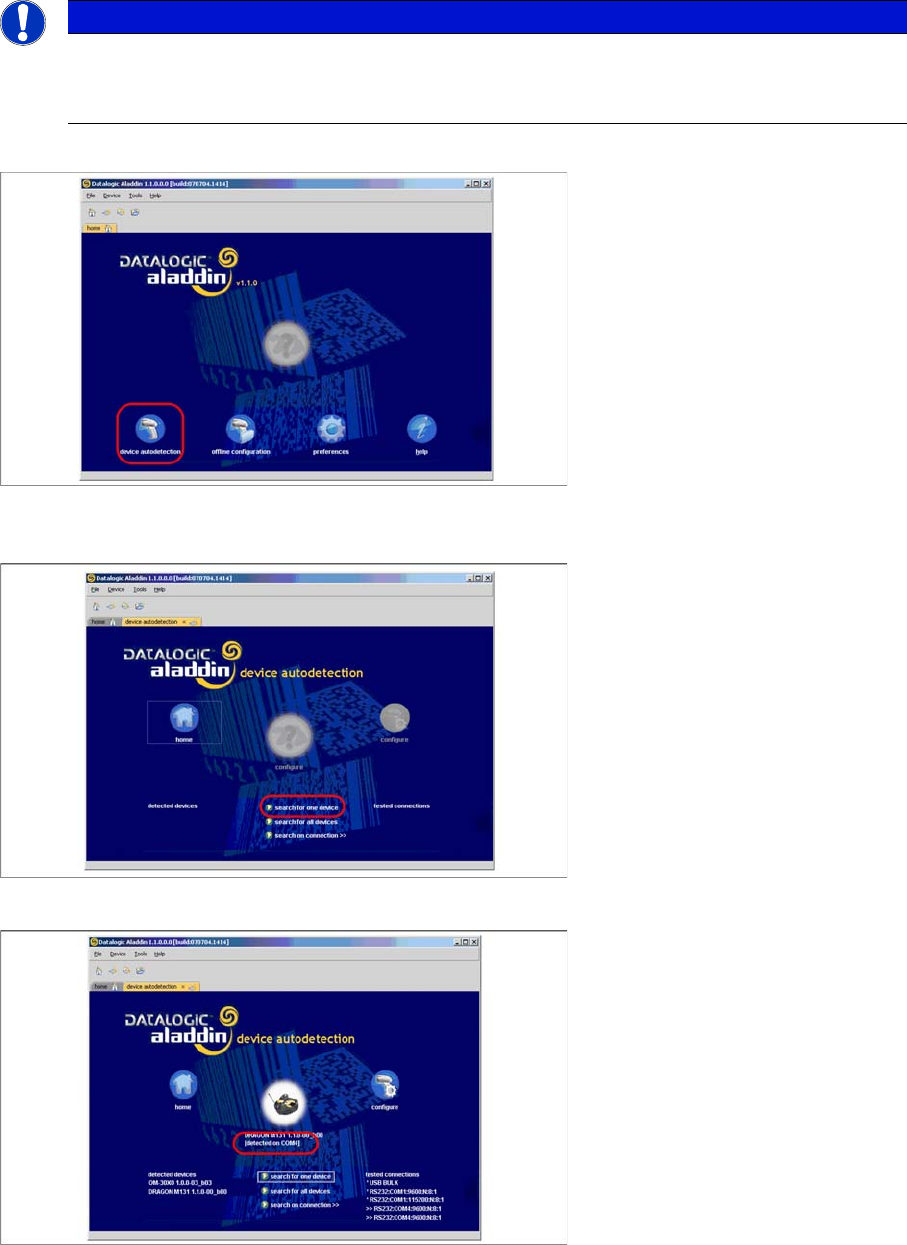
After "Datalogic Aladdin" was started, the following overview will be displayed.
► Select "device autodetection" to find out at which COM port the Datalogic OM30X0 cradle is con
-
nected.
► Select "Search for one device" to start the search.
► The cradle is now detected.
NOTICE
Please make sure that no applications such as SIPLACE Setup Center are accessing the serial
communication.
► Exit these applications before you continue.
Barcode-Scanner Installation
6.2.4 Datalogic Scanner Configuration Datalogic Scanner
Installation Manual SIPLACE Setup Center 8.1 57
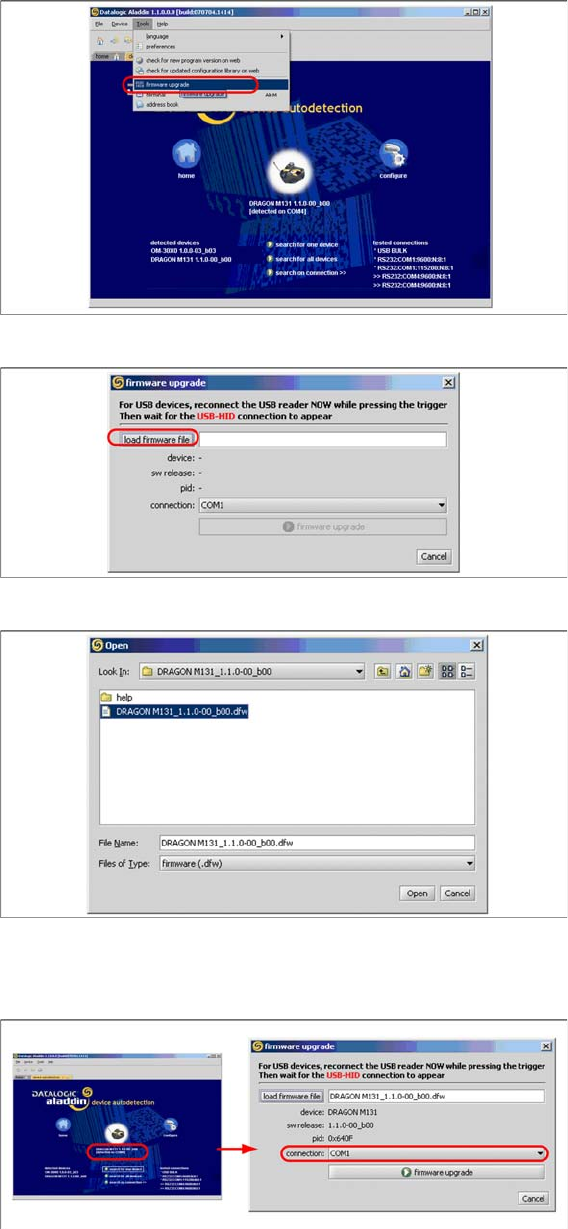
► Select "firmware upgrade" from the menu "Tools".
► Select "load firmware file" in the dialog box.
► Open the folder where the firmware version 1.1.0-00_ b00 for the Datalogic Dragon M131 is stored
(standard path "C:\Program Files\Datalogic\Aladdin\resource\ConfigRepository\DRAGON
M131_1.1.0 00_ b00").
► Choose the right COM port at which the cradle is connected. This was already found out automati
-
cally at the beginning.
Barcode-Scanner Installation
Datalogic Scanner 6.2.5 Datalogic Scanner Connection
58 Installation Manual SIPLACE Setup Center 8.1
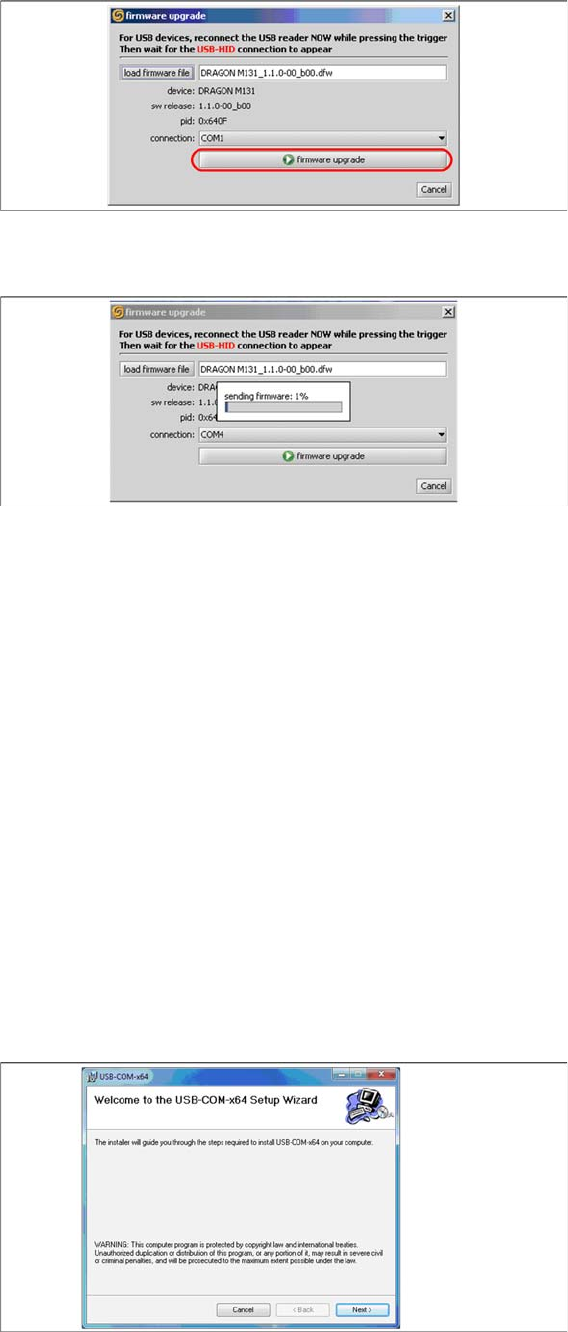
► Activate the scanner by pushing the laser trigger.
► Then select "firmware upgrade" to start the transfer of the new firmware version to the scanner.
► Exit the "Datalogic Aladdin", if the transfer is completed.
6.2.5
6.2.5 Datalogic Scanner Connection
Datalogic Scanner Connection
New scanners and scanner base stations require the setup once before the first use.
This doesn’t necessarily need to happen after the Installation of SIPLACE Setup Center, but it is recom
-
mended. The Scanner configuration is independent from the software installation.
For detailed information, please refer to User Guide SIPLACE Setup Center.
See also
6.2.6 Installation of the USB-COM driver [ ➙ 58]
6.2.6
6.2.6 Installation of the USB-COM driver
Installation of the USB-COM driver
Step 1
The installation packages for 32 bit and 64 bit operating systems are located in the “\3rdparty install
-
er\Datalogic\USB-COM Driver” directory of the Setup Center installation CD.
► Choose the appropriate installation package for your operating system.
Step 2
► Click Next.