PPS Pro version 8.2 - 第119页
4022 591 98 247 User Manual 05.07 P PS-Pro v8.2 115 Guidelines for using PPS-Pro //Position Shape XYR DCODE SHAPE 1 LINE 100.0 D70 2 LINE 125.0 D71 3 LINE 150.0 D20 4 CIRCLE 20.0 D21 5 CIRCLE 43.0 D22 6 RECTANGLE 43.5 43…
User Manual 4022 591 98247
114 PPS-Pro v8.2 05.07
Guidelines for using PPS-Pro
user-selectable comment character in the first column of the
unwanted line.
This may seem like a lot to handle, but it is really quite simple in practice and
is much faster and more reliable than manual input of the apertures.
■ Accepted Shape Designations
PPS-Pro will accept a great variety of text strings as shape names to minimize
the need for editing the files. Keep in mind that PPS-Pro’s extraction system is
only looking for the centres of each feature.
NOTE: If you encounter a strange shape in the file like a target or other exotic
aperture, simply make it square or circular of the same size—it will not
affect the function of the program, only how it is displayed.
PPS-Pro accepts the following strings as designations for units in upper cases:
• Accept as Inch: INCH
• Accept as millimetre (1/1000 metre): MM
• Accept as milli inch (1/1000 inch): MILS
• Accept as micrometer (1/1000000 metre): UM
PPS-Pro accepts the following strings as designations for shape in either
upper, lower or combination cases:
• Accepted as Circle:
ROUND, ROUND_RING, CIRCLE, DONUT, OVAL, ELLIPSE
• Accepted as Rectangle:
RECTANGLE, LINE, OBLONG
• Accepting as Square:
SQUARE
■ Typical Aperture Lists and How to Deal with Them
The following examples illustrate a example and a proper formatted aperture
file.
In the example see FIGURE 10 "Example as starting aperture file" on page 115
a typical customer aperture file.
//
// aperture_based V2.2 001127
//
//
4022 591 98247 User Manual
05.07 PPS-Pro v8.2 115
Guidelines for using PPS-Pro
//Position Shape XYR DCODE SHAPE
1 LINE 100.0 D70
2 LINE 125.0 D71
3 LINE 150.0 D20
4 CIRCLE 20.0 D21
5 CIRCLE 43.0 D22
6 RECTANGLE 43.5 43.5 0 D26
7 CIRCLE 91.0 D27
8 CIRCLE 118.0 D28
9 CIRCLE 67.0 D30
FIGURE 10 Example as starting aperture file
In the correct Aperture file see FIGURE 11 "A correct Aperture file for artwork
extraction" on page 115 all comments are removed. The first line contains the
unit-size for all X / Y Columns. Notice that several apertures have only one
dimension (‘CIRCLE’ and ‘LINE’). So extra values (dimension) must be added for
these shapes. Also notice that the columns are comma separated.
UNIT,=,MILS
70,LINE,100.0,0
71,LINE,125.0,0
20,LINE,180.0,0
21,CIRCLE,20.0,0
22,CIRCLE,43.0,0
26,RECTANGLE,43.5,43.5
27,CIRCLE,91.0,0
28,CIRCLE,118.0,0
30,CIRCLE,67.0,0
FIGURE 11 A correct Aperture file for artwork extraction
3.3.4 Artwork extraction
3.3.4.1 Select gerber files for artwork extraction
Step one from the pre optimizing stage for Local mode is the collection of files
needed for artwork extraction. Gerber files and aperture files need to be
selected. Make sure the files have correct formats
(see 3.3.3.6 "Preparing the
Gerber files" on page 112) and select all appropriate files. When the calcu-
lation is started (Optimize Cell) a gerber files selection window is presented,
which is described in the following paregraph.
User Manual 4022 591 98247
116 PPS-Pro v8.2 05.07
Guidelines for using PPS-Pro
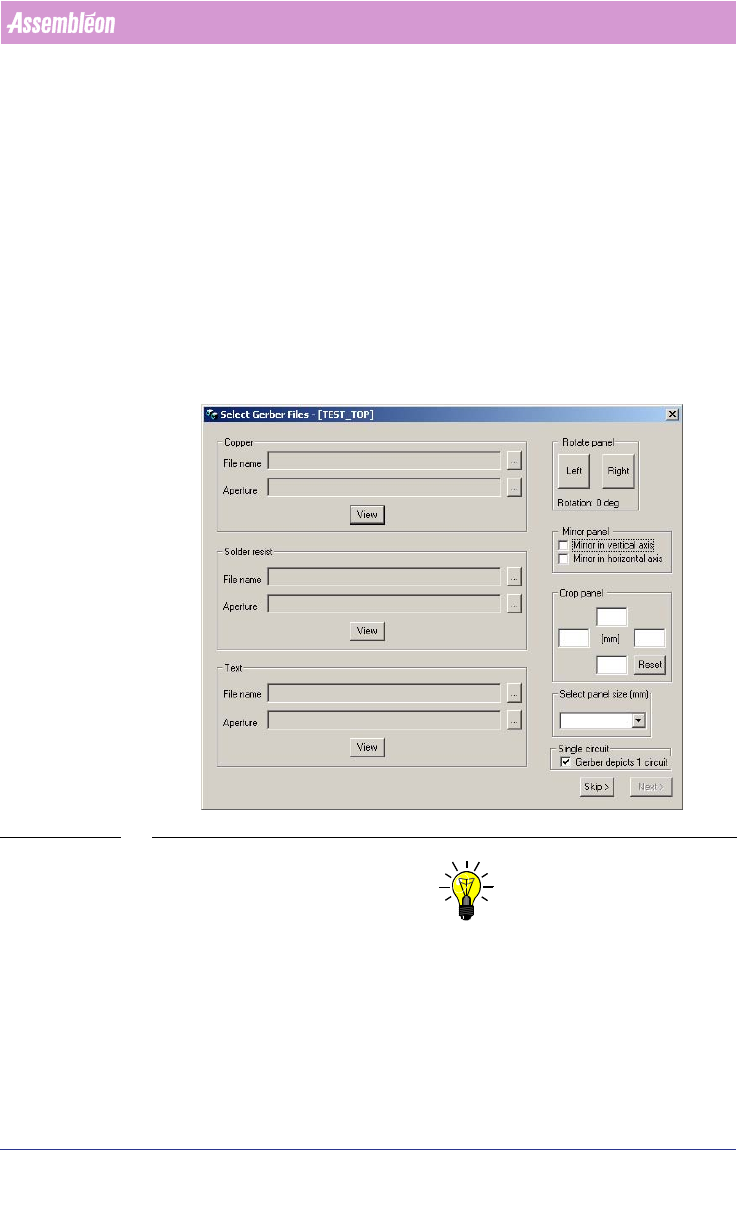
3.3.4.2 “Select Gerber Files” Window
For three different layers information can be added to make sure correct
artwork is used for the fiducials:
a) Copper: This is the layer that represent the copper layer of the
PCB.
(see SCREEN 67 on page 116)
b) Solder resist: This layer represent the solder resist layer (in
most cases this is a green semi transparent layer) or the solder
layer. In most cases this layer is solder paste that is printed on
the PCB and therefore cannot be used for artwork/fiducials.
c) Text: This layer represents the text that can be printed over the
other layers. In most cases this layer is printed text that
cannot be used for artwork/fiducials.
SCREEN 67 Select Gerber Files Window
NOTE: “Text”-layers is optional. This means that if this layers is not used or not
present it can be skipped. In some cases it has been observed that some
artwork could not be recognised in combination with text layers.
1. “File name”: The appropriate gerber file that is used for that specific layer
Copper, Solder resist or text.