PPS Pro version 8.2 - 第123页
4022 591 98 247 User Manual 05.07 P PS-Pro v8.2 119 Guidelines for using PPS-Pro SCREEN 69 Step2 Aligning artwork with Cad data This step is to align the MDF data with the Artwork data fr om the Gerber files . The MDF da…
User Manual 4022 591 98247
118 PPS-Pro v8.2 05.07
Guidelines for using PPS-Pro
NOTE: As in CAD data also the artwork must be rotated in such a way as the panel
goes through the machines. So both MDF as well as artwork must be rotated
under the same angle.
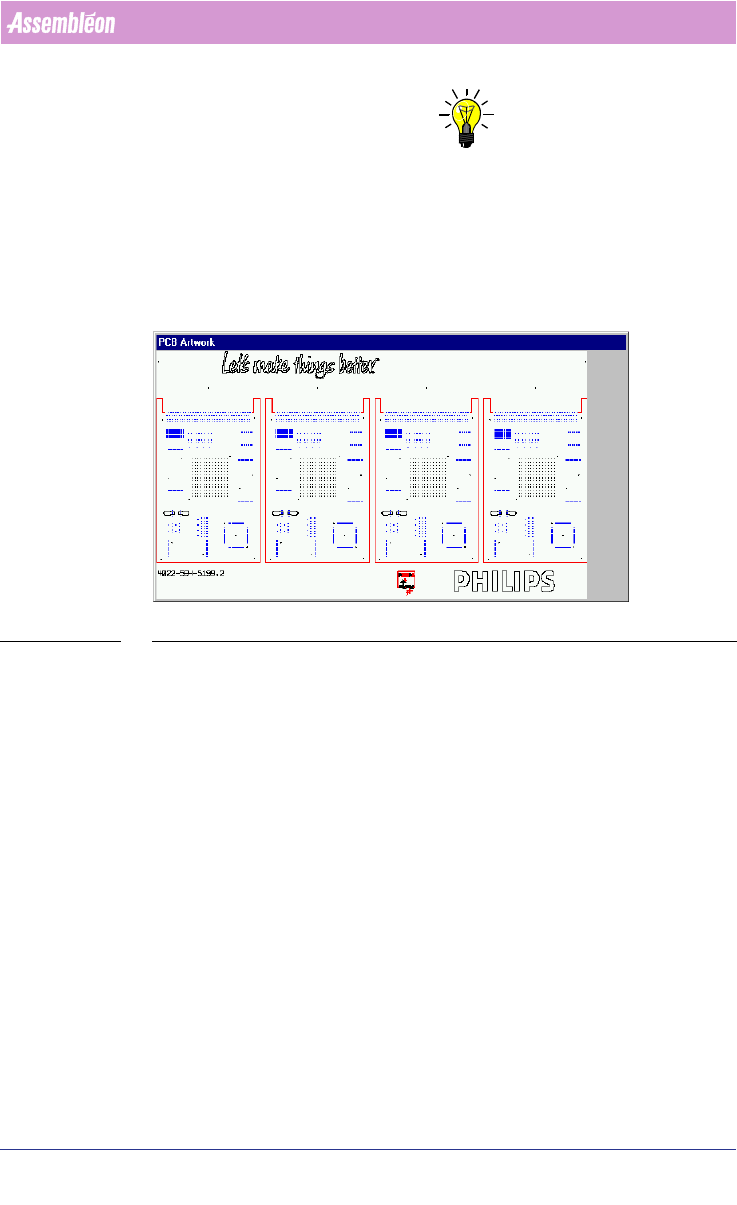
3.3.4.3 “PCB Artwork” Window
This windows represents the graphical presentation if the selected gerber and
aperture file.
SCREEN 68 PCB Artwork Window
3.3.4.4 Aligning artwork with Cad-data
Step two from the pre-optimizing stage for Local mode is the alignment of the
extracted artwork from the Gerber data and the CAD data (MDF).
4022 591 98247 User Manual
05.07 PPS-Pro v8.2 119
Guidelines for using PPS-Pro
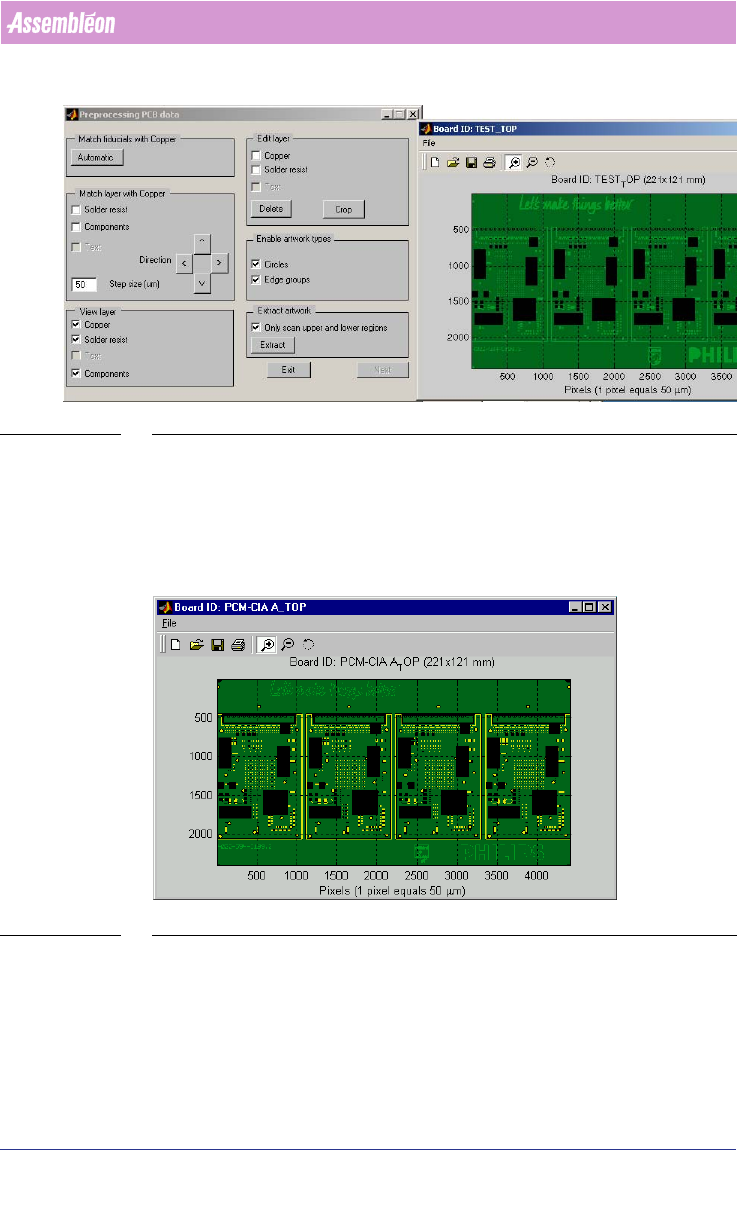
SCREEN 69 Step2 Aligning artwork with Cad data
This step is to align the MDF data with the Artwork data from the Gerber files.
The MDF data and the PSI information is used to obtain the correct size of the
components on the board. These will be shown as black boxes in the graphical
presentation
(see SCREEN 70 "Unaligned Artwork with Cad data" on page
119).
SCREEN 70 Unaligned Artwork with Cad data
The first action in this stage is to use the “Automatic”-button. After pressing
the “Automatic”-button in the “Preprocessing PCB data”-window a new
window pops up
(see SCREEN 72 "Aligned Artwork with board data" on page
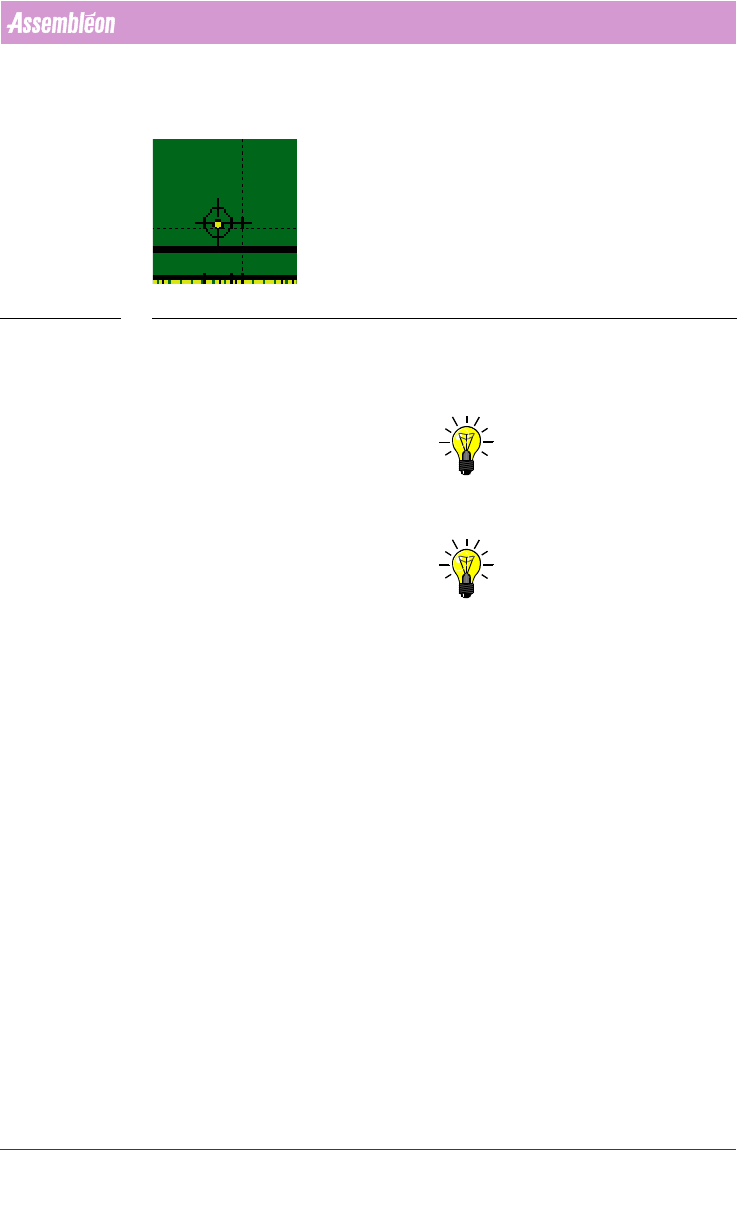
121). By shifting the mouse until the circle with cross is on the correct
fiducial (see SCREEN 71 "Matching gerber with fiducial after alignment" on
page 120) and automatically all components (black boxes) are on the correct
User Manual 4022 591 98247
120 PPS-Pro v8.2 05.07
Guidelines for using PPS-Pro
position, then left-click mouse so the software will scan/search for fidicials in
the artwork that correspond to the MDF data.
SCREEN 71 Matching gerber with fiducial after alignment
After the window is closed and the fiducials are presented in the graphical
presentation by displaying these as a red cross and fiducial name. Zoom in on
a fiducial to check whether it is found correctly
(see SCREEN 72 on page 121).
NOTE: To zoom in simple click in the area where to zoom or draw with a mouse click
a rectangle on the location that must be zoomed in.
NOTE: Sometimes it looks like the fiducials are not located exactly at the correct
place. But by zooming in on the fiducial, the red cross should come close to
the centre of the fiducial.
If the fiducials are not correctly found repeat the process (Use the
“Automatic”-button). Most often in that situation it is possible to resolve by
repeating the action (matching the standard fiducials of the CAD (MDF) and
the Gerber data).