PPS Pro version 8.2 - 第125页
4022 591 98 247 User Manual 05.07 P PS-Pro v8.2 121 Guidelines for using PPS-Pro SCREEN 72 Aligned Artwork with board d ata 3.3.4.5 Preprocessing PCB data Other option s in the “Pr eproces sin g PCB data”-wind ow are: (s…
User Manual 4022 591 98247
120 PPS-Pro v8.2 05.07
Guidelines for using PPS-Pro
position, then left-click mouse so the software will scan/search for fidicials in
the artwork that correspond to the MDF data.
SCREEN 71 Matching gerber with fiducial after alignment
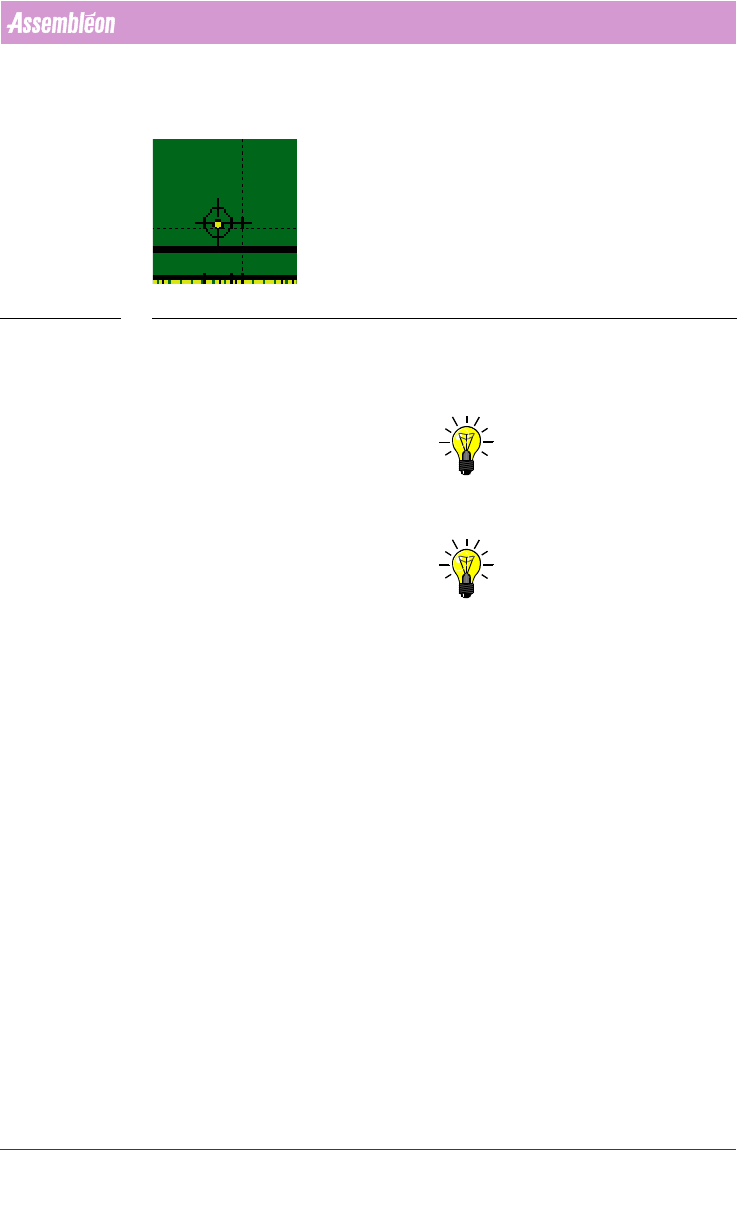
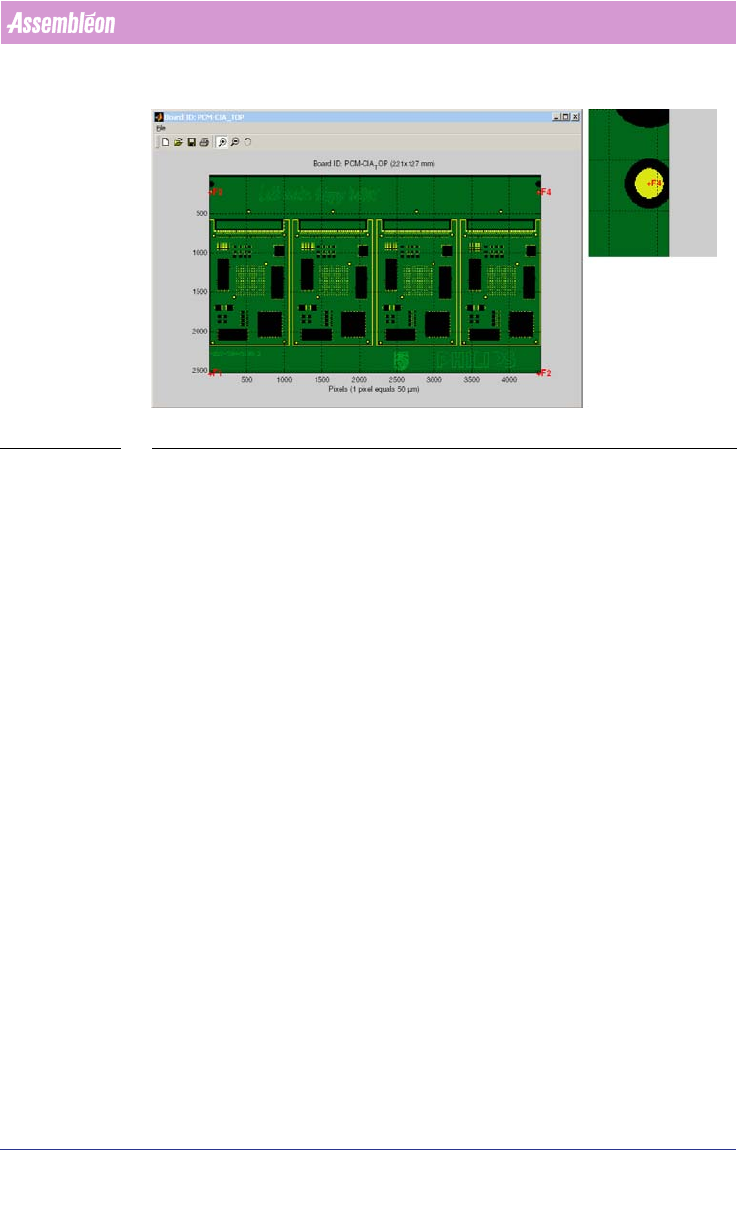
After the window is closed and the fiducials are presented in the graphical
presentation by displaying these as a red cross and fiducial name. Zoom in on
a fiducial to check whether it is found correctly
(see SCREEN 72 on page 121).
NOTE: To zoom in simple click in the area where to zoom or draw with a mouse click
a rectangle on the location that must be zoomed in.
NOTE: Sometimes it looks like the fiducials are not located exactly at the correct
place. But by zooming in on the fiducial, the red cross should come close to
the centre of the fiducial.
If the fiducials are not correctly found repeat the process (Use the
“Automatic”-button). Most often in that situation it is possible to resolve by
repeating the action (matching the standard fiducials of the CAD (MDF) and
the Gerber data).
4022 591 98247 User Manual
05.07 PPS-Pro v8.2 121
Guidelines for using PPS-Pro
SCREEN 72 Aligned Artwork with board data
3.3.4.5 Preprocessing PCB data
Other options in the “Preprocessing PCB data”-window are: (see SCREEN 69
"Step2 Aligning artwork with Cad data" on page 119)
1. “Match fiducial with Copper”-frame: By activating the button “Automatic”
the matching between the MDF data and the Gerber data can be
performed.
2. “Match layer with Copper”-frame: By ticking and un-ticking, solder resist
layer can be shifted by using the “^v<>”-buttons. With these buttons the
selected layers can be shifted by the step size (in um)
3. “Edit layer”-frame: By ticking and un-ticking copper layer, solder resist
layer can be selected for deletion.
a) Delete:The deletion can be done via the “delete”-button.
b) Crop”: With this button the selected layers can be cropped.
Example: If the Gerber data also contains a frame or other non-
relevant data out-side of the PCB data, this can be cleaned.
4. Enable artwork types: When the AX doesn’t recognize the genetrated
Artwork it is possible to disable certain kind of Artworks
5. “Extract artwork”: (Note, this is currently not automatic) This will start
the artwork extraction. This will take some minutes. A progress bar is
shown and the “Next”-button is enabled
a) Only scan upper and lower regions: When there is not sufficient
Artwork in the upper and lower regions this option can be used
for extracting artwork in the middle of the board
User Manual 4022 591 98247
122 PPS-Pro v8.2 05.07
Guidelines for using PPS-Pro
6. “Next”-button: If the correct artwork fiducials are found via the ‘extract
artwork’, this process can be stopped by using the “Next”-button. All
windows of the artwork extraction will be closed and the Assembléon A-
Series optimizer will be started
(see 2.25.1.3 "Generate the production
program" on page 65). Note: The ‘Next’-button is greyed-out if the artwork
extraction is not completed.
7. “Exit”-button: This will aboard the optimizing process and no calculation
is started.
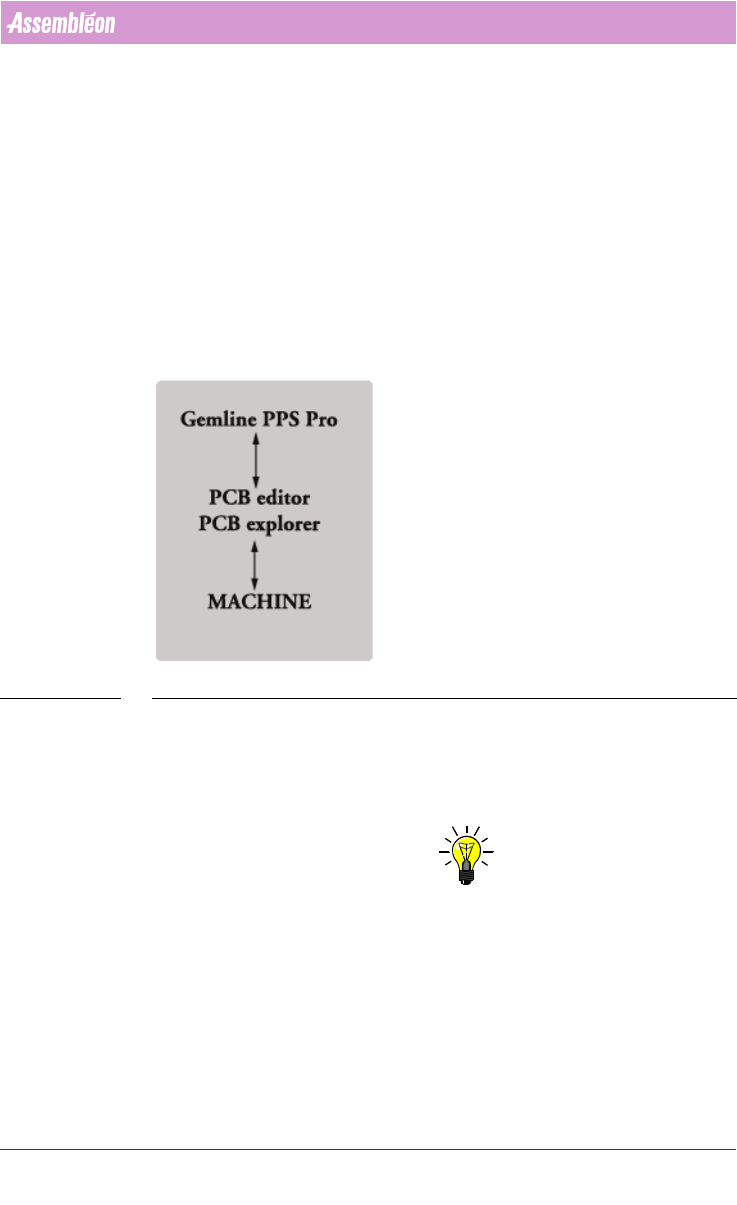
3.4 GemLine optimizer/generator Guidelines for PPS-Pro
This section describes how to use GemLine optimizer/generator.
FIGURE 12 Gemline PPS-Pro
For installation refer to the installation guide of Gemline PPS. Note that
GemLine opt/gen 8.0 is compatible with PPS-Pro 8.2.
For GemLine generator/optimizer and for its usage and proper installation
within PPS-Pro you need separate licences.
NOTE: When you install PPS-Pro, the permanent license keys for GemLine
optimizer/generator can be obtained from Assembléon,
support.software.emt@philips.com. When you have a temporary license, the
program will periodically remind you to register the program. So please
request the permanent license key to which you are entitled.