PPS Pro version 8.2 - 第17页
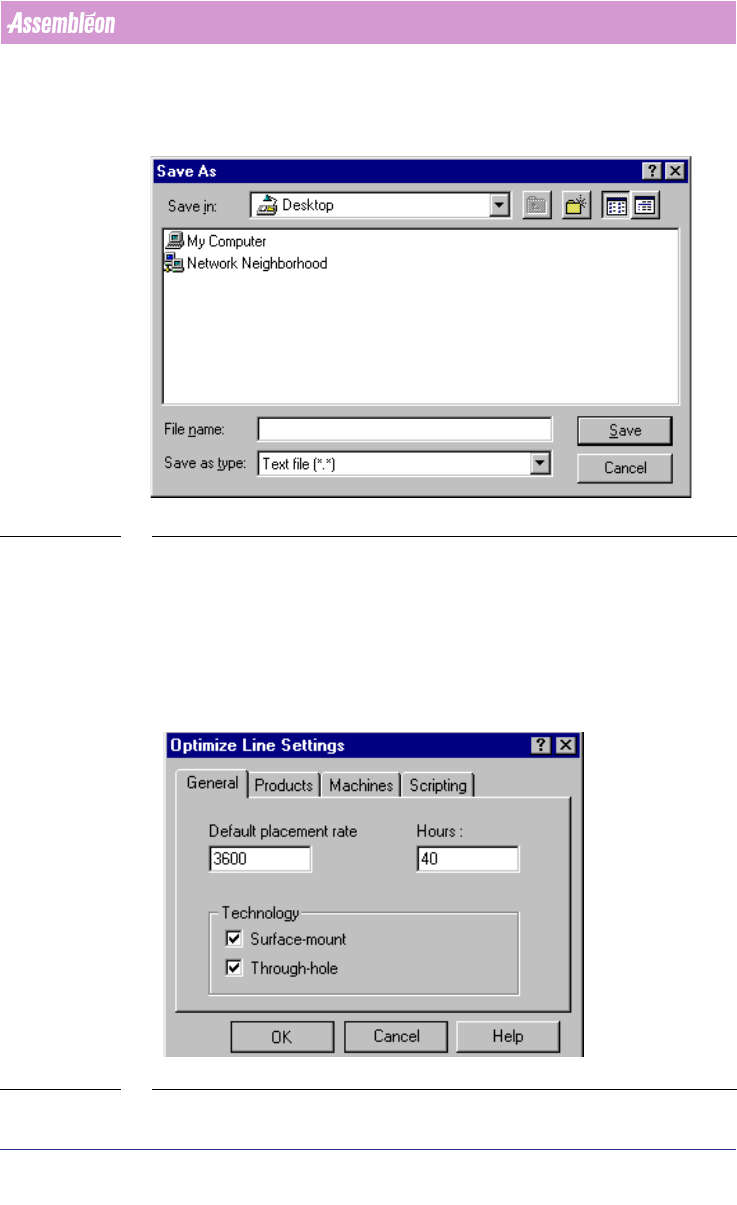
4022 591 98 247 User Manual 05.07 PPS-Pro v8.2 13 General Intr oduction 1.8 Window , Dialog SCREEN 6 Save dialog ■ Style in text: Win dow and Dial og names (see SCREEN 6 on pag e 13) are printed in italic . First th e na…
User Manual 4022 591 98247
12 PPS-Pro v8.2 05.07
General Introduction
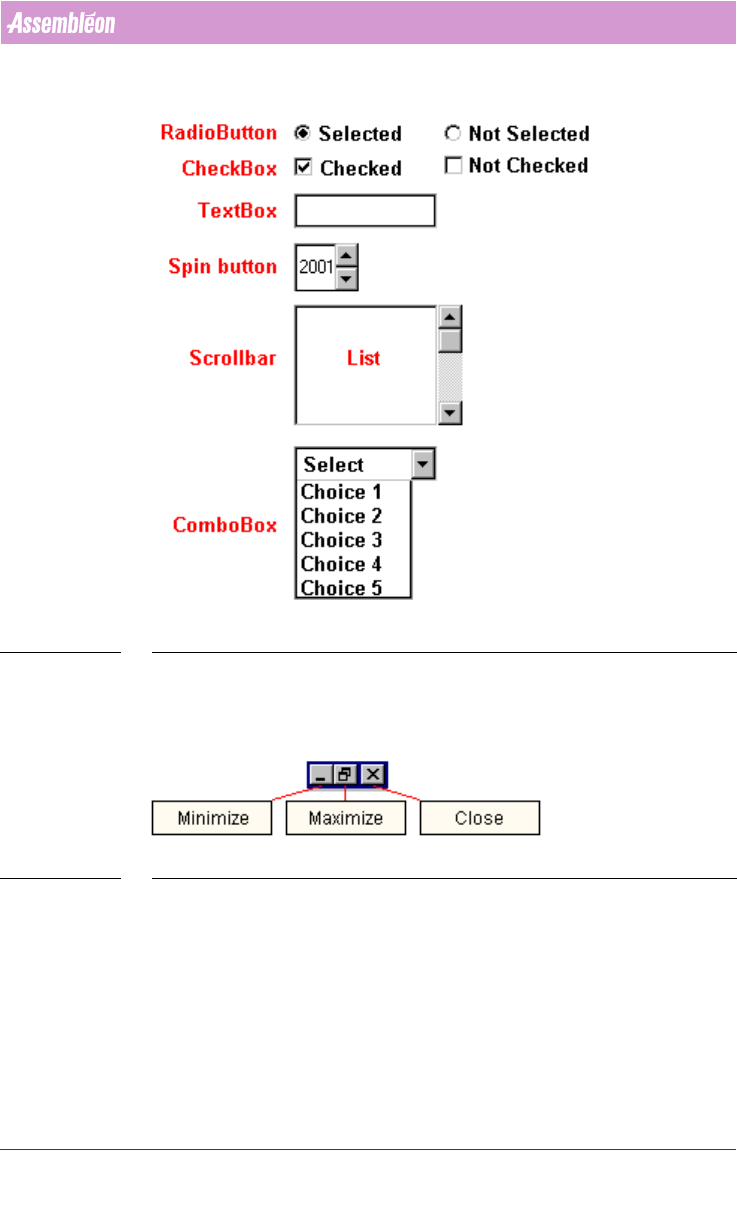
SCREEN 4 Control-items
1.7 Window icons
SCREEN 5 Windows™ icons
■ Style in text: Window Icon names (see SCREEN 5 on page 12) are printed
in bold. First the function of the icon followed by “icon”.
■ Example: Minimize icon, Maximize icon and Close icon.
4022 591 98247 User Manual
05.07 PPS-Pro v8.2 13
General Introduction
1.8 Window, Dialog
SCREEN 6 Save dialog
■ Style in text: Window and Dialog names (see SCREEN 6 on page 13) are
printed in italic. First the name of the window/dialog followed by
“window” or “dialog”.
■ Example: Save As dialog.
1.9 Tab, Field, Frame, Button
SCREEN 7 Tab - Field - Frame - Button

User Manual 4022 591 98247
14 PPS-Pro v8.2 05.07
General Introduction
■ Tab (see SCREEN 7 on page 13)
• Style in text: Tab names are printed in italic. First the tab name
followed by “tab”.
• Example: General tab, Products tab.
■ Field (see SCREEN 7 on page 13)
• Style in text: Names of fields are printed in italic. First the name of
the field followed by the type of the field. The corresponding value is
printed between single quotes.
• Example: The value of Hours textfield is ‘40’.
■ Frame (see SCREEN 7 on page 13)
• Style in text: Names of frames are printed just as they appear, followed
by “frame”.
• Example: Technology frame.
■ Button (see SCREEN 7 on page 13)
• Style in text: Button names are printed in bold.
• Example: Cancel button.
1.10 Miscellaneous
■ Names
• Style in text: Names are printed between ‘single quotes’.
• Example: ’PPS-Pro 8.1 SP1’.