PPS Pro version 8.2 - 第35页
4022 591 98 247 User Manual 05.07 PPS-Pro v8.2 31 PPS-Pro GUI SCREEN 22 Import BOM Existing Project 2.12 BOM Formats A BOM -form at mu st be availa ble f or ever y BO M-file which will be im ported. This paragr aph expla…
User Manual 4022 591 98247
30 PPS-Pro v8.2 05.07
PPS-Pro GUI
2.11 Difference between “normal” and “strict” BOM
import
■ Normal (see TABLE 2 on page 30):
All components which are present in the CAD-file, are also present in the
MDF-file after importing the BOM-file. Only the component information which
is available in the BOM-file is changed in the created MDF-file.
■ Strict (see TABLE 2 on page 30):
Only components which are present in the BOM-file are present in the MDF-
file after importing the BOM-file. The component information of the BOM-file
is used in the created MDF-file.
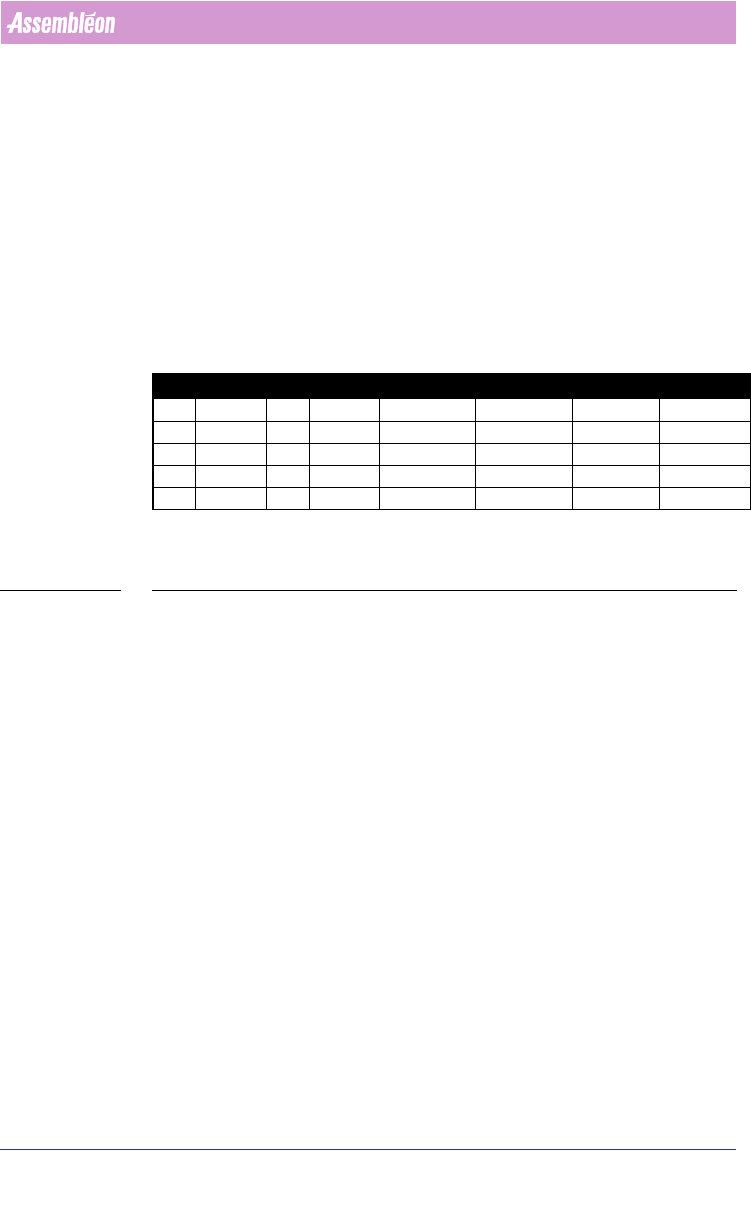
C = Component
VN = Vendor number (component info.)
TABLE 2 Principle of normal and strict BOM import
2.11.1 Import via the Import BOM tab
Sometimes a BOM file will be received (long) after a project has been set up,
or a new BOM-file must be imported. When this happens, open the existing
project and use the Import BOM tab to bring in the new BOM.
The procedure for importing a BOM-file via the Import BOM tab is analogue to
the procedure for ‘normal’ importing via the Import Data tab. The only
difference is the startup of the ‘BOM-Formats Explorer’.
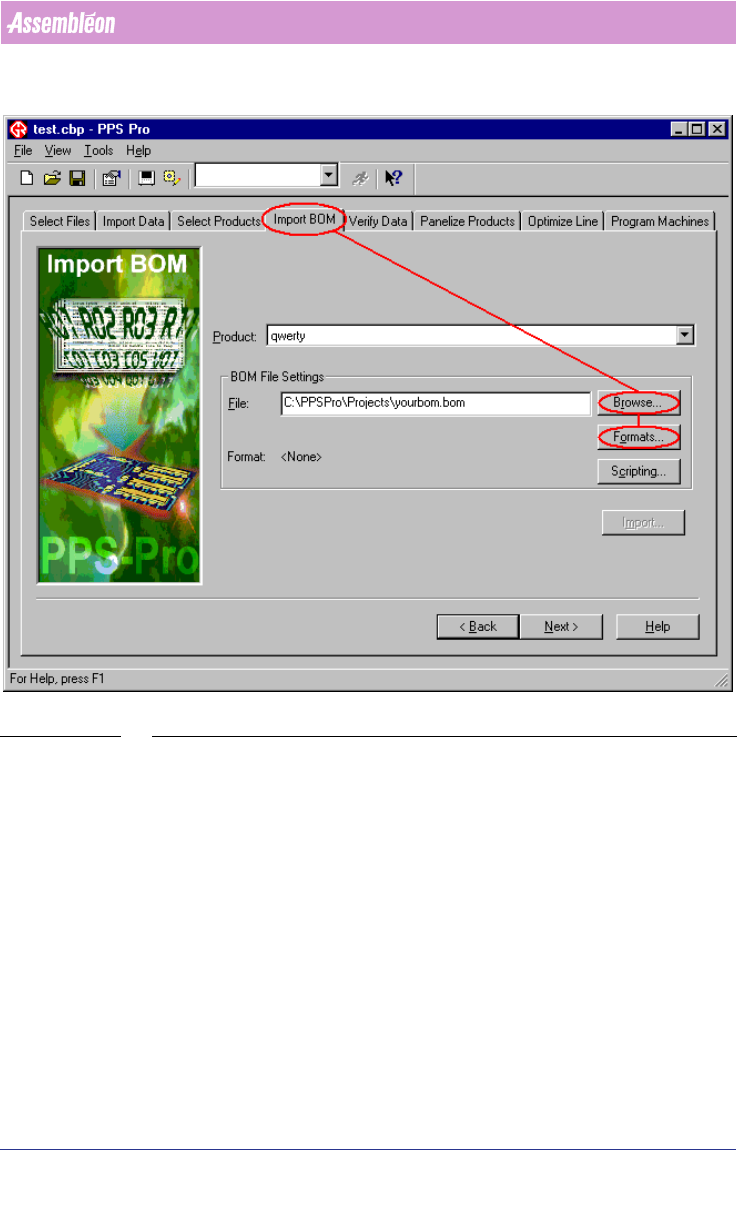
To start the ‘BOM-Formats Explorer’, the following steps must be taken (see
SCREEN 22 on page 31):
■ Select the Import BOM tab
■ Press the Browse... button and browse to the BOM-file
■ Press the Formats... button to startup the ‘BOM-Formats Explorer’ and
select the correct format from the list. If no correct format is available, a
new format must be made
(see 2.12.1 on page 32) from point 10.
CAD BOM MDF after normal import MDF after strict import
C1 VN=2 C1 VN=1 C1 VN=1 C1 VN=1
C2 VN=4 C2 VN=2 C2 VN=2 C2 VN=2
C3 VN=6 C4 VN=4 C3 VN=6 C4 VN=4
C4 VN=8 C4 VN=4
C5 VN=9 C5 VN=9
4022 591 98247 User Manual
05.07 PPS-Pro v8.2 31
PPS-Pro GUI
SCREEN 22 Import BOM Existing Project
2.12 BOM Formats
A BOM-format must be available for every BOM-file which will be imported.
This paragraph explains how to create, edit, remove and copy a BOM-format.
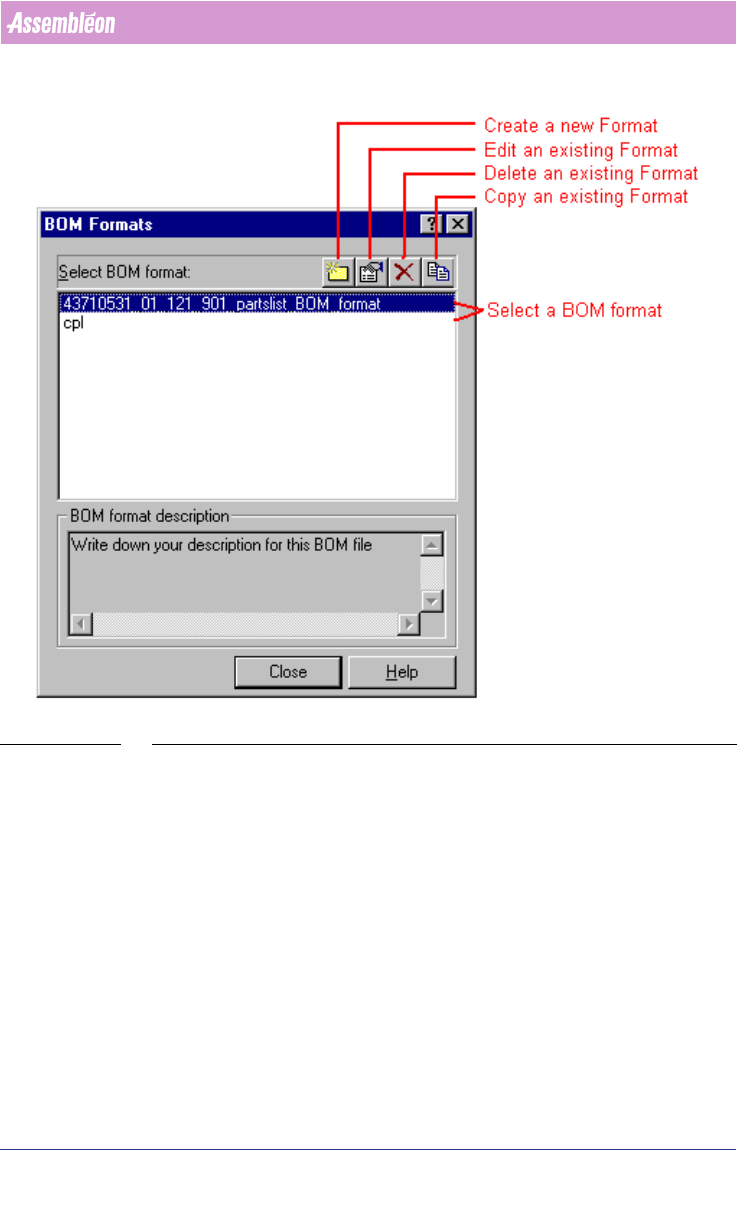
All these action can be started from the ‘BOM-Formats Explorer’
(see SCREEN
23 on page 32).
User Manual 4022 591 98247
32 PPS-Pro v8.2 05.07
PPS-Pro GUI
SCREEN 23 BOM Format Explorer
2.12.1 Create a new BOM format using the BOM Format Wizard
(BFW)
A new BOM-format can be made with the BFW.
To start the BFW just press the New icon (see SCREEN 23 on page 32) of the
‘BOM-Formats Explorer’. Now the BFW starts up and five steps must be taken to
define a new BOM-format.
1. Step 1 of the BFW (see SCREEN 24 on page 33)
• Enter an identifiable name of the new BOM-format in the Format name
textfield.