PPS Pro version 8.2 - 第37页
4022 591 98 247 User Manual 05.07 PPS-Pro v8.2 33 PPS-Pro GUI • Enter te xt that iden tifies th e BOM-f ormat f or you in the F ormat description textbo x. SCREEN 24 BOM Format - Step 1 2. Step 2 of the BFW (see SCREEN 2…
User Manual 4022 591 98247
32 PPS-Pro v8.2 05.07
PPS-Pro GUI
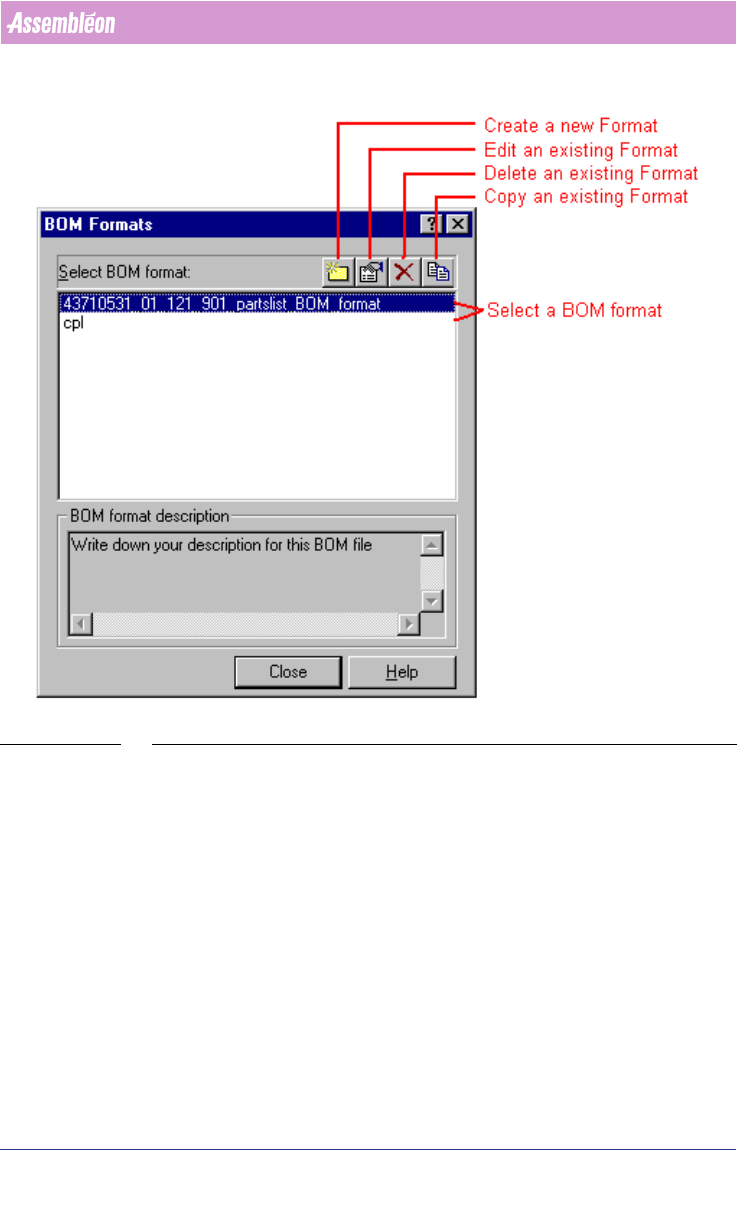
SCREEN 23 BOM Format Explorer
2.12.1 Create a new BOM format using the BOM Format Wizard
(BFW)
A new BOM-format can be made with the BFW.
To start the BFW just press the New icon (see SCREEN 23 on page 32) of the
‘BOM-Formats Explorer’. Now the BFW starts up and five steps must be taken to
define a new BOM-format.
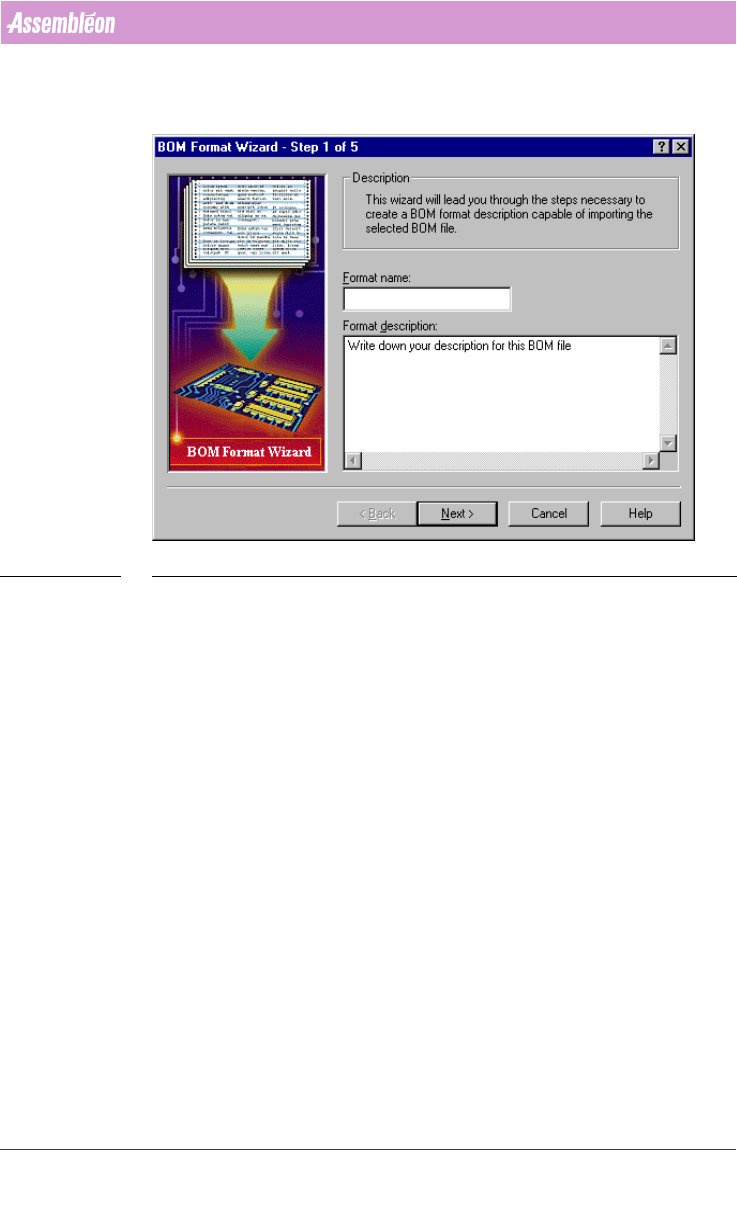
1. Step 1 of the BFW (see SCREEN 24 on page 33)
• Enter an identifiable name of the new BOM-format in the Format name
textfield.
4022 591 98247 User Manual
05.07 PPS-Pro v8.2 33
PPS-Pro GUI
• Enter text that identifies the BOM-format for you in the Format
description textbox.
SCREEN 24 BOM Format - Step 1
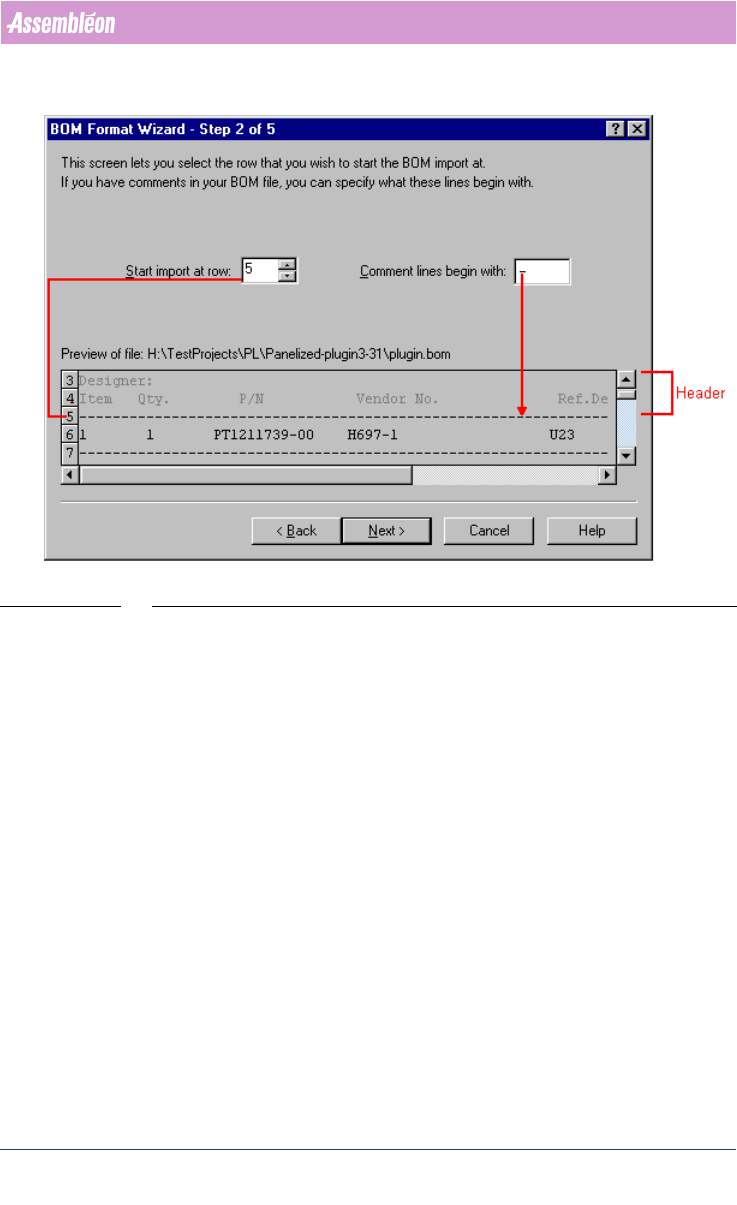
2. Step 2 of the BFW (see SCREEN 25 on page 34)
BOM files generally contain header information and comments that the BOM
importer must ignore. In this step you define where the first row of data
begins and what character is used to mark comment or non-data rows.
User Manual 4022 591 98247
34 PPS-Pro v8.2 05.07
PPS-Pro GUI
SCREEN 25 BOM Format - Step 2
3. Step 3 of the BFW
Describe how the data in the BOM-file is formatted.
In the Select BOM file type frame, click the Fixed checkbox or the Delimited
checkbox to describe how the data fields are separated.
■ Fixed: Data fields are arranged in columns (see SCREEN 26 on page 35).
■ Delimited: Data fields are separated by characters, such as tabs, semi-
colons and commas (see SCREEN 27 on page 36).
Fixed: Specify the column breaks in the preview of your file.
• To add a column break (represented as a dashed line), click in the
desired position.
• To delete a column break, double click the line.
• To move a column break, click the line and drag to the new position.