PPS Pro version 8.2 - 第39页
4022 591 98 247 User Manual 05.07 PPS-Pro v8.2 35 PPS-Pro GUI SCREEN 26 BOM Format- Step 3 - Fixed File T ype Delimited : Select or enter the u s ed delimiter . • Select delimiter s frame: Click the check bo x(es) of th …
User Manual 4022 591 98247
34 PPS-Pro v8.2 05.07
PPS-Pro GUI
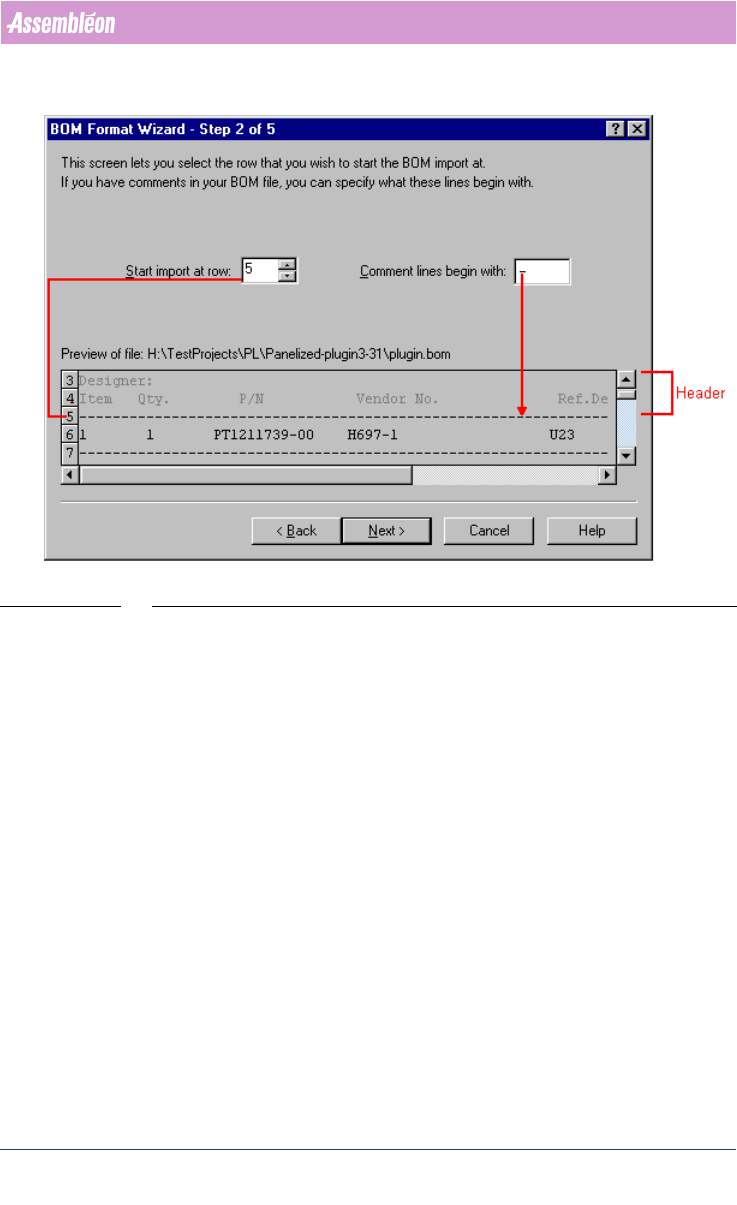
SCREEN 25 BOM Format - Step 2
3. Step 3 of the BFW
Describe how the data in the BOM-file is formatted.
In the Select BOM file type frame, click the Fixed checkbox or the Delimited
checkbox to describe how the data fields are separated.
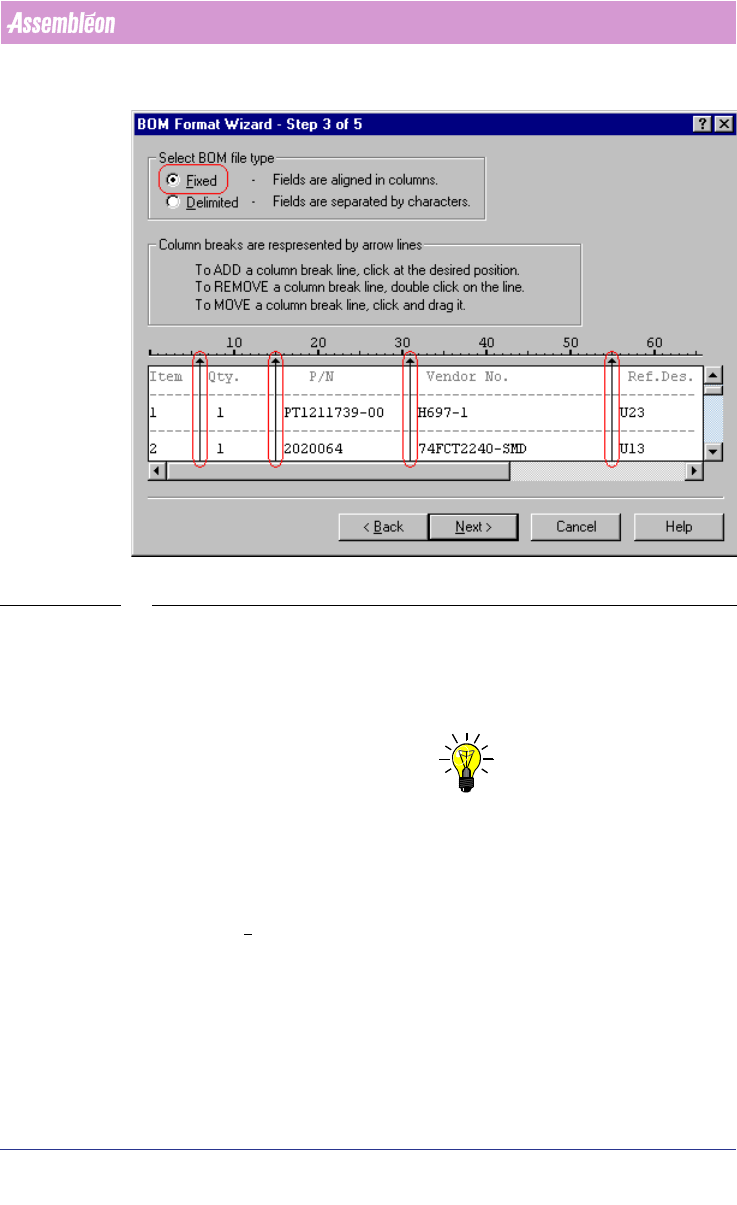
■ Fixed: Data fields are arranged in columns (see SCREEN 26 on page 35).
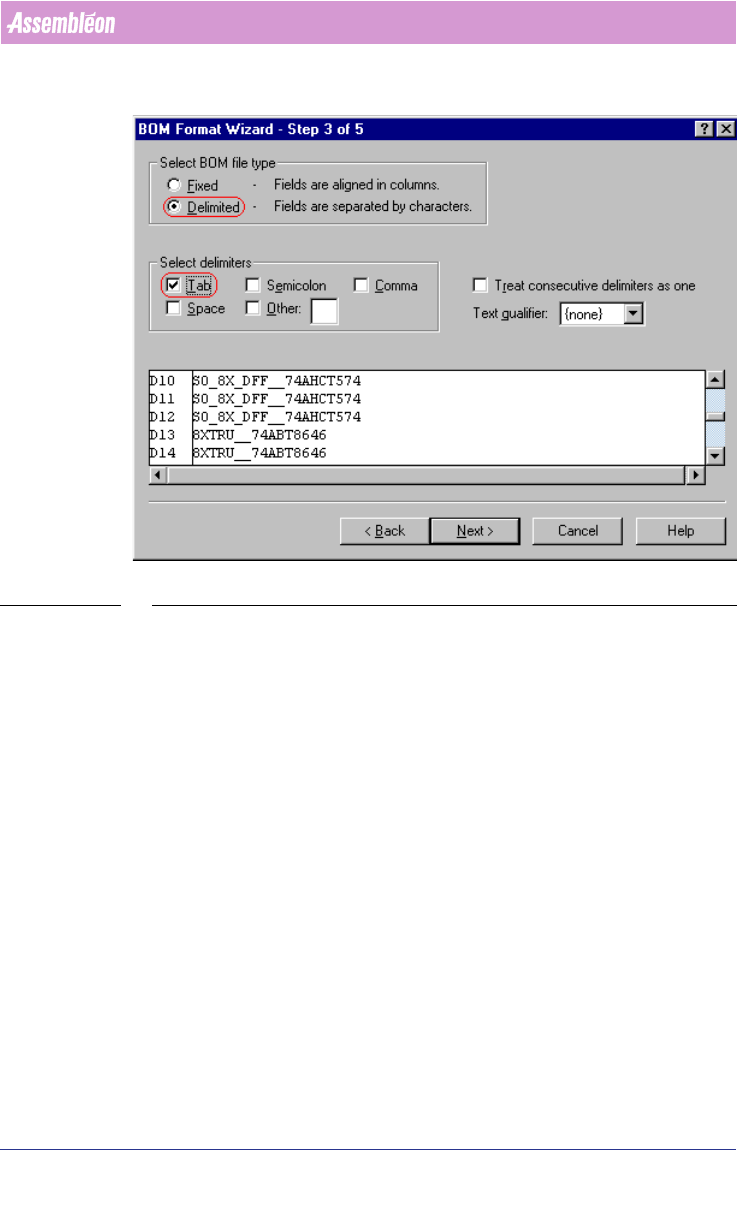
■ Delimited: Data fields are separated by characters, such as tabs, semi-
colons and commas (see SCREEN 27 on page 36).
Fixed: Specify the column breaks in the preview of your file.
• To add a column break (represented as a dashed line), click in the
desired position.
• To delete a column break, double click the line.
• To move a column break, click the line and drag to the new position.
4022 591 98247 User Manual
05.07 PPS-Pro v8.2 35
PPS-Pro GUI
SCREEN 26 BOM Format- Step 3 - Fixed File Type
Delimited: Select or enter the used delimiter.
• Select delimiters frame: Click the check box(es) of the character(s)
that separate the data fields. The resulting lines are displayed in the
preview at the bottom of the screen.
NOTE: If your reference designators occupy more than one line, do not use Spaces
as your delimiter character.
• Treat consecutive delimiters as one checkbox: If this box is checked, it
tells the importer to create only one break if it encounters two or
more delimiter characters in a row.
• Text qualifier combobox: If a single or double quote is selected, it tells
the importer to ignore any delimiter character found within a single
quote (') or within double quotes (").
User Manual 4022 591 98247
36 PPS-Pro v8.2 05.07
PPS-Pro GUI
SCREEN 27 BOM Format - Step 3 - Delimited File Type
4. Step 4 of the BFW (see SCREEN 28 on page 37)
In this step a data type can be assigned to each column.
■ Click a column in the preview window at the bottom of the screen.
■ Select a ‘Column data type’ from the Column data type frame to describe
the selected column.
■ Repeat for each column that you want to import. If a column is ignored, it
will not be imported.