PPS Pro version 8.2 - 第42页
User Manual 4022 591 98247 38 PPS-Pro v8.2 05.07 PPS-Pr o GUI ■ Separator char s textfiel d: Enter th e character u sed in the BOM-file that separates the r eferen ce designator s. A comma (,) is the def a ult character …
4022 591 98247 User Manual
05.07 PPS-Pro v8.2 37
PPS-Pro GUI
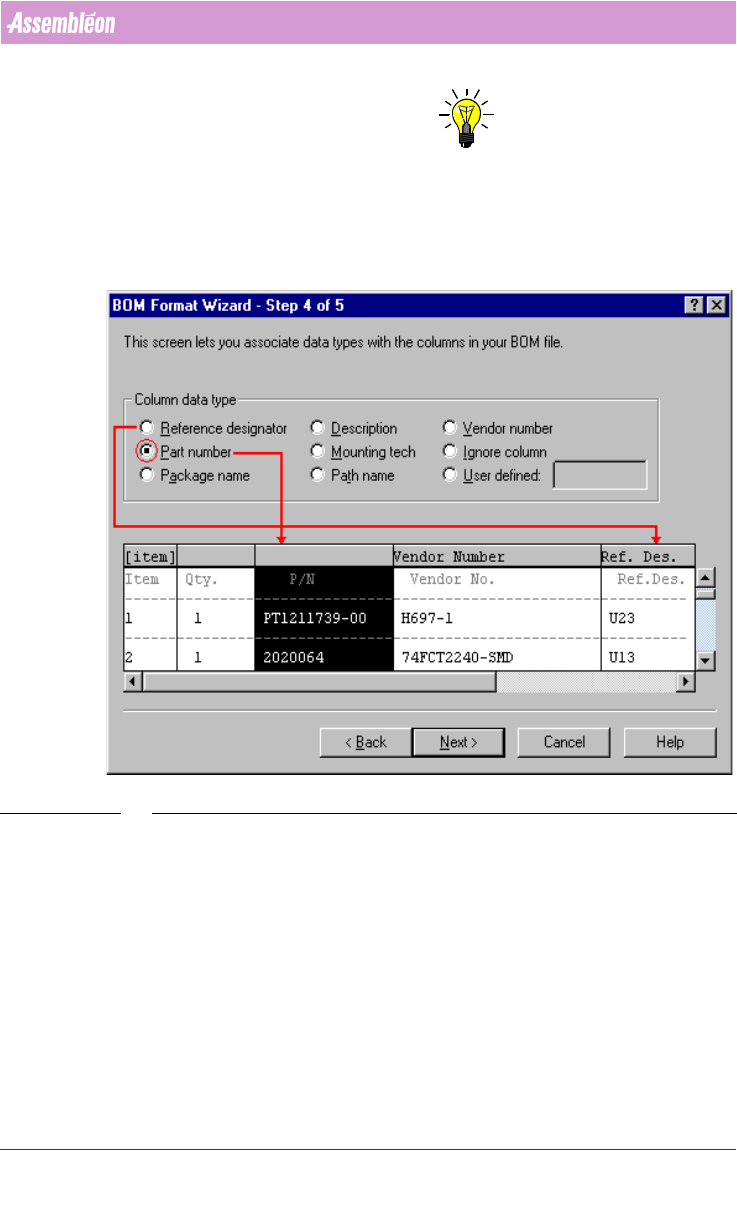
NOTE: The Reference designator column and one other data type must be identified
to proceed with step 5. A data type can only be assigned to one column,
except Ignore column and User defined.
Each data type updates the corresponding field of the MDF-file.
SCREEN 28 BOM Format - Step 4
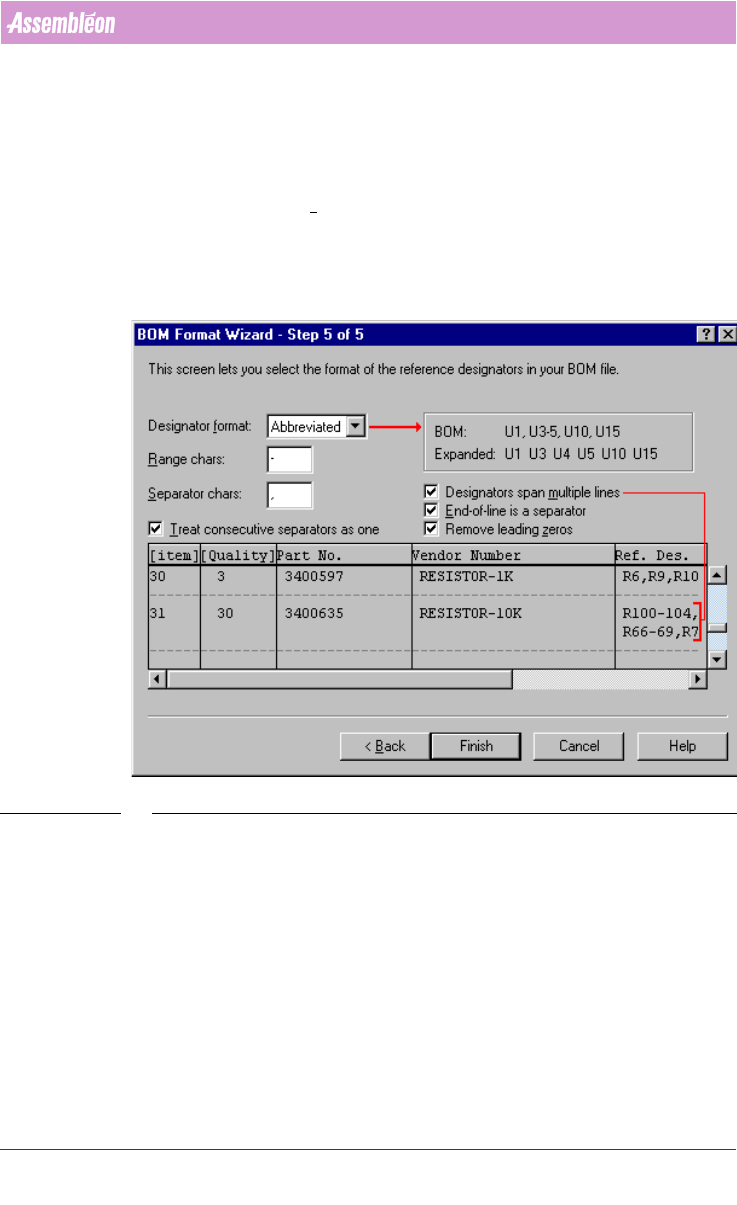
5. Step 5 of the BFW (see SCREEN 29 on page 38)
The format of the reference designators in the BOM-file is specified in this
step.
■ Designator format combobox: Select Explicit, Abbreviated, or Terse to
describe how the reference designators are defined. The area on the right
side of the screen displays an example of the selected format with the
defined range and separator characters, as well as an explicit list of the
reference designators used in the example.
■ Range chars textfield: Enter the character used in the BOM file that
signifies a range of reference designators. A dash (-) is the default
character.
User Manual 4022 591 98247
38 PPS-Pro v8.2 05.07
PPS-Pro GUI
■ Separator chars textfield: Enter the character used in the BOM-file that
separates the reference designators. A comma (,) is the default character.
■ Designators span multiple lines check box: Select this check box if the
reference designators occupy more than one line. If each line ends up with
a separator, the End-of-line is a separator check box must also be selected.
■ Remove leading zeros check box: Check this box, if leading zeros in
reference designators must be ignored. For example, reference designator
C1 would equal C01, U6 would equal U06, and so on. If you choose not to
remove leading zeros, PPS-Pro will consider C1 to be different from C01.
SCREEN 29 BOM Format - Step 5
2.12.2 Edit an existing BOM format
To start editing an existing format just press the Edit icon (see SCREEN 23 on
page 32) of the ‘BOM-Formats Explorer’.
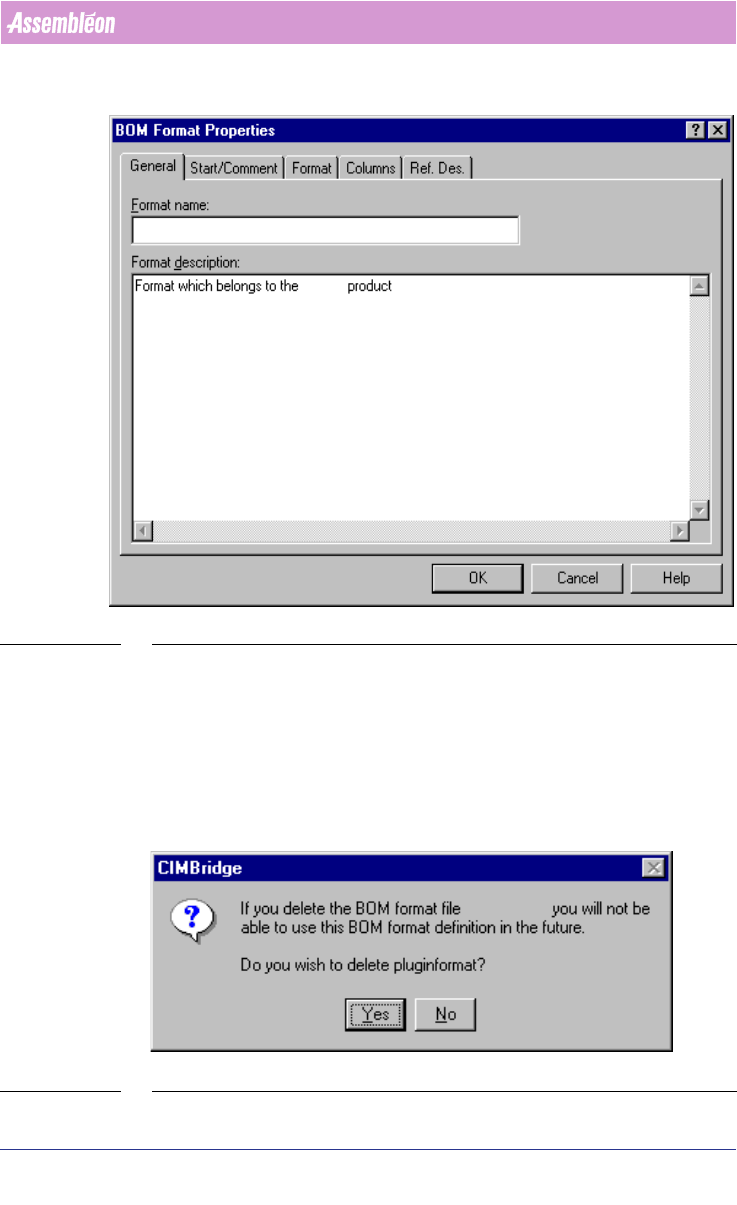
After pressing this icon a window appears with five tabs (see SCREEN 30 on
page 39). Each tab is analogous to a BFW step (see 2.12.1 on page 32).
4022 591 98247 User Manual
05.07 PPS-Pro v8.2 39
PPS-Pro GUI
SCREEN 30 BOM Format Properties - Edit
2.12.3 Remove a BOM format
To remove an existing format just select a format and press the Delete icon
(see SCREEN 23 on page 32) of the ‘BOM-Formats Explorer’. A dialog appears
with the question whether the format must be deleted or not (see SCREEN 31
on page 39). Press the Yes button do delete the format or press the No button
to maintain the format.
SCREEN 31 BOM Format - Delete - Confirm