PPS Pro version 8.2 - 第56页
User Manual 4022 591 98247 52 PPS-Pro v8.2 05.07 PPS-Pr o GUI FIGURE 7 Pan el Group Mod e Boar d outlin es are sho wn for r efer ence only . Boar d fiducial s and boar d badmark s are depicted a ccordin g to th e pattern…
4022 591 98247 User Manual
05.07 PPS-Pro v8.2 51
PPS-Pro GUI
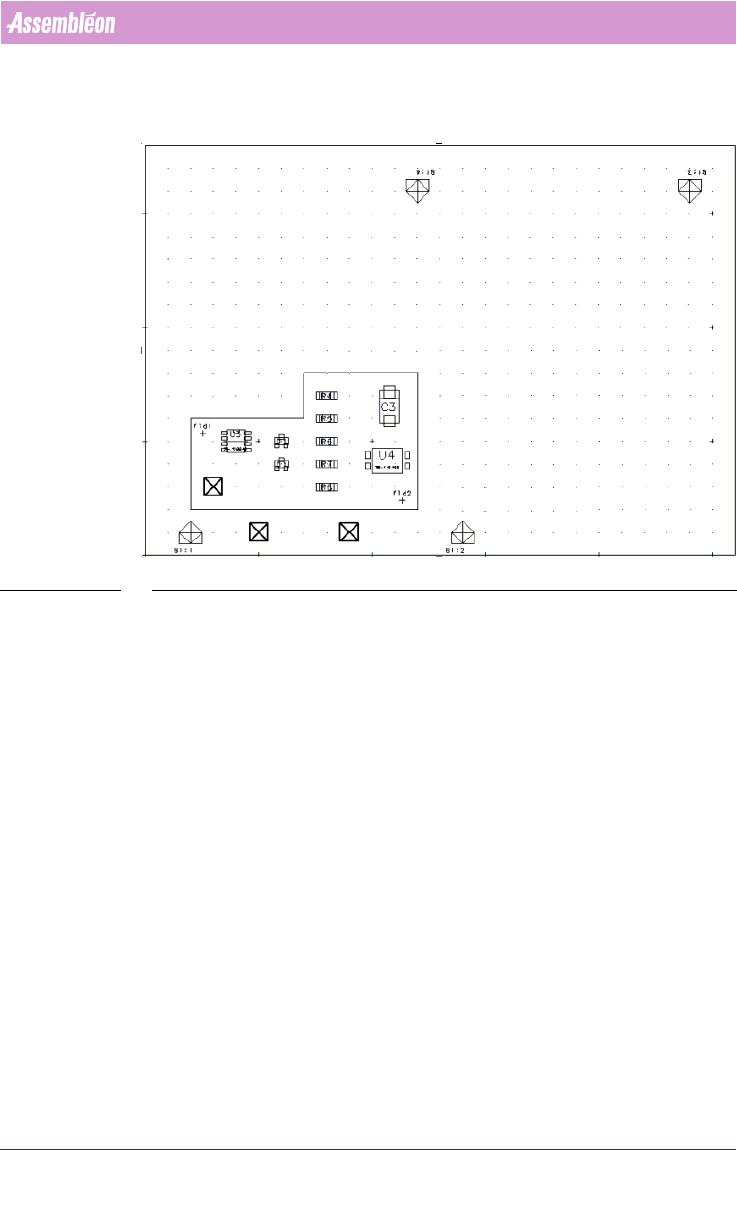
Consider the following panel (see FIGURE 6 on page 51).
FIGURE 6 Panel Starting Point
This panel satisfies the requirements for adding fiducial arrangements and
badmark groups. The board is not flattened and the appropriate step-and-
repeat symbols are present. Fiducials, badmarks, and panel badmarks are also
present.
Only the “base” image is shown but fiducials from any of the four board
instances may be required for selection and inclusion in fiducial
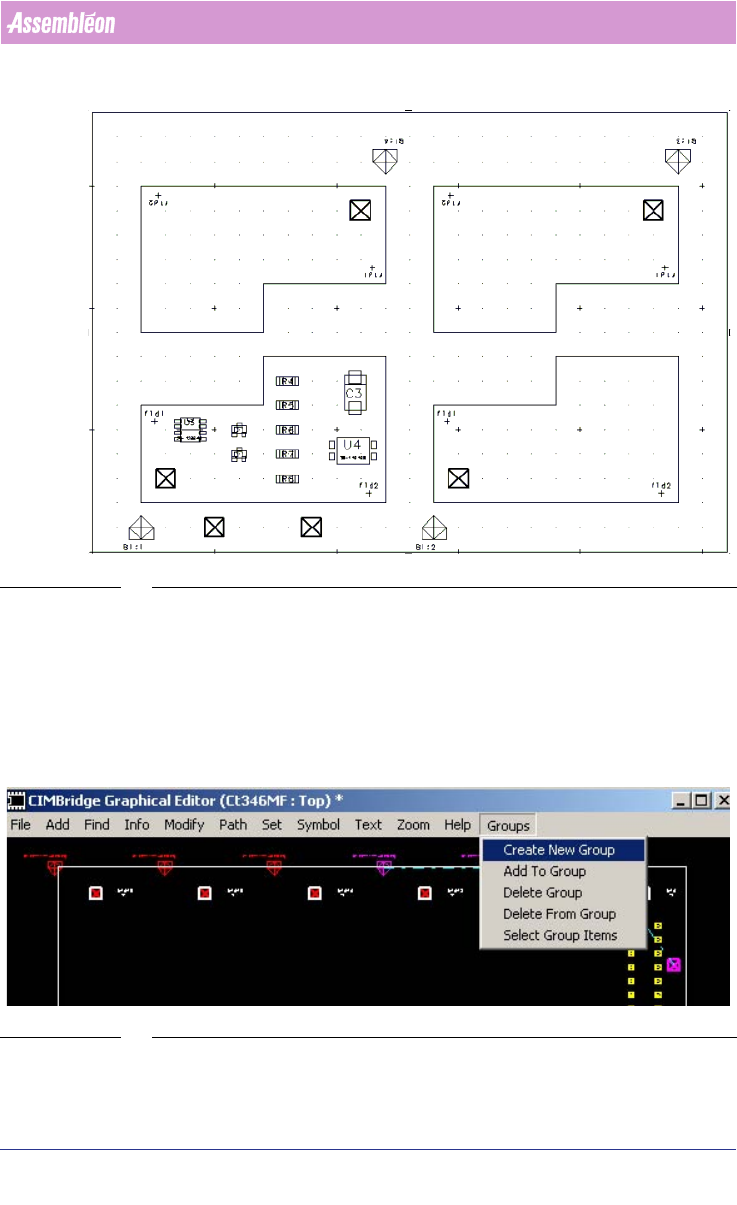
arrangements. It is possible to present the panel in a manner showing all of
the necessary fiducials and badmarks. This actually puts the graphical editor
into a mode that allows only the manipulation of fiducials and badmark
groups. The command File > Group Mode enters that mode
(see FIGURE 7 on
page 52).
User Manual 4022 591 98247
52 PPS-Pro v8.2 05.07
PPS-Pro GUI
FIGURE 7 Panel Group Mode
Board outlines are shown for reference only. Board fiducials and board
badmarks are depicted according to the pattern that they appear on the
panel. The File > Group Mode command has a check mark next to it indi
-
cating the activation of Group Mode. Selecting this command again will exit
group mode and remove the check box. No editing operations other than
Group functions will be allowed while in Group Mode. The usual querying and
viewing operations are available.
SCREEN 32 Group mode
When in Group Mode a Groups menu appears on the graphical editor menu bar
containing the following commands.

4022 591 98247 User Manual
05.07 PPS-Pro v8.2 53
PPS-Pro GUI
■ Create New Group (Fiducial/Reject): Forms a fiducial or badmark
(Reject) group from the selected items, depending on which type of items
are currently selected. Illegal combinations are rejected. For example, only
a single panel-level badmark may be included in a badmark group.
Including a board-level mark or two panel-level marks would be rejected.
■ Delete Group: Deletes the currently selected Group(s).
■ Select Group Items: Selects all items on the currently selected Group(s).
■ Add To Group: Adds selected items to currently selected Group. Only
additions resulting in a legal group are permitted.
■ Delete From Group: Deletes selected items from currently selected group.
If the result would contain no board instances, no fiducials (in a fiducial
group), or no badmarks (in a badmark group) then the selected group
itself is deleted in its entirety.
Additionally, the InfoParts command will (in group mode) indicate the
number of groups of each kind that a board instance in included. That is, for
step-and-repeat marks, the InfoParts command will show how many fiducial
and badmarks a step-and-repeat mark is included in.
Step-and-repeat marks will be displayed by colour depending upon their
inclusion in fiducial or reject groups.
■ Red will indicate inclusion in neither kind of group.
■ Green will indicate inclusion in both kinds of groups.
■ Yellow will indicate inclusion in only one kind of group.
Fiducial and badmark groups will be shown by a dotted line connecting all of
the grouped items
(see FIGURE 8 on page 54). The finely dotted lines will be
coloured white and represent a fiducial arrangement. The coarsely dashed
lines will be coloured blue and represent a badmark group.