PPS Pro version 8.2 - 第62页
User Manual 4022 591 98247 58 PPS-Pro v8.2 05.07 PPS-Pr o GUI SCREEN 36 Specify an Area badmark The Ar ea badmark s are manual ly ente red with the MDF editor as panel badmar ks but th ey m ust be named as fo llo ws: <…
4022 591 98247 User Manual
05.07 PPS-Pro v8.2 57
PPS-Pro GUI
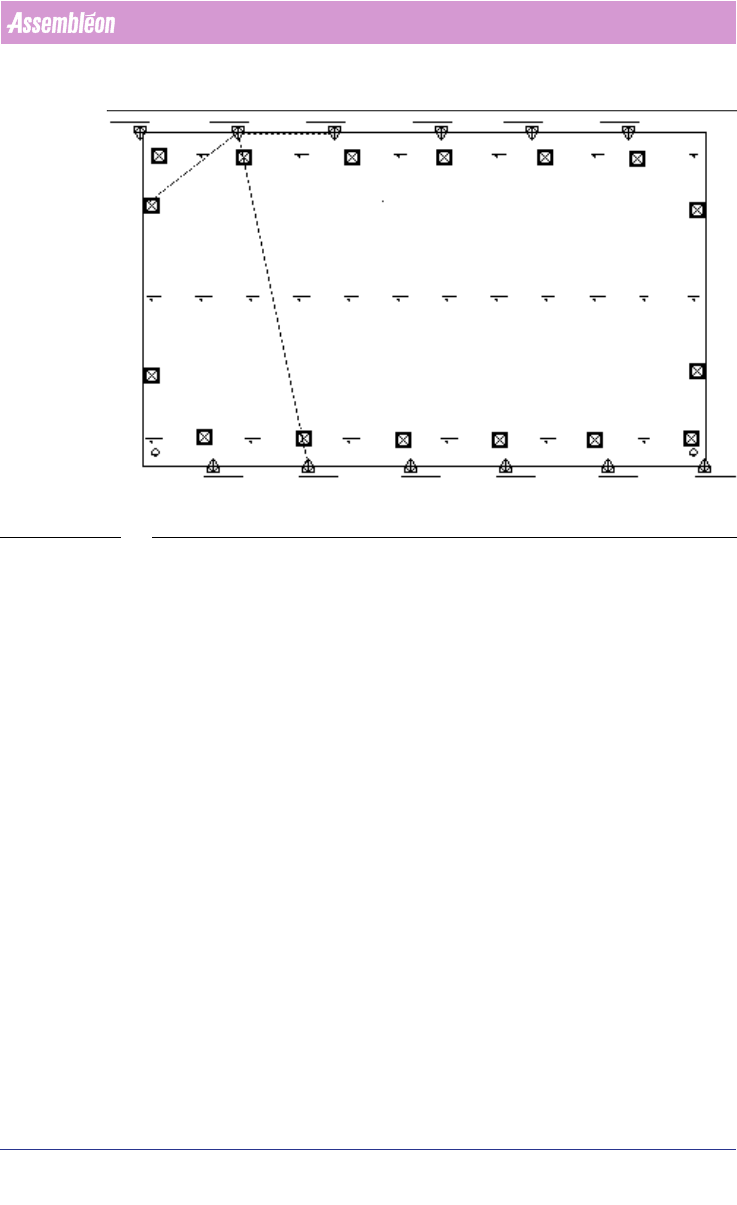
SCREEN 35 Badmark Grouping
2.20 Area Badmarks (A-Series)
With this functionality the concept of Master badmarks (Multiple Level) is
also supported for AX software version 1.11 or later.
2.20.1 Area badmark support on A-Series machines
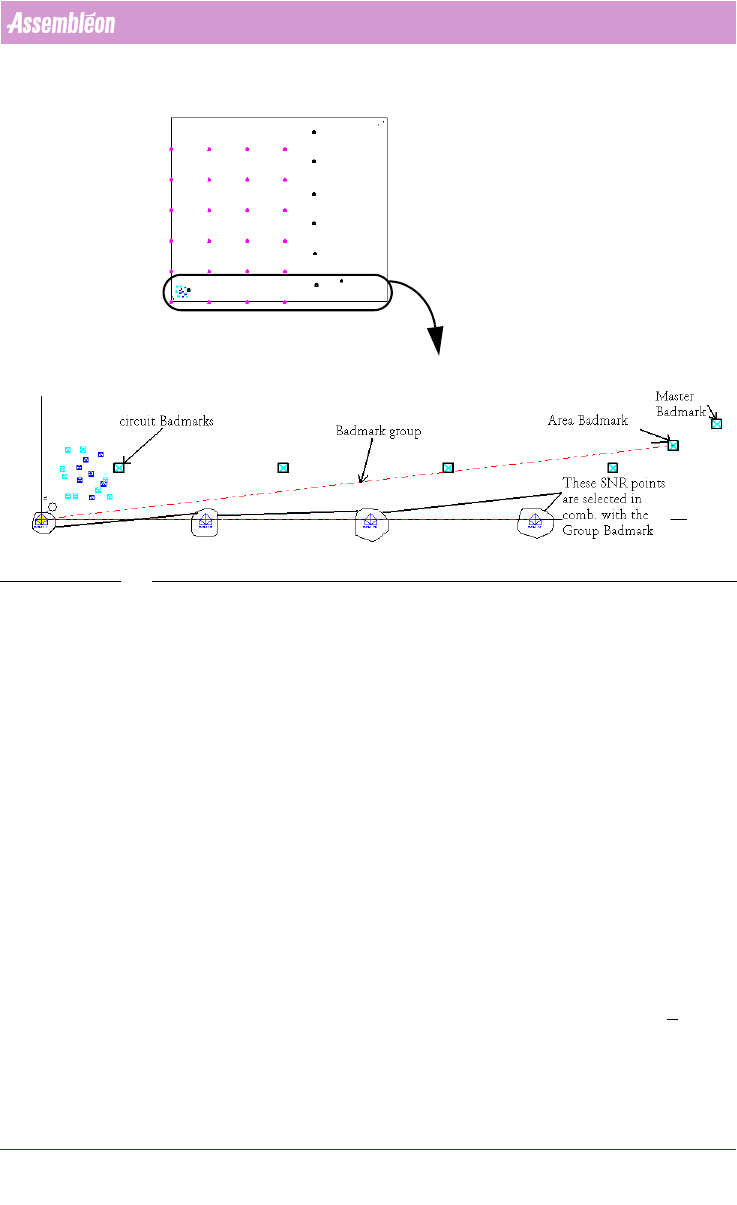
This feature is always used in combination with badmark groups. There are
three types of badmarks available:
1. circuit badmarks
2. area badmarks
3. panel badmarks
The following picture shows a PCB that contains these three types. On this
PCB groups are used to relate circuit badmarks to area badmarks.
User Manual 4022 591 98247
58 PPS-Pro v8.2 05.07
PPS-Pro GUI
SCREEN 36 Specify an Area badmark
The Area badmarks are manually entered with the MDF editor as panel
badmarks but they must be named as follows:
<name>@<panel_badmark_name>
The Area badmarks can be used to make badmark processing fast, a Badmark
is only read if a higher level badmark is found ‘bad’, on a good PCB only the
highest level badmarks are read, at the moment the system determines that
these are OK it is allowed to place components on the underlying circuits. If
this is not the case then the machine will inspect the lower level badmarks, to
find out on which circuit(s) no parts have to be placed.
2.21 Common grouping functions in the MDF editor
These functions are available when grouping mode is active.
2.21.1 Add to Group
This function can be applied to both fiducial arrangement and badmark
groups. To add a fiducial/ step-and-repeat/ panel badmark etc. items, select
the group (dotted line) and the item to be added to the group. Click
Groups >
Add To Group. Now the selected part is added to the group.
entire PCB
This part is
shown in detail
4022 591 98247 User Manual
05.07 PPS-Pro v8.2 59
PPS-Pro GUI
2.21.2 Delete Group
This function can be applied to both fiducial arrangement and badmark
grouping. To delete the grouping either fiducial or badmark, select the
grouping (the dotted line) and then click
Groups > Delete Group.
2.21.3 Delete From Group
This function can be applied to both fiducial arrangement and badmark
grouping. To delete from the group, select the group (dotted line) and the
part to be deleted from the group. Click
Groups > Delete From Group. Now
the selected part is deleted from the group.
2.21.4 Select Group Items
This function can be applied to both fiducial arrangement and badmark
grouping. Select the group (dotted line) then click
Groups > Select Group
Items, now all the parts are selected which are set to the group.
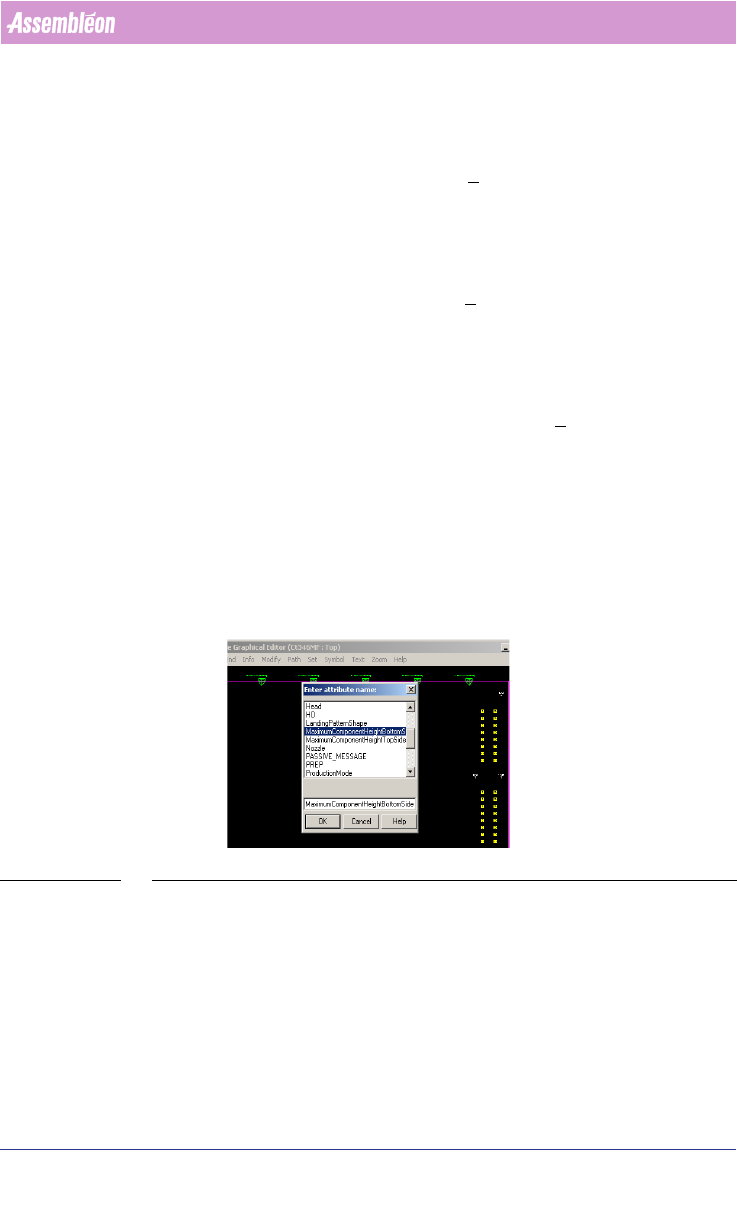
2.22 Initial Panel component Height
In the MDF-Editor it’s possible to add the component height. The optimizer
will change the movement of the transport and head accordingly. This can
make a difference in output time because the traveltime will be
minimized.
(see SCREEN 37 on page 59)
SCREEN 37 Initial panel component height
Select the Panel and go to Modify/Attributes/Add and set manually the
component height. Repeat this for the bottom-side (by selecting the panel on
the bottom-side).