PPS Pro version 8.2 - 第72页
User Manual 4022 591 98247 68 PPS-Pro v8.2 05.07 PPS-Pr o GUI If ‘ All panel types’ is chosen then th e mathematical aver ag e is calculated and sho wn. SCREEN 45 Optimizer Result In the *.ssr file the fe ed er setup is …
4022 591 98247 User Manual
05.07 PPS-Pro v8.2 67
PPS-Pro GUI
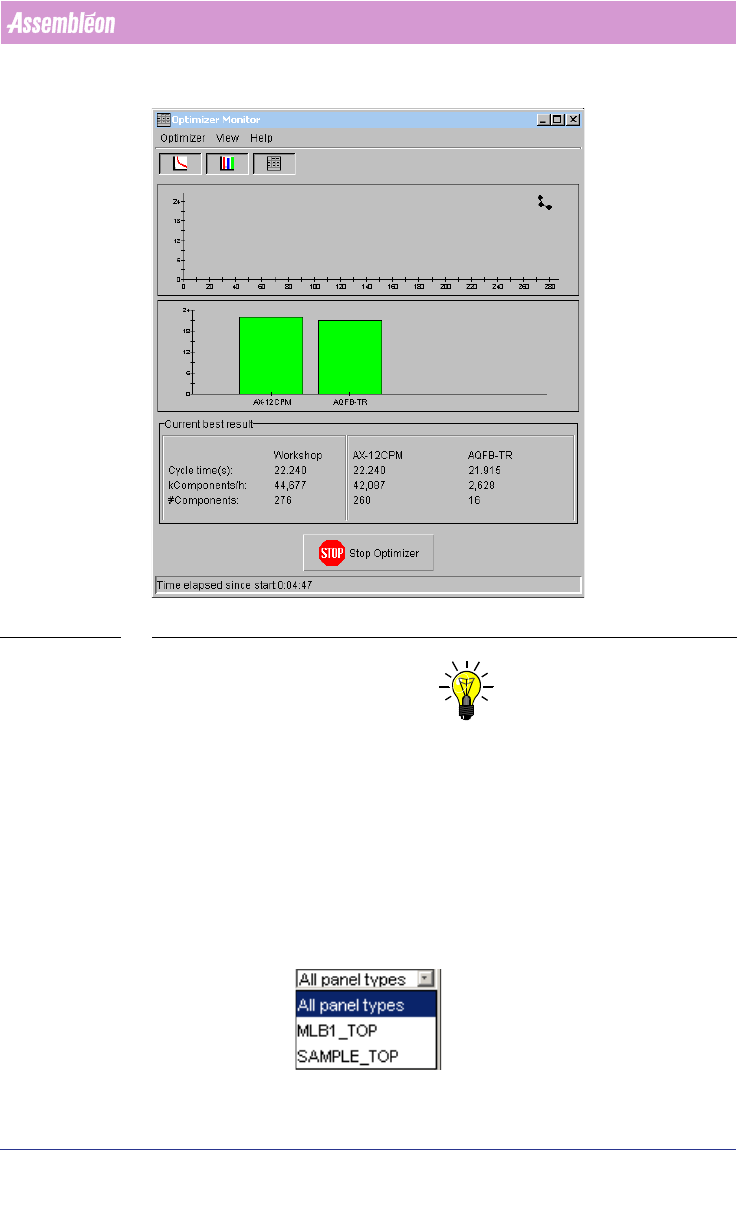
SCREEN 44 Optimizer Monitor
NOTE: The Optimizer Monitor only works for the Assembléon PowerLine optimizer/
generator and the Assembléon A-series optimizer/generator. The
Assembléon Gemline Optimizer does not need the monitor because calcu
-
lations do not take that long.
When the optimization is successfully completed or stopped via the optimize
monitor “Stop Optimizer”-button, documents and Placement Programs are
created (
see SCREEN 45 on page 68).
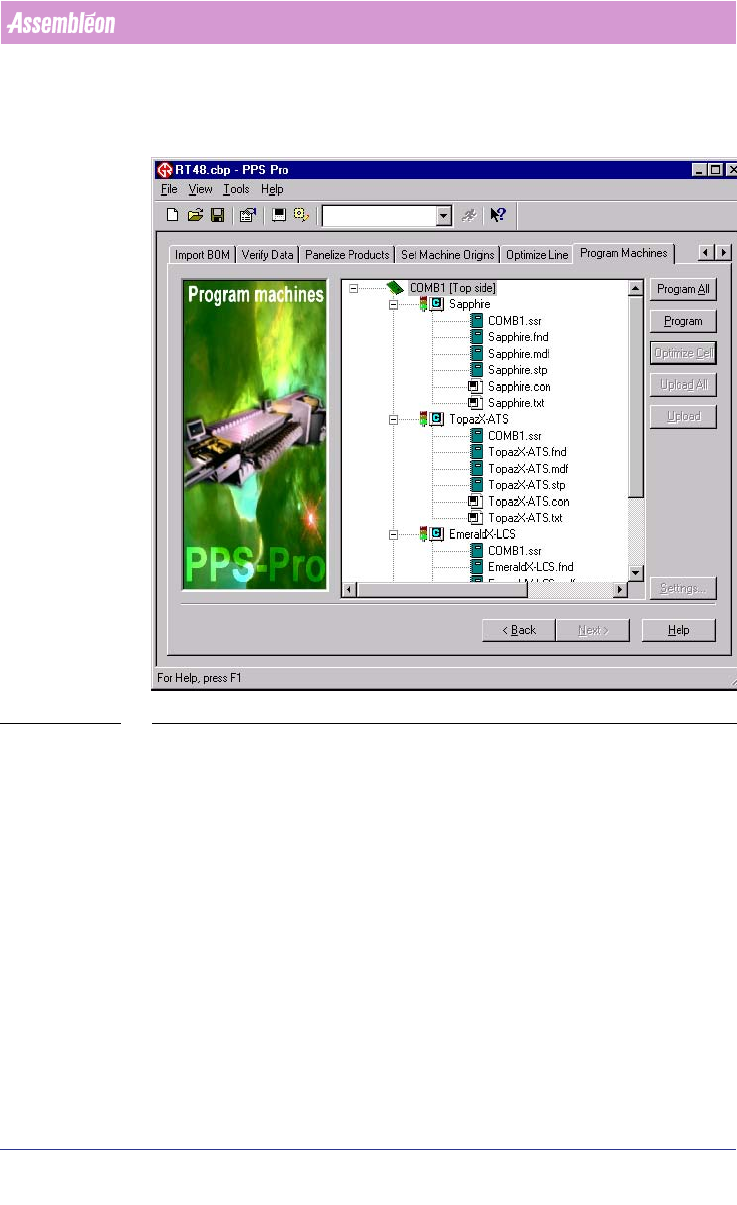
In combined product calculations the following selection box is shown in the
optimizer monitor, it can be used to view the current results of one PCB:
User Manual 4022 591 98247
68 PPS-Pro v8.2 05.07
PPS-Pro GUI
If ‘All panel types’ is chosen then the mathematical average is calculated and
shown.
SCREEN 45 Optimizer Result
In the *.ssr file the feeder setup is shown.
The *.vnd file shows the calculated performance time in kcpn/hr and the
count for one circuit. The placement time in sec is for the PCB.
For GemLine calculations: If a PCB consists of more than one circuit the
calculated time has to be multiplied by the amount of circuits on the PCB.
If the expand feature in Pro is used, the generated *.fnd file shows only the
components of one circuit.
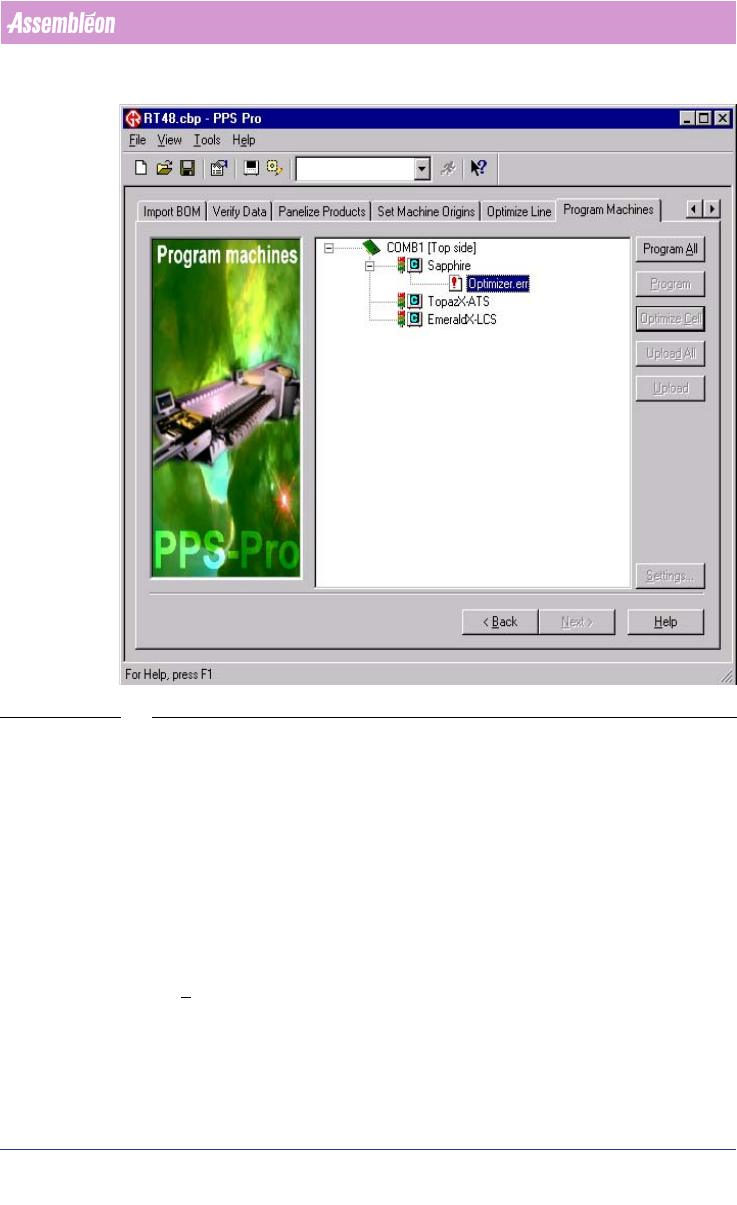
When the optimization is not successful an error file is created see SCREEN 46
on page 69.
4022 591 98247 User Manual
05.07 PPS-Pro v8.2 69
PPS-Pro GUI
SCREEN 46 Optimizer Failed
2.26 How to use a setup file (*.con)
The Machine Setup file (.con) describes how the machine has to be configured
to create a specific board.
2.27 Let PPS-Pro generate a setup file
The following steps can be taken to let PPS-Pro automatically generate setup
files.
1. Prepare the whole project until the line can be optimized. Click the File >
Preferences and in CIMBridge Preferences screen, click Optimizer tab and
select radio button ‘Run Time Balancer’ or ‘Line Sheduler’ from the Line
optimizer type frame.
2. Go to the Program Machines tab in PPS-Pro window.