PPS Pro version 8.2 - 第74页
User Manual 4022 591 98247 70 PPS-Pro v8.2 05.07 PPS-Pr o GUI 3. Select a ma chine , and click th e S ettings button and th en the M odi fy button. 4. From the Optimize combo bo x, choose either ‘F rom MD F’ or ‘F ro m P…
4022 591 98247 User Manual
05.07 PPS-Pro v8.2 69
PPS-Pro GUI
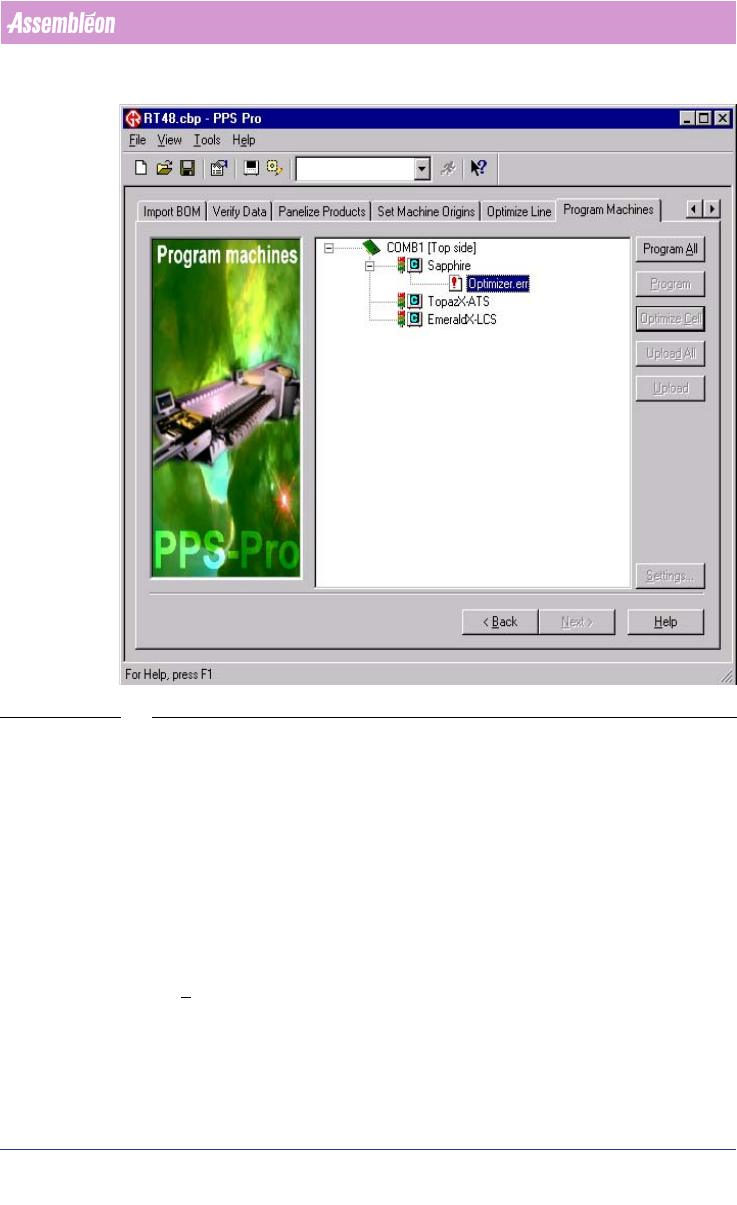
SCREEN 46 Optimizer Failed
2.26 How to use a setup file (*.con)
The Machine Setup file (.con) describes how the machine has to be configured
to create a specific board.
2.27 Let PPS-Pro generate a setup file
The following steps can be taken to let PPS-Pro automatically generate setup
files.
1. Prepare the whole project until the line can be optimized. Click the File >
Preferences and in CIMBridge Preferences screen, click Optimizer tab and
select radio button ‘Run Time Balancer’ or ‘Line Sheduler’ from the Line
optimizer type frame.
2. Go to the Program Machines tab in PPS-Pro window.

User Manual 4022 591 98247
70 PPS-Pro v8.2 05.07
PPS-Pro GUI
3. Select a machine, and click the Settings button and then the Modify
button.
4. From the Optimize combo box, choose either ‘From MDF’ or ‘From Path’.
Click the
OK button.
5. Click the Close button and then click the Program button.
6. Repeat steps 2-5 above for all machines
7. Press the Optimize Cell button.
After a successful optimization, the created setup files are automatically
written in each machine directory of the project directory. The optimizer will
over write existing setup files that are already located in those machine direc
-
tories.
NOTE: To reuse setup files (see 2.28 on page 70), place them in a directory other
than the machine directory or rename the CON file.
2.28 Use a setup file when optimizing a pcb
Setup files are always created after program machines. These files enablea you
to manually assign certain parts to certain feeders, while allowing the rest of
the parts to be assigned by the Assembléon optimizer. There are two ways to
use the setup file when an optimization is performed. This depends on the
choice that is made in the
File > Preferences... menu in the Optimizer tab.
The two choices for the ‘Line Optimizer type’ are:
1. ‘No Optimizer’.
The setup file can be selected via the Fixed Setup button in the Program
Machines tab.
2. An other selection.
The setup file can be selected via the Settings... button in the Optimize Line
tab.
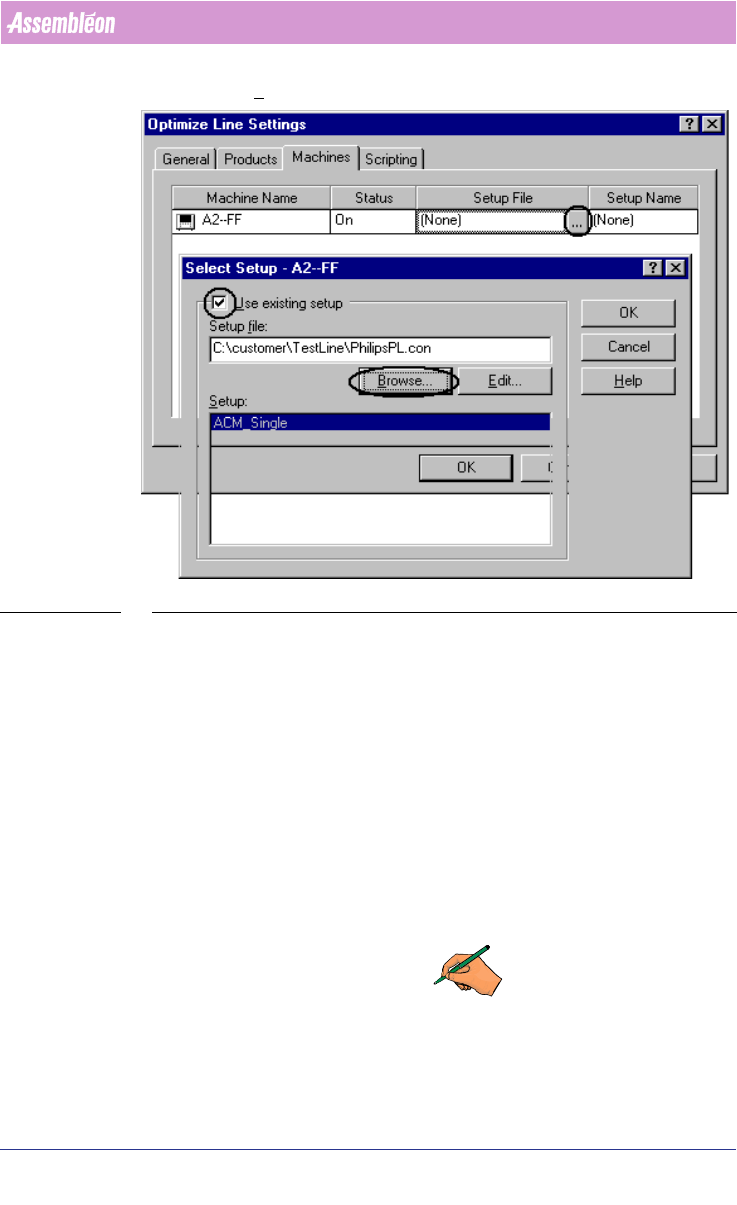
After pressing one of these above mentioned buttons, the Optimize Line
Settings dialog appears
(see SCREEN 47 on page 71). The setup file can be
selected after:
■ Pressing the ... button.
■ Select the Use existing setup checkbox.
4022 591 98247 User Manual
05.07 PPS-Pro v8.2 71
PPS-Pro GUI
■ Press the Browse... button.
SCREEN 47 Optimize Line Settings - Select Setup
After the setup file has been selected a successive calculation will use it.
After the optimization again a con file will be generated in the machine
directory and project root, take care that these files will be overwritten with
calculations of the same project. The fixed setup of the initial con file will be
part of the latest made con file. The latest con file can be used for successive
calculations if the user wants to keep the machine setup as long as possible.
2.29 Obtaining topguide position information in STP
report
If an A_Series FeederTrolley is configured in an existing ALE file, then the STP
report should mention the feeder topguide positions. In the new example ALE
files this has been added, but in existing files it still has to be added.
REMARK: This only applies to A_Series_FeederTrolley, for FCMII_upgrade
trolleys the topguides should not be set.