00195044-22_UM_VisionTeachStation_5.x.x_DE_EN.pdf - 第147页
Vision Teach Station 5.x.x User Manual 7 Software 05/2019 Edition 7.2 Software upgrade 55 7.2.1 Software required Y ou will need the Installation Package Vi sion T each Station Collection R19-1, (item no: 001 17257-xx) f…

7 Software Vision Teach Station 5.x.x User Manual
7.2 Software upgrade 05/2019 Edition
54
7.2 Software upgrade
NOTE
It is possible to run the VTS on the SIPLACE LAN, and thus access other SIPLACE Pro databases
(version 5.0 SP1). If you want to use this feature, you will have to reinstall the computer to
ensure that the host name and IP address are unique (see section 7.3
, page 59). 7
Please also read sections 9.3 and 9.4 from page 68.
CAUTION: 7
Following items are important for the older software packages 00376902, 00385200 and
00387300:
When you install the software, make sure that the version of SIPLACE Pro matches the vision
teach station software (as shown in table 7.1 - 1
on page 53). The install routine does not check
the versions.
You should therefore check which versions of the software packages are installed before star-
ting the installation.
Carry out the installation in the order described below.
NOTE 7
As of Vision Teach Station version 4.1.1 you can update the Vision Teach Software independently
of the SIPLACE Pro version, if at least SIPLACE Pro V5.05SP1 is installed.
Please note that some of the new features (see section 7.4
on page 60) are only available with
SIPLACE Pro V7.0 or higher.
For this, simply deinstall the Vision Teach Station software as described in the last item in
section 7.2.3
on page 55.
Then install the new Vision Teach Station version as described in section 7.2.4.4 on page 58.
NOTE 7
To install or remove the software you will need access with administrator rights
You will find the latest information on the setup CD and in the "ReadMe.txt" file.
Vision Teach Station 5.x.x User Manual 7 Software
05/2019 Edition 7.2 Software upgrade
55
7.2.1 Software required
You will need the Installation Package Vision Teach Station Collection R19-1,
(item no: 00117257-xx) for the upgrade to Vision Teach Station version 5.x.x.
All software belonging to the release is available on the ASM Software Collection USB Medium,
item no. [00117884-xx]. This USB stick contains all basic product packages of the release.
Additionally, the individual software packages (*.iso files) contain the relevant software documents
(Installation Manuals, Software Version Descriptions, User Guides etc.).
7.2.2 License for the local SIPLACE Pro server as of V7.0
In order to operate Vision Teach Station offline, you will need a valid license for the SIPLACE Pro
server on the VTS computer.
The license management for line software products has been overworked in the SIPLACE Pro 7.0
version. The VTS computer is configured as license manager server and is delivered with a test
license. If this license expires, you will have to generate a host bound license key with your factory
license via the ASM License web portal. Instructions can be found in the "Installation_Manual_
ASM_OIB_License_Manager.pdf" document. This document is available on the ASM Support
Media in the <<Siplace Installation\ASM License Manager\V2.x>> directory. If you do not have
any factory license for the current SIPLACE Pro version by this time, you can create a test license
that is valid for three months via this portal as well.
If the Vision Teach Station is operated in SIPLACE LAN and you work with databases on other
SIPLACE Pro computers, you will need no license for the local SIPLACE Pro server.
7.2.3 Removing the old version
Uninstall SIPLACE Pro in the Control Panel under "Add & Remove Programs" (see the
"SIPLACE Pro Installation Manual" on the "SIPLACE Pro Application" setup CD in the
"Documentation" directory).
7
Uninstall the vision teach station software from the Start menu.
7 Software Vision Teach Station 5.x.x User Manual
7.2 Software upgrade 05/2019 Edition
56
7.2.4 Installing the new version
7.2.4.1 Installing the "ASM Support Media"
Open the "ASM Support Media" *.iso file and run the AUTORUN.CMD file.
Select the "Requirements" button under "Analysis and Administration" and follow the instruc-
tions.
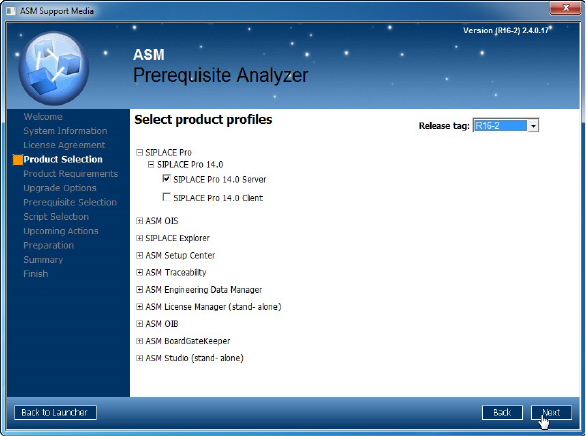
In the "Select product profiles" window, select the
"Siplace Pro
> Siplace Pro x.x > SIPLACE Pro x.x Server" product.
Fig. 7.2 - 1 Product choice für SIPLACE Pro x.x
7
If an SQL database already exists, the "Choose Upgrade Options" dialog box will be opened.
Select the update to the existing SQL version.
Let the "Server" option be selected in the "License Manager" window and click on "OK".
A restart might be required. 7
Click on "OK" or "Next" several times until the wizard exits. In the last step the wizard performs
the restart. After the subsequent run-up, the wizard continues installing.
Permit a restart after installation.