SM411F_Service Manual.pdf - 第112页
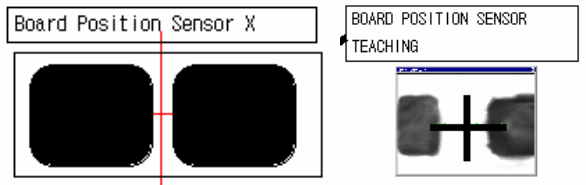
1.2.11. Board Position Calibration T each the stopper position in the conveyor installation area and the X position of the sensor . The following is the board position calibration pr ocedure. 1. Select the edit box for t…
satisfy the reference value is searched automatically and it is displayed
in the result file.
Perform mapping with the <Refine Mapping Result> check box being
selected.
State display
Displays current progressing state.
Camera (Number of camera for which test or maping is completed) /
(Total number of selected camera)
(I: Inner Level, O: Outer Level, S: Side Level, Back: Back Level)
<Close> button
Closes the dialog box..
<Import> button
First click this button and select the map file on which the result is to be
reflected.
Change the light level after importing the data from the file in which the
mapping result is saved.
Click the <Import> button with the <Import All> check box being selected.
<Update> button
Transmits the set data to the equipment and closes the dialog box.
<Cancel> button
Ignores the set data and closes the dialog box.
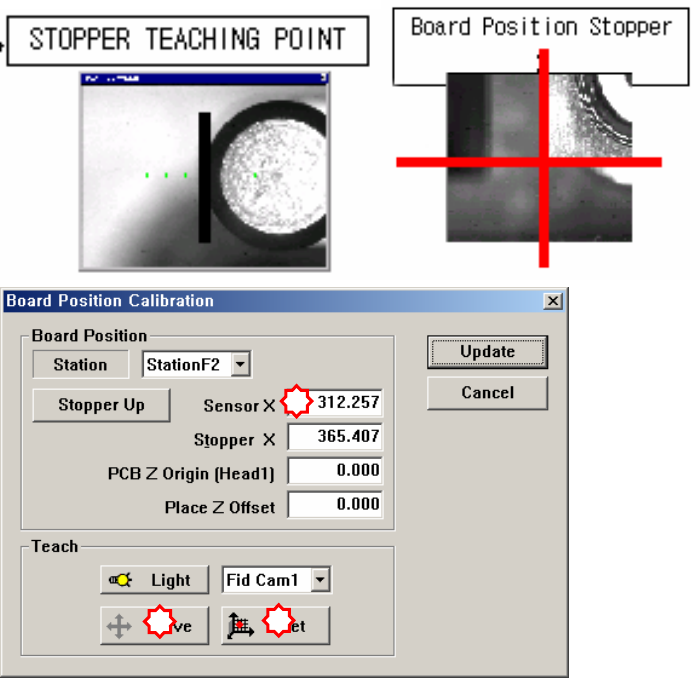
1.2.11. Board Position Calibration
Teach the stopper position in the conveyor installation area and the X position of
the sensor. The following is the board position calibration procedure.
1. Select the edit box for the < Sensor X> using the mouse and move the
downward camera (Fiducial Camera) to the position of Sensor X by clicking
the <Move> button.
2. Perform teaching of the exact position using the teaching box. Enter the precise
coordinates for ‘Sensor X’ by pressing the <Get> button of the teaching box.
3. Select the <Stopper X> combo box using the mouse and then select the stopper
to teach and click the <Move> button, move fiducial Camera to position of
Stopper X.
4. Click the <Stopper Up/Down> button in the left of the <Stopper X> edit box
first to move the stopper up and then teach the stopper position correctly using
the teaching box.
5. Click the <Get> button to enter the coordinates in the <Stopper X> edit box.
6. move the stopper down by clicking the <Stopper Up/Down> button.
1
2
3