SM411F_Service Manual.pdf - 第58页
1.2.5. Conveyor Calibration Calibration is made upon initial installation of the machine. The recalibration of transport rail should be pe rformed when m echanical adjustments to the transport rail occur . Figur e 1- 3. …

<Light> button
Inner
Adjusts the inner lighting for the Down Camera of the selected Gantry.
Outer
Adjusts the outer lighting for the Down Camera of the selected Gantry.
1.2.4.1. Procedure
1. Click the <Move> button to move the fiducial camera to the designated
position.
2. Adjust the position of the fiducial camera by using the teaching box so that the
center of the cross hair displayed in the SMVision window matches with the
center of the fiducial mark that was already set on the conveyor. At this time,
all gantry cameras have to be movable to this position.
3. Click the <Get> button to reflect the current coordinate.
4. If the <Next> button is clicked after selecting the <Automatic Next> check box,
the same movement is performed automatically.
5. If finished properly, click the <Update> button.
The manual setup method is as follows.
1. Move the fiducial camera of the corresponding gantry to the position of the
fiducial mark selected from the Grid group.
2. Adjust the position of the fiducial camera by using the teaching box so that the
center of the cross hair displayed in the SMVision window matches with the
center of the fiducial mark that was already set on the conveyor
3. Click <Get> button to reflect the current coordinate.
4. move the other gantries to the position designated in step 1.
5. Click <Get> button to reflect the current coordinate.
6. Wait until the Gantry moves to Home, automatically detects Collision sensor,
and returns to Home again.
Caution
Be sure to perform the “Gantry to Gantry Common XY”
calibration before performing the ‘Gantry Mapping’
(Disable Condition). If ‘Gantry Mapping’ is already
enabled, perform the ‘Gantry to Gantry Common XY”
calibration after disabling the ‘Gantry Mapping’.
1.2.5. Conveyor Calibration
Calibration is made upon initial installation of the machine. The recalibration of
transport rail should be performed when mechanical adjustments to the transport
rail occur.
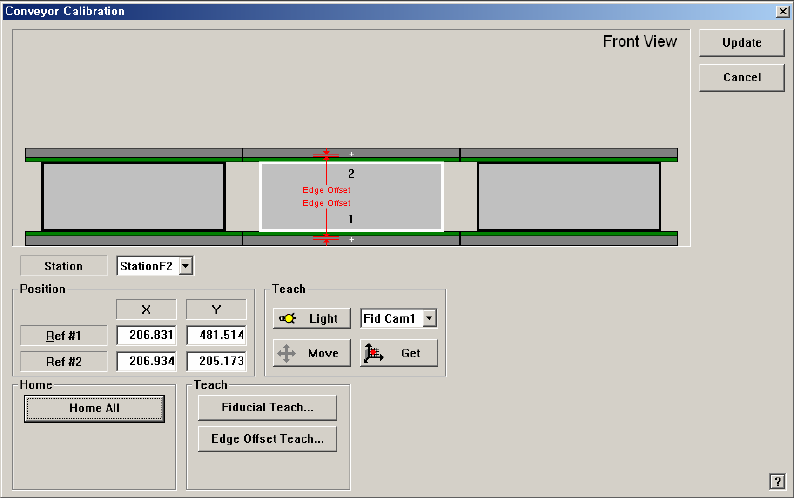
Figure 1-3. "Conveyor Calibration" dialogbox
<Station> combo box
Select the Station.
<Positon> Group
Input the position of the fiducial mark of the selected station. First click the
<Home All> button to enable this edit box and find the home position for all
axes related to the conveyor.
Ref #1: the first fiducial mark of the selected station
Ref #2: the second fiducial mark of the selected station
<Home> Group
<Home All> button: Finds the homes of all axes.
<Home Shuttle> button: Makes the shuttle return to origin when the
shuttle is at the selected station. (F1, F3)
<Home Rail> button: Makes the Conveyor rail of the selected station
return to origin.
<Teach> Group
<Move> button
Move the fiducial camera of the corresponding gantry to the position of the
fiducial mark selected from the Grid group.
<Get> button
Apply the coordinate value of the current position as the selected fiducial
mark position.
<Fiducial Teach...> button
Use the <Home All> button first to enable this button.
Teaches the fiducial marks of the selected Station. Please refer to
Administrator’s Guide “6.3 Fiducial Mark Setup” for more information..
<Edge Offset Teach…> button
Used to measure the offset between the fiducial mark and edge accurately. First
click the <Home All> button to measure the edge offset and check the fiducial
mark position.
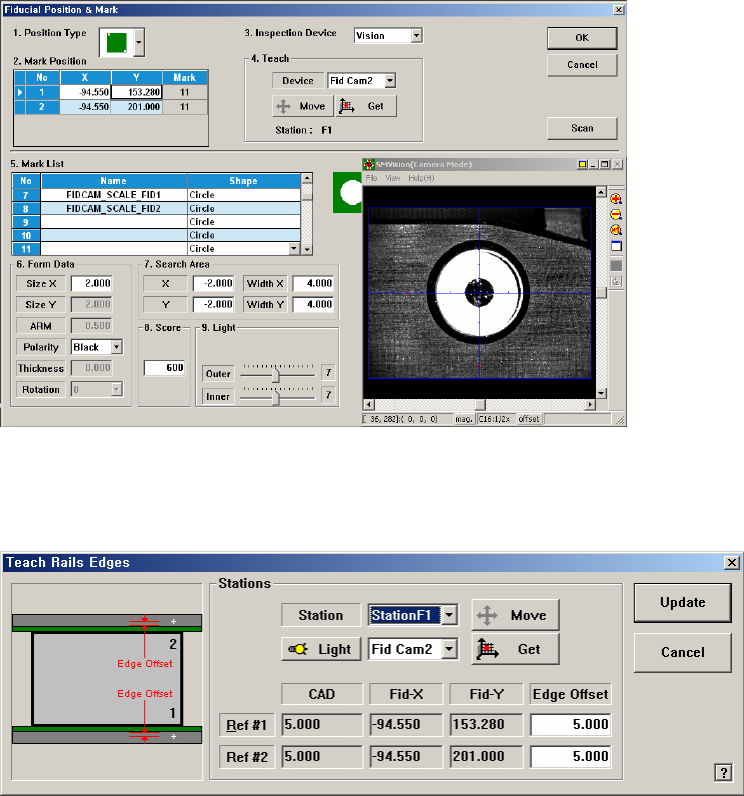
Figure 1-4. “Teach Rails Edges” dialogbox
<Edge Offset> editbox
Means the distance from the center of the fiducial mark to the edge of the
rail. Teaching must be performed after selecting this point using a mouse.
<Move> button
The <Move Cam> button can be clicked after first selecting a station and
next selecting the <Edge Offset> edit box. Then the downward camera
(Fiducial Camera) is moved to the center of the selected fiducial mark of
the selected station.
<Get> button
Apply the coordinate value of the current position as the selected fiducial
mark position.
<Light> button
Set the lighting value. Set the value by adjusting the sliding bar.
<Update> button