2OM-1075-002.pdf - 第101页
AHB01ESPP 0107-001 4 - 2 *3 [MANAGE. DT .] Button When this button is pressed, the "Management Data" window opens. (Section 3 in "V ol. 3: Programming and Machine Data") *4 [DA T A EDIT] Button When t…
AHB01ESPP
1. Composition of Menus
0308-004 4-1
1. Composition of Menus
1.1 Main Menu Bar
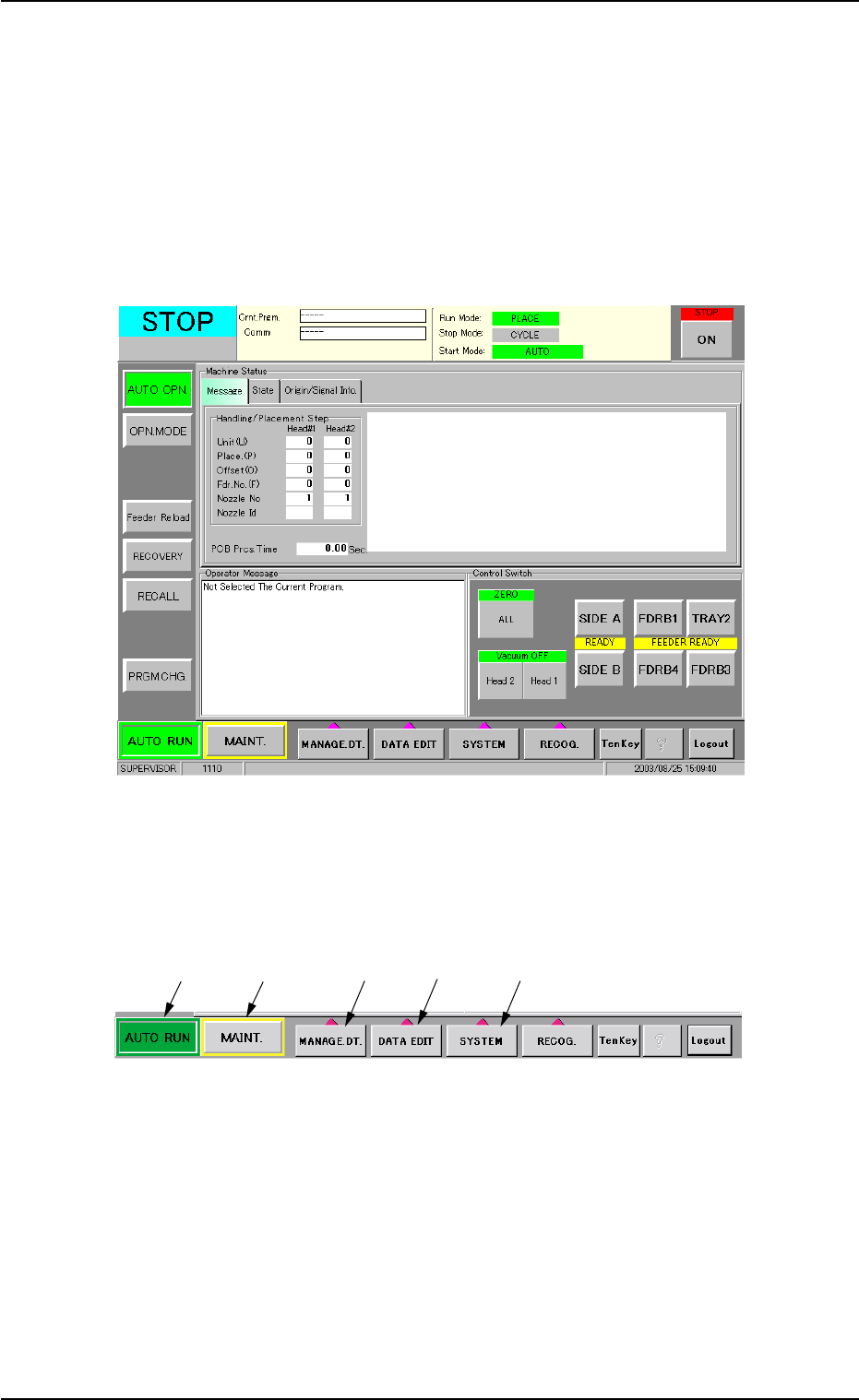
The main menu bar (located at the bottom of the touch screen) is pro-
vided with five buttons ([AUTO RUN], [MAINT.], [MANAGE. DT.], [DATA
EDIT], and [SYSTEM] buttons). When each button (menu) is selected,
the corresponding window opens.
Fig. 2D1
1.1.1 Selection Buttons on Main Menu Bar
Fig. 2D2
*1 [AUTO RUN] Button
When this button is pressed, the "AUTO OPN." window opens. ("1.1"
in Section 5)
*2 [MAINT.] Button
When this button is pressed, the "MNL OPN." window opens. ("1.1"
in Section 6)
*1
*2
*3
*4
*5
AHB01ESPP0107-001 4-2
*3 [MANAGE. DT.] Button
When this button is pressed, the "Management Data" window opens.
(Section 3 in "Vol. 3: Programming and Machine Data")
*4 [DATA EDIT] Button
When this button is pressed, the "EDIT SEL." menu opens, enabling
you to select the data to be edited. (Section 2 in "Vol. 3: Program-
ming and Machine Data")
*5 [SYSTEM] Button
When this button is pressed, the "SYSTEM SEL." menu opens, en-
abling you to set up the system. (Section 4 in "Vol. 3: Programming
and Machine Data")
1.1.2 Other Operation Buttons
The main menu bar is also provided with the following operation buttons
in addition to the main menu selection buttons.
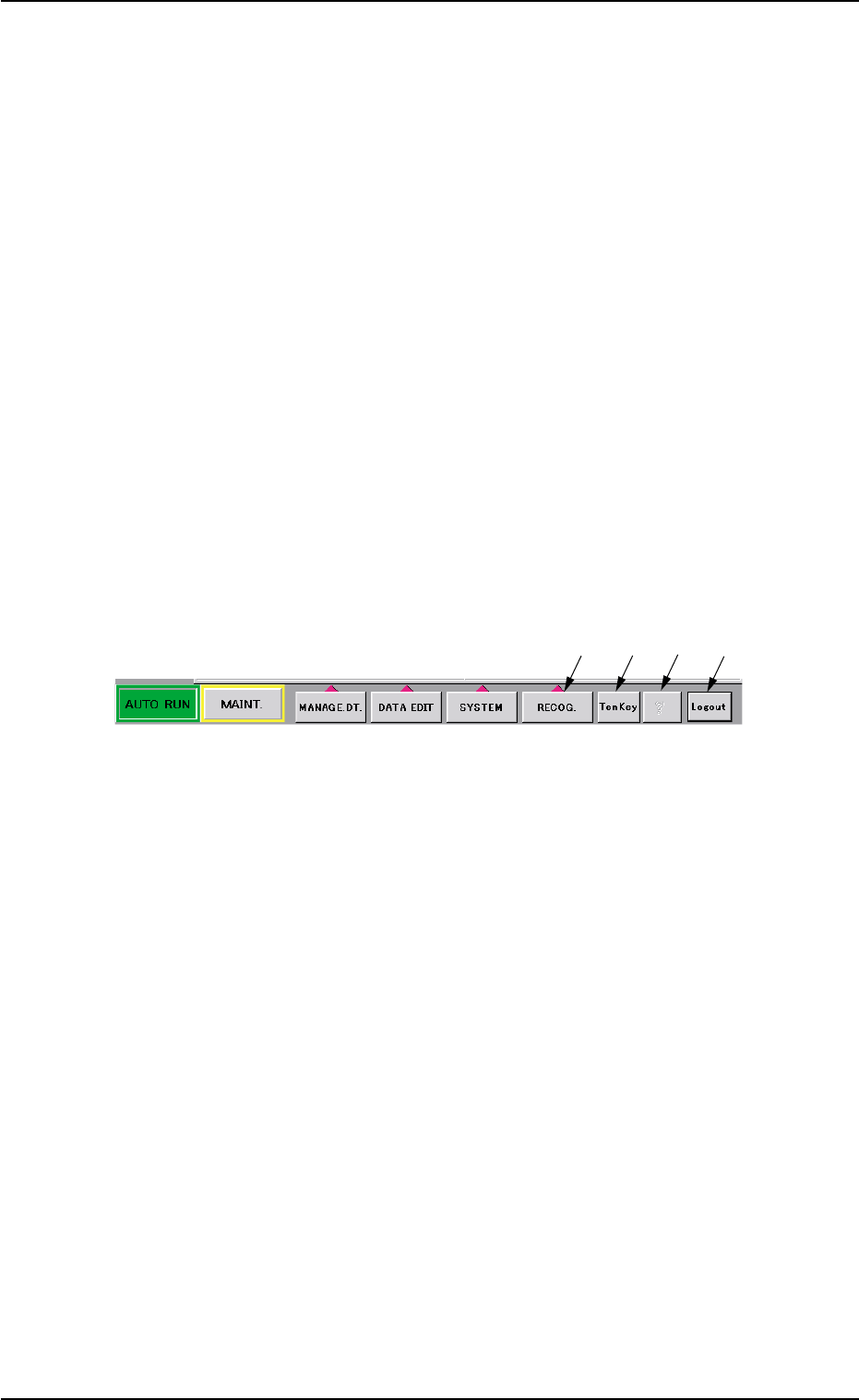
Fig. 2D3
*1 [RECOG.] Button
When this button is pressed, the "Recog.Dspl.Sel" menu opens,
enabling you to select a display pattern of the recognized image.
("2.4" in Section 4)
*2 [TenKey] Button
When this button is pressed, the "TenKey" window appears. ("2.3.2"
in Section 4)
*3 [?] Button
When this button is pressed, the "HELP" window opens.
*4 [Logout] Button
When this button is pressed, the system exits from window naviga-
tions and the "Login Type Selection" window opens. ("2.5" in Sec-
tion 4)
1.1 Main Menu Bar
*2
*3
*4
*1
AHB01ESPP
1.2 Using the Menus
1.2.1 Menus for Automatic Operation
• Menu Selection
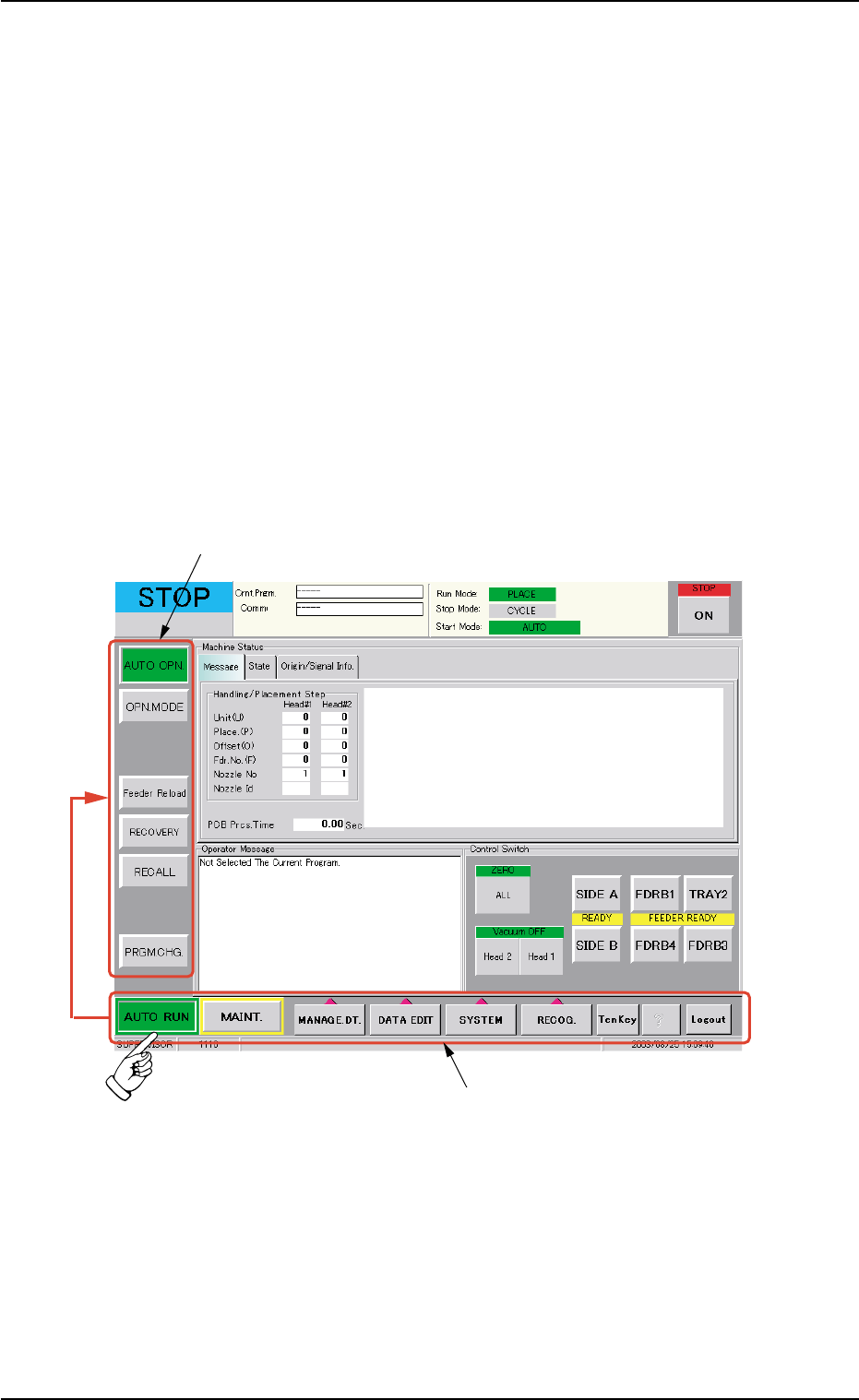
1. When the [AUTO RUN] button on the main menu bar is pressed, the
"AUTO OPN." window opens. The "AUTO OPN." window is provided
with a submenu bar.
2. When one of the buttons on the submenu bar is pressed, the corre-
sponding sheet (submenu) or tab sheets appear inside the "AUTO
OPN." window.
This window is provided with main menus related to the automatic op-
eration of the machine. All operations required for automatic operation
are included in this window.
Fig. 2D4 Selection of Menus for Automatic Operation
1.2 Using the Menus
0308-004 4-3
"AUTO RUN" Submenu Bar
Main Menu Bar