2OM-1075-002.pdf - 第118页
AHB01ESPP 2 . 2 Setting Operation 2.2.1 Check Box A check box ( or ) is provided in front of an item that requires an off or on value, indicating whether the function is selected or not. Check Boxes : The item (function)…
AHB01ESPP
2. Basic Operations
2.1 Selection of Tab Sheet
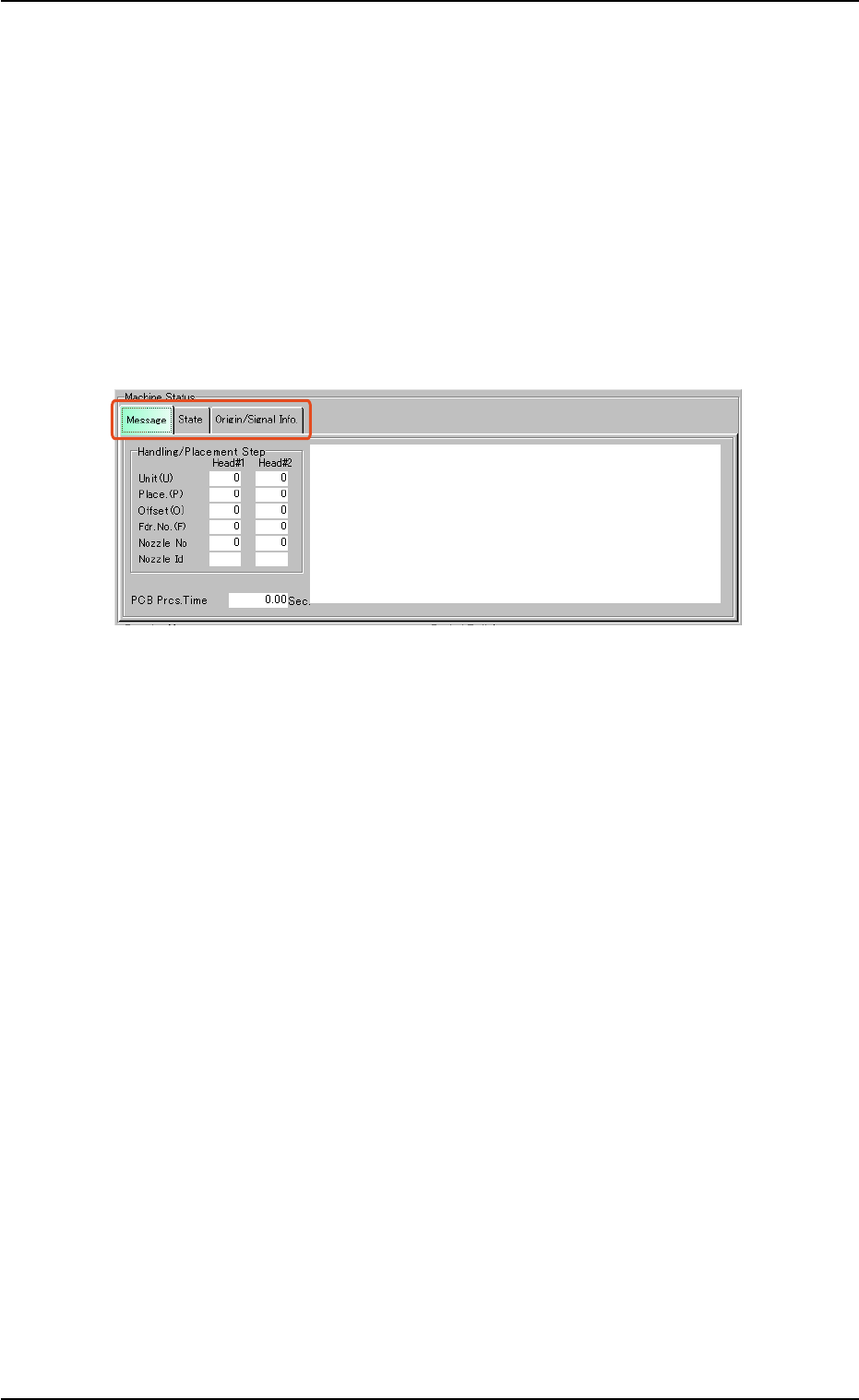
When a window is composed of several sheets, all the sheets are pro-
vided with extensions called "Tabs" and laid on top of each other so that
the tab of each is visible.
In this manual, a sheet provided with a tab is called "Tab Sheet".
Each extension (tab) names the corresponding sheet. When a tab is
pressed, the corresponding sheet is brought to the front.
Fig. 2D15
When a tab sheet contains several subtab sheets and a subtab is se-
lected, the corresponding subtab sheet appears inside the main tab
sheet.
0107-001 4-17
2.1 Selection of Tab Sheet

AHB01ESPP
2.2 Setting Operation
2.2.1 Check Box
A check box ( or ) is provided in front of an item that requires an off
or on value, indicating whether the function is selected or not.
Check Boxes
: The item (function) is specified as "Enabled" or "Valid".
: The item (function) is specified as "Disabled" or "Invalid".
Turning on or off a check box
When a check box is unchecked ("Disabled" or "Invalid"), press the box.
A check mark appears inside the box, indicating that the function is speci-
fied as "Enabled" or "Valid". This is called "Checked".
When a check box is checked ("Enabled" or "Valid"), press the box. A
check mark disappears, indicating that function is specified as "Dis-
abled" or "Invalid". This is called "Unchecked".
2.2.2 Option Button
When several items (functions) are grouped and one of them must be
selected, option buttons are provided in front of the items, allowing you
to choose a single item (function) from a group of options.
Option Buttons
: The item (function) is selected.
: The item (function) is not selected.
Turning on or off an option button
When a dot is not in an option button, it means that the item (function) is
not selected. When such an option button is pressed, a dot appears
inside the circle, indicating that the function is selected.
When an option button having a dot in the circle is pressed, the dot
disappears, indicating that the selection of the function is canceled.
0107-001 4-18
2.2 Setting Operation
AHB01ESPP
2.3 Data Entry
2.3.1 Data Entry in Edit Windows
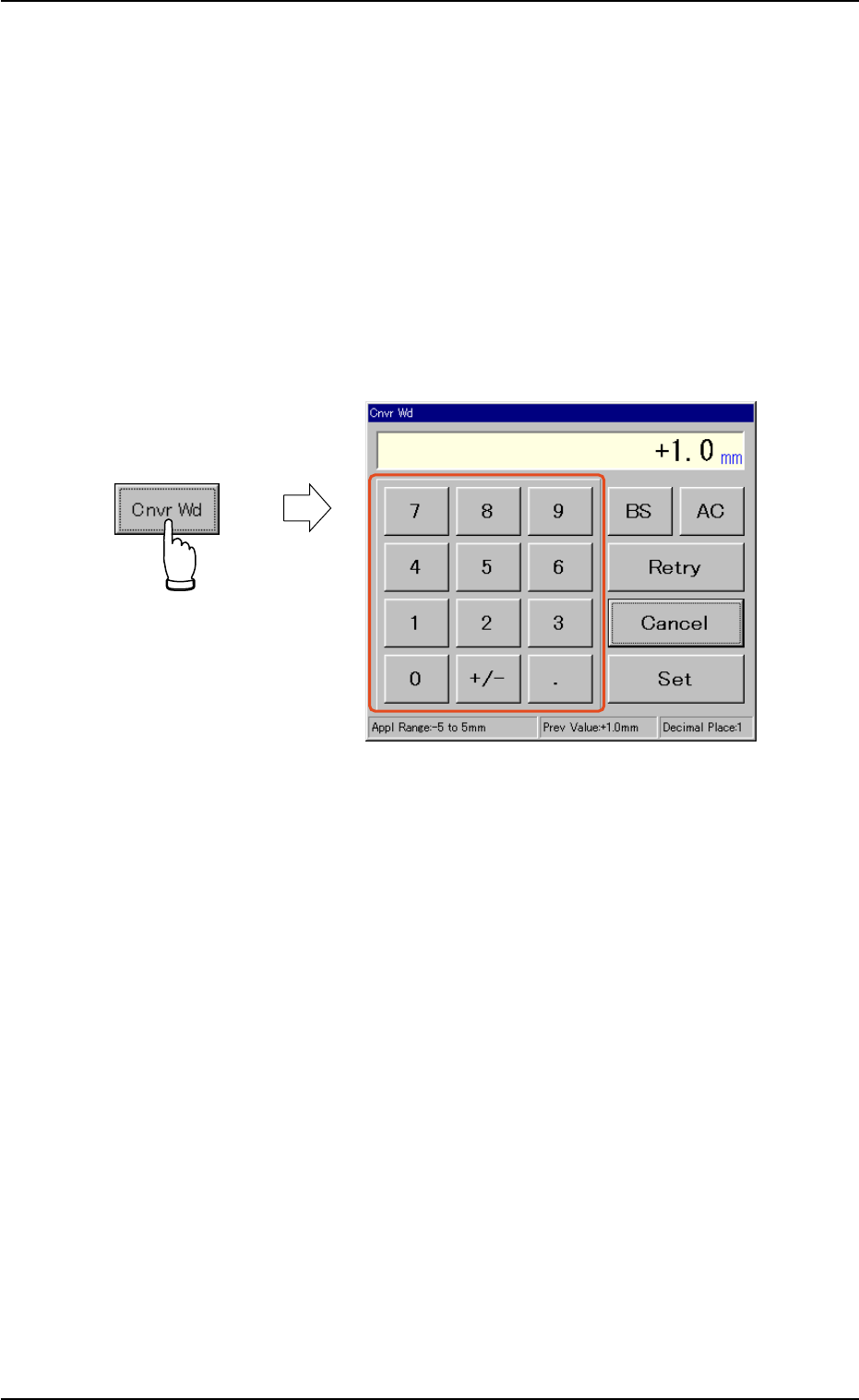
Some text boxes are provided with buttons beside them. When such a
button is pressed, the corresponding edit window appears, making it
easier to enter a parameter.
Operation Procedure
(1) When a button beside a text box is pressed, the corresponding edit
window appears.
Fig. 2D16 Edit Window
(2) Refer to the value entitled "Appl Range:" (located at the bottom of
the edit window) and enter a numerical value, using the ten-key box.
The entered value appears in the display box of the edit window.
(3) After confirming the entered value, press the [Set] button. The edit
window disappears and the entered value appears in the text box of
the selected item in the operation window.
To correct the entered value or cancel the entry operation, press
one of the following buttons.
[BS] Button : When this button is pressed, the last digit is de-
leted.
[AC] Button : When this button is pressed, all the entered dig-
its are cleared.
[Retry] Button : When this button is pressed, the value in the
display box is changed to the original one.
[Cancel] Button : When this button is pressed, the data entry op-
eration is canceled.
0107-001 4-19
2.3 Data Entry