2OM-1075-002.pdf - 第236页
AHB01ESPP [Rotational Axis] Button in "Head #2" Group Box [Nozzle Change Axis] Button in "Head #2" Group Box When a button is pressed, the background color turns yellow , indi- cating that the device …
AHB01ESPP
2.1 "Zeroing Opn." Tab
The corresponding tab sheet enables the operator to zero each device
(axis).
• Sheet Layout
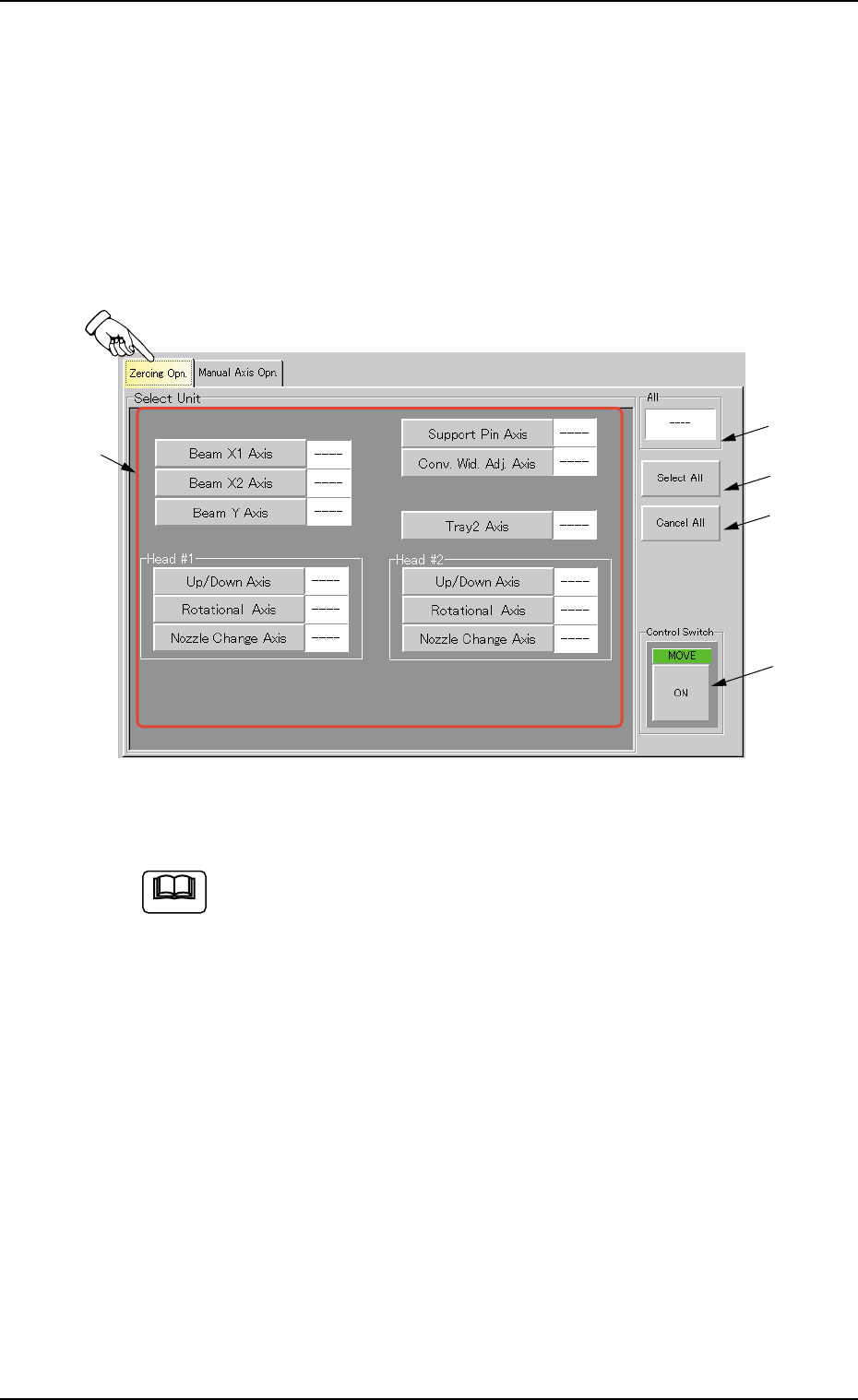
When the "Zeroing Opn." tab is pressed in the "MNL OPN." window
(submenu), the following tab sheet opens.
Fig. 2F4 "Zeroing Opn." Tab Sheet
(Provided with Multi-Layer Tray Feeder 2)
The tab sheet may look different, depending on which options
are selected.
• Sheet Composition
*1 Select Unit Buttons
The following buttons are provided.
[Beam X1 Axis] Button
[Beam X2 Axis] Button
[Beam Y Axis] Button
[Support Pin Axis] Button
[Conv. Wid. Adj. Axis] Button
[Tray2 Axis] Button (Option)
[Up/Down Axis] Button in "Head #1" Group Box
[Rotational Axis] Button in "Head #1" Group Box
[Nozzle Change Axis] Button in "Head #1" Group Box
[Up/Down Axis] Button in "Head #2" Group Box
01 12-002 6 - 6
2.1 "Zeroing Opn." Tab
*1
*2
*3
*5
*4
Note

AHB01ESPP
[Rotational Axis] Button in "Head #2" Group Box
[Nozzle Change Axis] Button in "Head #2" Group Box
When a button is pressed, the background color turns yellow, indi-
cating that the device (axis) is selected.
Pressing the button again changes the background color to the origi-
nal one, indicating that the selection is canceled.
Each button has a box on the right side and the status of the corre-
sponding device is indicated in the box.
Refer to "Notes" in "*5".
Two or more devices can be selected.
*2 "All" Group Box
It is indicated whether or not all devices are zeroed.
"---" : All devices are not zeroed.
"Origin" : All devices are zeroed.
*3 [Select All] Button
When this button is pressed, all devices (possible to be returned to
their origins) are selected and the corresponding buttons turn yel-
low.
The [Select All] button cannot be used to select the [Sup-
port Pin Axis] and [Conv. Wid. Adj. Axis] buttons.
*4 [Cancel All] Button
When this button is pressed, the selection of all devices is can-
celed.
*5 Control Switch
When the [ENABLE] button on the operation panel is pressed in two
seconds after a device(s) is selected and the [ON] button (entitled
"MOVE") is pressed, the device is zeroed.
(a) After the zeroing operation is completed, "Origin" ap-
pears in the box on the right side of the corresponding
button.
(b) When the current position is being managed or indefi-
nite, "---" appears in the box.
Note
Note
01 12-002 6 - 7
2.1 "Zeroing Opn." Tab
Note
AHB01ESPP
2.2 "Manual Axis Opn." Tab
The corresponding tab sheet enables the operator to perform an manual
axis operation on the selected device.
• Sheet Layout
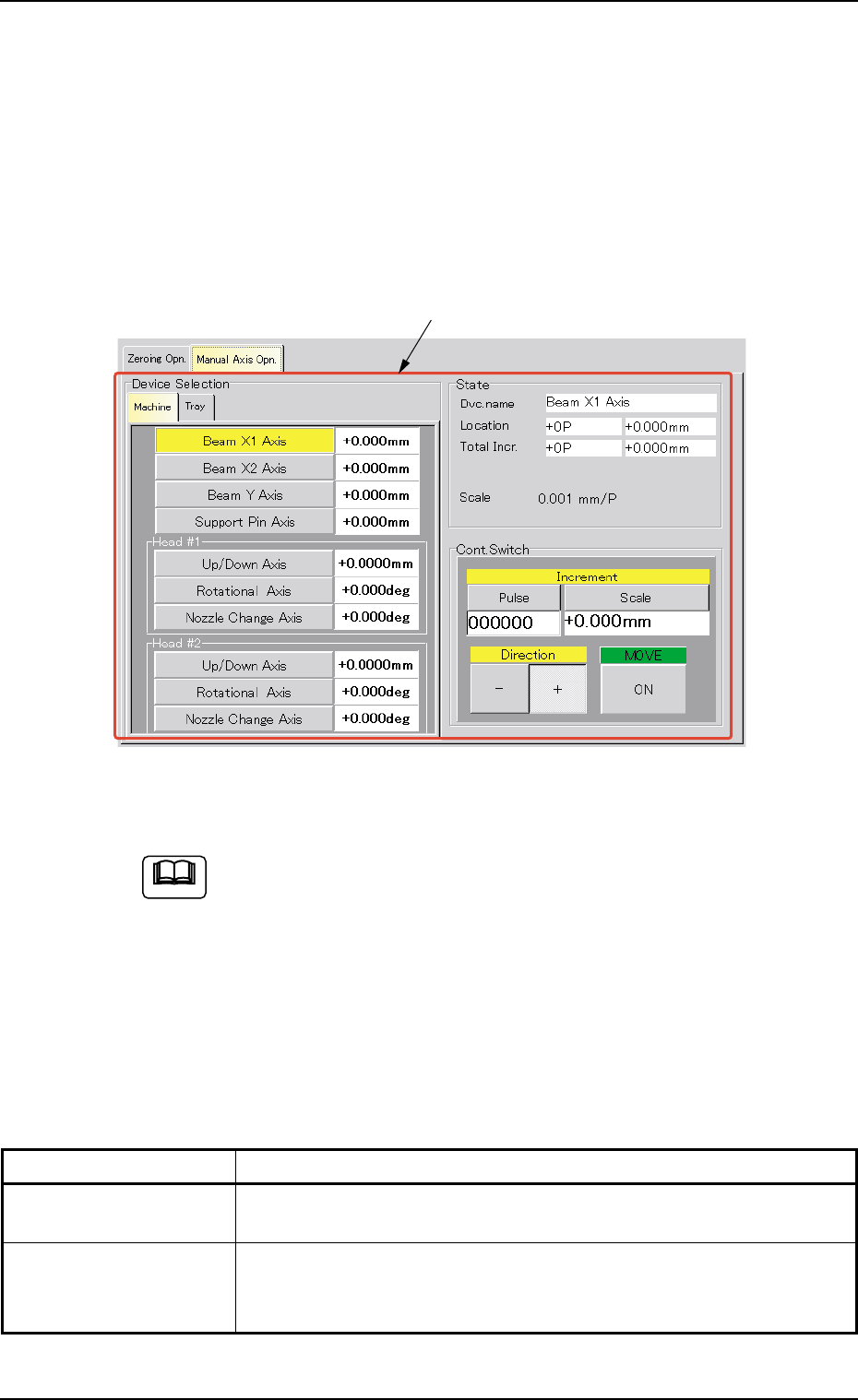
When the "Manual Axis Opn." tab is pressed in the "MNL OPN." window
(submenu), the following tab sheet appears inside the window.
Fig. 2F5 "Manual Axis Opn." Tab Sheet
(Provided with Multi-Layer Tray Feeder 2)
The tab sheet may look different, depending on which options
are selected.
• Sheet Composition
*1 Tabs and Tab Sheets
The "Manual Axis Opn." tab sheet is provided with the following 2
tabs. When a tab is pressed, the corresponding tab sheet appears.
Table 2F2
Tabs Description
Machine The corresponding tab sheet enables the operator to perform a
manual axis operation on the devices (axes) of the machine.
Tray This is an optional function.
Refer to the instruction manual of the multi-layer tray feeders for
details.
0308-004 6-8
2.2 "Manual Axis Opn." Tab
Note
*1