2OM-1075-002.pdf - 第268页
AHB01ESPP Fig. 2F29 After the "T est ID List (XXX)" has appeared, the [Search], [Edit Data], [Delete T est ID], and [Entry Comp ID] buttons become active. (3-5) When the [Return] button is pressed, the "Co…
AHB01ESPP
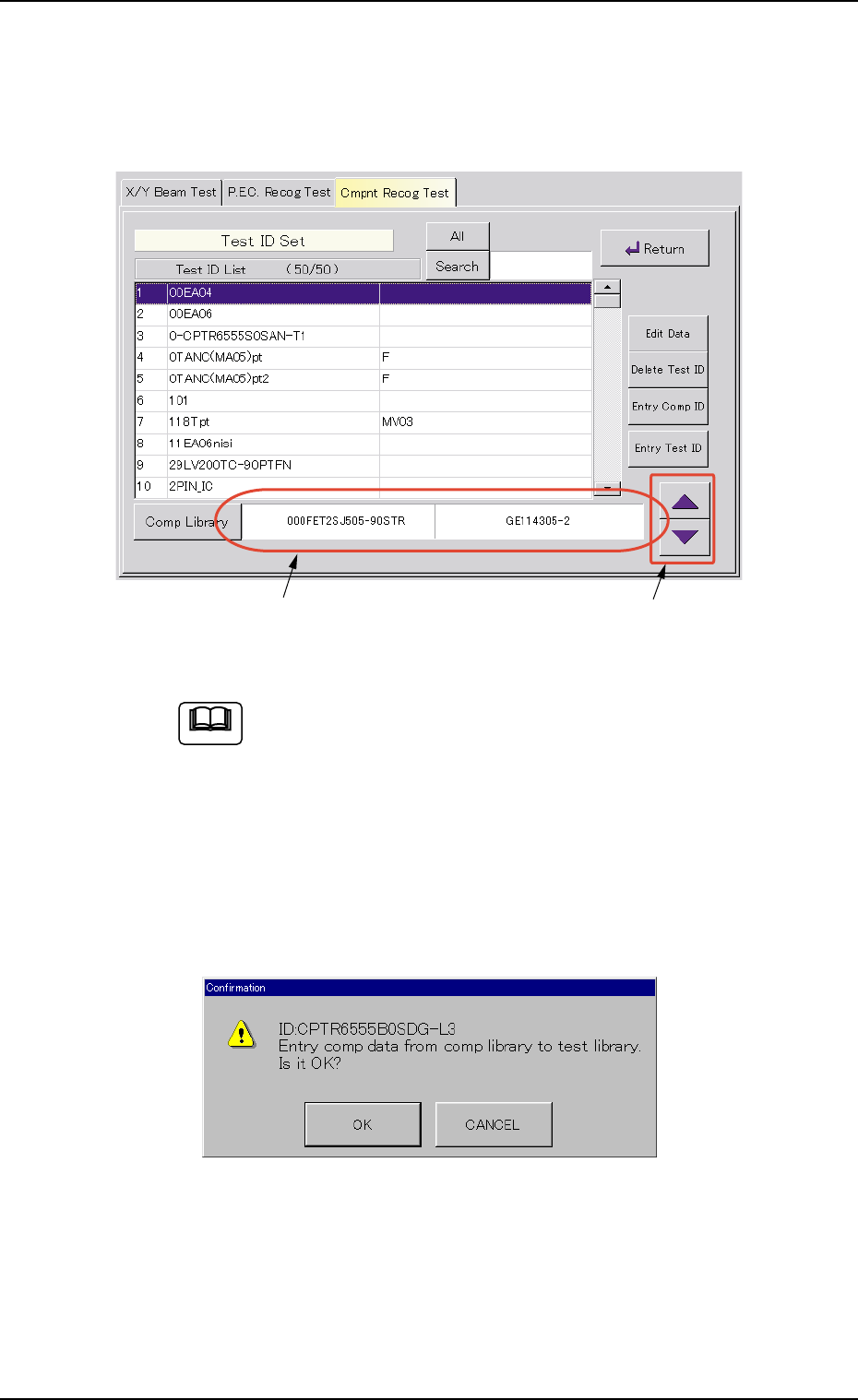
Selected Component ID
Arrow Buttons
(3-3) Select the component ID to be registered as a test ID from
the "Comp ID List ( ### )" pane and press the [Select] button.
The "Test ID Set" sheet appears and the selected compo-
nent ID is displayed in the "Comp Library" pane.
Fig. 2F27
(a) When a test ID is selected, the [Entry Test ID] button
becomes active.
(b) Press the right arrow buttons to scroll up or down the
component IDs.
A component ID for testing can be registered without
making the list of component IDs visible.
(3-4) Press the [Entry Test ID] button. The following message box
opens for confirmation to the entry.
Fig. 2F28
When the [OK] button is pressed, the selected component
ID is registered as a test ID and the "Test ID List (XXX)" ap-
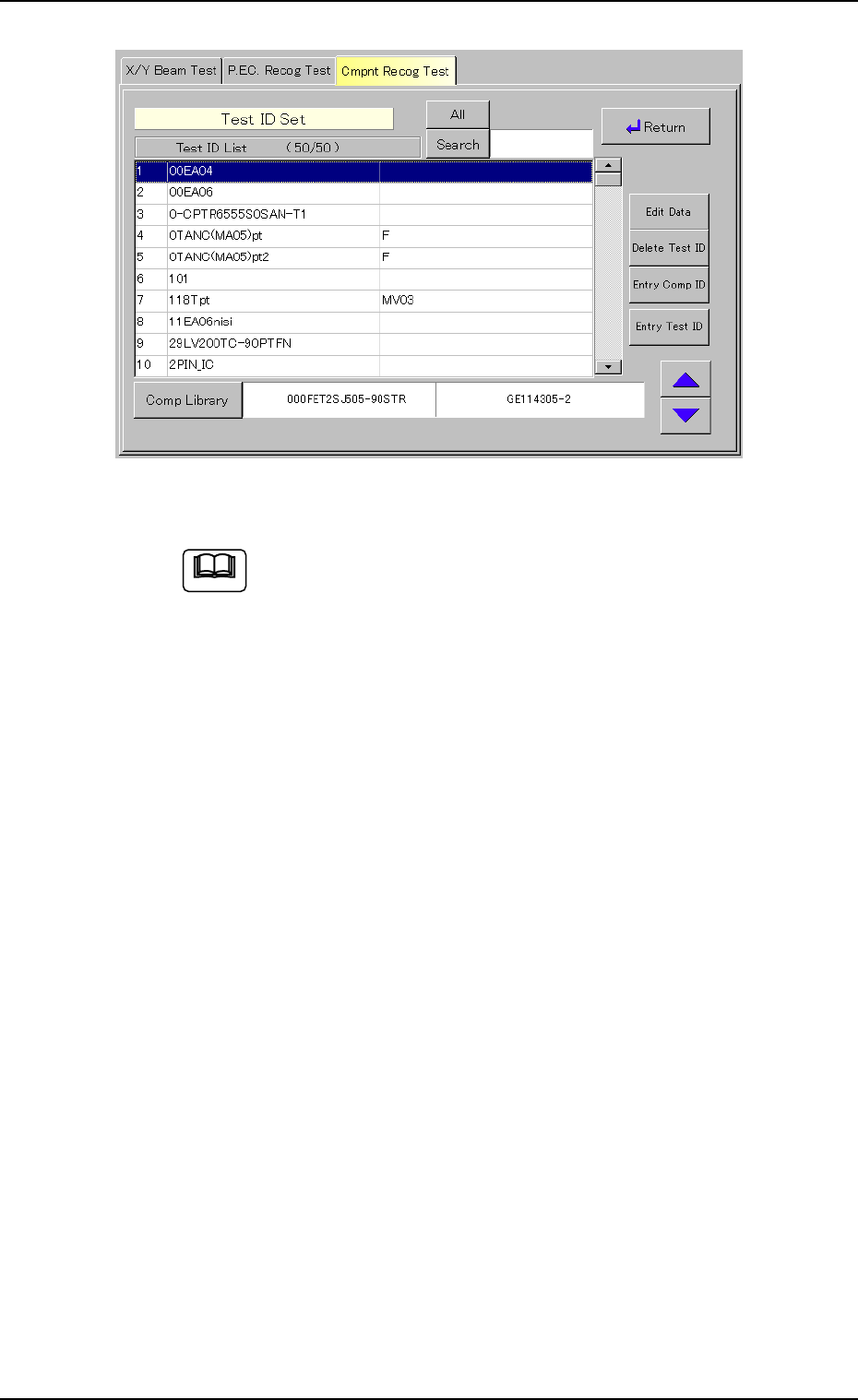
pears in the "Test ID Set" sheet (Fig. 2F29).
When the [Cancel] button is pressed, the registration of the
test ID is canceled.
Note
0308-004 6-35
3.3 "Cmpnt Recog Test" Tab
AHB01ESPP
Fig. 2F29
After the "Test ID List (XXX)" has appeared, the [Search],
[Edit Data], [Delete Test ID], and [Entry Comp ID] buttons
become active.
(3-5) When the [Return] button is pressed, the "Component Recog.
Test" operation sheet (Fig. 2F22) appears.
0308-004 6-36
Note
3.3 "Cmpnt Recog Test" Tab
AHB01ESPP
(4) Setting of Feeder No. for Tested Component
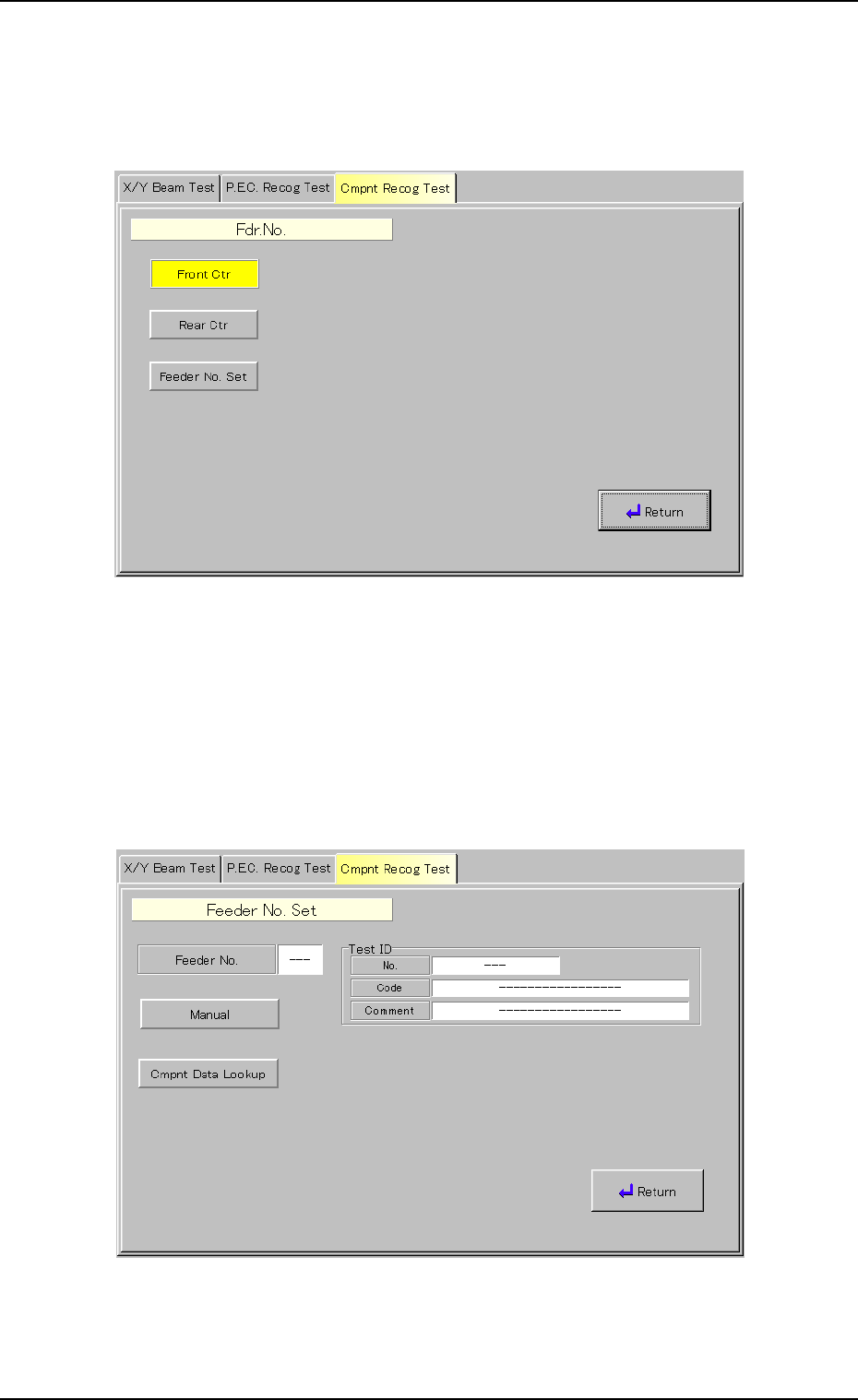
(4-1) When the [Fdr. No.] button (*5) is pressed in the "Component
Recog. Test" sheet (Fig. 2F22), the following "Fdr. No." sheet
appears.
Fig. 2F30 "Fdr. No." Sheet
(4-2) Press the [Front Ctr] or the [Rear Ctr] button in the "Fdr. No."
sheet.
(4-3) When the [Feeder No. Set] button is pressed in the "Fdr. No."
sheet, the "Feeder No. Set" sheet appears.
Fig. 2F31 "Feeder No. Set" Sheet
0206-003 6-37
3.3 "Cmpnt Recog Test" Tab