2OM-1075-002.pdf - 第279页
AHB01ESPP Operation Procedure (1) Press the [Manual] button under the title "T est" in the "Hys- teresis T est" window . (2) Set approximately 90% in the text boxes under the title "Speed Data&qu…
AHB01ESPP
••
••
• Procedure for Automatic Test
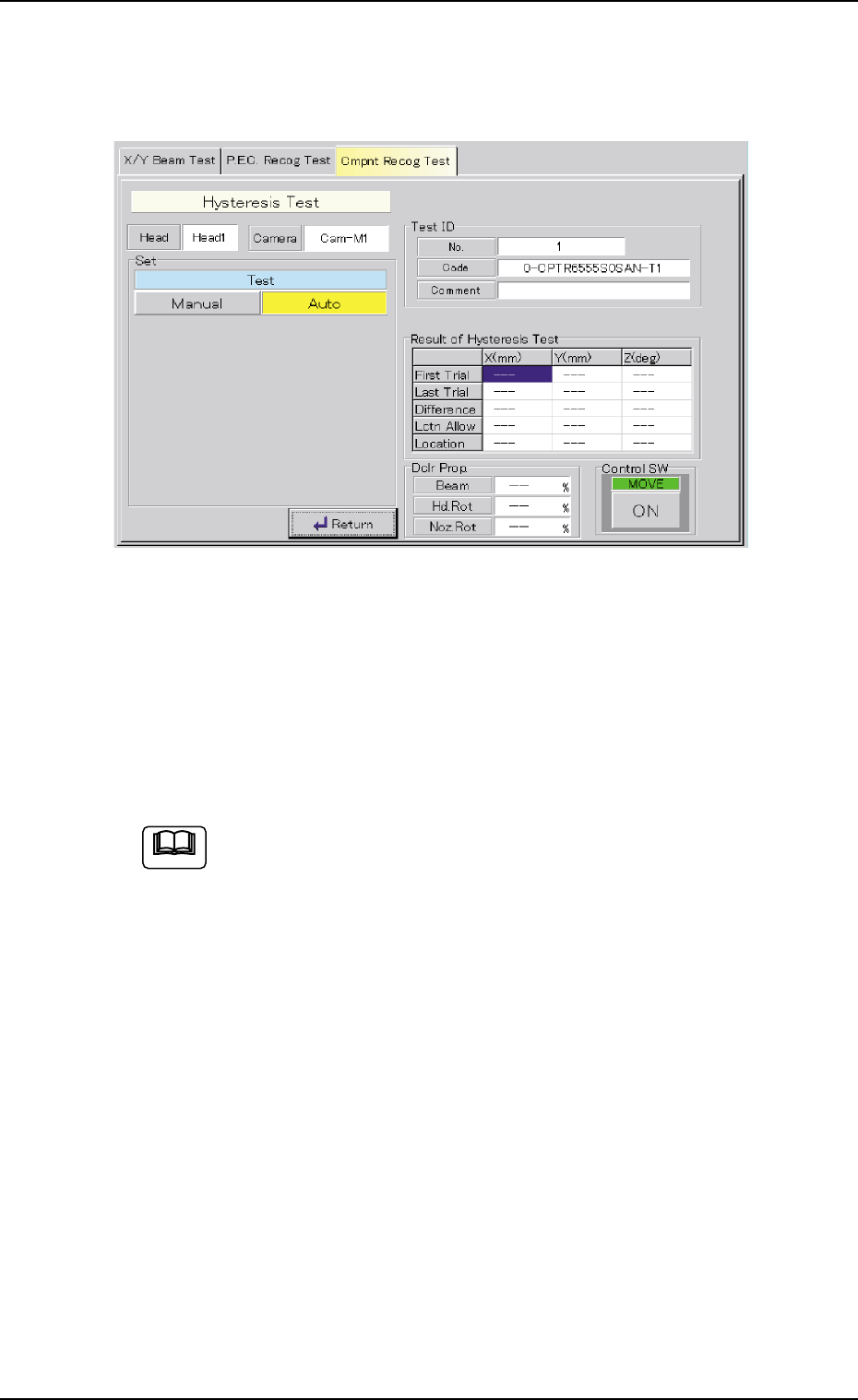
(1) Press the [Auto] button under the title "Test" (*1).
The window changes as follows.
Fig. 2F37 "Test" Sheet
(2) When the [ENABLE] button on the operation panel is pressed in 2
seconds after the [ON] button (entitled "MOVE"), the hysteresis test
is conducted and the results of the test are displayed.
(3) When the [Return] button is pressed, the "Cmpnt Recog Test" tab
sheet resumes.
When the [Auto] button is selected as a test mode for the com-
ponents having the following characteristics, the parameters in
the "Beam", "Hd. Rot", and "Noz. Rot" text boxes in the "Dclr
Prop." group box may vary greatly every time a test is conducted.
• Components are picked up while the vacuum may likely be
leaking slightly.
• Components are picked up eccentrically (off-centered) with
big mass.
• Compared with the nozzle size, the component is relatively
large in size or big in mass.
It will be difficult to make a hysteresis test in stable condition
due to the change in the state of picked components during test
operation.
It is required to obtain the stable speed reduction data by con-
ducting the manual hysteresis test repeatedly.
3.3 "Cmpnt Recog Test" Tab
Note
0308-004 6-46

AHB01ESPP
Operation Procedure
(1) Press the [Manual] button under the title "Test" in the "Hys-
teresis Test" window.
(2) Set approximately 90% in the text boxes under the title "Speed
Data" and make a test.
(3) Increase the values (speed data) according to the situational
changes in the test.
(4) Repeat the test until the difference in the results of the test
reduces.
0206-003 6-47
3.3 "Cmpnt Recog Test" Tab
AHB01ESPP
3.3.3 Save Operation of Recognized Image
• Window Layout
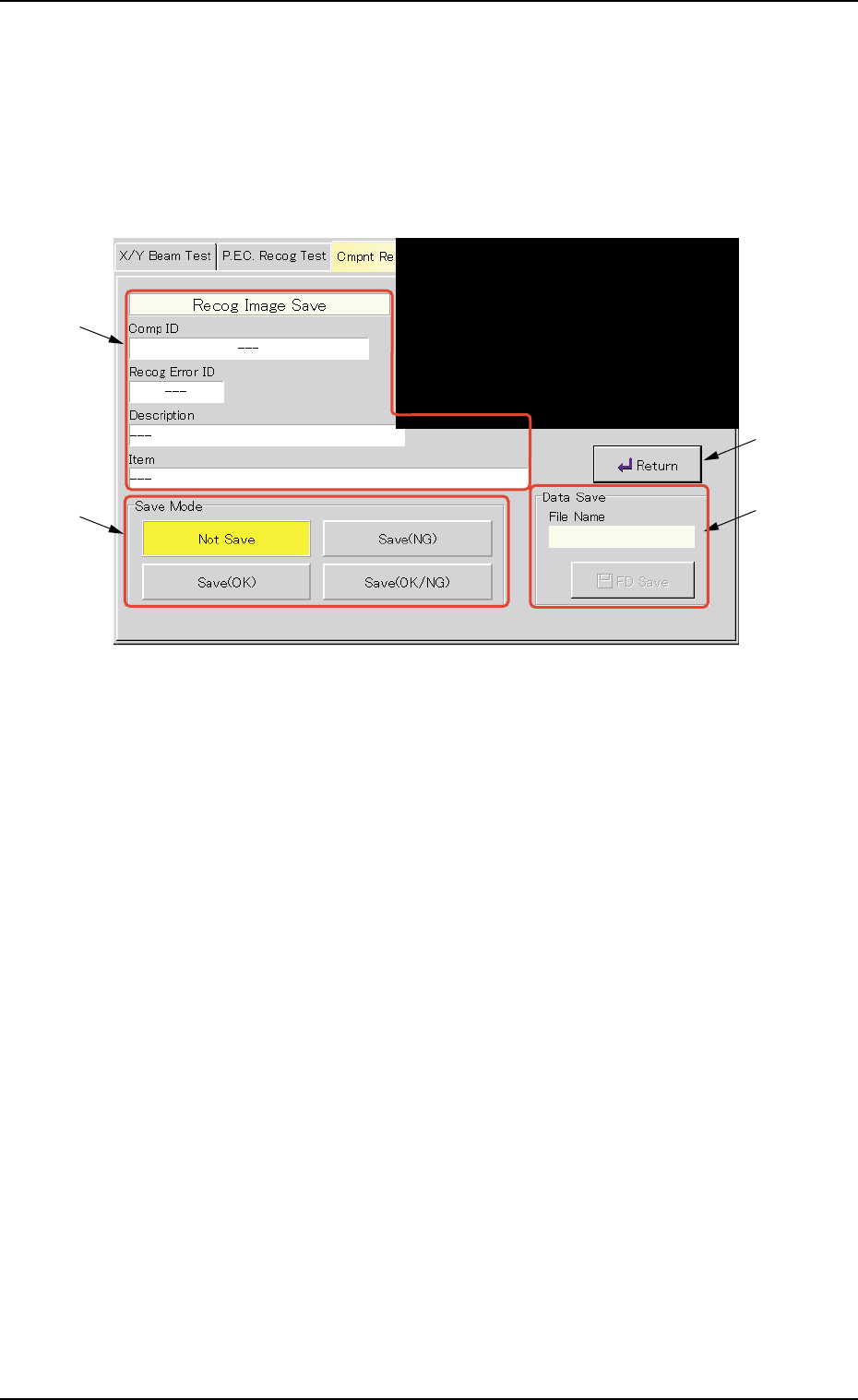
When the [Recog Image Save] button is pressed in the "Cmpnt Recog
Test" tab sheet, the following "Recog Image Save" operation window
appears.
Fig. 2F38 "Recog Image Save" Operation Window
• Window Composition
*1 Comp ID, Recog Error ID, Description, Item
Displayed are the results of a component recognition test.
*2 "Save Mode" Group Box
One of the following modes can be selected as a save mode.
[Not Save] Button : When this button is pressed, the rec-
ognized image is not saved.
[Save (OK)] Button : When the test results in "Good" (Nor-
mal) and this button is pressed, the rec-
ognized image is saved.
[Save (NG)] Button : When the test results in "No Good" (Ab-
normal) and this button is pressed, the
recognized image is saved.
[Save (OK/NG)] Button : When this button is pressed, the rec-
ognized image is saved regardless of
the test results (Normal/Abnormal).
0206-003 6-48
3.3 "Cmpnt Recog Test" Tab
*1
*2
*4
*3