2OM-1075-002.pdf - 第355页
AHB01ESPP 5.2.5.2 Execution of T eaching Function Fig. 2F87 Sheet for Execution of T eaching Function (Execution of T eaching Operation) Operation Procedure (1) Press the [Execute T each] button. (2) Press the [ON] butto…

AHB01ESPP
(4) Press the [ON] button (entitled "MOVE"). In two seconds, press the
[ENABLE] button on the operation panel.
A component is picked up from the specified feeder and shifted to
the area above the fixed recognition camera.
(5) Press the [Move Comp to Recog Position] button.
(6) Press the [ON] button (entitled "MOVE"). In 2 seconds, press the
[ENABLE] button on the operation panel.
The component is shifted to the area above the fixed recognition
camera.
••
••
• Manual Operation
Operation Procedure
(1) Set "Front Ctr" or "Rear Ctr" in the "Feeder No. Set" text box.
(2) Press the [Manual] button (beside the label "Pick-up Comp").
(3) Press the [ON] button (entitled "MOVE"). In 2 seconds, press the
[ENABLE] button on the operation panel.
(4) Set the [OPERATION] switch to the "SETUP" side and press the
[READY] button to turn off the LED.
(5) Open the safety door.
(6) Attach the component to be taught manually (by hand) to the vacuum
nozzle.
Every time the [Vac Pick-Up On/Off] button in the "Vac Valve"
group box is pressed, the vacuum nozzle can be turned
"ON" or "OFF".
When the nozzle is turned "OFF", note that the component
will fall down.
(7) Close the safety door.
(8) Set the [OPERATION] switch to the "RUN" side and press the
[READY] button to turn on the LED.
(9) Press the [Move Comp to Recog Position] button.
(10)Press the [ON] button (entitled "MOVE"). In 2 seconds, press the
[ENABLE] button on the operation panel.
The component is shifted to the area above the fixed recognition
camera.
5.2 Library Teaching
Note
0206-003 6-122
AHB01ESPP
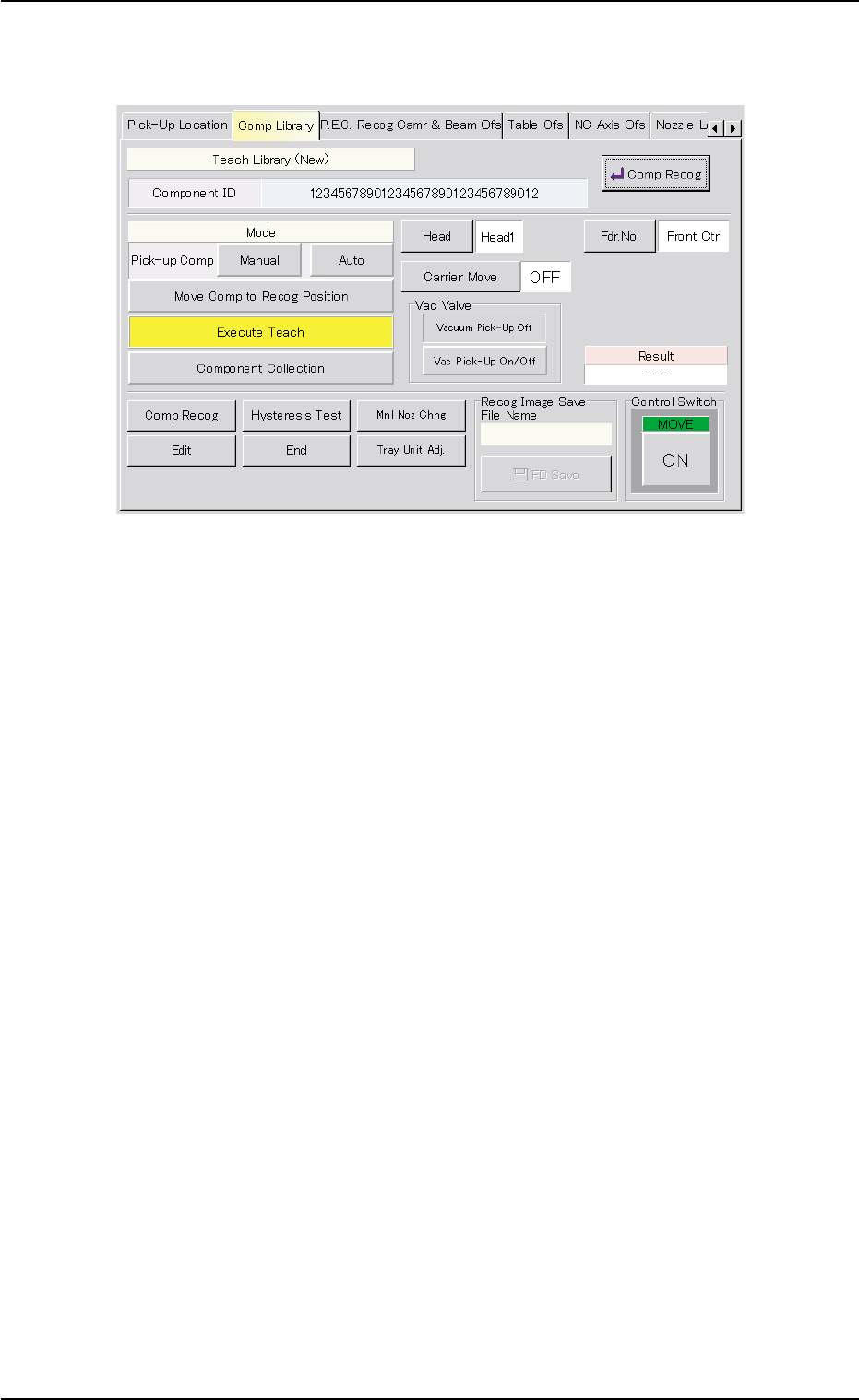
5.2.5.2 Execution of Teaching Function
Fig. 2F87 Sheet for Execution of Teaching Function
(Execution of Teaching Operation)
Operation Procedure
(1) Press the [Execute Teach] button.
(2) Press the [ON] button (entitled "MOVE"). In 2 seconds, press the
[ENABLE] button on the operation panel.
(3) The "Recognition" window automatically becomes active.
After this, the pointing device must be used to perform operations in
this window.
5.2 Library Teaching
0206-003 6-123
AHB01ESPP
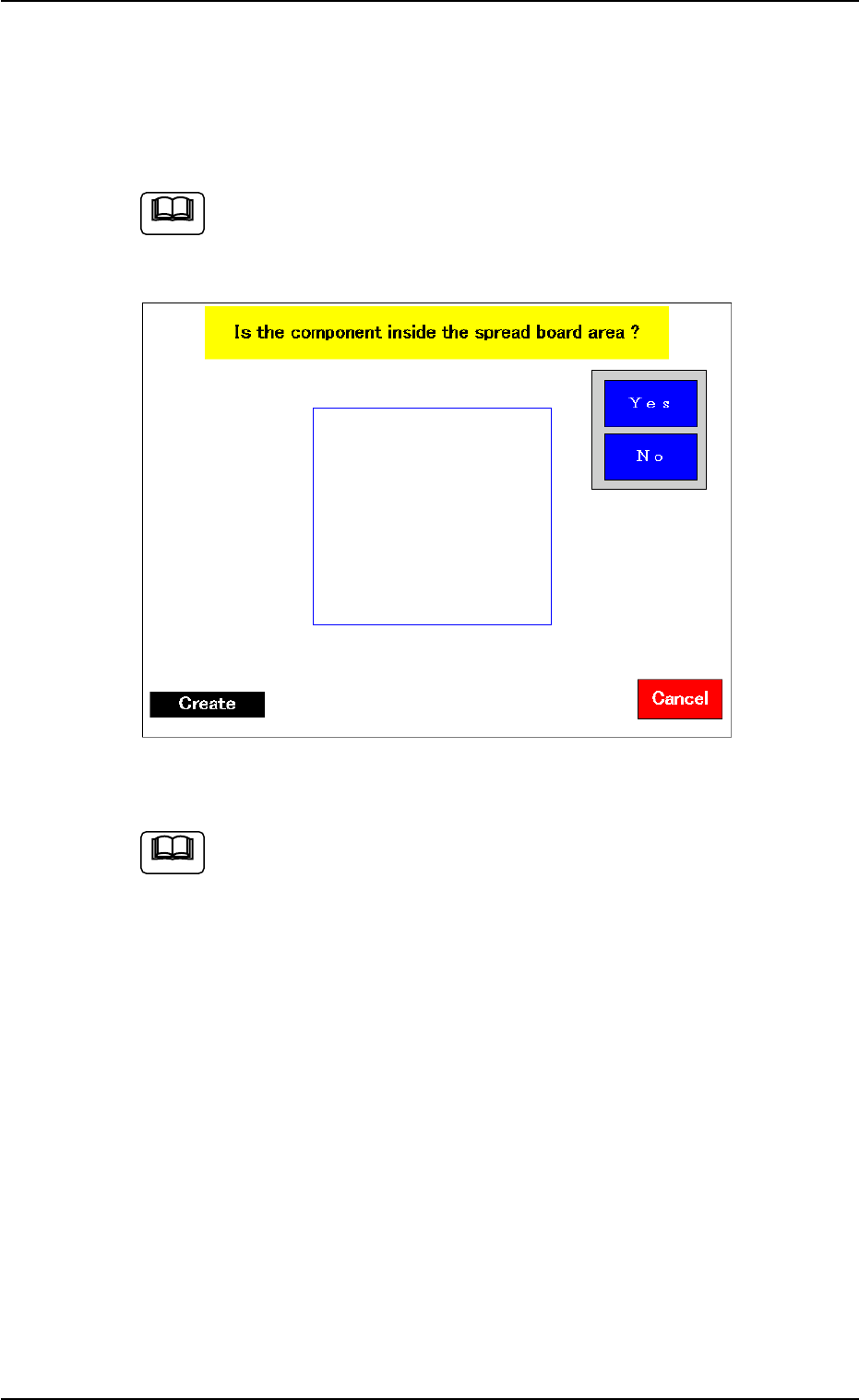
5.2.6 "Recognition" Window
When a teaching operation is executed while the "Teach Library (New)"
sheet is active, the "Recognition" window opens.
Use the pointing device.
When the touch screen is pushed by finger, it shows no reac-
tion.
Fig. 2F88 "Recognition" Window
Refer to "5.2.10 Navigations in "Recognition" Window" for how
to navigate through the "Recognition" window.
5.2 Library Teaching
0308-004 6-124
Note
Note