2OM-1075-002.pdf - 第367页
AHB01ESPP T o perform the teaching operation again, press the [T each] button. Refer to "5.2.9 Helpful Hints for Correction & T eaching" for details. T o confirm whether or not recognition operations are po…
AHB01ESPP
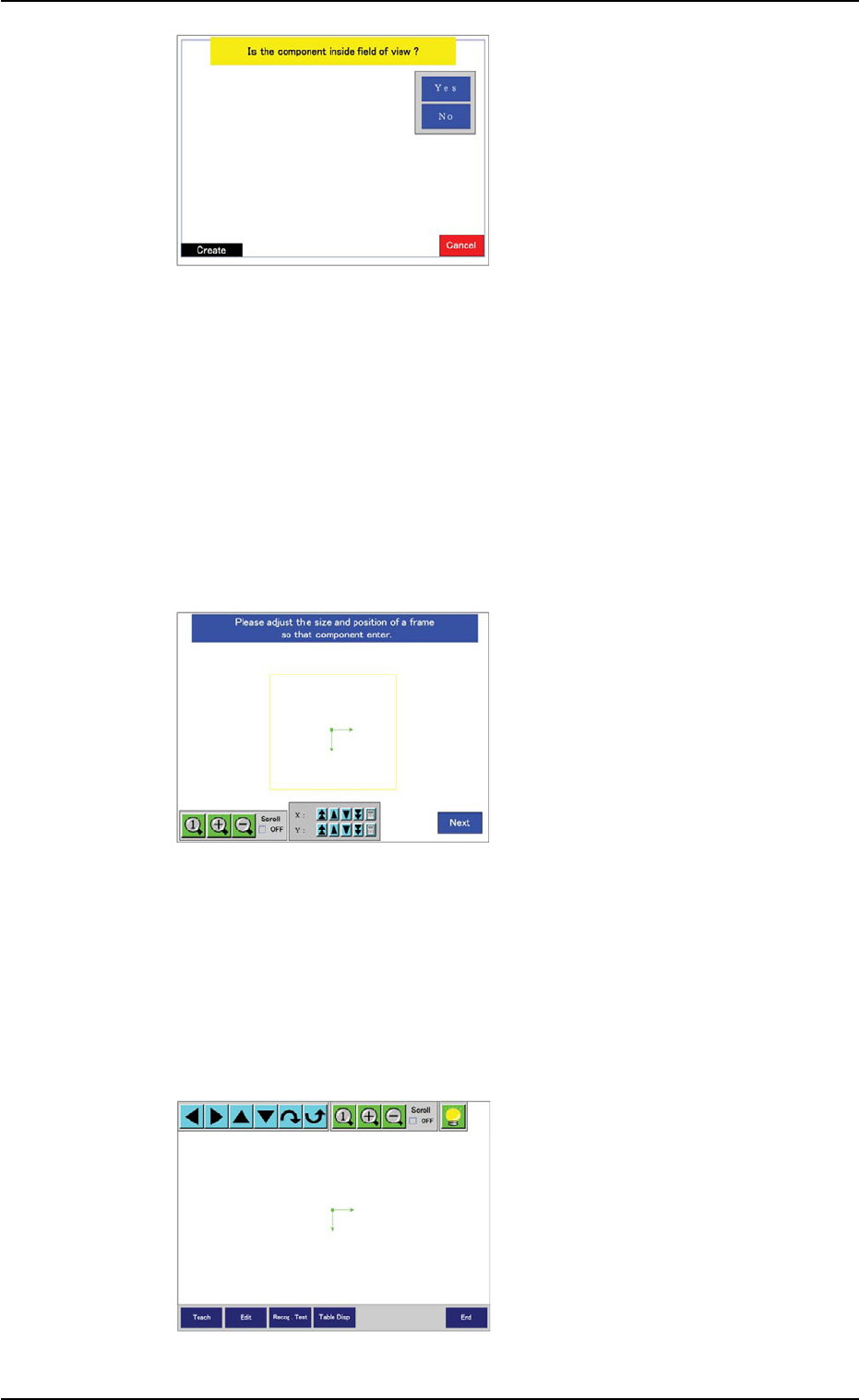
(3) Confirm that the image of
the component is inside the
view.
When part of the image is
out of the view, press the
[No] button.
The divided images are cap-
tured.
When a function other than
the large view one is used,
this window does not open.
In this case, the window in
Step (5) opens.
Confirm that the whole image of the component is inside the light
blue frame.
When the [Yes] button is selected, the window in Step (5) opens.
When the [No] button is selected, the divided images are captured
and the window in Step (4) opens.
(4) Specify the rough size and
location of the component
such that the whole image
of the component can stay
inside the yellow frame.
Use an adjuster for the po-
sitional adjustment. Refer to
"5.2.10" for the detailed infor-
mation on the adjuster.
When the yellow frame must
be adjusted, leave slight
margins beside the frame
(the frame not in close prox-
imity to the outline of the
component). To Step (5).
(5) Check that the correct data
is specified and perform a
visual confirmation by laying
the graphic over the cap-
tured image of the compo-
nent.
To correct the data, use the
[Edit] or the [Table Disp] but-
ton for the correction.
0308-004 6-134
5.2 Library Teaching
Fig. 2F104-6
Fig. 2F104-7
Fig. 2F104-8
AHB01ESPP
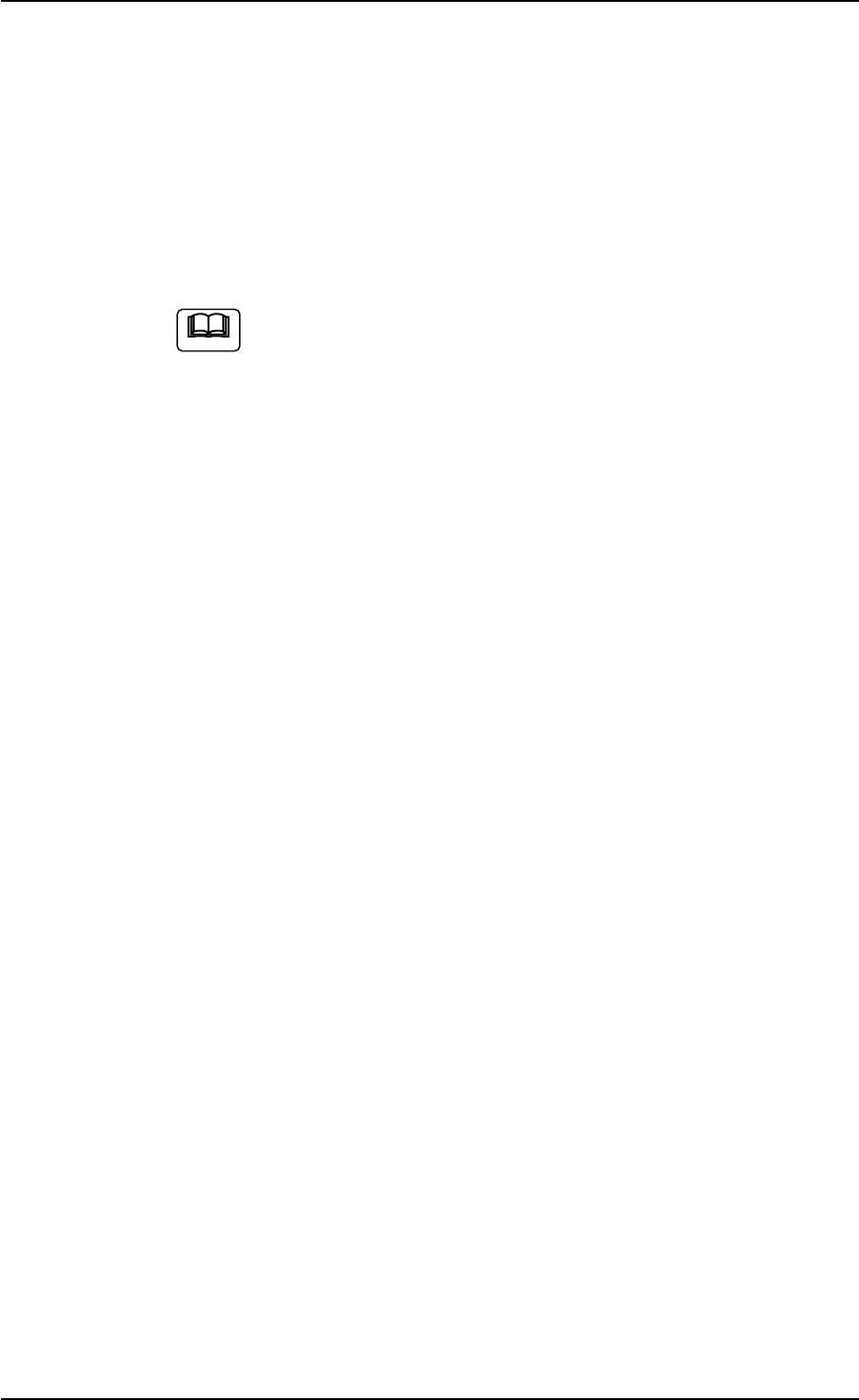
To perform the teaching operation again, press the [Teach] button.
Refer to "5.2.9 Helpful Hints for Correction & Teaching" for details.
To confirm whether or not recognition operations are possible with
the created data, press the [Recog. Test] button.
The "Comp Recog (Manual)" sheet opens.
When the component cannot be recognized, correct the data and
perform a recognition test again.
When the [Return] button is pressed in the "Comp Recog
(Manual)" sheet, the "Recognition" window opens automati-
cally.
When the recognition test is completed normally or the parameters
are created or modified, the created parameters are saved, exiting
from the recognition test session.
The "Teach Library (New)" sheet opens.
Note
0308-004 6-135
5.2 Library Teaching
AHB01ESPP
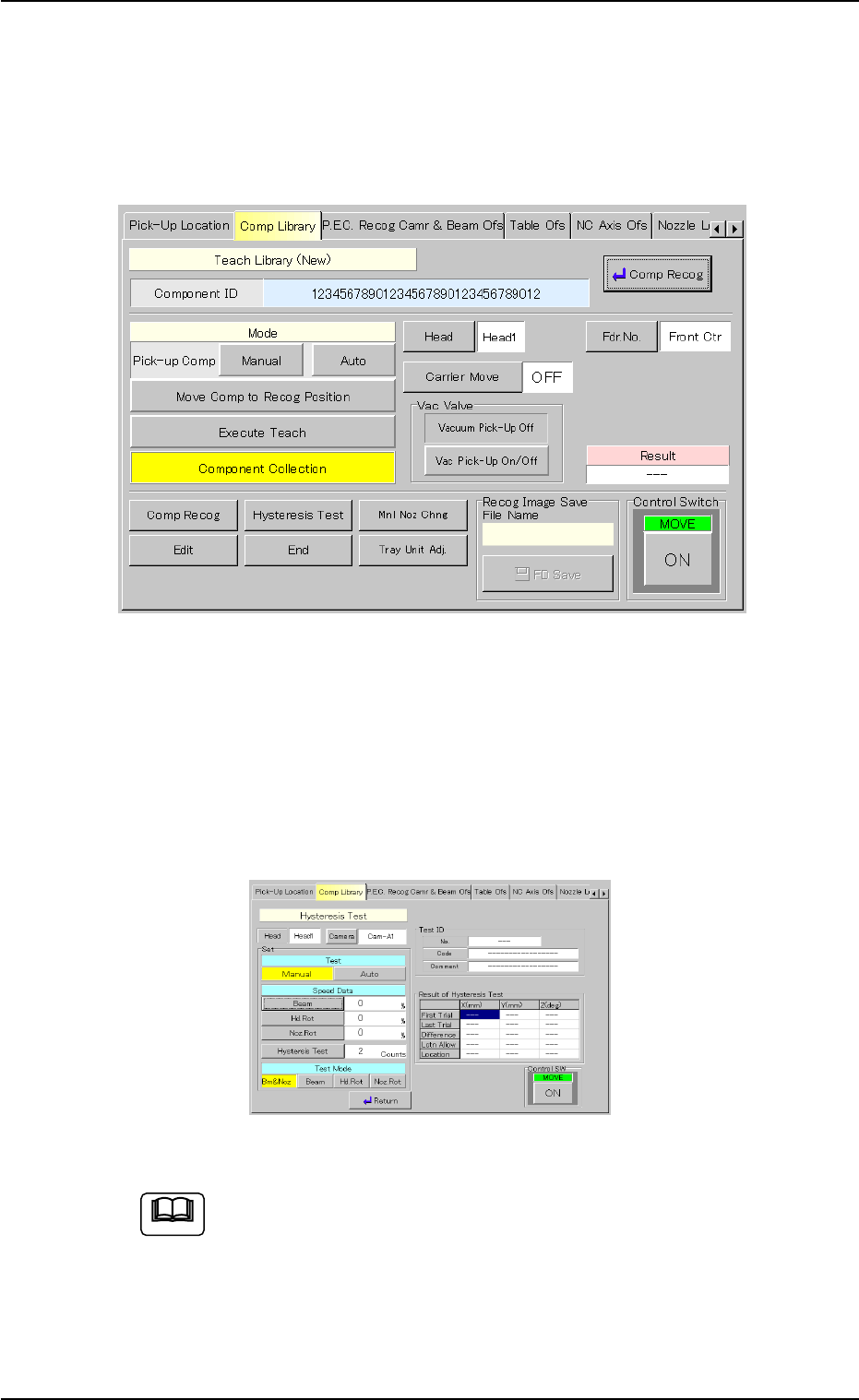
5.2.7 "End of Teaching Operation" Sheet
When the teaching and component recognition test operations are com-
pleted, the "Recognition" window closes.
The following sheet automatically resumes.
Fig. 2F104-9 "End of Teaching Operation" Sheet
When the results of the teaching operation are saved and they must be
recognized, press the [Edit] button to start up the editor.
To make the component recognition test again, select the [Comp Recog]
button. As for the hysteresis test, select the [Hysteresis Test] button.
This window is equipped with the same functions as the component
recognition test.
Fig. 2F104-10 "Hysteresis Test" Sheet
Once a teaching operation is executed, using the "Recognition"
window, the taught contents are stored in the recognition
memory.
When an error occurs during the teaching operation or some-
thing is wrong in the output data, the saved contents (by press-
ing the [HD Save] button) can be used for the analysis on our
side. (Size: Approx. 870 kbytes).
5.2 Library Teaching
Note
0308-004 6-136