2OM-1075-002.pdf - 第373页
AHB01ESPP 5.2.10 Navigations in "Recognition" Window The "Recognition" window is composed of various subwindows that have component icons, etc. inside. Move the cursor to the button (an item or a func…
AHB01ESPP
5.2.9 Helpful Hints for Correction & Teaching
When abnormality was found in the output data after the teaching op-
eration on the leaded component (Component Shape: Leaded), follow
the steps below to perform the correction & teaching operation.
••
••
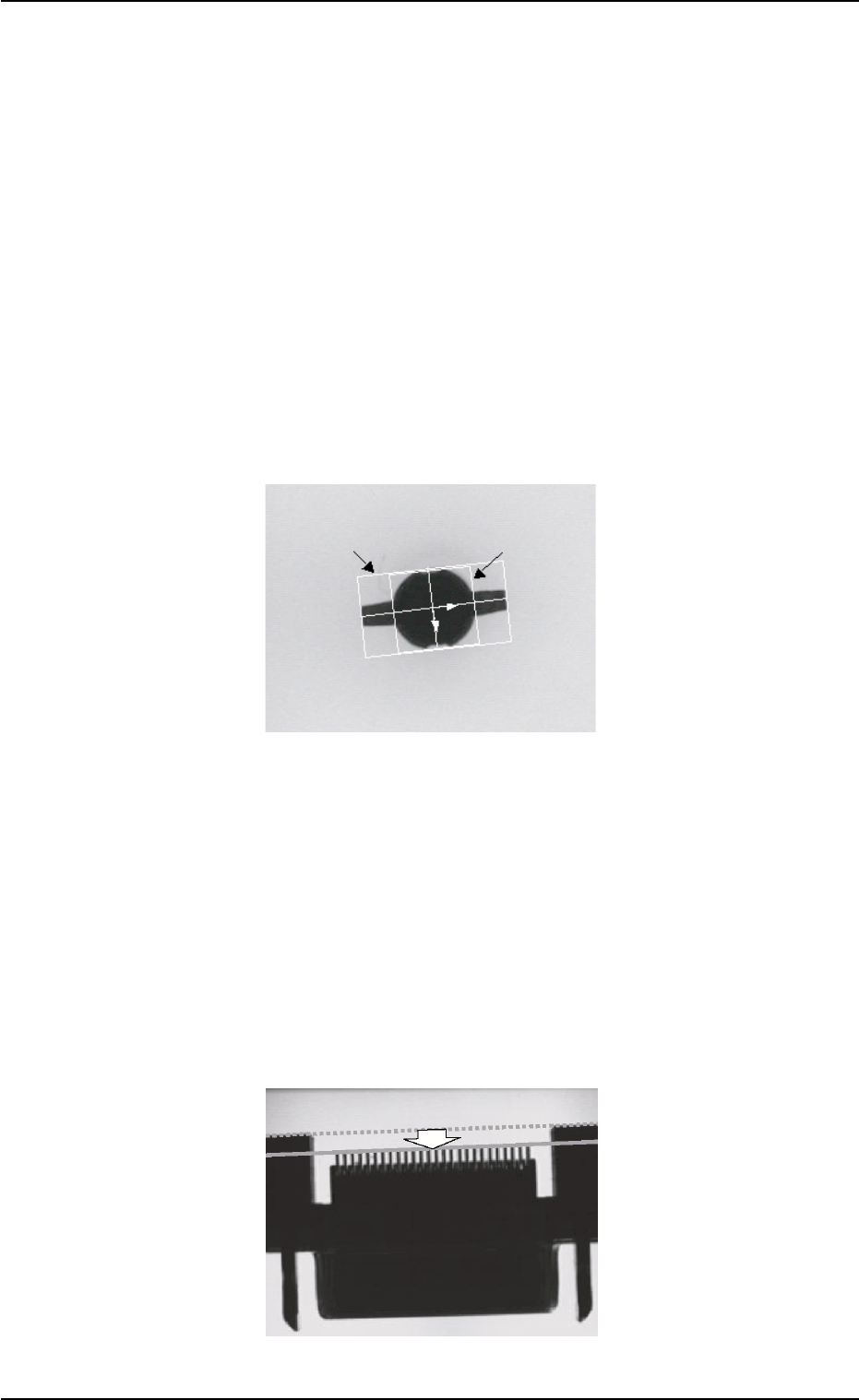
• Mold Size Unconformable to Outward Length Data
When the shape of the mold almost looks like "Round" or the trans-
mitted image of the component stays inside the silhouette of the ir-
regular nozzle, the mold teaching operation cannot be performed cor-
rectly. In this case, follow the steps below.
(1) Correct the mold size and outward length as shown below and align
the graphic with the image.
(2) Follow the operation sequence ([Teach] Button Æ [Correction &
Teach] Button Æ [Lead Teach] Button).
Fig. 2F104-15
••
••
• Unconformable Lead Data
When a connector (shown below) is used and the lead end is not in
conformity with the outward length, the lead teaching operation may
not be performed correctly. In this case, follow the steps below.
(1) Correct the outward length as shown below and align it with the lead
end.
(2) Follow the operation sequence ([Teach] Button Æ [Correction &
Teach] Button Æ [Lead Teach] Button).
(3) Reset the corrected outward length to the original one.
Fig. 2F104-16
5.2 Library Teaching
0308-004 6-140
Mold Size
Outward Length
AHB01ESPP
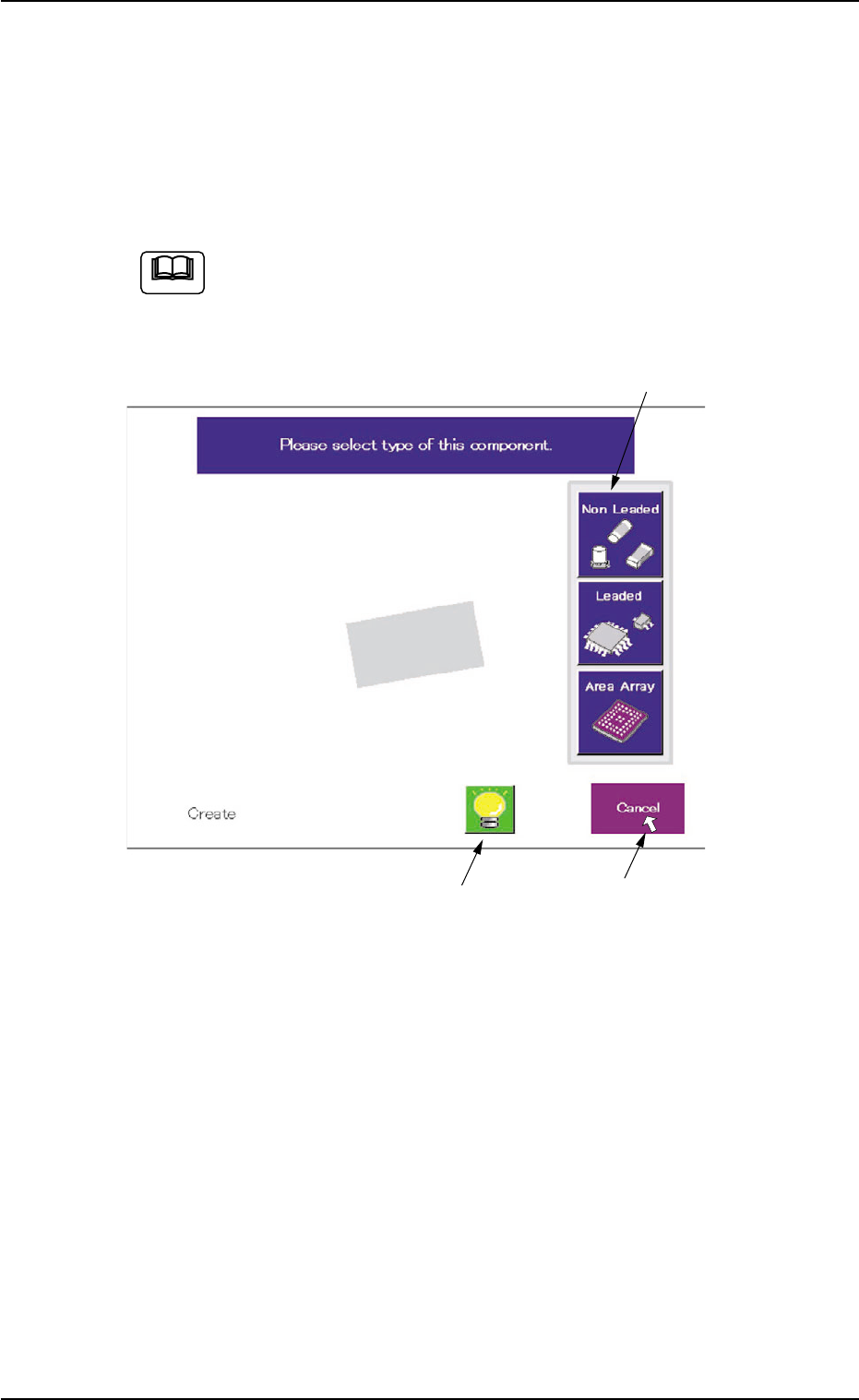
5.2.10 Navigations in "Recognition" Window
The "Recognition" window is composed of various subwindows that have
component icons, etc. inside.
Move the cursor to the button (an item or a function) to be selected and
click it. The item or the function is selected.
Use the pointing device.
When the touch screen is pushed by finger, it shows no reac-
tion.
Fig. 2F104-17 Example of Window Layout
The framed subwindow can be moved to another place within the win-
dow.
When a subwindow has a title, click the title and drag it to another place.
When a subwindow has no title, click the upper area of the subwindow
and drag it to another place.
This function can be used when part of an image is hidden behind a
subwindow.
5.2 Library Teaching
0308-004 6-141
Framed Subwindow
Frameless Subwindow
Cursor
Note
AHB01ESPP
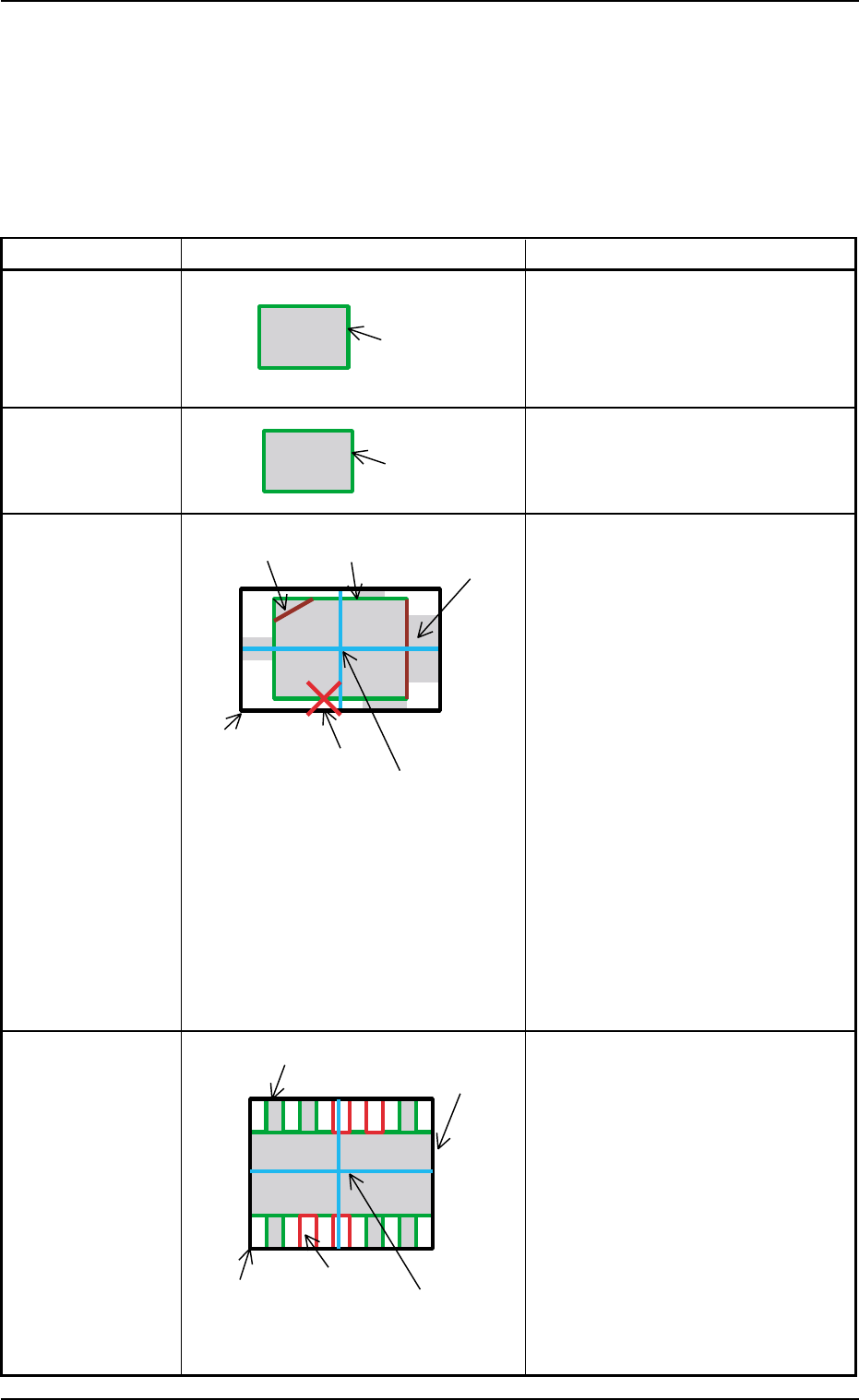
(1) Graphical Representation
The following shows the relation between the component library data
and the graphical representation and the coloring for each individual
component shapes.
The graphics related to the parameters to be edited are expressed
in yellow in the data edit window.
Table 2F16
Component Shape Example of Graphic Representation Displayed Parameters
Cylindrical A: Mold size X [mm], Y [mm]
Square A: Mold size X [mm], Y [mm]
Deformed A: Mold size X [mm], Y [mm]
B: Outward length 1 [mm] through
4 [mm]
C: Component Center
Center of Outward Length
D: Each Corner’s Dimensions X, Y
Note: When "No Detection" is set in
the "Shape" text box in the
"Corner Data" tab sheet, the
corner is expressed in gray.
When "Straight" is set, the cor-
ner is not displayed.
E: Each Edge Detection Posn X [mm],
Y [mm]
This appears only when
"Convexoconcave" is set in the
"Shape" text boxes in the "Edge Data"
tab sheet.
F: Each Edge
This appears in dark red only when
"No Detection" is set in the "Shape"
text boxes in the "Edge Data" tab
sheet.
Leaded
IC
Connector
Other Leaded
5.2 Library Teaching
0308-004 6-142
A: Mold size X [mm], Y [mm]
B: Outward length 1 [mm] through
4 [mm]
C: Component Center
Center of Outward Length
D: Each Lead Data
Width = Lead Width
Height = Lead Length and
Full Lead Length
Position = Calculated based on the
lead group data
E: Missing Lead Data
Calculated based on the lead group
data
A (Green)
A (Green)
A (Green)
C (Light Blue)
E (Red)
B (White)
D (Violet)
F (Dark Red)
D (Green)
A (Green)
B (White)
E (Red)
C (Light Blue)