2OM-1075-002.pdf - 第444页
AHB01ESPP *10 [Clear Adj.] Button When pressed, this button clears the results of the teaching opera- tion. *1 1 [Cancel] Button When pressed, this button cancels the results of the teaching op- eration without reflectin…
AHB01ESPP
[Jig Cmpnt Pickup Posn Mvt] Button
When pressed, this button moves the head to the position specified
by the feeder No.
*5 [Vac Pick-Up On/Off] Button
When this button is pressed, the vacuum of the selected head is
turned ON or OFF.
*6 Offset Values
Displayed are the current values and the adjusted ones after teach-
ing.
*7 Set Status
When the "P.E.C. Dsbl." or the "Comp. Recognition Dsbl." check
box in the "Test Run" tab sheet is turned on (checked), the back-
ground color of "Recognition Dsbl." turns light red. (No background
color in normal cases)
No recognition processing is made even if a teaching op-
eration is performed when each check box is turned on
(checked) in the "Test Run" tab sheet. Therefore, various
teaching operations will get incorrect results.
When "All Beam (Incl. NC Axis) Heads Zero" is completed, the back-
ground color of "All Beam Zero" turns green. (Otherwise, the back-
ground has no color.)
(a) When each device is not zeroed and the teaching op-
erations are performed, note that the offset values may
not be taught correctly.
(b) Before performing a teaching operation, be sure to zero
all beams.
*8 [P.C.B. Transfer Manual Mode] Button
When this button is pressed, the "P.C.B. Transfer Manual Mode"
sheet appears.
Refer to "5.3.1 "P.C.B. Transfer Manual Mode" Sheet" for details.
*9 [Mnl Noz Chng] Button
When this button is pressed, the "Nozzle Set/Reset" sheet appears,
enabling the cycle operation for opening or closing the nozzle stocker
and attaching or storing a vacuum nozzle through manual opera-
tions.
Refer to "4.3 "Nozzle Change" Tab" for details.
5.22 "Lighting Teach" Tab
0308-001 6-206-3
Note
Note

AHB01ESPP
*10 [Clear Adj.] Button
When pressed, this button clears the results of the teaching opera-
tion.
*11 [Cancel] Button
When pressed, this button cancels the results of the teaching op-
eration without reflecting them on the offset data.
*12 [End] Button
When this button is pressed, a "Confirmation" dialog box opens.
When the [YES] button is pressed, the results of the teaching op-
eration are reflected on the offset data and the dialog box closes.
*13 "Control Switch" Group Box
Select one of the buttons in the "Selection of Teaching Operation"
group box (*4) and press the [ON] button entitled "MOVE". After that,
press the [ENABLE] button on the operation panel in two seconds.
A teaching operation is performed on the selected item.
5.22 "Lighting Teach" Tab
0308-001 6-206-4
AHB01ESPP
7. "DVC. CHECK" Window (Submenu)
• Window Layout
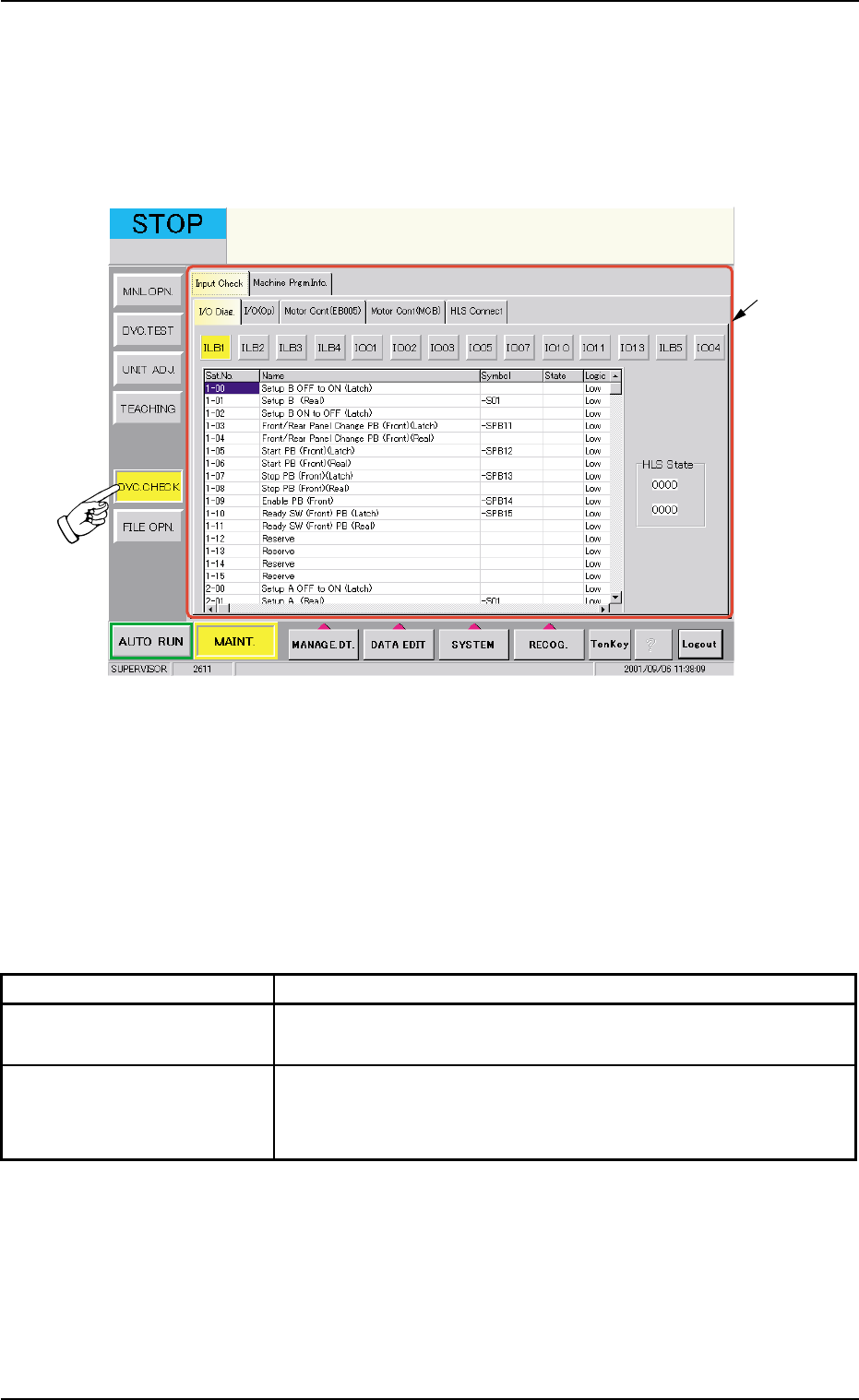
When the [DVC. CHECK] button on the submenu bar is pressed in the
"MAINT." window, the following window (submenu) opens.
Fig. 2F133 "DVC. CHECK" Window (Submenu)
• Window Composition
*1 Tabs
The "DVC. CHECK" window (submenu) is provided with the follow-
ing 2 tabs. When each tab is pressed, the corresponding tab sheet
appears.
Table 2F23
Tabs Description
Input Check The corresponding tab sheet enables the operator to check the
input status of each section.
Machine Prgm. Info. The corresponding tab sheet enables the operator to view the
software versions of the machine control system and the ver-
sions of placement heads.
7. "DVC. CHECK" Window (Submenu)
0206-003 6-207
*1