2OM-1075-002.pdf - 第82页
3. Program Change Operation 3 . 1 Selection of Current Pattern Program A pattern program must be selected as a current one in the "Program Change" tab sheet of the "PRGM. CHG." window (submenu). Fig. …
(a) Refer to "3. "Nozzle Data" Window" in "Section 5" of "Vol.
3: Programming and Machine Data" for details.
(b) It is recommended for better efficiency that the nozzles for
Head #1 be stored in Nozzle Stocker B1 and the nozzles
for Head #2 in Nozzle Stocker B2.
Do not put any foreign substance on the nozzle
stocker section.
Otherwise, the machine will break down.
• Keep the diffusion plates of the vacuum nozzles
clear of oil, nicks, etc.
Otherwise, an error may occur during component
recognition.
• Do not bring a magnet close to any vacuum
nozzle.
Otherwise, an error may occur during component
picks and placement.
0308-004 3-4 AHB01ESPP
2.4 Preparation for Nozzles
CAUTION
CAUTION
Note
3. Program Change Operation
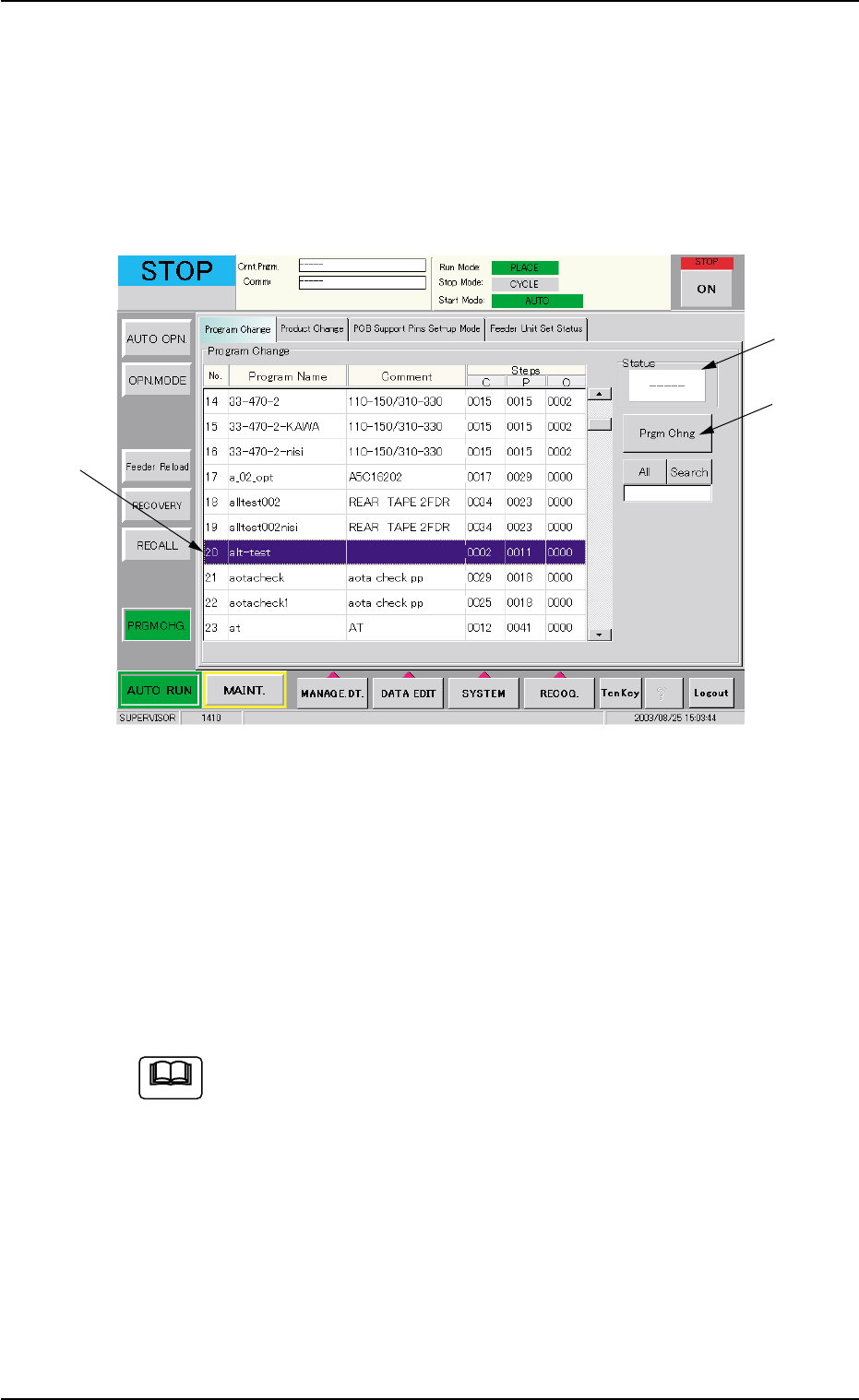
3.1 Selection of Current Pattern Program
A pattern program must be selected as a current one in the "Program
Change" tab sheet of the "PRGM. CHG." window (submenu).
Fig. 2C3 "Program Change" Tab Sheet
Operation Procedure
(1) Select the program name to be set as a current one from the "Pro-
gram Change" list (*1). The line turns blue, indicating that the pat-
tern program is selected.
(2) Press the [Prgm Chng] button (*2). "OK" appears in the "Status"
box (*3), indicating that the selected program was downloaded nor-
mally.
When the selected pattern program has an error and "NG" ap-
pears in the "Status" box, the program change is not imple-
mented. In such a case, correct the pattern program and re-
implement the program change operation.
3. Program Change Operation
0308-004 3-5 AHB01ESPP
*2
*3
*1
Note
3.2 Setting of P.C.B. Support Pins
The P.C.B. support pins are used to keep the upper surface of the P.C.B.
in proper height for stabilization of the machine.
3.2.1 Setting of P.C.B. Support Pins in "PCB Support Pins Set-up
Mode" Tab Sheet
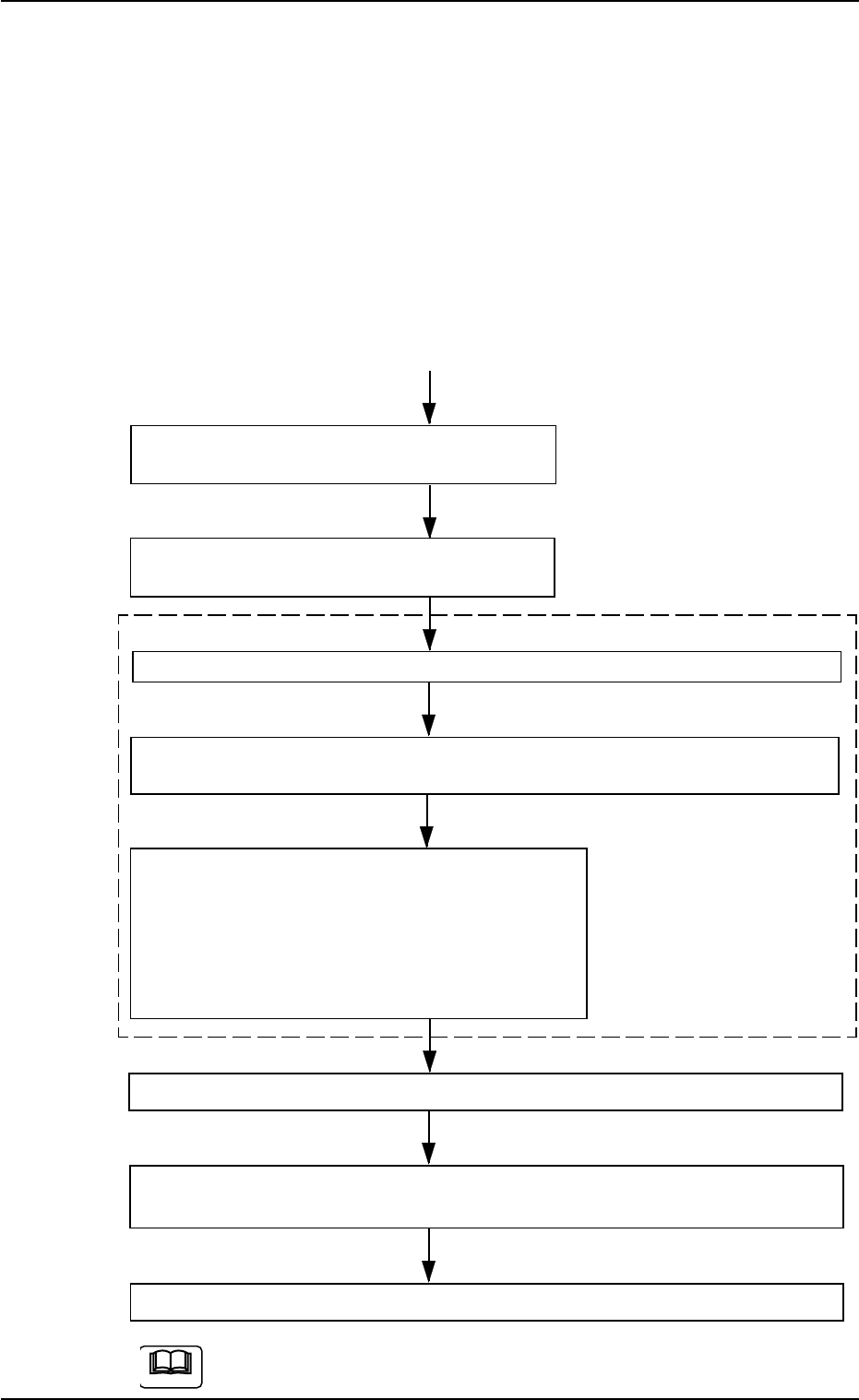
Starting Condition: • All devices must be zeroed.
• The safety doors must be closed.
• The lamp of the [READY] button must be "ON"
(beam current supplied).
Menu Selection in "PCB Support Pins Set-up
Mode" Tab + [ON] Button (entitled "MOVE")
The X/Y beam is automatically moved to the
shelter position (the rear side).
Set the [OPERATION] switch on the front operation panel to the "SETUP" side.
Press the [READY] button on the front operation panel to turn off the electro-
magnetic lock of the front safety door.
Open the front safety door and attach the P.C.B.
support pins.
As for the setup procedure of the P.C.B. support
pins, follow the same procedure as described in
"To set up the P.C.B. support pins with power
turned OFF".
Close the front safety door and set the [OPERATION] switch to the "RUN" side.
Press the [READY] button on the front operation panel to turn on the electro-
magnetic lock of the front safety door.
Zero all devices.
Refer to "7.3 "PCB Support Pins Set-up Mode" Tab" in "Section 5" for the
detailed information on how to set up the P.C.B. support pins.
3.2 Setting of P.C.B. Support Pins
"SETUP"
Side
• Conveyor Width Maximum
Sequential Operation ON/
OFF
• The sequential operation "ON"
or "OFF" of the backup base
upward movement can be se-
lected.
This mode enables the
operator to make avail-
able the menus for vari-
ous operations related to
the surrounding devices
of the conveyors.
0107-001 3 -6 AHB01ESPP
Note