00197458-01_UG_EDM_V2.2_en - 第17页
EDM V2.2 / U ser Guid e Ausgabe 10/2013 E dition 17 The m essage dialo g box returns to the for eground and the select ed objects are transf erred: Figure 4-4 : Data transfer completed A process ing bar is d ispla yed du…
EDM V2.2 / User Guide Ausgabe 10/2013 Edition
16
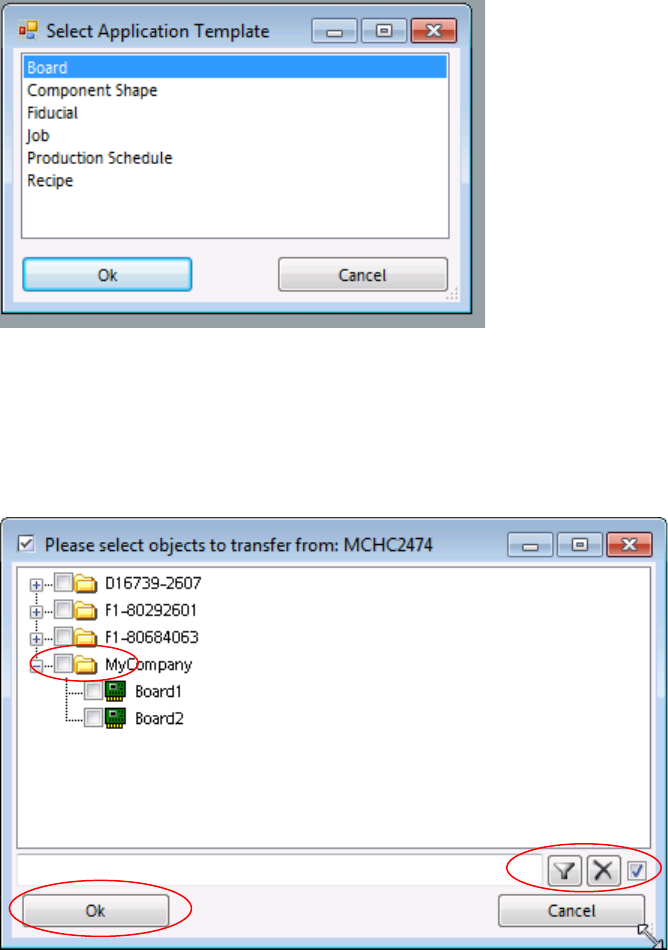
The following dialog box opens
(the templates must have been configured on the master beforehand):
Figure 4-2: Selecting application template
► Select the appropriate template from the list.
► Click OK to proceed.
Further information about EDM Templates can be found in section 5.1.6.
The following dialog box opens:
Figure 4-3: Selecting objects
► Select the object you require by checking the check box for the object.
► The filter bar at the bottom of the selection window and the context menu of the selection
window (click the right-hand mouse button) support you when selecting the objects you wish to
pull.
► Confirm your selection by clicking OK.
EDM V2.2 / User Guide Ausgabe 10/2013 Edition
17
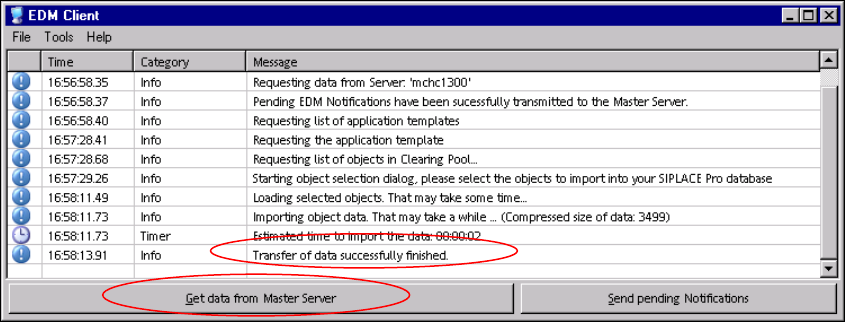
The message dialog box returns to the foreground and the selected objects are transferred:
Figure 4-4: Data transfer completed
A processing bar is displayed during the data transfer and the buttons are disabled.
When the data transfer has been completed successfully, the Transfer of data
successfully finished message appears and the Get data from Master Server button is
enabled again.
If the data transfer failed, a corresponding error message is displayed.
EDM V2.2 / User Guide Ausgabe 10/2013 Edition
18
4.2.1.1 Comment Dialog Box
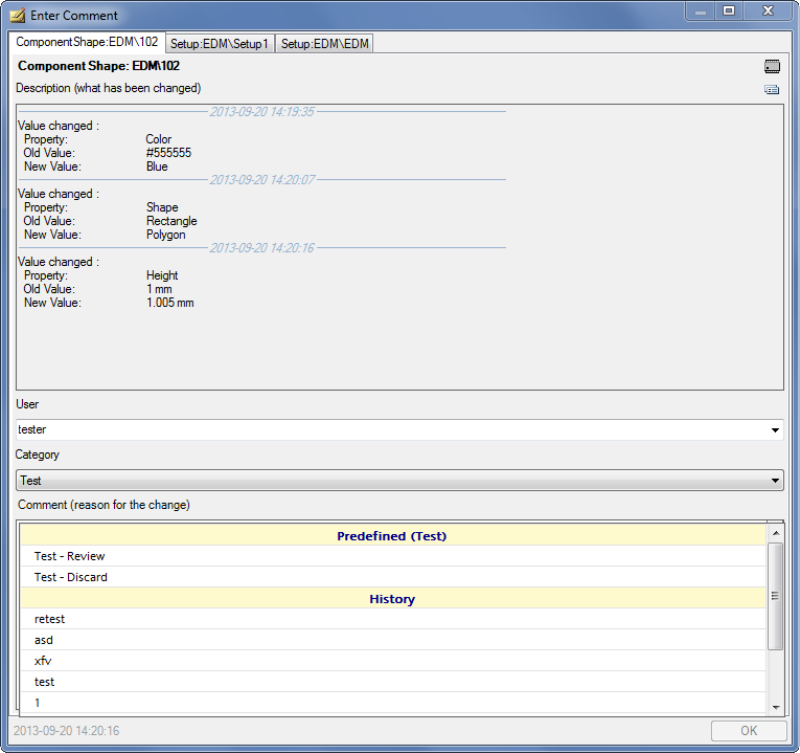
The Comment dialog box opens if you make changes in SIPLACE Pro on the Line Server (e.g. if
you change the component shape).
Display on the Line Server
Figure 4-5: Comment Dialog box
► Enter your user name.
► Select the appropriate category from the drop-down list.
► Select a predefined comment or add an explanation in the Comment field why you have made
the change in SIPLACE Pro.
► Click OK to close the comment dialog box.
The standard EDM Comment dialog has been extended to display multiple tab pages if another
object is changed while the dialog is open. Multiple changes to the same object will be listed in the
description window separated by the change time: