00197458-01_UG_EDM_V2.2_en - 第22页
EDM V2.2 / U ser Guid e Ausgabe 10/2013 E dition 22 All change d sub - o bjects f or which chang es are pen ding in the C learing Pool are d isplayed in a confirm ation windo w. Onl y the selected, tagged obj ects wil l …
EDM V2.2 / User Guide Ausgabe 10/2013 Edition
21
4.2.1.2 Restoring Data with Pending Changes in the Clearing Pool
By default, an object is not overwritten or restored as long as there are pending changes for this
object on the current line in the Clearing Pool. During a pull operation it is now possible to restore
data on the Line Server to the current version of the Master Server, although a modified version
has been transmitted to the Clearing Pool.
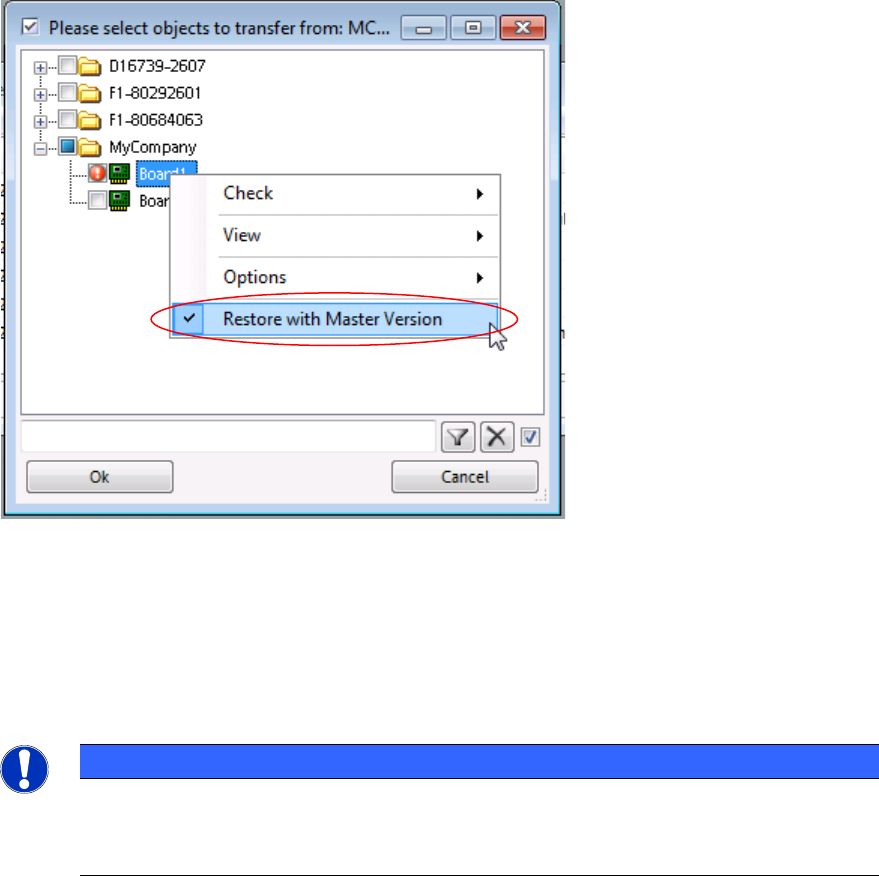
Figure 4-9: Restoring data
The folders that contain at least one object to be restored and the objects themselves are marked
with the icons above.
► Check the object(s) to be restored.
► Click the right-hand mouse button to open the context menu and select the Restore with
Master Version menu entry.
NOTICE
No object version history is provided in EDM.
All changes of this object that have not yet been accepted in the Master get irrecoverably
lost after the recovery.
EDM V2.2 / User Guide Ausgabe 10/2013 Edition
22
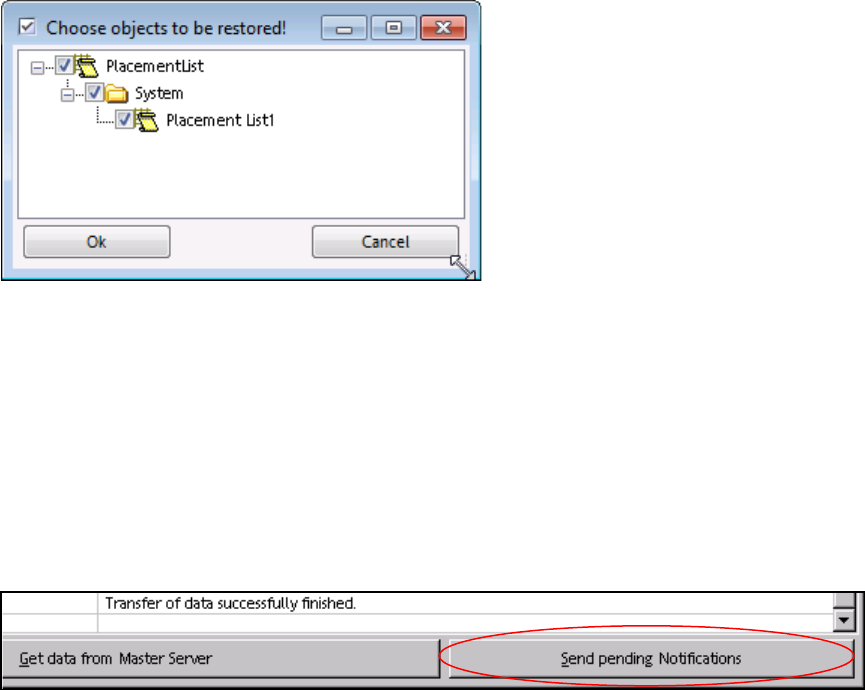
All changed sub-objects for which changes are pending in the Clearing Pool are displayed in a
confirmation window. Only the selected, tagged objects will be restored.
Figure 4-10: Confirming objects to be restored
► Confirm your selection by clicking OK.
The selected objects are restored on the Line Server and the changes are removed from the
Clearing Pool.
4.2.2 Transferring the Change Notifications to the EDM Master
All change notifications are transferred to the EDM Master after a configurable timeout has elapsed
(see EDM Installation Manual). Notifications can be sent immediately by clicking Send Pending
Notifications in the EDM Client:
Figure 4-11: Sending pending notifications
4.2.3 "Auto Reject" and "Direct Import"
Data which matches the rules for Auto Reject and Direct Import is not put into the Clearing Pool.
In the case of Direct Import, the data is transferred directly to the EDM Master database, and in
the case of Auto Reject the data is ignored. Therefore, it is not necessary to enter comments at
the EDM Line in this case.
Further information about this can be found in section 5.1.7.
EDM V2.2 / User Guide Ausgabe 10/2013 Edition
23
4.3 EDM Data Transfer Manager (Push Mode)
The Data Transfer Manager allows users to send defined data packages to Line Servers.
The Data Transfer Manager opens in the selection view when it is started (either from the
Windows® Start menu: Programs - SIPLACE EDM - EDM Data Transfer (Push) or from the
shortcut on the desktop).
4.3.1 Creating a Data Package
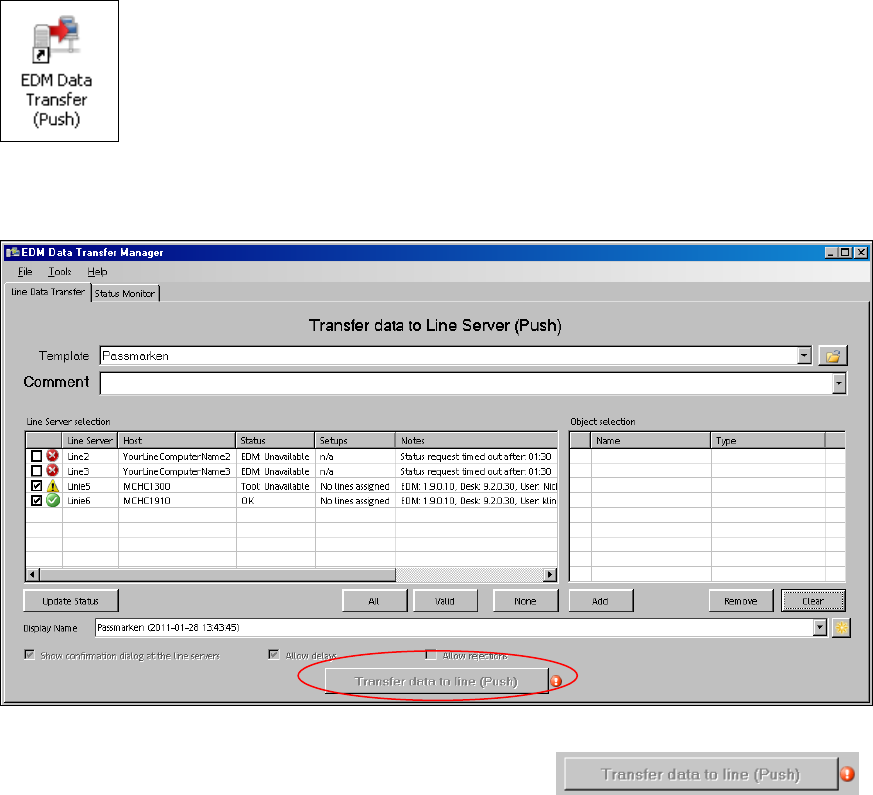
Figure 4-12: Creating a data package
The Transfer data to line (Push) button is disabled by default: .
The red error icon to the right shows that the user still has to make entries. Details are displayed as
a tooltip or if the user left-clicks on the error indicator.
The following steps are necessary to successfully transfer objects to a line. It is recommended that
you initially follow the sequence given.
By clicking on the error icon a new dialog window opens displaying the messages.