00197458-01_UG_EDM_V2.2_en - 第41页
EDM V2.2 / U ser Guid e Ausgabe 10/2013 E dition 41 You can c reate a ne w rule b y click ing on the Ad d butt on and m odify the m arked rule b y clicking o n the Edit button. W ith the ar row buttons (up / d own) you c…
EDM V2.2 / User Guide Ausgabe 10/2013 Edition
40
4.8 EDM Filter Rules
CAUTION
These settings are very sensitive. Please check the used values accurately. If "incorrect"
values are set, important change notifications might get lost or too many change
notifications might cause a jam in the Clearing Pool.
On a Line Server a multitude of processes take place, all of them producing change notifications.
However, all change notifications will not be of equal interest for you. By default, most of the
change notifications are transferred to the Master Server.
EDM 2.x provides pre-defined rules that may be adjusted or completed by newly defined rules
according to your requirements. The change notifications are automatically filtered according to
these rules and may be further processed depending on their relevance. In this way, it is possible
to sort out notifications that are not of interest for you and only transfer the important notifications to
the Clearing Pool on the Master Server.
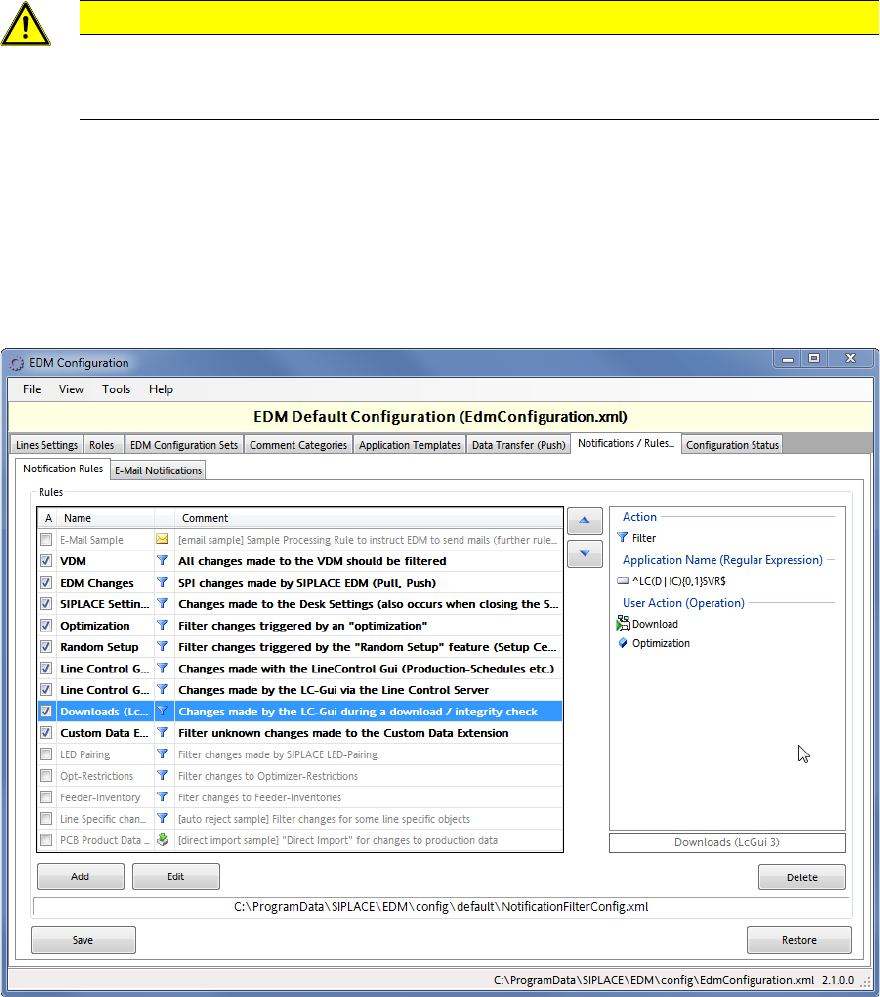
Figure 4-35: Overview of notification rules
This figure displays an overview of the provided rules. The rules that are currently in use are
activated to the left. The rules are presented as follows:
Bold:
Active filter rule that filters the changes directly at the EDM Line Server
Gray:
Inactive rule
Italic:
Active processing rule
Normal: Active rule that does not fulfill any of the other conditions
(e.g. Auto Reject and Direct Import rules)
In the display range to the right, the content of the currently marked rule is displayed.

EDM V2.2 / User Guide Ausgabe 10/2013 Edition
41
You can create a new rule by clicking on the Add button and modify the marked rule by clicking on
the Edit button. With the arrow buttons (up / down) you can change the order in which the rules are
executed. The order of the rules is crucial if several search criteria apply to a change notification. In
this case, the corresponding action of the first applicable rule will be performed.
If the hit is a filter rule, the search for further applicable rules will be terminated.
For processing rules, the contained action will be performed and the search for further applicable
rules will then continue.
Tip:
With a double-click on an entry in the overview, a rule will open to be edited in the suitable editor
Each rule consists of search criteria and the actions to be performed.
● Search criteria
All criteria used within a rule are linked to each other with an AND relation.
Change notifications can be filtered according to the following criteria:
– Name of the (context) object
– Object type of the context object
– User action
– Name of the Line Server
– Windows / SIPLACE Pro user name
– Application name
– Comment category
– Comment text
– Suggestion: as comment category and comment text based on filter rules usually require
the entry of a comment, these should be defined as "Auto Reject".
– RAW-SPI Notification Event Data (the old EDM filter criteria)
– Name of the actually changed object (as FullTypePath)
– Properties
– Sub object type
– Associated Deletes
– Event type
● Actions
Here you define the treatment of the change notification.
– Transfer the change notification to the Clearing Pool?
– Open the dialog to enter a comment or use a pre-defined comment?
– Inform recipients by mail about this change notification and – if yes – which of them?
NOTICE
The format of the change notifications in previous EDM versions is not compatible with
the format of the new change notifications as of the EDM V2.1 version. Therefore,
change notifications of previous EDM versions have to be converted to the new format.
A description of how to convert data of previous EDM versions can be found in the EDM Installation
Manual. Detailed information about creating and using the rules can be found in section 5.1.7.
EDM V2.2 / User Guide Ausgabe 10/2013 Edition
42
4.9 EDM Tool
The EDM Tool is a utility that is always installed with the other EDM components. The tasks of the
EDM Tool are as follows:
● It monitors the status of the EDM Service and checks the integrity of the EDM configuration
files.
● It also allows the line engineer to enter comments for new notifications.
● It displays the confirmation dialog box in push mode.
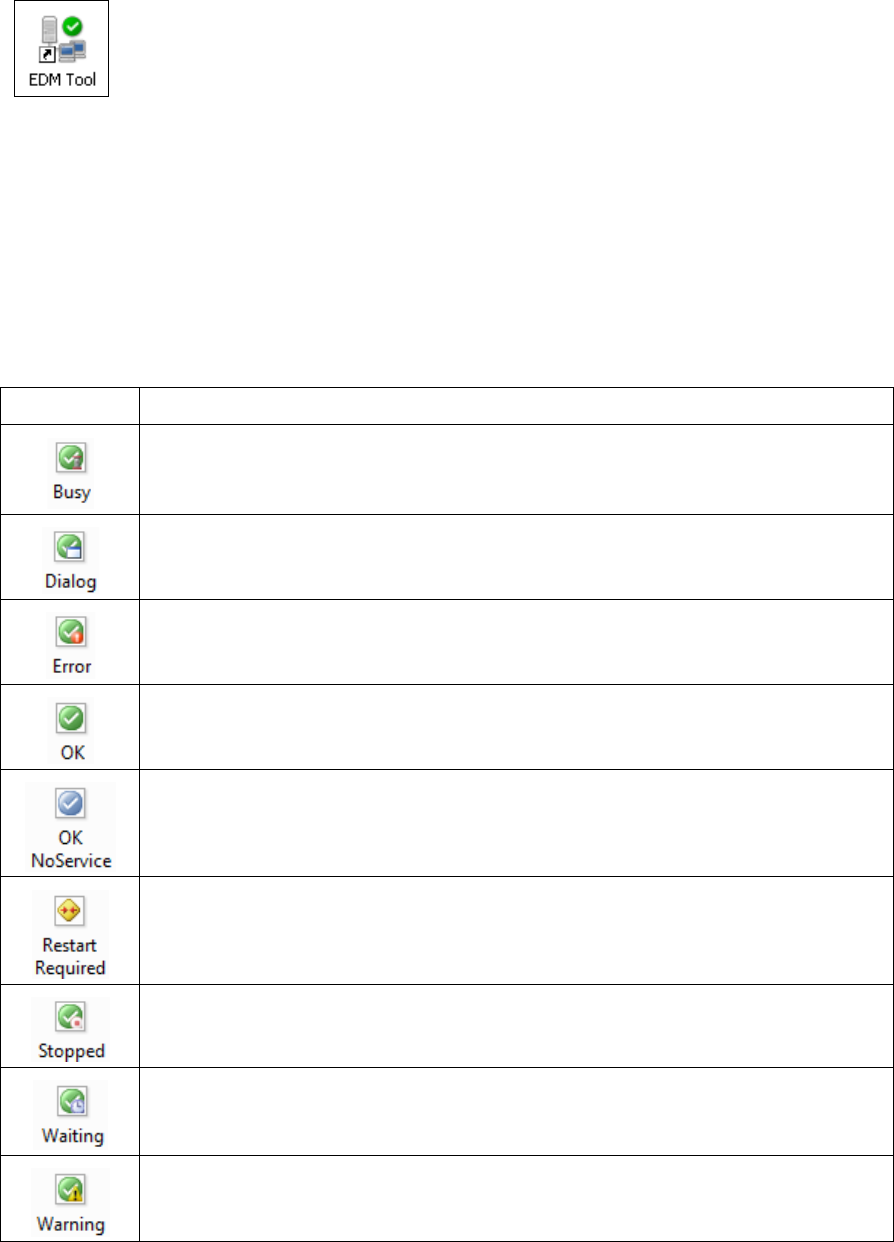
The main status icons of the EDM Tool system are listed in the following table. The tool tip of the
icons may contain additional information.
Icon Meaning
Performing a long running operation and may not respond to user input.
User input required. Either an Enter Comment or Push Confirmation dialog is
active (visible or minimized).
A severe error occurred (EDM is not working, e.g. SPI connection failed). See the
EDM Message List and log files for details.
EDM is running normally.
EDM is running without an active, local EDM Service (e.g. on a remote Clearing
Pool installation).
A restart of the local EDM Service is required. Usually occurs if the configuration
changed in a way that could not be applied immediately. The log files of the local
EDM Service should contain additional information about the reason.
The local EDM Service has been stopped (or crashed).
Waiting for the result of a long-running operation/request to arrive. Normally, the
EDM Tool should accept user input.
Some unexpected condition occurred or the test or some optional requirement
(e.g. OIB) failed. The EDM functionality might be limited. See the EDM Message
List and log files for details.
Table 4-2: Status icons of the EDM Tool system