00197458-01_UG_EDM_V2.2_en - 第43页
EDM V2.2 / U ser Guid e Ausgabe 10/2013 E dition 43 4.10 Troubleshooti ng If the ED M software is causing problem s, you shoul d use the Error Rep orting tool to report the error inform ation. The Err or Reporting tool w…
EDM V2.2 / User Guide Ausgabe 10/2013 Edition
42
4.9 EDM Tool
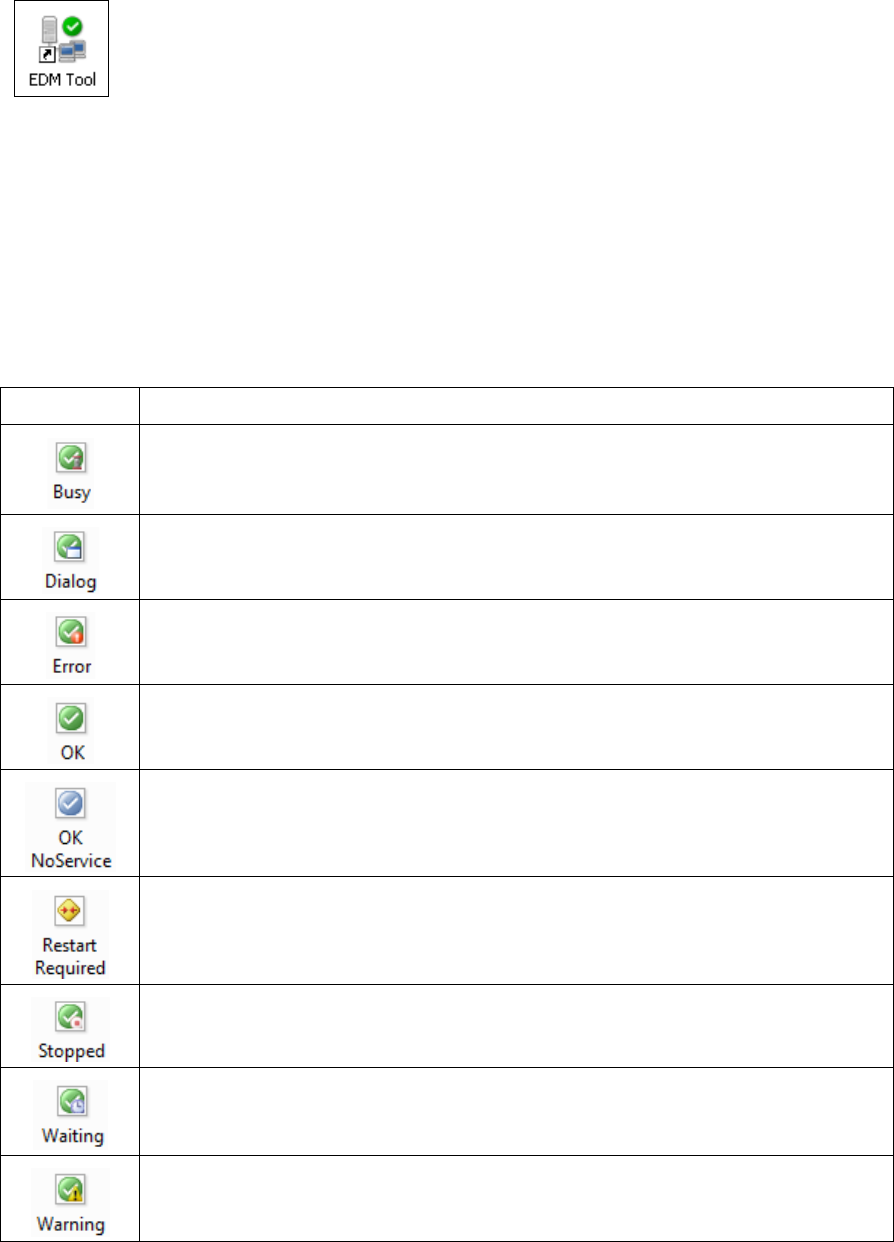
The EDM Tool is a utility that is always installed with the other EDM components. The tasks of the
EDM Tool are as follows:
● It monitors the status of the EDM Service and checks the integrity of the EDM configuration
files.
● It also allows the line engineer to enter comments for new notifications.
● It displays the confirmation dialog box in push mode.
The main status icons of the EDM Tool system are listed in the following table. The tool tip of the
icons may contain additional information.
Icon Meaning
Performing a long running operation and may not respond to user input.
User input required. Either an Enter Comment or Push Confirmation dialog is
active (visible or minimized).
A severe error occurred (EDM is not working, e.g. SPI connection failed). See the
EDM Message List and log files for details.
EDM is running normally.
EDM is running without an active, local EDM Service (e.g. on a remote Clearing
Pool installation).
A restart of the local EDM Service is required. Usually occurs if the configuration
changed in a way that could not be applied immediately. The log files of the local
EDM Service should contain additional information about the reason.
The local EDM Service has been stopped (or crashed).
Waiting for the result of a long-running operation/request to arrive. Normally, the
EDM Tool should accept user input.
Some unexpected condition occurred or the test or some optional requirement
(e.g. OIB) failed. The EDM functionality might be limited. See the EDM Message
List and log files for details.
Table 4-2: Status icons of the EDM Tool system
EDM V2.2 / User Guide Ausgabe 10/2013 Edition
43
4.10 Troubleshooting
If the EDM software is causing problems, you should use the Error Reporting tool to report the error
information.
The Error Reporting tool will be installed by the Support Media DVD that is included in the delivery
of this software product and can then be started from Start Menu - SIPLACE EDM - SIPLACE
EDM Error Reporting.
EDM V2.2 / User Guide Ausgabe 10/2013 Edition
44
Part 2: Configuration and Technical References