00191017-01.pdf - 第429页
User’s Manual Line Computer UNIX 14 Control / Control Modules Software Version 403.xx Edition 06/97 14.3 Line Control 14 - 29 14.3.3.2 Line Display and editi ng fie lds of the Line (left p ortion of the mai n window) : -…
14 Control / Control Modules User’s Manual Line Computer UNIX
14.3 Line Control Software Version 403.xx Edition 06/97
14 - 28
The main window is subdivided as follows:
-
Menu bar
-
Line (left portion of window)
-
Subline (right portion of window)
Menu bar
The menu bar contains the menus "FILE" and "HELP".
The "FILE" menu is described in
section 14.3.3.1
NOTE
Since the functions and operation of the menu "HELP" is similar to those in other application programs of
the line computer, it is described in detail in chapt. 2.
Line
In this portion of the window, the barcode filter can be edited and the barcode strategy selected. Moreover, the
operator can start/stop the line as well as disable/enable all input conveyors of the sublines forming part of the
overall line.
Subline
In this portion of the window, the current subline can be selected for which the conveyor width can be edited
and the UFO strategy set. Moreover, the operator can start/stop the subline and disable/enable the input
conveyor.
14.3.3.1 FILE Menu
-
Rejecting
modified data
Changes that have been made to settings and data can be reversed and the previous version can be
retained; this is, however, only possible before "Data transfer" has been activated.
●
Click on
FILE
-->
Reject
.
The settings and data are restored to their previous state.
-
Quitting
Line Control
●
Select menu item
FILE
-->
Quit
.
NOTE
If changes have been made and the data have not been transferred into the computer's memory yet,
a dialog box is displayed informing the user that there are still operations for the line "xx" that require
confirmation and that the action initiated last will not be processed.
User’s Manual Line Computer UNIX 14 Control / Control Modules
Software Version 403.xx Edition 06/97 14.3 Line Control
14 - 29
14.3.3.2 Line
Display and editing fields of the Line (left portion of the main window):
-
Name
Here, the name of the active Line is displayed. It is not possible to change the name.
-
Changing Barcode Filter
This barcode filter can be entered in the field "filter". The barcode determined via this filter is required
for allocating the PCB to a lot.
Only the digits "0" (not used) or "1" (valid) can be entered. The length of the entry is restricted to 25
characters.
●
Position the mouse pointer on the field Filter and enter the new filter on the keyboard.
●
Only upon clicking on the button Data transfer will the new filter values be transferred to the Line
Control.
NOTE
If incorrect characters are entered, the corresponding editing field is displayed on the screen in a
red frame.
-
Setting the barcode strategy for the current line
It is possible to select between the barcode strategies "without barcode" and "with barcode" (see
Definition of Terms, section 14.3.1).
If the "Barcode" option is not installed, the "without barcode" button is activated automatically,
whereas the "with barcode" button is inactive.
●
Click on the button next to the desired "strategy".
NOTE
Only upon clicking on the button Data transfer will the new barcode strategy data be transferred to
the Line Control.
-
Entering Data
The Data transfer button is used to send changes in conveyor width ("transport width") or barcode
strategies to the Line Control. Prior to this, a query is made as to whether the changes are possible. In
both cases it is prerequisite that the line be cleared beforehand.
●
Click on the Data transfer button.
A dialog box is displayed with the query "Line xx empty?".
●
Answer this query by clicking on Ok or Abort in the dialog box.
If "Ok" is clicked on it is assumed that the line is empty, and Line Control considers it as stopped.
If "Abort" is clicked on the action is aborted.
14 Control / Control Modules User’s Manual Line Computer UNIX
14.3 Line Control Software Version 403.xx Edition 06/97
14 - 30
-
Start
/
Stop
of the Line
The Start or Stop button is used to start or stop, respectively, the line. If start/stop of the line is activa-
ted, it automatically causes all sublines to be started/stopped, too.
●
Click on appropriate button
Start
or
Stop
.
-
Blocking/unblocking
of all input conveyors
The block/unblock button is used to block or unblock, respectively, all input conveyors forming part of
the sublines of the complete line.
●
Click on appropriate button
Block
or
Unblock.
14.3.3.3 Subline
Display and editing fields of the subline (right portion of main window):
-
Name
Here, the name of the current subline is displayed (see Fig. 14.3.1).
-
Changing the current Subline
The selection field (below the name of the current subline) contains a listing of all sublines forming
part of the overall line..
●
Select desired subline in the selection field by clicking.
The name of this system is now displayed as the current Subline.
NOTE
Any change of the "current" subline will automatically cause the selected UFO strategy to be updated.
-
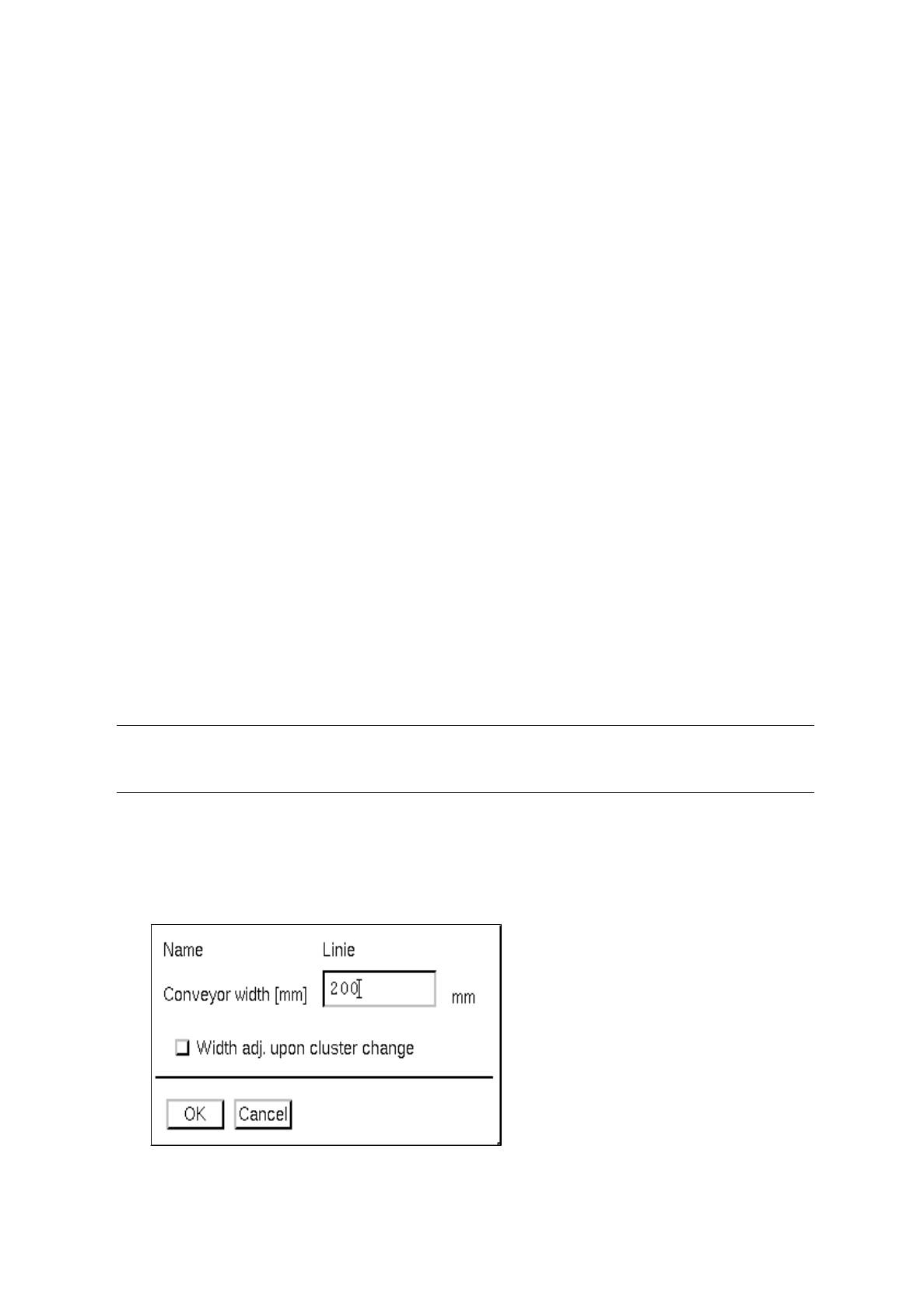
Editing the
conveyor width
●
Click on the
Conveyor width
button.
The dialog box for entering the conveyor width is opened.
●
Enter the new width in the
Conveyor width
editing field.