00191017-01.pdf - 第533页
User ’s Manual Line Computer UNIX 17.3 Description of Components and P CBs Software V ersion 403.xx Edition 06/97 17.3.2 PCB 2: Focus on Package F orm Description 17 - 3 5 17.2.2.2 Component Description To open the Compo…
17.3 Description of Components and PCBs User’s Manual Line Computer UNIX
17.3.2 PCB 2: Focus on Package Form Description Software Version 403.xx Edition 06/97
17 - 34
The adhesive pattern description is dispensed with.
Opening the
Component Editor for
a component
Entering component
data
Component Editor
Adh. pattern description
Starting the PCB
Editor for a PCB
Entering the position
of the PCB in the
machine
PCB description
continued on page 17-36
continued from page 17-32
User’s Manual Line Computer UNIX 17.3 Description of Components and PCBs
Software Version 403.xx Edition 06/97 17.3.2 PCB 2: Focus on Package Form Description
17 - 35
17.2.2.2 Component Description
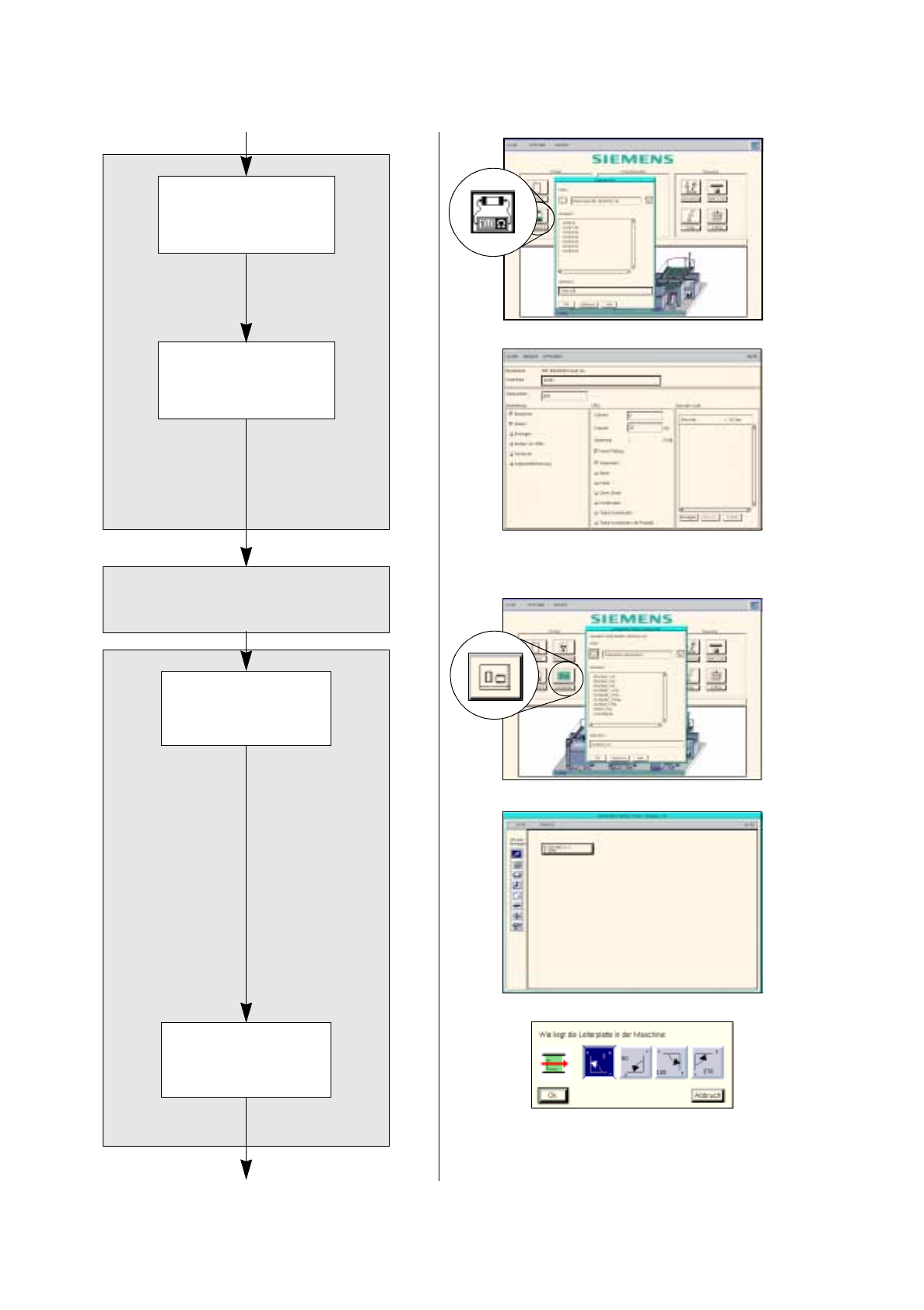
To open the Component Editor for a component, proceed as follows:
104.On the desktop click on the icon the the Component Editor .
The file selection window is opened.
105.Click on the
Selection
editing field.
106.Enter the name of the component, here:
Comp4.be
, click on the
OK
button.
The Component Editor is opened.
To enter the component data, proceed as follows:
107.Click on the
Comment
editing field, enter a comment that is a unique description of the component, here:
Chip 2220
.
108.Click on the
Package form
editing field, enter the package form number, here:
1501
.
109.In the Handling selection field activate the appropriate buttons, here:
Placing
.
110.In the CRDL selection area activate the appropriate buttons, here:
No check
.
111.Click on the
Save
option on the
FILE
menu.
The component data are saved.
112.Click on the
Quit
option on the
FILE
menu.
The Component Editor is closed.
113.Carry out the component description for the remaining components analogously, here:
Comp5.be
and
Comp6.be
.
17.2.2.3 Adhesive Pattern Description
For the new package forms an adhesive pattern is automatically adopted from the DM-Bibliothek.
17.2.2.4 PCB Description
To open the PCB Editor, proceed as follows:
114.On the desktop click on the icon of the PCB Editor .
The file selection window is opened.
115.Click on the
Selection
editing field.
116.Enter the name of the PCB
,
here:
Example_2.la
and click on the
OK
button.
A dialog box is opened.
117.Click on the
TYPE
editing field.
118.Enter a type designation, here:
board_1
and click on the
OK
button.
The PCB Editor is opened. The PCB is displayed as a rectangle.
To specify the position of the PCB in the machine, proceed as follows:
119.Activate the Coordinate system icon .
120.Click on the PCB (rectangle).
A dialog box with the display of four coordinate systems is opened.
121.Click on a coordinate system, here:
0°
.
122.Click on the
OK
button.
The dialog box is closed.
17.3 Description of Components and PCBs User’s Manual Line Computer UNIX
17.3.2 PCB 2: Focus on Package Form Description Software Version 403.xx Edition 06/97
17 - 36
PCB description
Defining fiducials
continued from page 17-34
Entering dimensions
of the PCB
continued on page 17-38
Cluster Editor
Fiducial Editor