1OM-1625-004_w.pdf - 第153页
1OM-1603 3-30 3. Component Replenishment : Chap.3 3. Component Replenishment There will be two cases of component supply replenishment during automatic operation - Component Replenishment with Machine in Short of Compone…

1OM-1603
3-29
2. Program Change Operation : Chap.3
2.4.2 ConrmationofComponentPlacement
Conrm whether the components can be placed correctly or not.
Procedure
(1) Input the PCB from the input machine.
Reference
When the PCB is to be input manually, refer to "4.1.1 PCB Manual Input
Procedure", in Chapter 3.
(2) Press the [START] button on the operation panel.
The placement operation starts.
(3) Press the [All PCB out] button.
(4) Conrm whether the placement position, angle, and component types of the
processed PCB are correct or not.
1007-004
1OM-1603
3-30
3. Component Replenishment : Chap.3
3. Component Replenishment
There will be two cases of component supply replenishment during automatic
operation - Component Replenishment with Machine in Short of Components and
Intentional Component Replenishment.
3.1 Countermeasures against Component Shortage
When component shortage occurs during the automatic operation, the machine
issues an alarm as follows.
Light Tower
: The red lamp illuminates.
Auxiliary Lamps
: When a lamp ickers, it indicates that component shortage
has occurred in the block where the lamp belongs.
(Indication of Component Shortage)
Buzzer
: The buzzer sounds intermittently.
[START] Button on Operation Panel
: The button ickers.
In this case, follow the steps below to replenish the component supply and restart
the automatic operation.
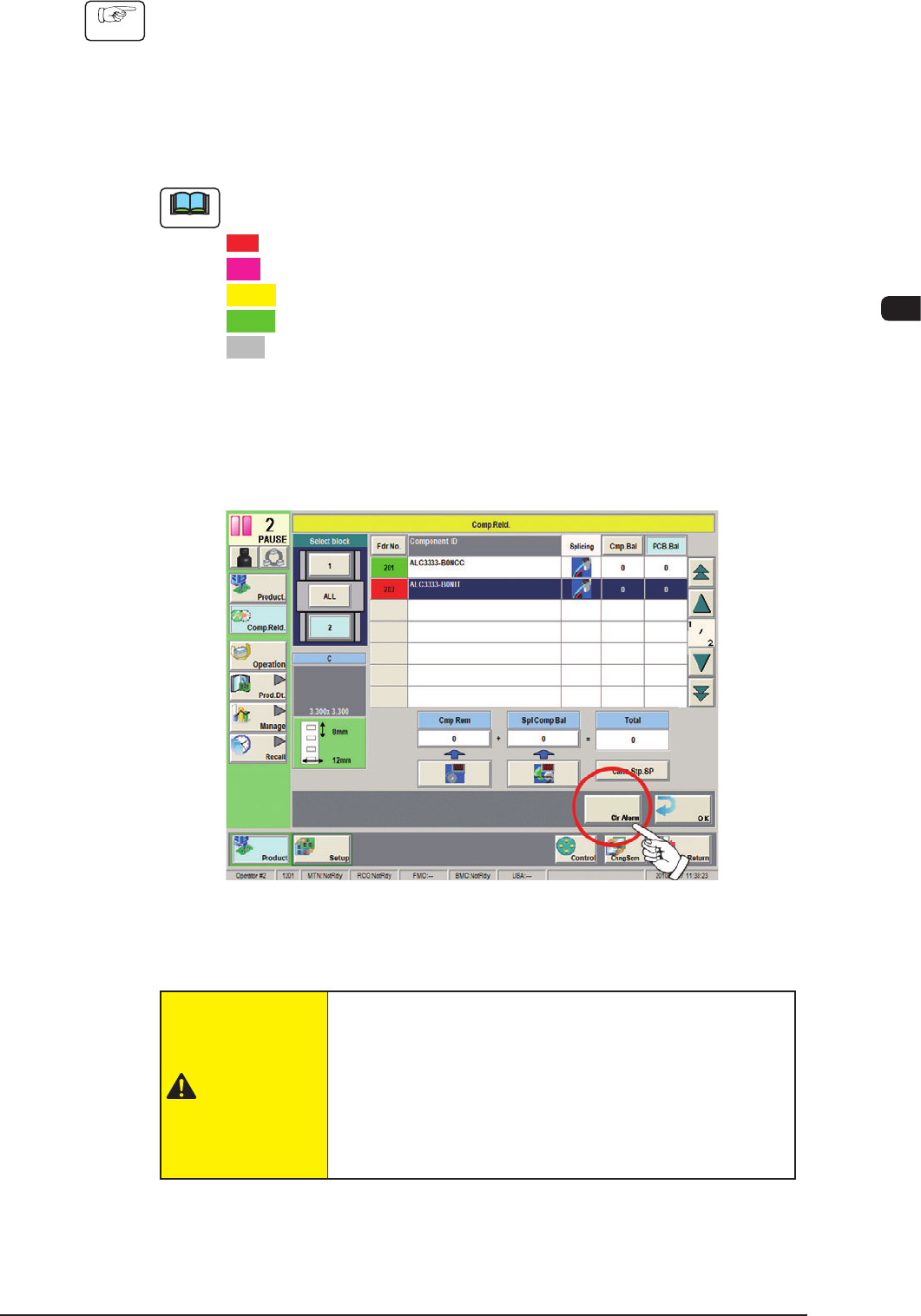
When component shortage occurs, the "Comp.Reload" window opens.
As for the feeder base in short of components, the button representing the feeder
base turns red.
F1C23
1007-004
1OM-1603
3-31
3. Component Replenishment : Chap.3
Procedure
(1) Press the red feeder # button (entitled "Fdr.No") in the "List of Feeders"
pane. The red button indicates that the corresponding feeder is in short of
components.
(The "Feeder Allocation" area in the "Fdr Reload" window shows all
feeders in the blocks where component shortage have occurred and the
shortagecaused feeders turn red.)
Note
The statuses of the feeders are color-coded in the feeder allocation area.
Red
: Feeder Unavailable (Component Shortage, Feeder Not Installed, etc.)
Pink
: Splicing Stop Generated at Feeder
Yellow
: Attention Required (Warning of Component Shortage, etc.)
Green
: Normal Feeder
Gray
: Not Used in Pattern Program
The statuses of the feeders other than the red-indicated one (the feeder in short
of components) can be conrmed and some feeders can be replenished with
components together with the red-indicated feeder.
(2) Press the [Clr Alarm] button to rest the alarm to its normal condition.
F1C24
(3) Detach the feeder where component shortage has occurred.
CAUTION
When a tape feeder is attached or detached, be sure
not to drop it.
Otherwise, a foot injury will result or the feeder itself may
be damaged.
Carefully handle each feeder one by one and do not drop
any
.
1007-004