SIPLACE Line Computer UNIX.pdf - 第180页
5 Product / Component User Manual Line Computer UNIX 5.1 Component Editor Software V ersion 502.xx 10/2000 Issue 178 I t I I
User Manual Line Computer UNIX 5 Product / Component
Software Version 502.xx 10/2000 Issue 5.1 Component Editor
177
I
t I I
● Confirm your entries by choosing OK.
The entry screen is closed, the barcode and filter entries are displayed in the display area.
NOTE
If invalid characters were used for the barcode entry (e.g. a comma), or if other digits than 1 or 0 were
used for entering the filter, or of the length of the barcode does not coincide with the length of the fil-
ter, the faulty field is displayed surrounded by a red frame as soon as the entry is confirmed by pres-
sing the RETURN key. If the RETURN key is not
pressed after each entry, faulty fields will not be
shown in a red frame until the entries are confirmed by choosing "OK". The entries must be corrected
as otherwise the entry screen will not be closed and the barcode cannot be accepted.
- Delete
It is possible to delete a created barcode.
● Select barcode entry from the display area.
● Click on Delete.
The barcode entry is no longer displayed in the display area.
- Change
An existing barcode, the associated filter or comment can be edited.
● Select the barcode entry from the display area.
● Click on Change.
The window for editing the barcode is opened (see
Fig. 5.1.2).
● Click on the editing field containing the desired entry and make the change.
● Confirm the changes by choosing OK.
The entry window is closed, the edited data are displayed in the display area.
User Manual Line Computer UNIX 6 Product / Package Form
Software Version 502.xx 10/2000 Issue 6.1 Package Form Editor
179
I
t I I
6 Product / Package Form
6.1 Package Form Editor
The Package Form Editor enables the user to completely describe the components in terms of their geometry
characteristics.
In the Package Form Editor it is possible to edit a package form previously defined for a specific component
type, or to create a new package form for a component type. Each package form is identified by its GF-number
(name) (e.g. no. "960" for package type "QFP100").
6.1.1 Starting the Package Form Editor
- In the "programming mode" the Package Form Editor is activated by clicking on the Package icon on
the desktop or via the Data Manager (see chapt. 4).
- If the LC program was installed for the "control mode", the Package Form Editor can be started via the
"PRODUCT" menu on the desktop, or via the Data Manager.
● Click on the Package icon on the desktop (or the "Package Form Editor" option on the
"PRODUCT" menu).
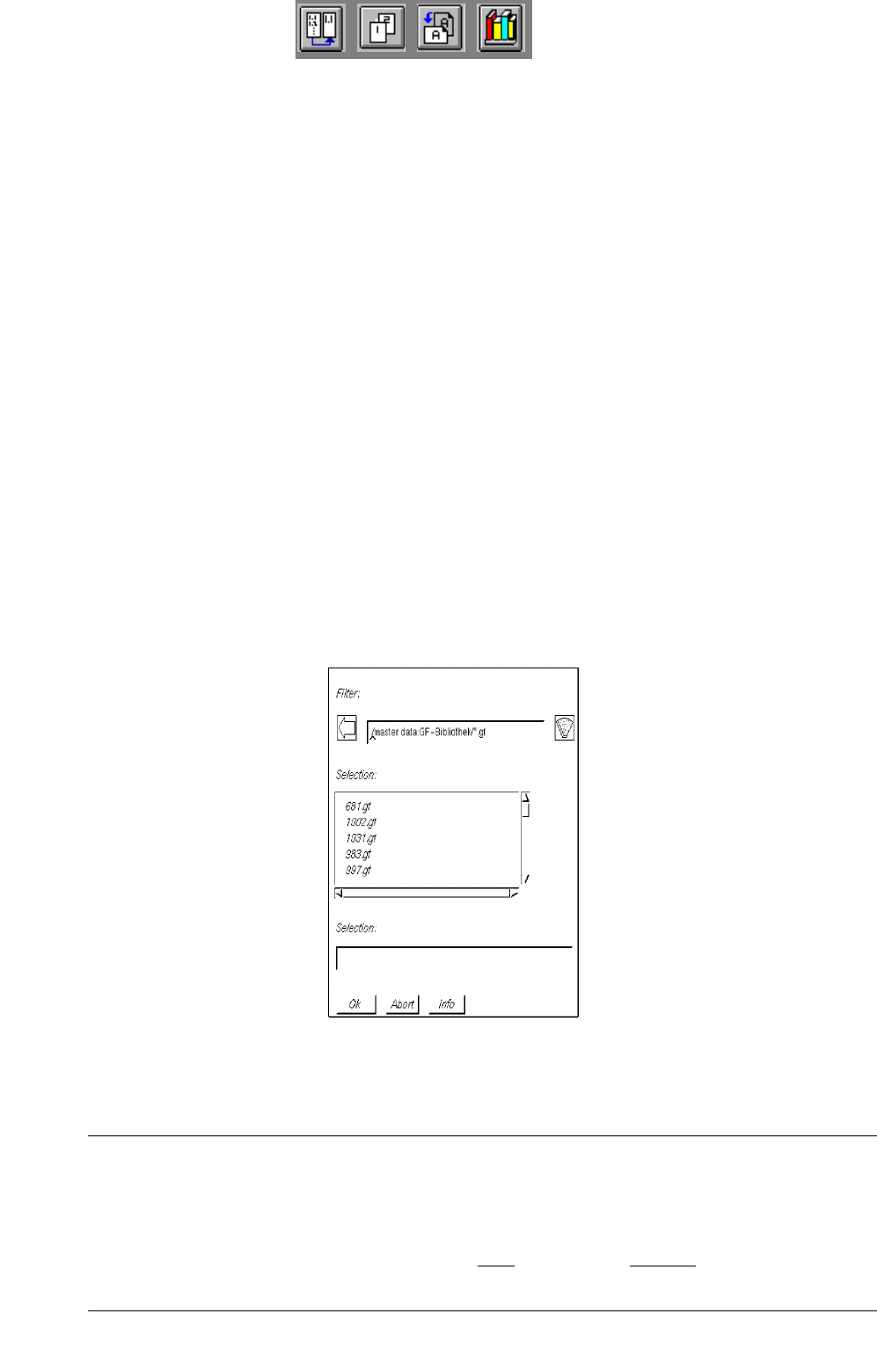
● Select number "xxx.gf" of the desired package form by double-clicking or enter new number on
the keyboard and confirm with OK.
The main window containing the Package Form Editor (see
Fig. 6.1.1) is opened.
NOTE
Numbers ranging from 1 to 32767 can be assigned to package forms. The numbers from 1 to 1499
are reserved for package forms already defined or still to be defined by SIEMENS PL EA V.
The range from 1500 to 32767 can be used for the assignment of new package form numbers. Any
name assigned to a package form may comprise max.
20 characters, including the suffix ".gf". Some
characters must not used for the assignment of names, for details see chapt. 2, section 2.3).