SIPLACE Line Computer UNIX.pdf - 第351页
User Manual Line Computer UNIX 11 Production Tools / Optimization Software Vers ion 502.xx 10/2000 Issue 11.4 Optimization Dialog 349 I t I I Fig . 1 1. 4.5 „ Producibility results for xx.la “ window for a job 1 1.4.5 Co…

11 Production Tools / Optimization User Manual Line Computer UNIX
11.4 Optimization Dialog Software Version 502.xx 10/2000 Issue
348
I
t I I
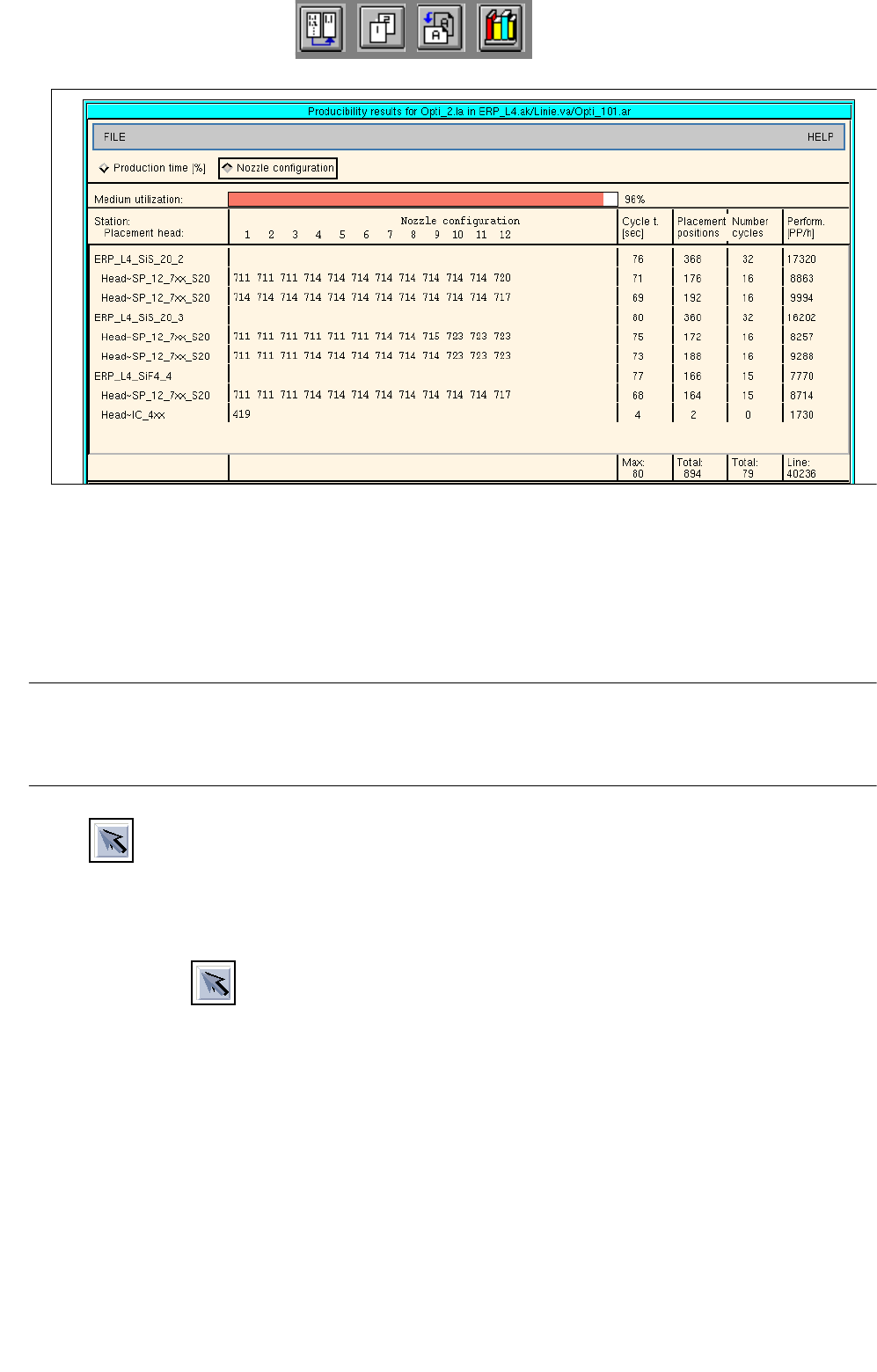
- Number cycles: indicates the number of cycles per placement head and the total number of cycles
for each station and for the entire line.
- Perform. [PP/h]: indicates the placement rate for each placement head and for each station. The total
placement rate of the line additionally comprises all waiting and transport times.
Displaying Results of Producibility Check
● for individual jobs
● Click on .
● Click on the lot file containing the job whose results are to be displayed.
The results of Optimization are displayed in the „Optimization results for xx.lose“ window.
● Click on the job in the „Jobs“ selection field.
The results of the producibility check are displayed in the „Producibility results for xx.la“ window
(see
Fig. 11.4.5).
● To obtain a printout: On the FILE menu click on the Print option.
The file will be printed on the printer connected.
The organization of the „Producibility results for xx.la“ window is identical to that of the „Optimization results
for xx.la“ window described further above.
During the producibility check, the nozzle configuration is determined and can be displayed in this window
for the current job. Clicking on the „Nozzle configuration“ button causes the nozzles required for each head
and for each segment to be displayed.
User Manual Line Computer UNIX 11 Production Tools / Optimization
Software Version 502.xx 10/2000 Issue 11.4 Optimization Dialog
349
I
t I I
Fig. 11.4.5 „Producibility results for xx.la“ window for a job
11.4.5 Command Area „Edit“
In the command area, the icons are displayed by means of which lot files can be selected, created, edited and
displayed.
NOTE
Upon opening the Optimization Dialog, the "Select" icon is initially active. The latter remains active until
another icon is clicked on.
- Select
This icon allows the jobs and basic optimization data of a lot file to be displayed. Moreover, the
options of the SERVICES menu can be invoked for the selected lot file.
● Click on
● Click on a lot file in the "Lot file“ display area.
In the „Jobs“ display area the jobs are listed that are contained in the lot file that was clicked on.
In the „Basic optimization data“ field the associated basic optimization data are displayed.
● From the SERVICES menu click on an option for the selected lot file.
The appropriate windows are opened.
11 Production Tools / Optimization User Manual Line Computer UNIX
11.4 Optimization Dialog Software Version 502.xx 10/2000 Issue
350
I
t I I
- Create
This icon allows a new lot file to be created.
● Click on
The window „Optimization dialog: create“ is opened.
● Enter the name (xx.lose) of the new lot file.
● Click on the OK button.
Job Control is opened.
● Create lot file (see chapt. 14).
- Change
This icon allows an existing lot file to be edited.
● Click on
● Click on the lot file you wish to edit.
Job Control is opened.
● Edit the lot file (see chapt. 14).
- Read in directory
This icon allows the directory of the lot files to be displayed. Moreover, by clicking on this icon a newly
created lot file can be read into the "Lot file" selection field.
● Click on
All lot files are being newly read in. The new lot file is displayed in the "Lot file" selection field.