SIPLACE Line Computer UNIX.pdf - 第375页
User Manual Line Computer UNIX 12 Production Tools / Station and Li ne Conf iguration Software Version 502.xx 10/2000 Issue 12.2 Line E ditor 373 I t I I Fig. 12.2.1 "Line Editor" Main Window The ma in window i…
12 Production Tools / Station and Line Configuration User Manual Line Computer UNIX
12.2 Line Editor Software Version 502.xx 10/2000 Issue
372
I
t I I
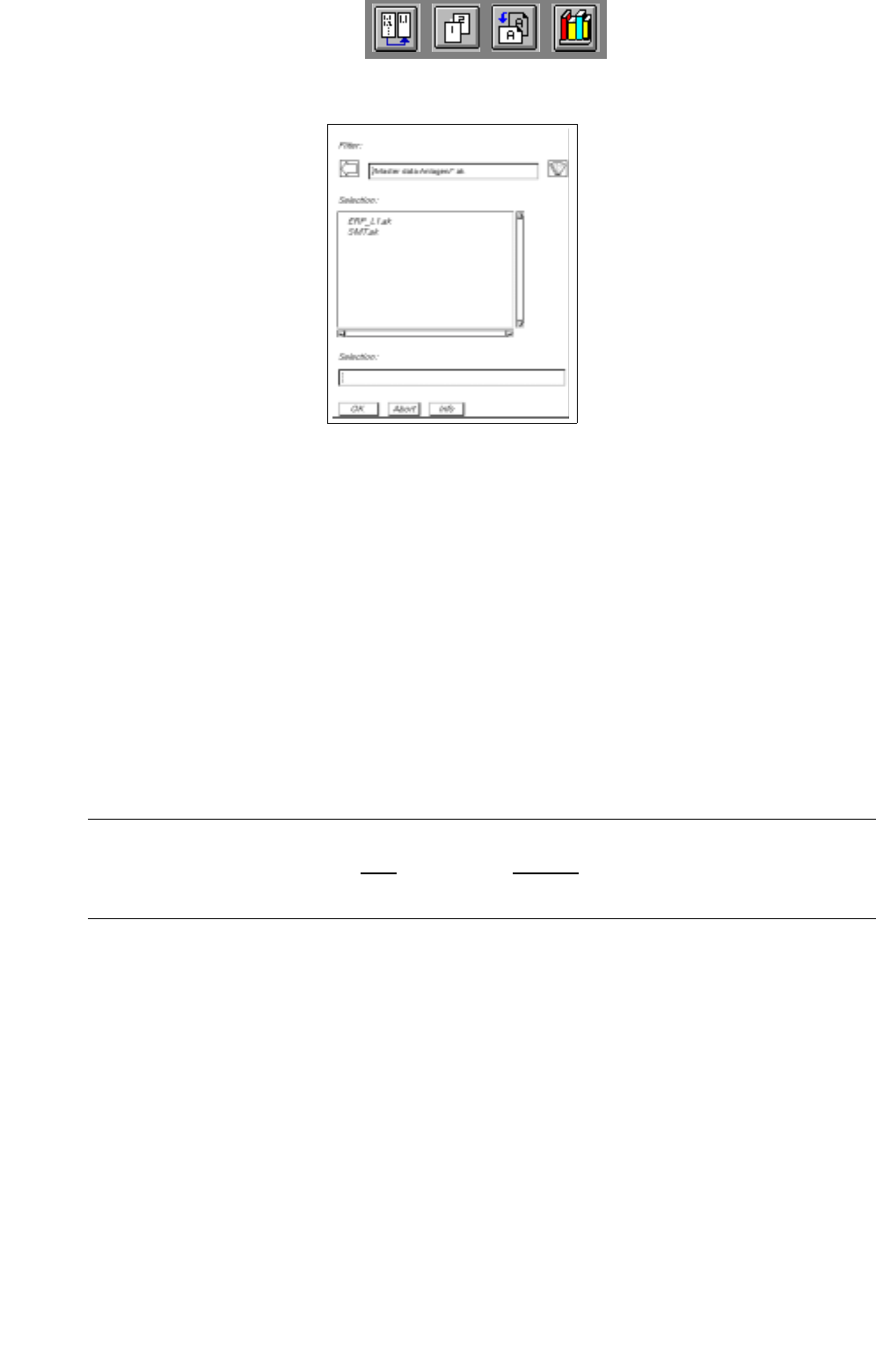
The FSB contains a listing of the configured lines. If the LC software was installed for the first time,
no overall line will be contained in the list yet.
To change an existing configuration:
● Select the line "xx.ak" and confirm with OK (or select the line directly by double-clicking on it). The
main window of the Line Editor opens (see
Fig. 12.2.1).
The description on how to proceed further is contained in
section 12.2.1.1.
To establish a new configuration:
● Enter the name "xx.ak" for the new line and confirm your entries with OK (or RETURN).
The main window of the Line Editor opens (see
Fig. 12.2.1).
The description on how to proceed further is contained in
section 12.2.1.1.
NOTE
The name of the line may comprise max.
20 characters, including the suffix ".ak". Some characters must
not be used when assigning the name, for more details see chapt. 2, section 2.3.
User Manual Line Computer UNIX 12 Production Tools / Station and Line Configuration
Software Version 502.xx 10/2000 Issue 12.2 Line Editor
373
I
t I I
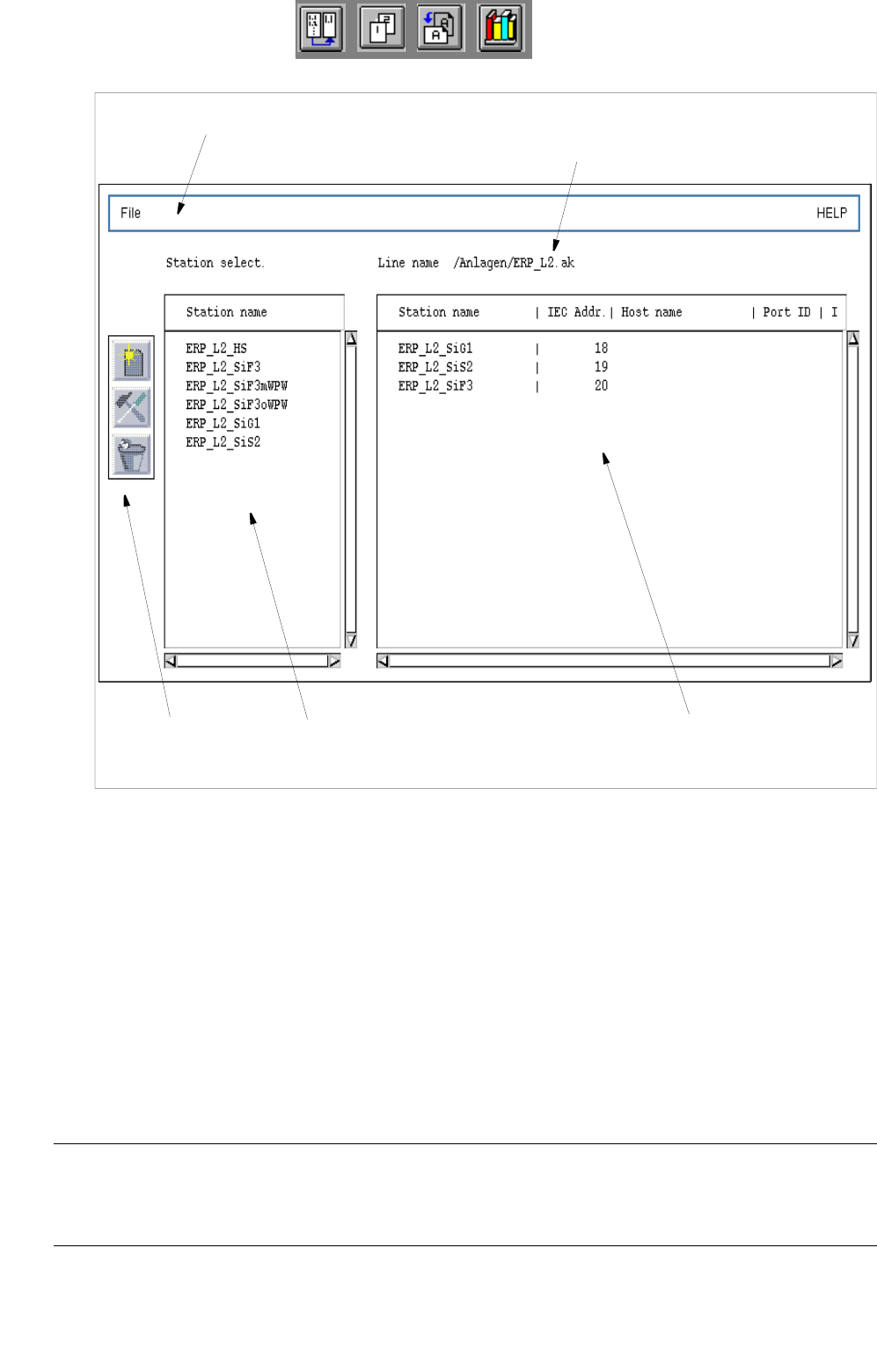
Fig. 12.2.1 "Line Editor" Main Window
The main window is subdivided as follows:
- Menu bar
- Selection field "Station selection"
- View area
- Command area
Menu Bar
The menu bar contains the "FILE" and "HELP" menus.
NOTE
Since the functions and the operation of the "FILE" and "HELP" menus are similar to those in other
application programs of the line computer, they are described in detail in chapt. 2.
Menu bar
Command area
Selection field
"Station selection"
View area
"Stations of the line"
Name of line
12 Production Tools / Station and Line Configuration User Manual Line Computer UNIX
12.2 Line Editor Software Version 502.xx 10/2000 Issue
374
I
t I I
"Station selection" Selection Field
All configured stations are listed here (see also page 12 - 354).
They can be added individually to the current line with the aid of the appropriate command (see section 12.2.1.1).
View Area
All stations forming already part of the current line are displayed in this area together with their parameters.
Command Area
After the activation of the appropriate command in this area, selected stations can be added to the overall line
or be removed from it. Moreover, the parameters of stations that are already contained in the line can be changed
(see
section 12.2.1.1).
12.2.1.1 Command Area of Line Editor
The commands are symbolized by icons. They determine the action that is to be performed.
After the activation of a command in this area, the selected station can be manipulated depending on the
command selected.
For the execution of the commands the same procedure applies:
● First select a station in the selection field or view area (depending on the function of the com-
mand),
● then click on the desired command.
Now the action (command) will be performed.
- (Allocate)
If this icon is active, it is possible to add a configured station to the current line.
● Select the desired station from the "Station selection" selection field.
● Click on the icon.
The window for entering the station parameters is opened.