SIPLACE Line Computer UNIX.pdf - 第553页
User Manual Line Computer UNIX 17 Practical Tips on Using the LC UNIX Software Version 502.xx 10/2000 Issue 17.3 Description of Components and PCBs 551 I t I I To define the ink spot, proceed as follows: 140. In the Fi d…
17 Practical Tips on Using the LC UNIX User Manual Line Computer UNIX
17.3 Description of Components and PCBs Software Version 502.xx 10/2000 Issue
550
I
t I I
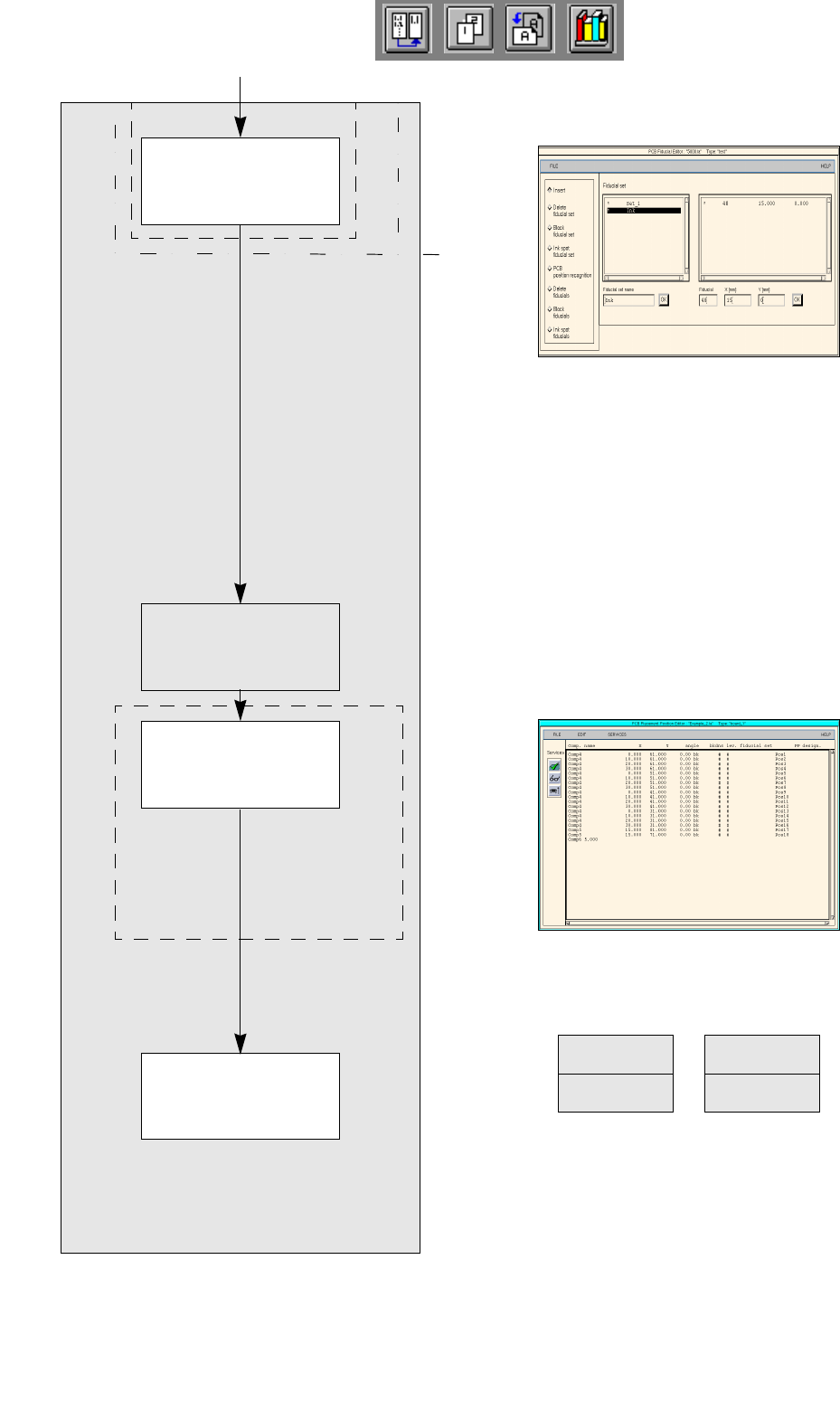
No clusters and single circuits are present.
FILE
Save
FILE
Quit
Saving PCB data
continued from page 17-36
Entering placement
positions
Defining ink spot
Creating clusters and
single circuits
PCB description
Placement Positon Editor
User Manual Line Computer UNIX 17 Practical Tips on Using the LC UNIX
Software Version 502.xx 10/2000 Issue 17.3 Description of Components and PCBs
551
I
t I I
To define the ink spot, proceed as follows:
140.In the Fiducial Editor activate the Insert button.
141.Click on the Fiducial set name editing field.
142.Enter a name for the new fiducial set (ink spot), here: ink.
143.Click on the OK button.
The ink fiducial set appears on the fiducial list.
144.Click on the ink fiducial set on the fiducial list.
145.Click on the Fiducial editing field.
146.Enter the fiducial number, here: 48.
147.Click on the individual editing fields for the coordinetes and enter
the coordinates (do not confirm with the Enter key), here: see chart:
148.Click on the OK button.
The data of the ink spot are transferred to the list of the fiducials of the fiducial set.
149.Activate the Ink spot fiducial set button.
150.Click on the ink fiducial set on the fiducial list.
The ink fiducial set name is preceded by an
I for ink spot.
151.Click on the Quit option on the FILE menu.
The Fiducial Editor is closed.
152.In the Cluster Editor click on the Quit option on the FILE menu.
The Cluster Editor is closed.
To create clusters and single circuits, proceed as follows: no clusters and single circuits are present.
To enter the placement positions, proceed as follows:
153.In the Component Editor activate the Select icon .
154.Click on the PCB (rectangle).
The rectangle is highlighted in green.
155.Click on the Placement Position Editor option on the SERVICES menu.
The Placement Position Editor is opened.
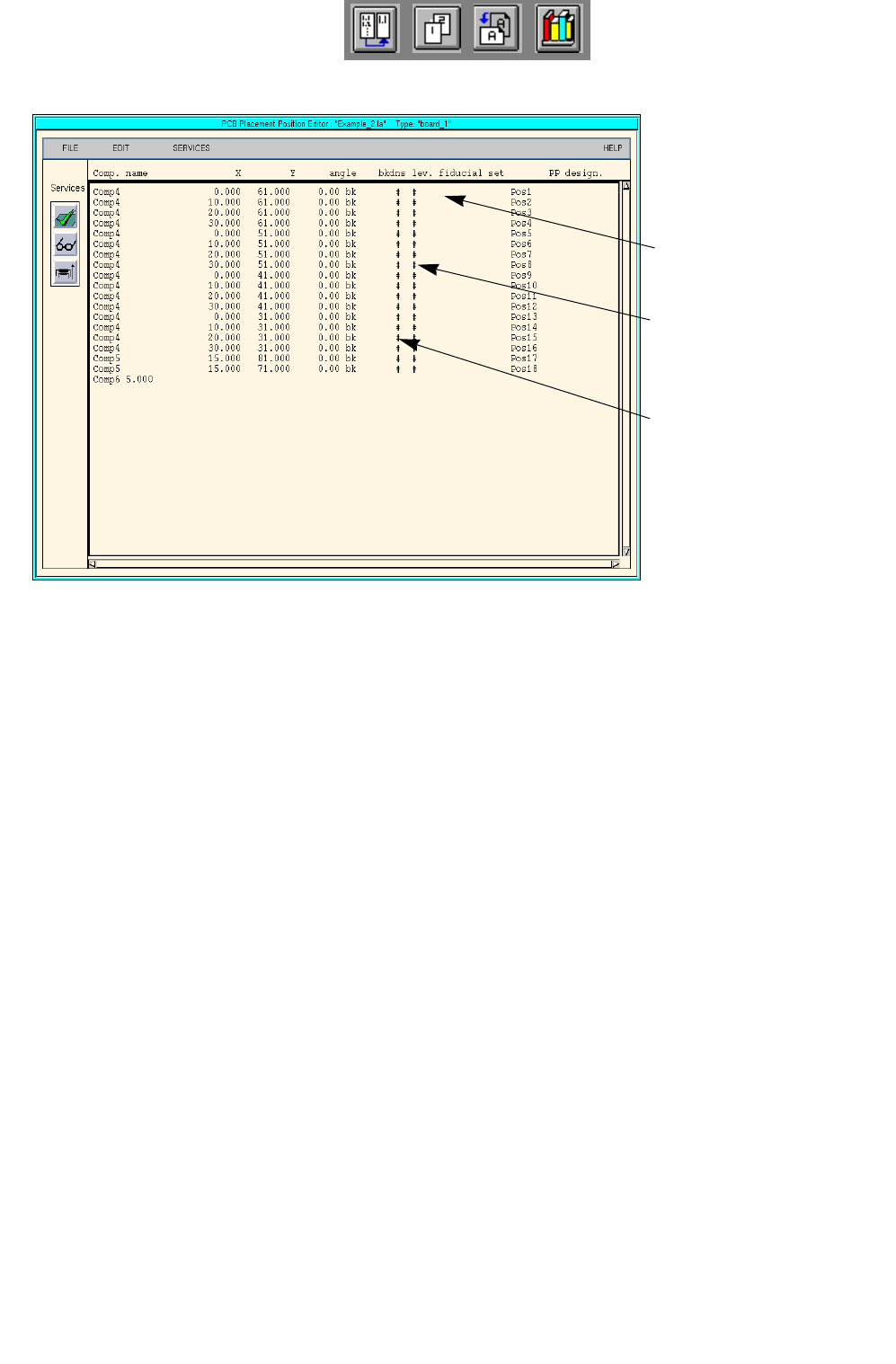
156.Position the cursor in the entry field and enter the placement positions in accordance with Tab. 17.3-3 on
page 17-532. The individual entries are to be separated by a blank. Every line is to be confirmed by pres-
sing the Enter key. See also Fig. 17.3.6 on page 17-552.
157.When the entry has been completed, activate the Check icon .
The values entered are checked and arranged in columns.
158.Click on the Quit option on the FILE option.
The Placement Position Editor is closed.
To save the PCB data, proceed as follows:
159.In the PCB Editor click on the Save option on the FILE menu.
The PCB data are saved.
160.Click on the Quit option on the FILE menu.
The PCB Editor is closed. The description of PCB 2 is terminated.
Fiducial number X Y
48 15 0
17 Practical Tips on Using the LC UNIX User Manual Line Computer UNIX
17.3 Description of Components and PCBs Software Version 502.xx 10/2000 Issue
552
I
t I I
Fig. 17.3.6 Placement Position Editor for PCB 2
Enter fiducial set name
# = no fiducials defined for the
placement position
b = placing
k = glueing
d = dispensing (solder paste)
n = reworking
s = blocking (from placement)
Enter number of placement
level
# = no level defined for the pla-
cement position