SIPLACE Line Computer UNIX.pdf - 第575页
User Manual Line Computer UNIX 17 Practical Tips on Using the LC UNIX Software Version 502.xx 10/2000 Issue 17.4 Set-Up Generation 573 I t I I Fig. 17.4.1 Definition of a Waffle-Pack Tray 47. Clic k on the Quit opti on o…
User Manual Line Computer UNIX 17 Practical Tips on Using the LC UNIX
Software Version 502.xx 10/2000 Issue 17.4 Set-Up Generation
573
I
t I I
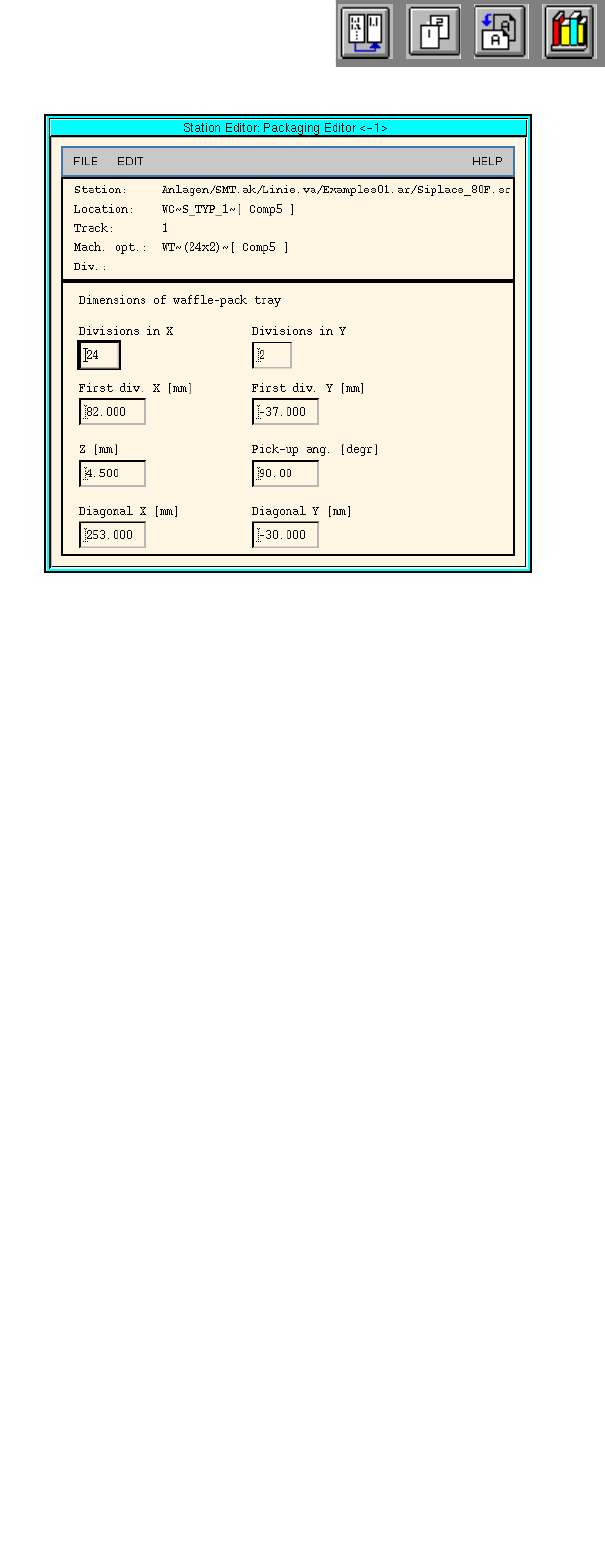
Fig. 17.4.1 Definition of a Waffle-Pack Tray
47. Click on the Quit option on the FILE menu.
The Packaging Editor is closed. The pick-up area of the waffle-pack tray is displayed together with the
indicated spacing.
To allocate a component to a waffle-pack tray, proceed as follows:
48. On the component list click on the component, here: Comp5.
49. Click on the blue pick-up area of the waffle-pack tray.
The component is allocated to the compartments of the waffle-pack tray.
To save the set-up, proceed as follows:
50. Click on the Save option on the FILE menu.
The created set-up is saved.
51. Click on the Quit option on the FILE menu.
The Set-Up Editor/WPC Editor is closed.
To adjust the conveyor width (if not already done), proceed as follows:
52. On the desktop click on the Line control option on the SERVICES menu.
The Line control window is opened.
53. Click on the Conveyor width button.
A dialog box is opened.
54. Activate the Width adj. upon cluster change button.
With this function, the conveyor width is adjusted automatically upon the next cluster change.
55. Click on the OK button.
The dialog box is closed.
56. Click on the Quit option on the FILE menu.
The Line control window is closed.
17 Practical Tips on Using the LC UNIX User Manual Line Computer UNIX
17.5 Line Control Software Version 502.xx 10/2000 Issue
574
I
t I I
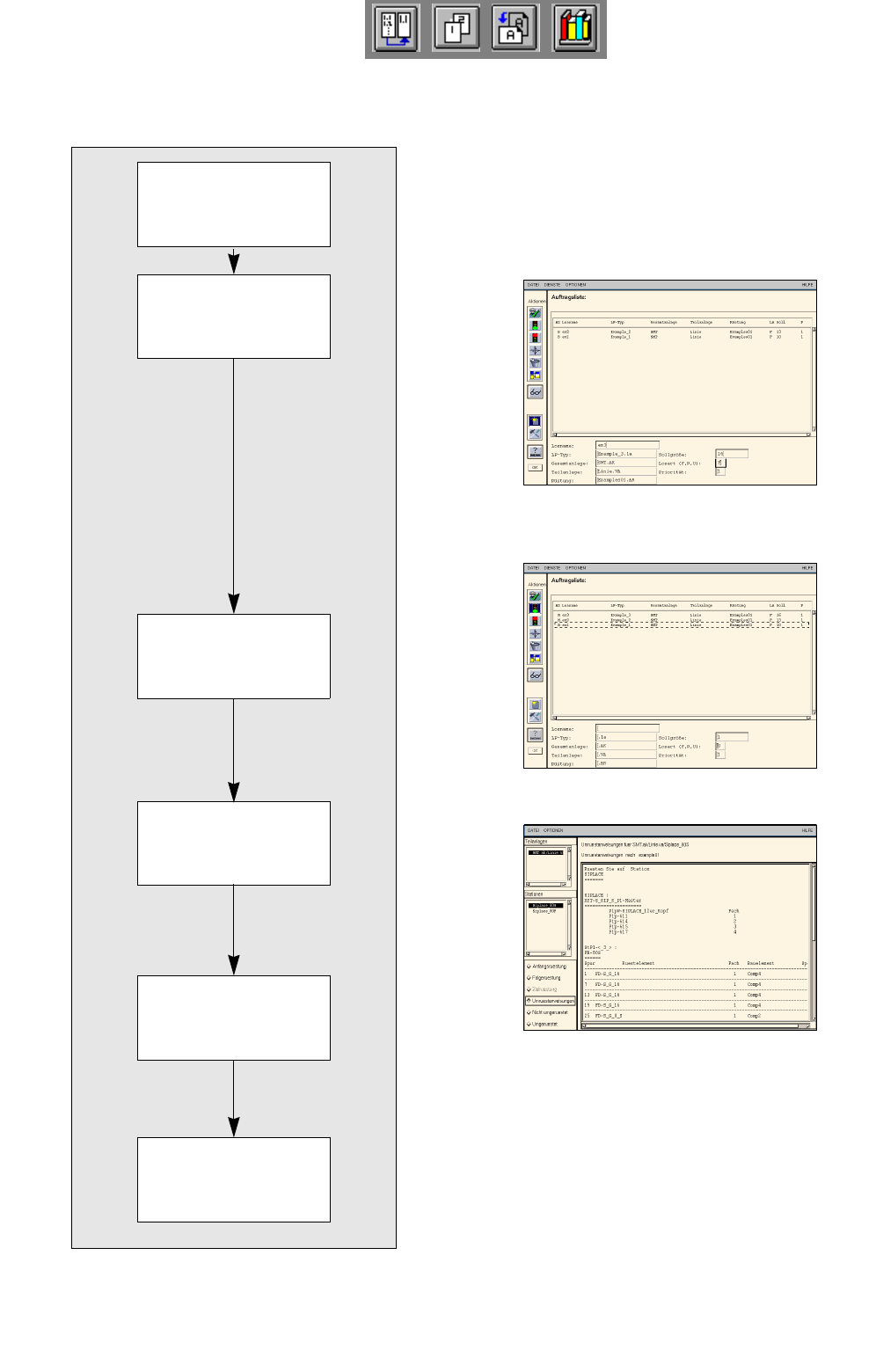
17.5 Line Control
The three PCBs can now be produced using the created set-up.
Opening Job Control
Scheduling a job
Displaying and printing
set-up changeover in-
structions
Changing the set-up of
stations and confirming
set-up changeover
Inserting jobs in the job
list
The placement of the
scheduled jobs is
started.