SIPLACE Line Computer UNIX.pdf - 第85页
User Manual Line Computer UNIX 3 Desktop (Root Window) Software Version 502.xx 10/2000 Issue 3.2 Desktop User Interface 83 I t I I The win dow clos es and the following i nfo box op ens. ● Close the info box by clickin g…
3 Desktop (Root Window) User Manual Line Computer UNIX
3.2 Desktop User Interface Software Version 502.xx 10/2000 Issue
82
I
t I I
- Change network configuration
This menu option is designed to directly start the "Network Configuration Manager" program for the
configuration of the network. This option therefore requires special caution to be exercised. Before
starting the program, the operator should already know which options to select for the correct configu-
ration.
Mainly the "Network Configuration Manager" is used for the configuration of the LAN link (output of
LAN card).
● Click on OPTIONS --> Network --> Change network configuration.
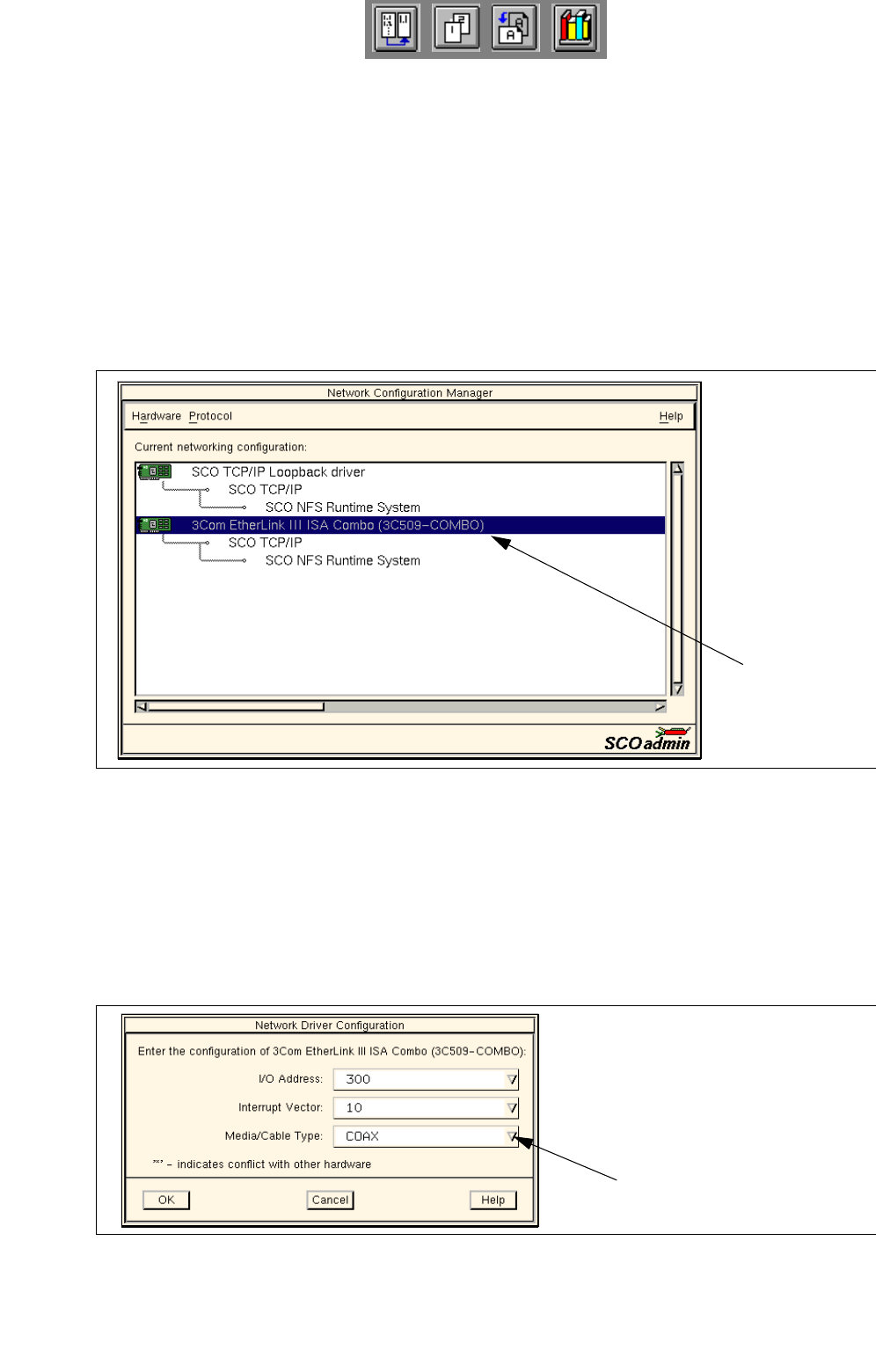
The UNIX window "Change network configuration" opens and above it the main window of the "Net-
work Configuration Manager". The current network configuration is displayed graphically in the
view area (see figure below).
Changes in the network configuration can be carried out by selecting the appropriate network component
from the view area and by using the menu options.
The procedure to be followed for the configuration of the LAN link is described in the example below.
● In the view area, click on the entry of the desired LAN card (see figure above).
The entry is darkened.
● From the Hardware menu select the Modify hardware configuration menu option.
The window for setting the LAN link opens.
● Use the appropriate arrows to configure the desired link (and cable type), the I/O address and the
interrupt.
● Click on OK to confirm the settings.
LAN card
entry
Pfeiltaste
User Manual Line Computer UNIX 3 Desktop (Root Window)
Software Version 502.xx 10/2000 Issue 3.2 Desktop User Interface
83
I
t I I
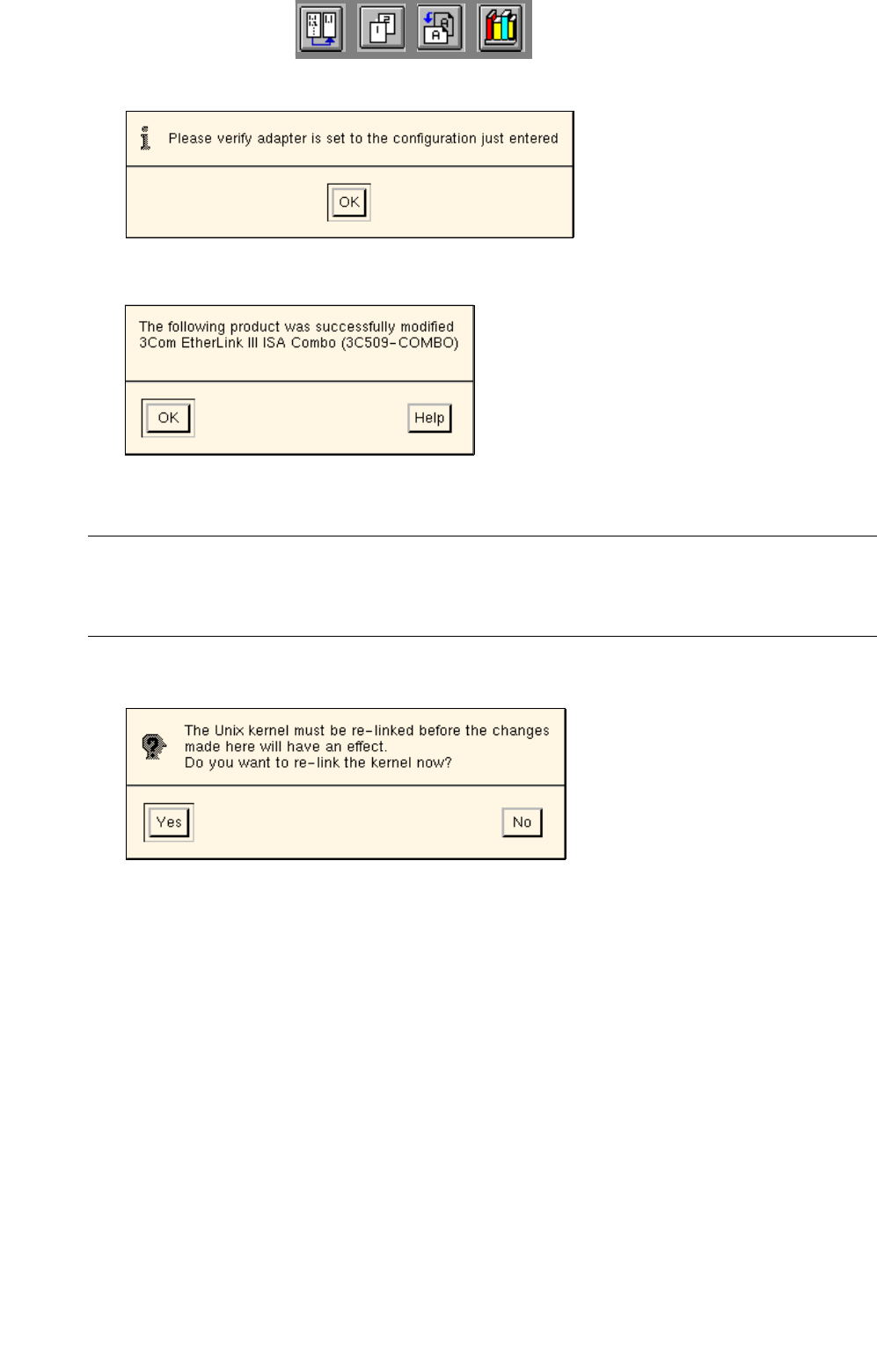
The window closes and the following info box opens.
● Close the info box by clicking on OK. The following dialog box is displayed.
● Close the dialog box by clicking on OK.
NOTE
The View hardware configuration menu option on the Hardware menu allows the current hardware
configuration of the selected LAN card to be displayed.
● To exit from the "Network Configuration Manager" click on HARDWARE --> Exit.
The following dialog box opens.
● Acknowledge the verification query by clicking on Yes.
The dialog box opens closes, and the UNIX window "Unix kernel relink" opens.
● Respond to each of the queries "Do you want this kernel to boot by default" and "Do you want the
kernel enviroment rebuilt", that will be displayed after a few minutes, with y and RETURN.
● Close the UNIX window "Unix kernel relink" by pressing RETURN.
● The main window of the "Network Configuration Manager" and the dialog box close.
Only the UNIX window "Change network configuration" remains displayed.
● Exit from the UNIX window by pressing RETURN.
● Shut down the computer system using the Shutdown main menu function and subsequently
reboot the system.
The line computer system will now be started with the new network configuration.

3 Desktop (Root Window) User Manual Line Computer UNIX
3.2 Desktop User Interface Software Version 502.xx 10/2000 Issue
84
I
t I I
- Allow access
This menu item enables, or changes, the access of given computers to the line computer via the net-
work.
● Click on OPTIONS --> Network --> Allow access.
The UNIX window "Change exports configuration" opens.
Access no longer permitted:
● Reply to the query "Do you want to delete an entry from ’etc/exports’?" with y and confirm by
pressing RETURN.
● Enter the name of the computer to which access is no longer to be granted and confirm by
pressing RETURN.
Changing the name of a computer to which access has already been permitted:
● Reply to the query "Do you want to change an entry from ’etc/exports’?" with y and confirm by
pressing RETURN.
● Enter old name of the relevant computer and confirm by pressing RETURN.
● Enter new name and confirm by pressing RETURN.
Permitting access to a new computer:
● Reply to the query "Do you want to add an entry from ’etc/exports’?" with y and confirm by
pressing RETURN.
● Enter the name of the desired computer and confirm by pressing RETURN.
● Reply to the query "Do you want to add another entry from ’etc/exports’?" with n and confirm by
pressing RETURN if nothing is to be changed in the configuration.
The entries are accepted and the UNIX window closes.