YSH20_Ope_E.pdf - 第107页
2-50 2 asic operation n T ape components 6 Set the "T ape T ype" and "F eeder T ype" par ameters. Double-click the "R. T ape Type" parameter field and select a desired tape type fr om the …
2-49
2
asic operation
3
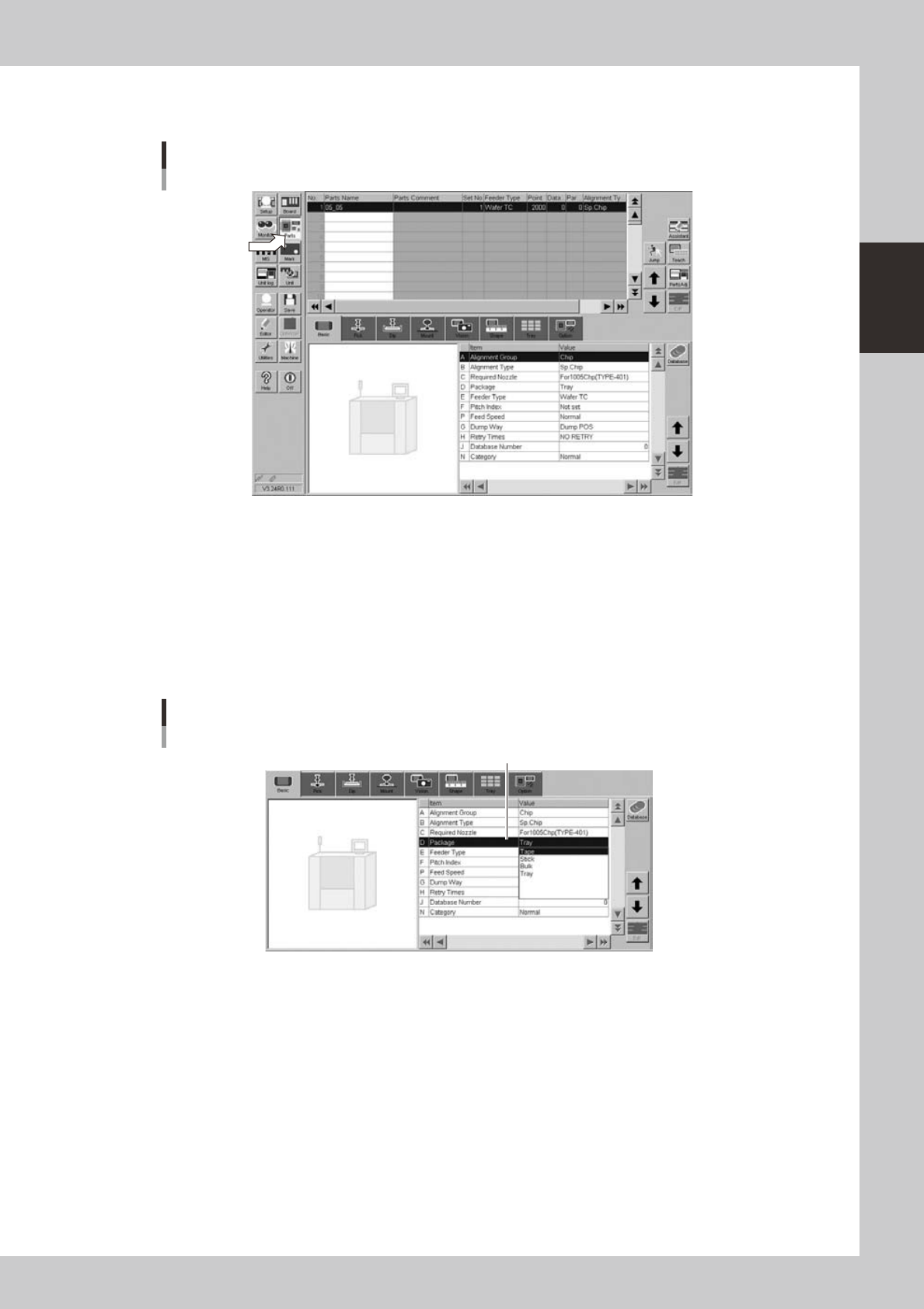
Open the Parts screen.
Press the [Parts] button to open the Parts screen and select the component from the upper list.
Parts screen
24225-H0-00
4
Display the basic parameters.
Select the [Basic] tab to display the basic parameters.
5
Set the "Package" parameter.
Double-click the "Package" parameter field and select an appropriate package from the drop-down
list.
• Tape components: Tape
• Tray components: Tray
Parts screen
"Package" parameter
"D. Package"
24226-H0-00
2-50
2
asic operation
n
Tape components
6
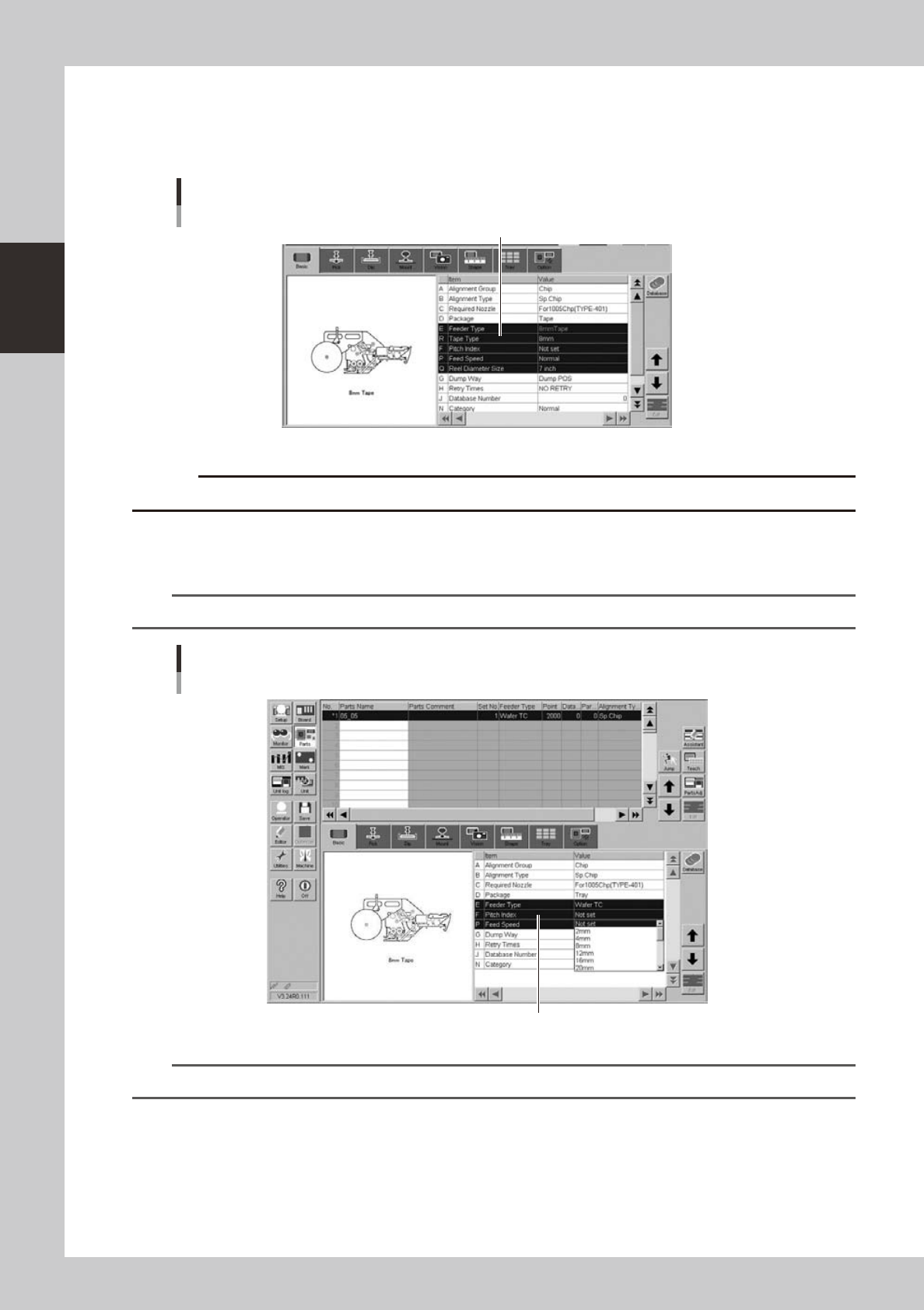
Set the "Tape Type" and "Feeder Type" parameters.
Double-click the "R. Tape Type" parameter field and select a desired tape type from the drop-down list.
[Parts] - [Basic] screen
Example of tape feeder
"R Tape Type"
24227-H0-00
c
7
Set the "Pitch Index" parameter.
Double-click the "F. Pitch Index" parameter field and select a correct feed pitch from the drop-down list.
n
NOTE
This parameter does not appear when "Reference of feeder pitch" is set to "Feeder setup".
Parts screen
"Pitch Index" parameter
"F. Pitch Index"
24228-H0-00
TIP
For more details, refer to the SS feeder user's manual.
2-51
2
asic operation
n
Wafer tray components
6
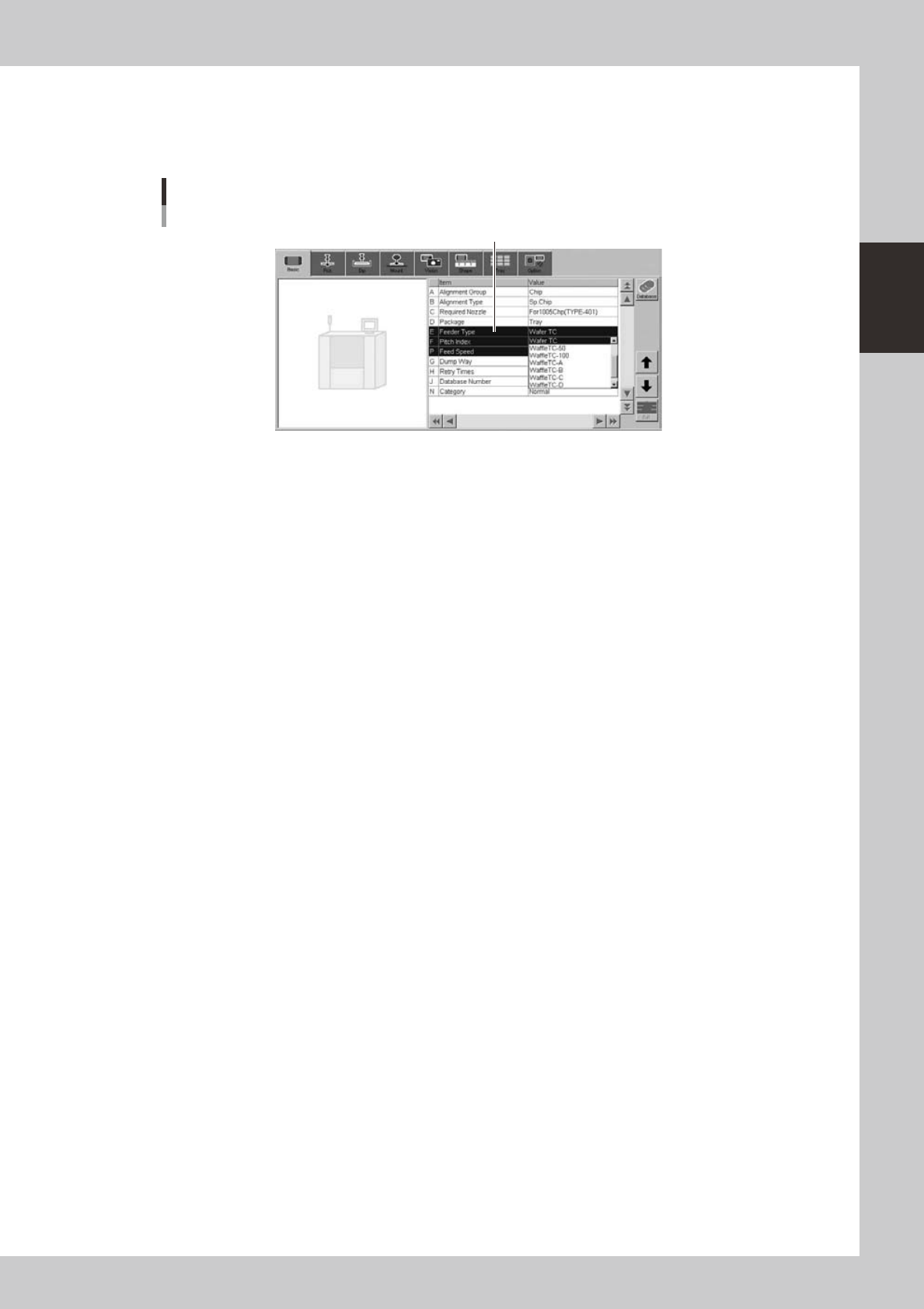
Set the "Feeder Type" parameter.
Select "Wafer TC" from the drop-down list.
[Parts] - [Basic] screen
"Feeder Type" parameter
"Feeder Type"
24232-H0-00