00197191-02_IM_SIPLACE_Pro_10.1_EN.pdf - 第32页
Installation Manual 4 Installation of SIPLACE Pro and possible Setup Types SIPLACE Pro 10.1 Edition 09/2012 30 4.3.2 Setup T ype – SIPLACE Pro Complete System This setup type cont ains all SIPLACE Pro component s for ope…

4 Installation of SIPLACE Pro and possible Setup Types Installation Manual
Edition 09/2012 SIPLACE Pro 10.1
29
Select the features you want to install.
Hint
You need to install SIPLACE Pro Interface as minimum requirement for external applications. 4
Note
After choosing the feature "SIPLACE Pro Database" and clicking Next, setup immediately checks
if SQL server is installed on the computer. 4
Click Next.
Note
From this point onwards, the dialog boxes displayed depend on which features have been
selected (either implicit via the other Setup Type selection or explicit in the Custom Setup Type).
The sequence varies according to which features and options have been selected, so there are
many possible combinations. It is not feasible to describe all the combinations for Custom instal-
lation here. However, you will see the individual dialog boxes occuring in the course of the follow-
ing setup types. 4
Installation Manual 4 Installation of SIPLACE Pro and possible Setup Types
SIPLACE Pro 10.1 Edition 09/2012
30
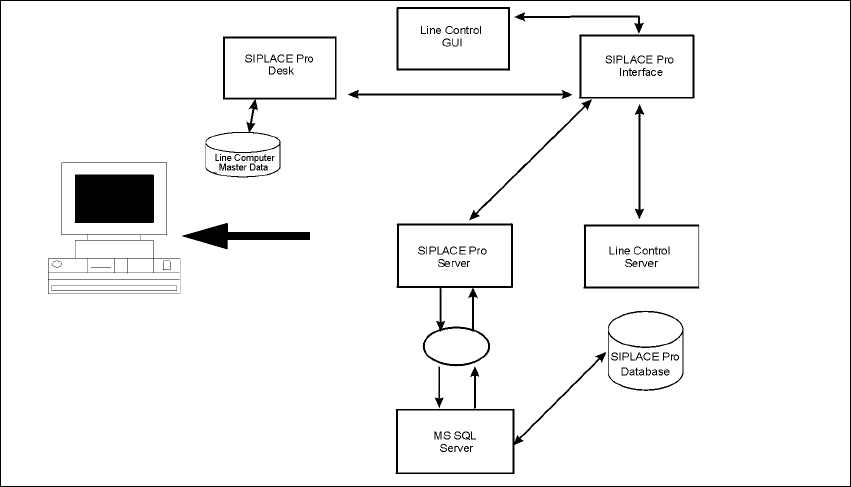
4.3.2 Setup Type – SIPLACE Pro Complete System
This setup type contains all SIPLACE Pro components for operating the system on a single com-
puter. Setup detects if SQL Server has already been installed.
4
Fig. 4.3 - 2 Components – SIPLACE Pro Complete Installation
Select this type to install all SIPLACE Pro system components (Programming system, LC GUI, LC
Server) on one computer as described here. Even if you choose this Setup type, it is possible to
integrate further clients on other computers.
Step 1
Run through the steps in “Starting installation – first steps” on page 21.
Select the SIPLACE Pro complete system setup type
Click Next.
Step 2
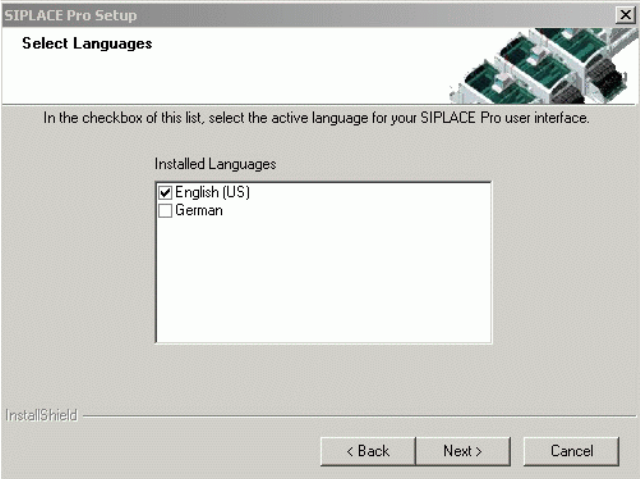
In the "Select languages" dialog box, select the languages you want to install to make them avail-
able for the applications. In addition, select which language should be active first.
You can switch the active language subsequently in SIPLACE Pro Desk and Line Control to any
other language installed.
Setup
4 Installation of SIPLACE Pro and possible Setup Types Installation Manual
Edition 09/2012 SIPLACE Pro 10.1
31
4
Fig. 4.3 - 3 "Select Languages" dialog box
Select the check box of the language with which the installed applications like SIPLACE Pro
Desk should start first.
Click Next.