00197191-02_IM_SIPLACE_Pro_10.1_EN.pdf - 第39页
4 Installation of SIPLACE Pro and possible Setup Types Installation Manual Edition 09/2012 SIPLACE Pro 10.1 37 4 Fig. 4.3 - 9 InstallShield Wizard Complete dialog box
Installation Manual 4 Installation of SIPLACE Pro and possible Setup Types
SIPLACE Pro 10.1 Edition 09/2012
36
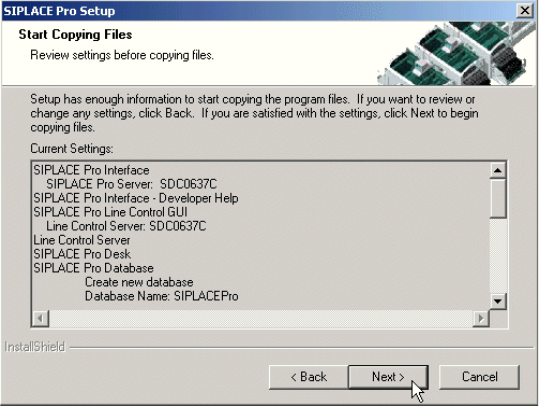
Step 6
The "Start Copying Files" dialog box gives you a last chance to check the information you have
entered during the previous steps.
4
Fig. 4.3 - 8 The "Start Copying Files" dialog box
Click Next if you accept all the information entered so far.
If you want to alter one or more details, click the Back button until you get back to the dialog
box in question.
There, enter your changes and click Next to continue as usual.
Step 7
The installation routine is now started. If SIPLACE Pro Server is selected for installation, one of
the installation steps requires a valid license of SIPLACE Pro on this computer. If no such license
is detected, the License Manager application will be started automatically to view or enter a
license key during the completion phase of the SIPLACE Pro installation. If no license is available
at that moment, the SIPLACE License Manager may be closed without entering a license. In this
case the system feeder import cannot be performed by the installation automatically and you are
required to invoke this application manually later on (a shortcut will be created in the subfolder
"Administration" of the SIPLACEPro start menu).
For more detailed information on entering the license key, please refer to the documentation of
SIPLACE License Manager, contained on the Support Media DVD.
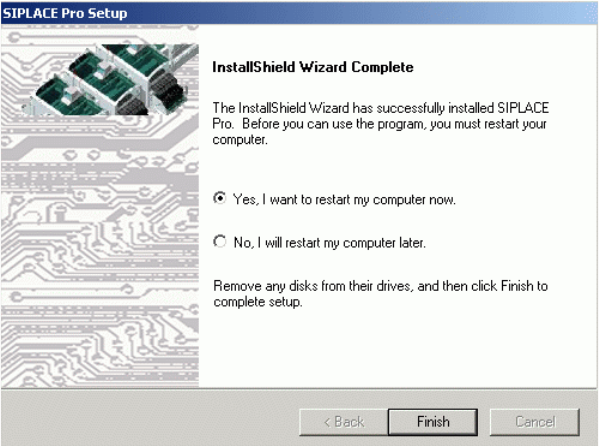
Step 8
The InstallShield Wizard Complete window confirms that the setup has finished installing
SIPLACE Pro on your computer
If you are prompted to reboot the computer, be sure the CD is still in the drive and leave it there
until the computer has completely rebooted and the post boot steps are finished. In order to run
the post boot steps you must log in with the same account after reboot.
4 Installation of SIPLACE Pro and possible Setup Types Installation Manual
Edition 09/2012 SIPLACE Pro 10.1
37
4
Fig. 4.3 - 9 InstallShield Wizard Complete dialog box
Installation Manual 4 Installation of SIPLACE Pro and possible Setup Types
SIPLACE Pro 10.1 Edition 09/2012
38
4.3.3 Setup Type – SIPLACE Pro Desk
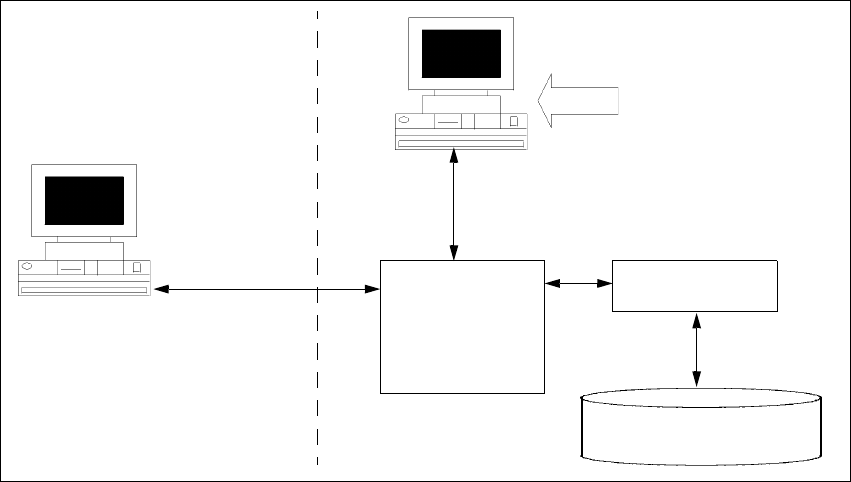
This setup type only contains a "Client" portion of SIPLACE Pro, i.e. the user interface. The
SIPLACE Pro Desk setup requires that the SIPLACE Pro server has already been installed either
locally or remotely. The SIPLACE Pro Desk setup type is used in a distributed system in order to
create additional programming desks which are only operational together with the server.
4
Fig. 4.3 - 10 Components – SIPLACE Pro Desk (sample configuration)
Step 1
Run through the steps in “Starting installation – first steps” on page 21.
Select the SIPLACE Pro Desk setup type.
Click Next.
Step 2
– You are prompted to enter the name of the computer where SIPLACE Pro Server is running.
MS SQL Server with
SIPLACE Pro Server and
Database pre-installed
SIPLACE Pro
Desk
SIPLACE Pro
Interface
Setup
COM+
Resource
Manager
COM+
Line computer
master data