00197191-02_IM_SIPLACE_Pro_10.1_EN.pdf - 第49页
4 Installation of SIPLACE Pro and possible Setup Types Installation Manual Edition 09/2012 SIPLACE Pro 10.1 47 4.3.8 Setup T ype – SIPLACE Pro Server This setup type cont ains the "Serve r" portion of SIPLACE P…
Installation Manual 4 Installation of SIPLACE Pro and possible Setup Types
SIPLACE Pro 10.1 Edition 09/2012
46
4.3.7 Setup Type – SIPLACE Pro Programming System
This setup type contains all the components of SIPLACE Pro except for the Line Control System,
and enables the programming system to be operated on a single computer (SIPLACE Pro Desk,
Server and Database). It is designed to be used only for programming without download function
on that computer.
4
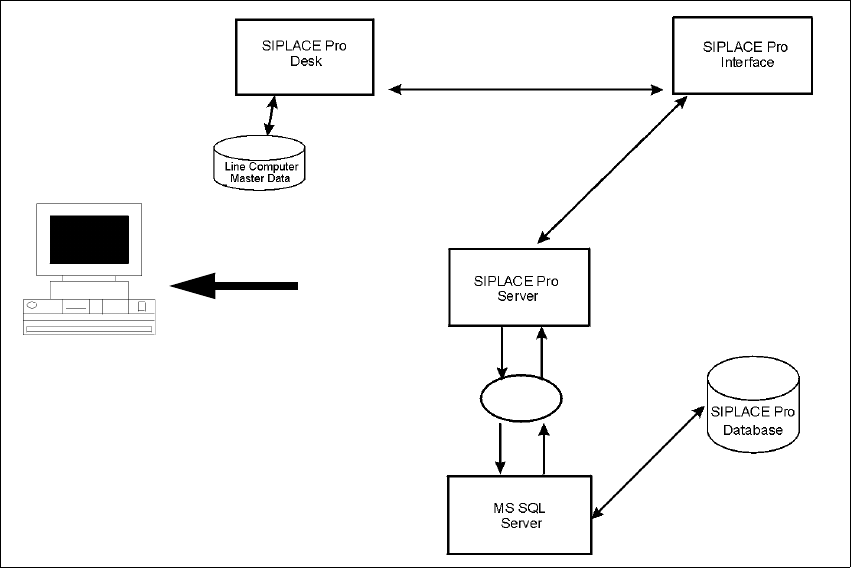
Fig. 4.3 - 17 Components – SIPLACE Pro Programming System
Step 1
Run through the steps in “Starting installation – first steps” on page 21.
Select the SIPLACE Pro Programming System setup type.
Click Next.
The subsequent steps are identical to the SIPLACE Pro complete system. Only the components
for Line Control are not installed.
Step 2
Continue by running through the steps described in “Setup Type – SIPLACE Pro Complete
System” on page 30.
Setup
4 Installation of SIPLACE Pro and possible Setup Types Installation Manual
Edition 09/2012 SIPLACE Pro 10.1
47
4.3.8 Setup Type – SIPLACE Pro Server
This setup type contains the "Server" portion of SIPLACE Pro, i.e. the server program and the
database. The "SIPLACE Pro Server" setup type is designed to be used if you want to separate
server and client in order to improve performance.
4
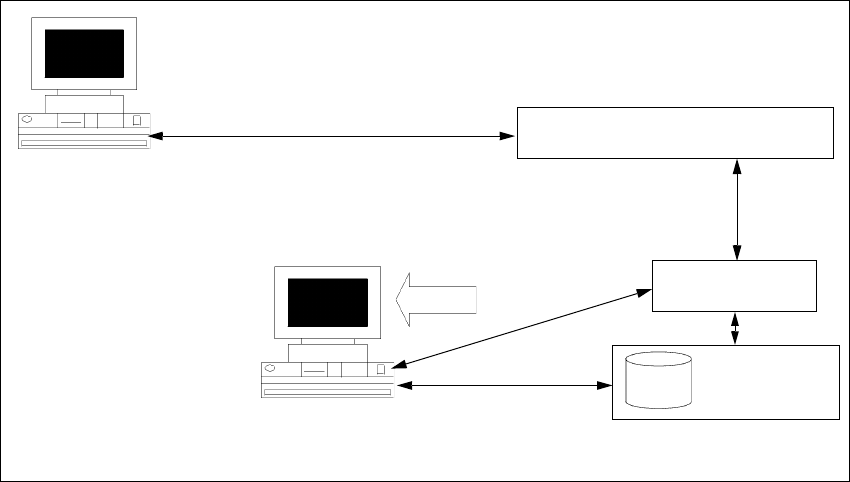
Fig. 4.3 - 18 Components – SIPLACE Pro Server
Step 1
Run through the steps in “Starting installation – first steps” on page 21.
Select the SIPLACE Pro Server setup type.
Then click Next.
The installation routine now checks whether:
– there is a connection to the SQL Server,
– whether a SIPLACE Pro database exists.
The subsequent steps are identical to the SIPLACE Pro complete system.
Step 2
Continue by running through the steps described in “Setup Type – SIPLACE Pro Complete
System” on page 30.
MS SQL Server pre-installed
Client computer with
SIPLACE Pro Desk or
Line Control GUI
SIPLACE Pro
Database
SIPLACE Pro
Interface
SIPLACE Pro
Server
Setup
COM+
COM+
OLE-DB
Resource
Manager

Installation Manual 4 Installation of SIPLACE Pro and possible Setup Types
SIPLACE Pro 10.1 Edition 09/2012
48
4.4 Steps to perform after installation
Note
After a new installation of the database, it is necessary to import the standard shape library in
SIPLACE Pro desk go to Tools-->Import-->Standard Shape Library... This step is required any-
way for you to use SIPLACE Pro and it ensures that data is available to be used for reporting.
After having upgraded the database from a previous version (see chapter 5 below) it is not nec-
essary to import data from the component shape library. 4