00197191-02_IM_SIPLACE_Pro_10.1_EN.pdf - 第54页
Installation Manual 5 Installation of SIPLACE Pro Language Pack SIPLACE Pro 10.1 Edition 09/2012 52 5 Fig. 5.1 - 6 "InstallShield Wizard Complete" dialog box Click Finish . When setup has completed, you will …
5 Installation of SIPLACE Pro Language Pack Installation Manual
Edition 09/2012 SIPLACE Pro 10.1
51
5
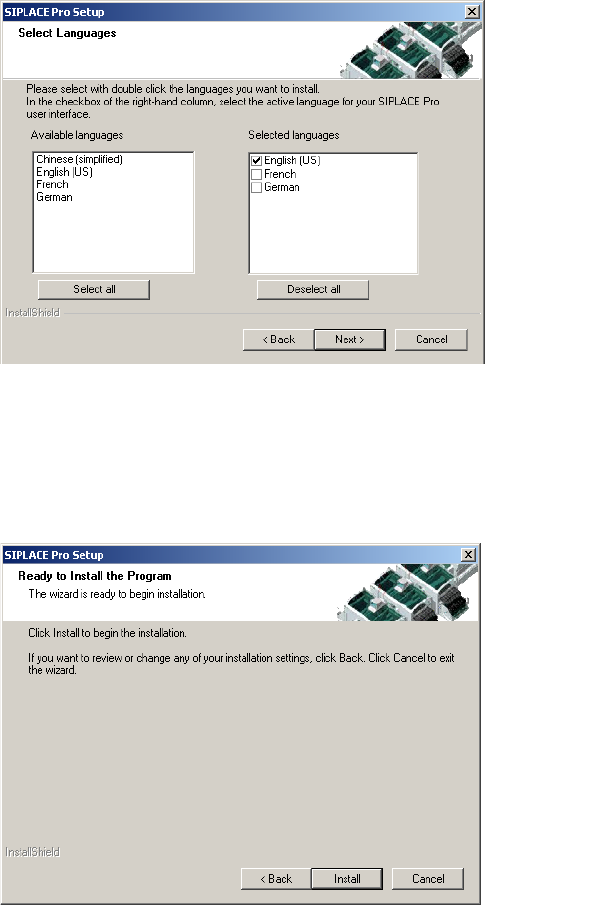
Fig. 5.1 - 4 "Select Languages" dialog box
Click Next.
You are prompted to the following dialog box. The "Ready to Install the Program" dialog box gives
you a last chance to alter the information you have entered during the previous steps.
5
Fig. 5.1 - 5 "Ready to install the Program" dialog box
Click Install.
If you want to alter one or more details, click the Back button until you get back to the dialog
box in question.
Installation Manual 5 Installation of SIPLACE Pro Language Pack
SIPLACE Pro 10.1 Edition 09/2012
52
5
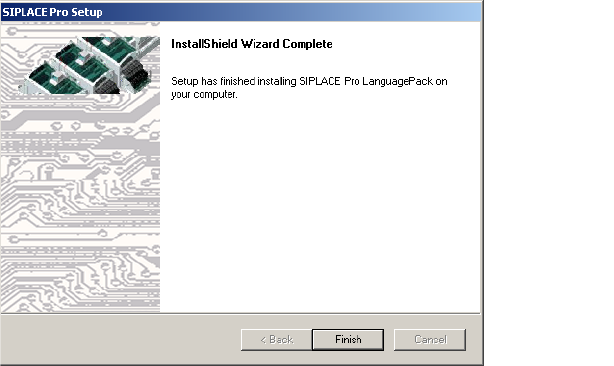
Fig. 5.1 - 6 "InstallShield Wizard Complete" dialog box
Click Finish.
When setup has completed, you will have English, German and the language(s) you selected
available in the SIPLACE Pro applications.
You can switch to the other language(s) by opening in SIPLACE Pro:
- the Desk and going to Tools -> Change language or by opening
- the Line Control GUI and going to Options, Languages.
5 Installation of SIPLACE Pro Language Pack Installation Manual
Edition 09/2012 SIPLACE Pro 10.1
53
5.2 Compatibility of SIPLACE Pro Language Packs
5.2.1 Version handling
Before installing the Language Pack SIPLACE Pro checks if the Language Pack version and the
SIPLACE Pro basic version are compatible. The following use cases are possible.
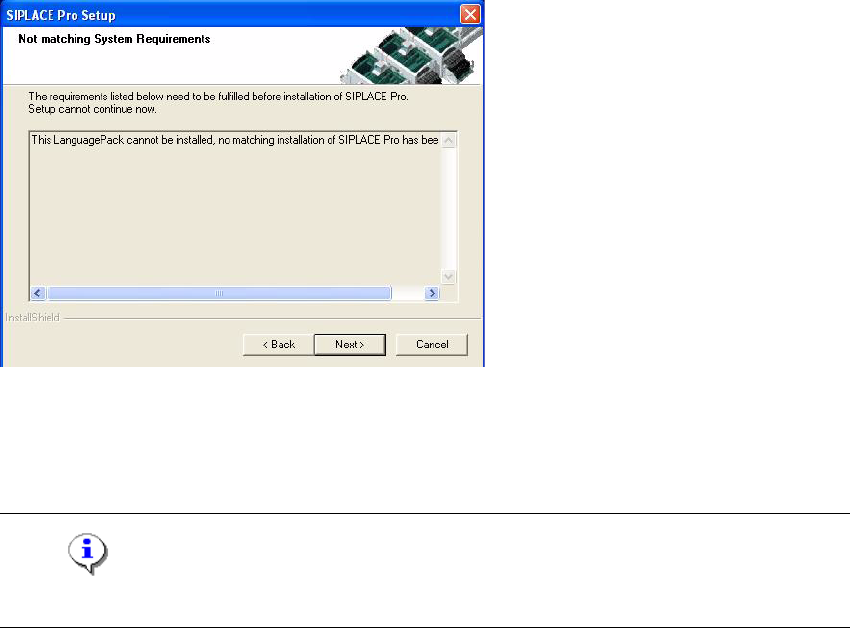
Case A: 5
Language Pack version is not compatible to the basic SIPLACE Pro installation.
5
Fig. 5.2 - 1 Non compatible Language Pack
Solution: Make sure that you have installed the compatible basic SIPLACE Pro version or that
you install the language pack version that is compatible to the basic product version.
Note
This dialog is displayed also if you have no SIPLACE Pro installed at all. 5