00192211-02_RI_ObliqueLighting - 第30页
Retrofit Instructions Oblique Lighting for SIPLACE 80 S-20 /F4/S-23/ F5 /HS-50/HF 8.5 Moving In the Component Changeover Table 05/15 Issue 32 ► Exit the editing box and exit the settings box with "Accept". ► Re…
Oblique Lighting for SIPLACE 80 S-20 /F4/S-23/ F5 /HS-50/HF Retrofit Instructions
05/15 Issue 8.5 Moving In the Component Changeover Table
31
9Software
9
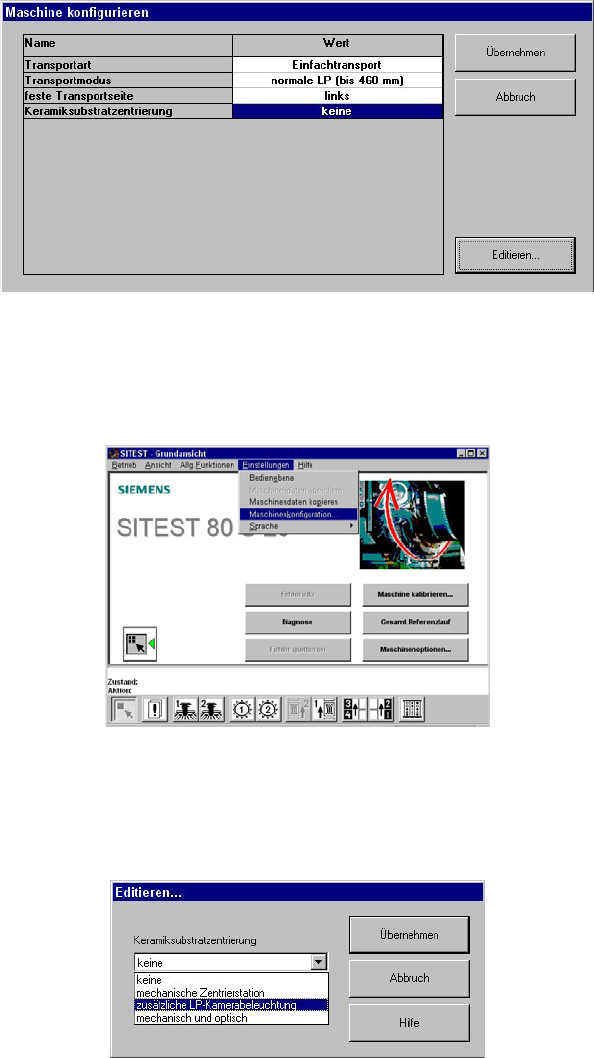
Fig. 9.0.1 Menu: "Configure the Machine"
► At the station computer, select "Settings" in the SITEST program and then "Machine configu-
ration".
9
Fig. 9.0.2 SITEST Program Menu: "Basic View of Machine"
► Mark "Ceramic substrate centering" with a double click and then mark the option "Additional
PCB camera lighting" in the editing box.
9
Fig. 9.0.3 Menu: "Ceramic Substrate Centering"
Retrofit Instructions Oblique Lighting for SIPLACE 80 S-20 /F4/S-23/ F5 /HS-50/HF
8.5 Moving In the Component Changeover Table 05/15 Issue
32
► Exit the editing box and exit the settings box with "Accept".
► Reboot the station computer (the reconfiguration does not take effect until this has been done).
The oblique lighting will then be ready to use. 9
Oblique Lighting for SIPLACE 80 S-20 /F4/S-23/ F5 /HS-50/HF Retrofit Instructions
05/15 Issue 8.5 Moving In the Component Changeover Table
33
10 HS-50
To activate "oblique lighting blue", you must proceed as follows: 10
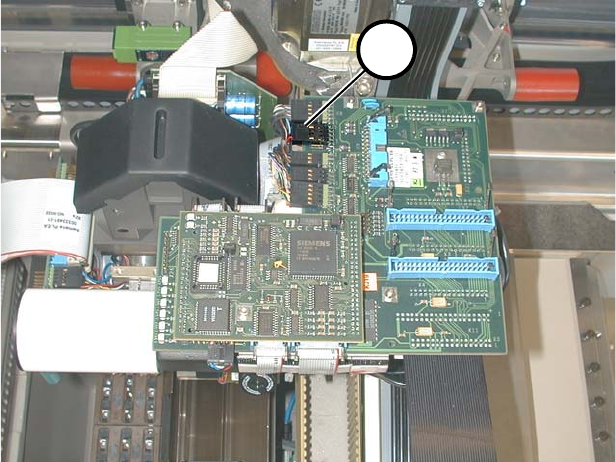
► Unplug the 8-pin connector (1 in Fig. 10.0.1 and 10.0.2) of the standard lighting.
10
Fig. 10.0.1 S50: 8-Pin Connector of the Standard Lighting
1
2
1