00195166-0402_SM_D4_EN.pdf - 第60页
Service Work Electrical System Axis Unit 60 Serv ice Manual SIPLACE D4 Replacing the A364 Axis Ca rd X End all pla cement op erations with the machin e. X Switch the placement syst em off at the main switch. X You can no…
Service Work
Distributors in Sectors 1-4 Electrical System
Service Manual SIPLACE D4
59
4.1.3 Distributors in Sectors 1-4
4.1.3.1 Replacing parts
The assemblies are located behind the covers in the relevant sectors. The assemblies are fixed to profile
rails and are connected via terminal strips.
X Undo and remove the fastening screws from the relevant cover. Remove the cover.
X Mark the assembly connections for later reference.
X Loosen the assembly connections.
X Lift the assembly off the profile bar. Loosen any fastening screws.
4.1.4 Axis Unit
4.1.4.1 Replacing parts
X End all placement operations with the machine.
X Switch the placement system off at the main switch.
X You can now access the axis unit at the required location (1/4 or 2/3).
Complete Axis Unit
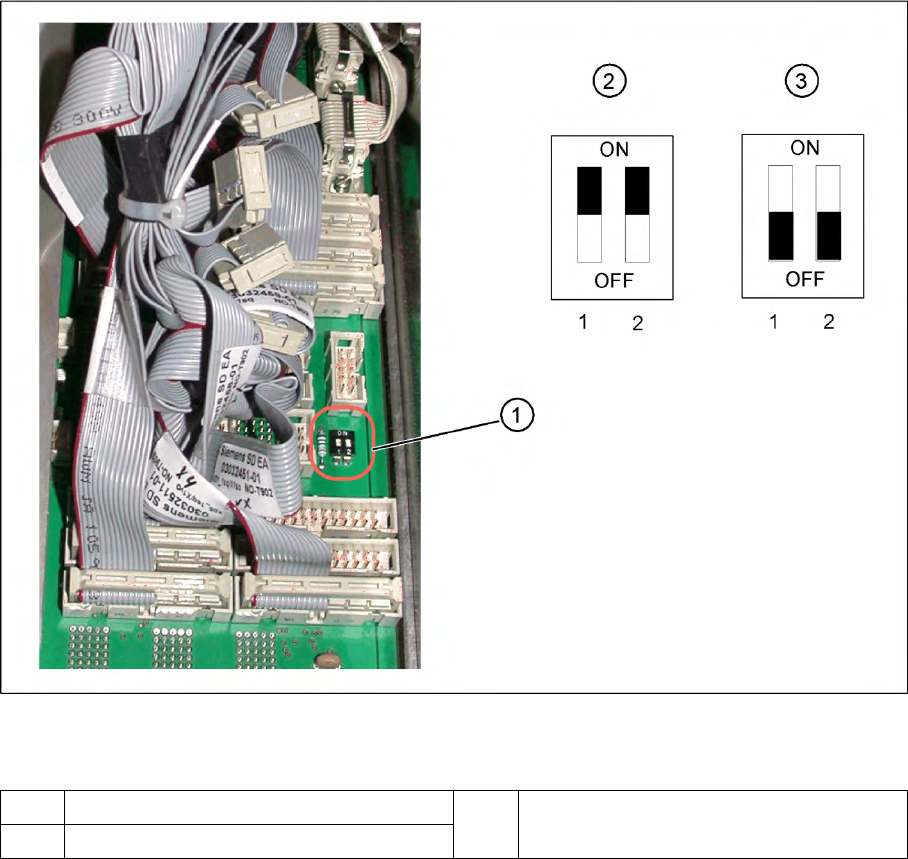
4-7: DIP switch on the backplane
Legend
If the axis unit has been replaced, you will need to configure the axis unit for the relevant installation
position. This involves adjusting the DIP switch on the backplane accordingly.
1 Position of DIP switch on the backplane 3 Setting for axis unit at location 2/3
2 Setting for axis unit at location 1/4
Service Work
Electrical System Axis Unit
60 Service Manual SIPLACE D4
Replacing the A364 Axis Card
X End all placement operations with the machine.
X Switch the placement system off at the main switch.
X You can now access the axis unit at the required location (1/4 or 2/3).
X Loosen the screws holding the relevant axis card.
X Remove the axis card from the unit by moving the release lever up and down.
X Insert the new axis card and push the assembly in (you will feel a slight resistance) until it engages
and then tighten the two fastening screws.
X Switch the machine on again.
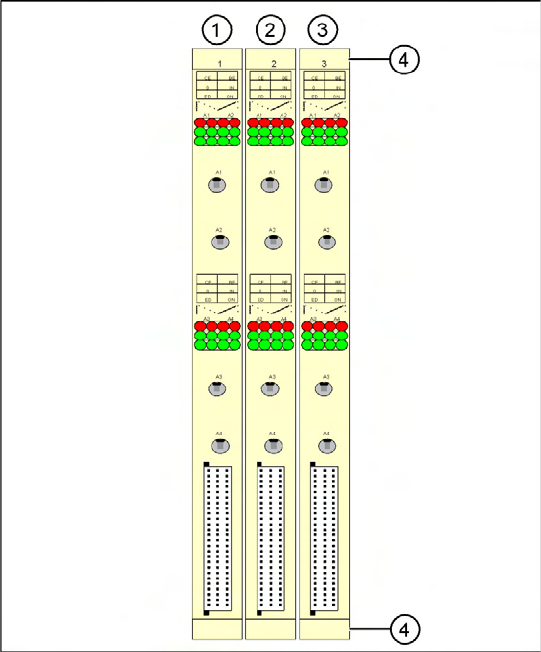
4-8: A364 axis cards on the D2/D4
Legend for D4
Gantry numbers for PA1 (in brackets for PA2)
1. X ,Y , star and Z axis for gantry 1 (2)
2. X ,Y , star and Z axis for gantry 4 (2)
3. DP axis for gantry 1 and 4 (2 and 3)
4. Release lever with screwed connection
Service Work
Axis Unit Electrical System
Service Manual SIPLACE D4
61
Firmware download
Replacing the Servo Card
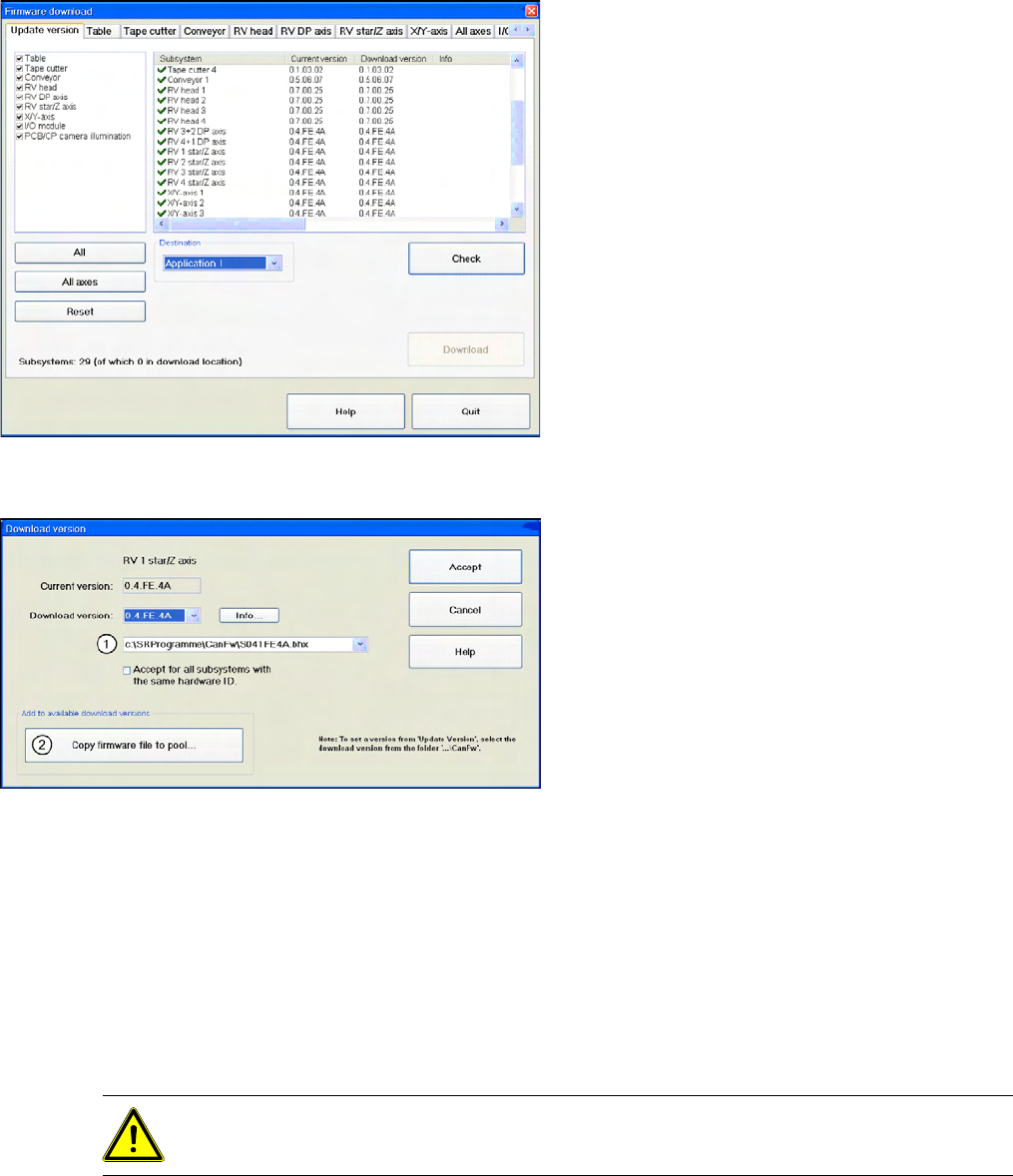
4-9: Overview of firmware download
X Start SITEST.
X Download the firmware for the relevant axes.
To do this, select "Settings" from the SITEST
menu bar and then "Firmware Download".
4-10: Firmware download
In the CAN FW folder there are all current
Firmware versions of all axes, tables etc.
Legend
1. The system checks this folder, to see whether
there is a newer version of the firmware for the
respective axis, table etc.. If there exist a new
firmware version, this new version will be
offered and could be downloaded for example
to the star- axis.
2. You can also copy a new firmware version
manually into the CAN FW folder. Click on
Copy firmware file to pool
. An Explorer menu
will open, in which you can directly copy the
new firmware version from a USB stick etc.
into the CAN FW folder. The firmware version
you selected will now be available in the
selection menu (see item (1)).
CAUTION:
TBS servo for the star axis of the DLM3 head.