00194591_02.pdf - 第15页
Installation Manual SIPLACE Setup Center RF 2.1 3 Installation Edition 09/2005 EN 3.3 Installation of SIPLACE Setup Center and Possible Setup Types 15 Note This decision only relates to the language used dur ing the inst…
3 Installation Installation Manual SIPLACE Setup Center RF 2.1
3.3 Installation of SIPLACE Setup Center and Possible Setup Types Edition 09/2005 EN
14
3.3 Installation of SIPLACE Setup Center and Possible
Setup Types
Three setup types are available for installation to install the required system components on the
specific computer. 3
The following setup types can be selected: 3
– SIPLACE Setup Center GUI
– SIPLACE Setup Center Database
– SIPLACE Setup Center Complete
3.3.1 Starting Installation - First Steps
These steps are identical for all setup types. The subsequent steps only differ once you have se-
lected the setup type you require. 3
Run through the following steps to start the installation and then refer to the relevant section for
your specific setup type. 3
3.3.1.1 Step 1
→ Insert the SIPLACE Setup Center installation CD into the CD-ROM drive. The installation rou-
tine starts automatically.
→ You can also start the installation by running the Setup.exe program located in the root direc-
tory on the installation CD.
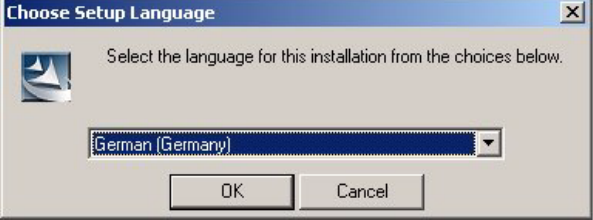
This starts the user-controlled installation of SIPLACE Setup Center; you are prompted to se-
lect the installation language. 3
3
Fig. 3.3 - 1 "Choose Setup Language" dialog box
→ Select the language you want.
→ Click OK.
Installation Manual SIPLACE Setup Center RF 2.1 3 Installation
Edition 09/2005 EN 3.3 Installation of SIPLACE Setup Center and Possible Setup Types
15
Note
This decision only relates to the language used during the installation routine. 3
3.3.1.2 Step 2
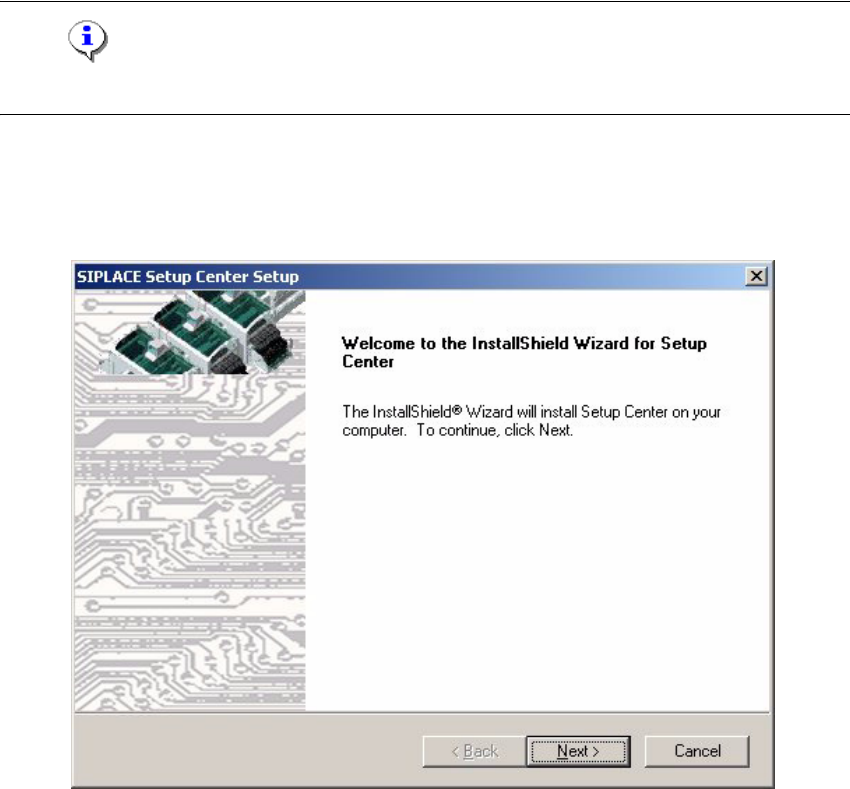
→ The InstallShield Wizard will guide you through the program setup process.
3
Fig. 3.3 - 2 InstallShield Wizard box for SIPLACE Setup Center
→ Click Next.
3 Installation Installation Manual SIPLACE Setup Center RF 2.1
3.3 Installation of SIPLACE Setup Center and Possible Setup Types Edition 09/2005 EN
16
3.3.1.3 Step 3
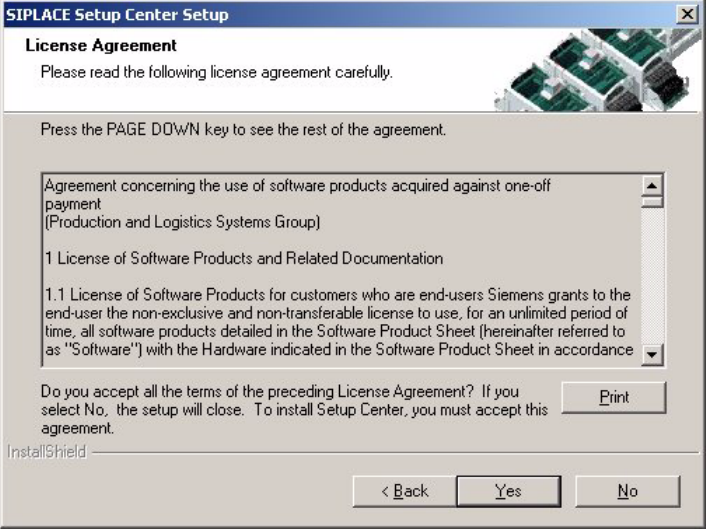
→ Read the license agreement of Siemens AG relating to use of this software.
3
Fig. 3.3 - 3 "Software License Agreement" dialog box
→ The installation routine continues if you click the Yes to accept the license agreement.
→ Clicking No cancels the installation.
→ Clicking Print will print the License Agreement on the default printer of the PC.